Why LAFC Builds a Personalized Sports Sponsorship Pitch Deck for Every Conversation


Choosing the best presentation tool for your team can sometimes be more challenging than creating an actual presentation.
Even if you’re the type of person who reads reviews before making a purchase decision, it’s still easy to feel stuck before making the leap.
To make it easier on you, we dug deep and compared Visme with Beautiful.ai, a presentation software we’re often compared to.
In short, both tools are great presentation makers, but Visme stands out for its massive template library, advanced features, and robust branding options.
But that’s just the tip of the iceberg.
In this guide, we break down their key features, strengths, and differences so you can confidently choose the best fit for your needs.
Let’s dive in!
Table of Contents
*Disclaimer: The comparisons and competitor ratings presented in this article are based on features available as of May 22, 2026. We conduct thorough research and draw on both first-hand experience and reputable sources to provide reliable insights. However, as tools and technologies evolve, we recommend readers verify details and consider additional research to ensure the information meets their specific needs.
I put together a table for you to quickly run through and learn about the differences of each presentation maker at a glance. Each row is one section in the full guide below.This comparison piece focuses only on Visme vs. Beautiful.ai. If you’re undecided and looking for information about other tools, visit our comparison pages.
| Feature | Beautiful.ai | Visme |
|---|---|---|
| Templates | 100+ templates across 15 categories, paid plan only | 1,000+ templates across 20+ categories |
| Themes | Custom Theme Builder, 15 themes, 300+ Smart Slide layouts | 5 distinct themes with 70–800+ slide layouts each |
| The Editor | Smart Slides (auto-adjusting) + Classic Slides (paid only) | Free-form canvas on every plan + Smart Blocks for auto-adjusting layouts |
| Branding | Team Theme + Brand Kit on Team/Enterprise plans only | Full Brand Kit with Brand Wizard, multi-brand support and stricter enforcement controls |
| Asset Library | Icons, stock images/videos, no 3D or characters | 1M+ stock assets, 3D graphics, customizable characters and avatars, drawing tool |
| AI Tools | DesignerBot, Smart Slides AI, AI image generator (paid only) | AI Presentation Maker, AI Designer, AI Writer, AI Image Generator, Brand Wizard, AI Resize, Text-to-Speech (free plan: 10 credits/month) |
| Interactivity | Hyperlinks on text only, no interactive objects | Hotspots, pop-ups, hover effects on any element, audio/video attachments |
| Animation | 4 animation modes, fixed style per layout, no transitions or timeline | 14 enter/exit effects, full per-element control, slide transitions, timeline editor |
| Data Visualization | 35 chart/graph layouts, limited customization | 20+ chart types, 30+ data widgets, interactive maps, live data sync |
| Team Collaboration | Real-time editing and comments on Team/Enterprise plans only | Real-time editing, task assignments, approval workflows, content calendar |
| Sharing & Exporting | PDF, PNG, PPT, Google Slides (editable PPT on paid only) | PDF, PPT, HTML5, GIF, video, SCORM/xAPI, QR codes and password-protected links |
| Customer Support | Email/ticket support, 24–48hr response, no live chat | 24/7 live chat, ticket support and dedicated account management for Enterprise |
| Lead Generation | Not available | Collect leads via registration gates or embedded forms |
| Analytics | Paid plans only: views, completion rate and average view time | Free and paid: views, completion rate, visitor location, IP, date/time |
| Pricing | From $12/month, no free plan, credit card required for trial | Free plan available, paid from $12.25/month, no credit card needed |
| G2 Rating | 4.7/5 based on 190+ reviews | 4.5/5 based on 480+ reviews |
Templates are the easiest way to start a presentation. And yes, designers use templates too; they are that useful. They will save you tons of time.
Not only do they help you create a professional-looking presentation quickly, but they also remove much of the guesswork that comes with starting from a blank canvas.
Both Visme and Beautiful.ai offer presentation and slide templates, but the variety, availability and level of customization differ widely.
| Feature | Beautiful.ai | Visme |
|---|---|---|
| Presentation Template Variety | Hundreds of templates across 15 categories | 1,000+ layouts and themes across 20+ categories |
| Slide Templates | Hundreds of options, but only accessible via a paid plan | Several types available: pre-built theme-based slides, slides from other templates and Smart Blocks in both blank and content-based layouts. |
| Customization Level | Easy customization with lots of guardrails. Can feel limiting if you want to step outside the box. AI-powered editing available on paid plans. Paid users can also convert to Classic Slides for granular placement control. | Fully customizable with manual editing and AI-assisted workflows. Includes smart guides, grids and layout tools to help maintain balanced designs. |
| Branded Template Availability | Yes | Yes |
Beautiful.ai offers around 100 presentation templates, each with several slides. Once inside the editor, individual slides are also offered as singular templates that you can mix and match.
From the user dashboard, you can choose from seven main categories, each with several subcategories. The categories include Startups, Marketing, Business, Sales, Creative and HR/Training.
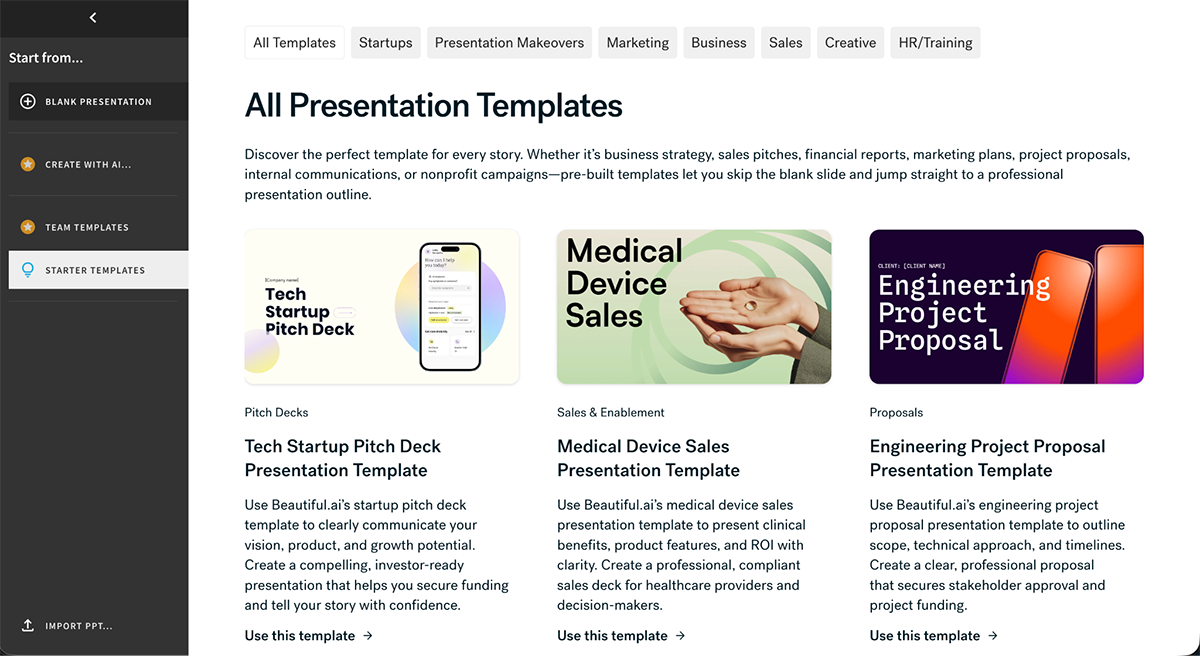
Beautiful.ai templates are built with customizable Smart Slides, but they come with several design guardrails. So what initially seems easy can become limiting over time. The limits are there to help users create perfectly aligned designs, which is fine if that’s what you want.
But if you want to create slides that stray from the norm, the customization capabilities will definitely feel like they dampen your creativity. Higher-tiered plans, though, do offer the option to convert a slide to the “Classic Slide” format for more manual editing capabilities.
Visme offers a broader collection of templates, with over 1,000 presentation templates spanning 20+ categories, including Business, Creative, Product, Research and many others.
Aside from full templates, there are also thousands of slide templates to mix and match however you like.
So, whether you’re creating a pitch deck, educational content, or marketing material, there are plenty of choices.
To find the one that suits your needs, use the filtering system to search by industry or role and browse the options inside each. Then, before you open the template, preview it to see all the slides it contains.
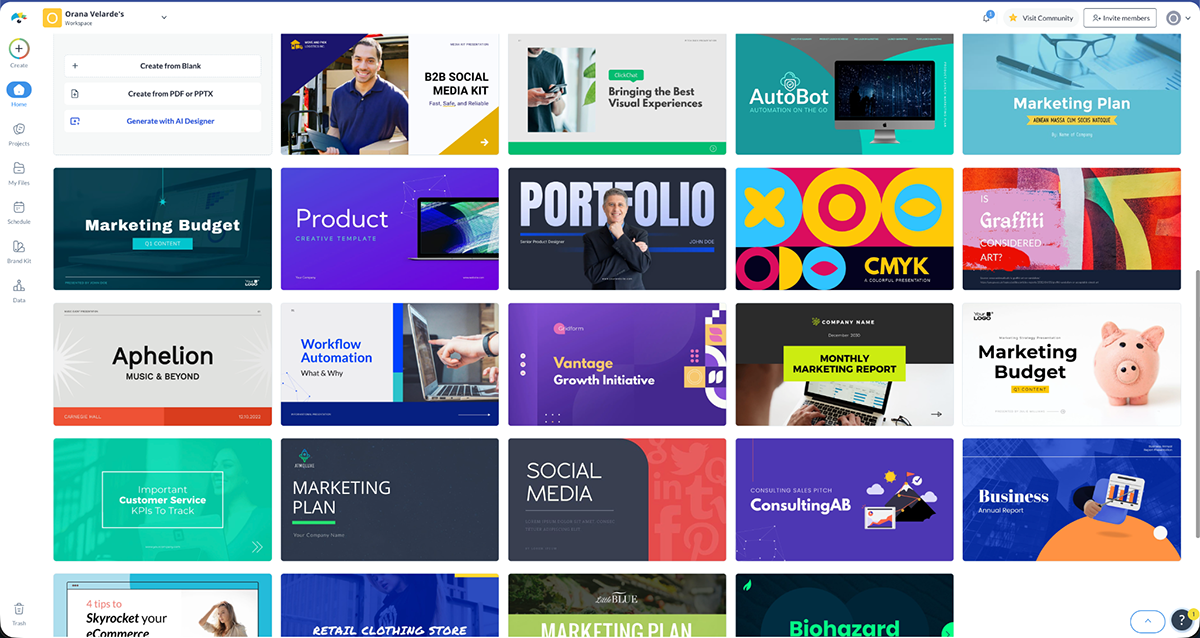
Visme templates are fully customizable in two different ways. Choose the path that’s easiest for you, either using AI or by opening the template in the editor. Beyond being able to easily change colors, fonts and visuals, elements are free to move around the editor however you like.
Themes are a different starting point from templates. Instead of picking a pre-made deck, you choose a visual system and build your presentation from within it.
Both Visme and Beautiful.ai have themes, but they work differently.
| Feature | Beautiful.ai | Visme |
|---|---|---|
| Theme Options | Custom Theme Builder with preset color combinations as starting points | 5 built-in themes: Modern, Simple, Creative, Sleek and Startup Pitch Deck |
| Slide Layouts Per Theme | 300+ Smart Slide layouts applied across any theme | 70 to 800+ slide layouts depending on the theme |
| Customization | Customize colors, fonts, icons and logos. Themes can be saved and reused. | Full control over colors, fonts and visual styling across every theme. |
| Initial Setup | Starts with a title slide in the editor, then presentations are built slide by slide from the layout library. | Starts with a 20+ slide deck already loaded in the editor, then presentations are customized by removing, rearranging or adding slides. |
Beautiful.ai's theme system is built around brand consistency rather than visual variety. Using the Theme Builder, you can set colors, fonts, icons, and logo once and those settings automatically apply to every slide in your deck.
There are 15 different themes to pick from when you choose to start on that path. Each one offers preset color and font combinations as starting points that you can then customize to match your brand or visual style.
On Team plans, you can lock a single shared theme across your entire organization so everyone's decks stay on-brand. The current limit is one theme per organization.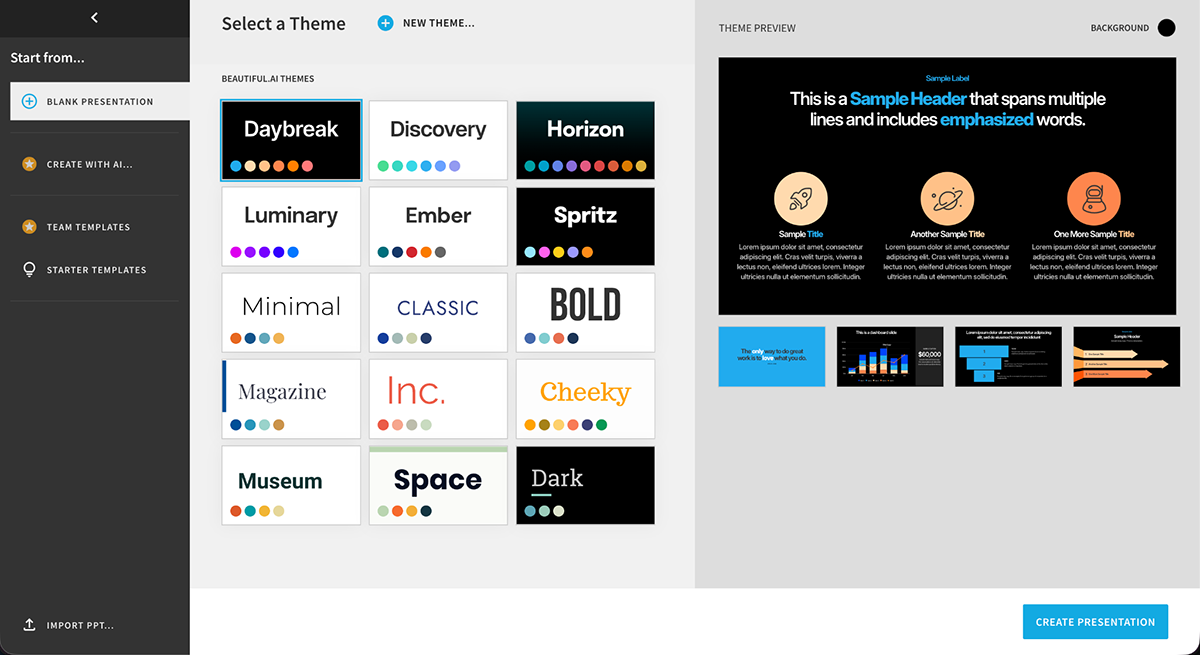
One key difference between templates and themes in Beautiful.ai is worth flagging.. When you start with a template, all the slides appear in the canvas for you to customize. With a theme, only the title slide loads and then you have to pick the rest of the slides from the slide library.
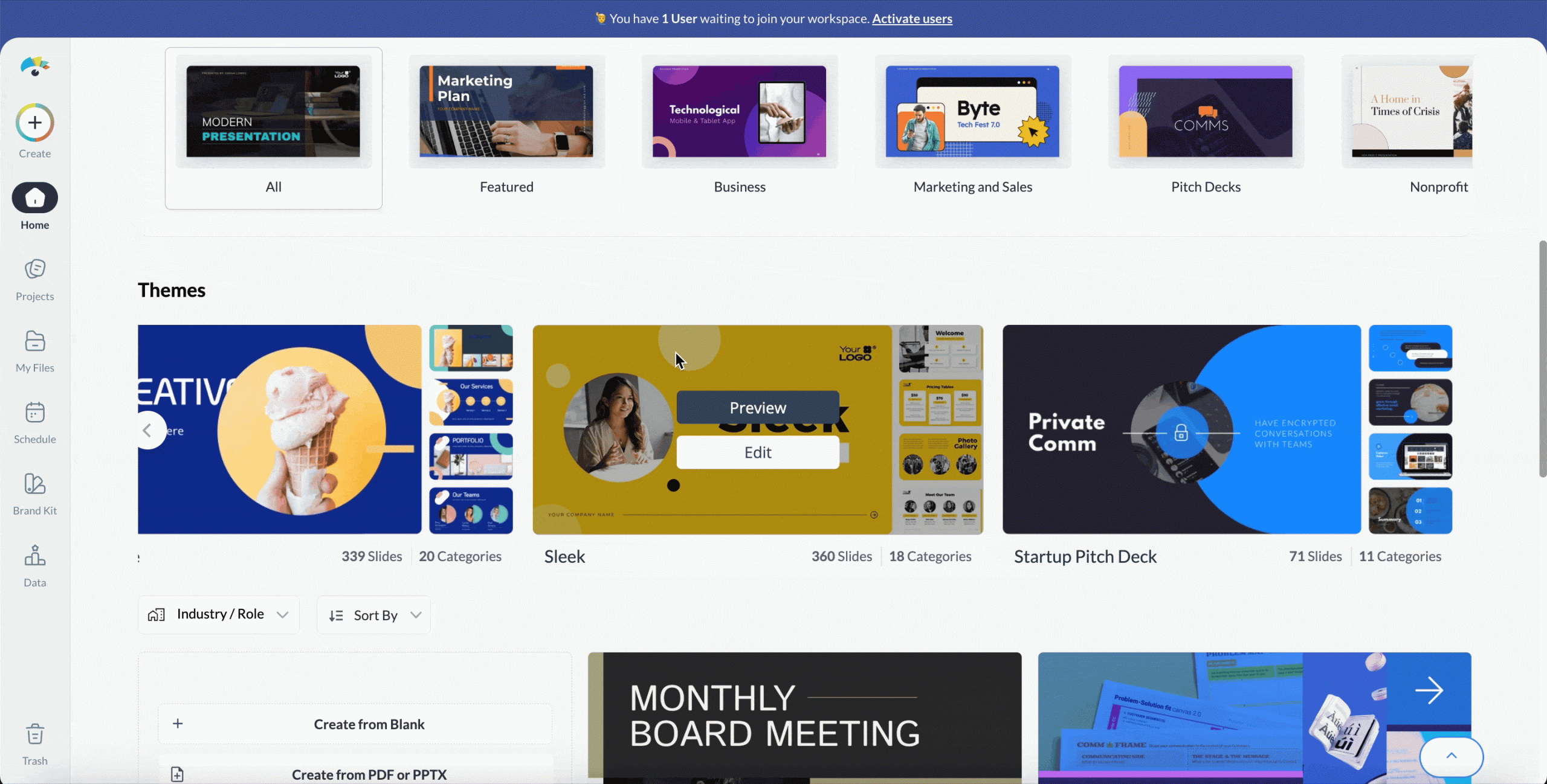
Visme's theme system works differently. There are five distinct themes to choose from, each with its own visual style and a large library of slide layouts.
Since every theme includes numerous layout options, you can build multiple presentations from one theme easily.
Once you've picked a starting point (template or theme), you're in each tool’s editor. This is where the real difference between Visme and Beautiful.ai starts to show up.
For instance, how much control do you actually have over each slide? Let’s take a look.
| Feature | Beautiful.ai | Visme |
|---|---|---|
| Slide Types | Smart Slides (auto-adjusting) and Classic Slides. Classic Slides are free to add as new slides, but converting Smart Slides into Classic Slides requires a paid plan. | Fully free-form canvas on every slide and every plan. Smart Blocks provide auto-adjusting editing across all project types, not just presentations. |
| Element Placement | Fixed positioning in Smart Slides. Free placement available only in Classic Slides. | Place anything anywhere on any slide. Smart Blocks add optional structure and layout guardrails when needed. |
| Slide Navigation | Slide navigator on the left with optional grid view. | Right sidebar with full slide visibility, grid view and the option to hide panels for more canvas space. |
| Alignment Tools | Automatic alignment in Smart Slides. Optional alignment guides and snapping in Classic Slides. | Optional smart guides, grids and snapping on any slide. Automatic alignment when using Smart Blocks. |
| Master Slides | Not available | Save and sync master slides across multiple presentations. |
Beautiful.ai's editor supports two slide types: Smart Slides and Classic Slides, with Smart Slides as the default.
Smart Slides auto-adjust spacing, alignment and layout as you add content. You don't nudge text boxes or resize images manually: the slide handles it for you. There are 300+ Smart Slide layouts to choose from, covering everything from timelines and charts to comparison tables and image grids.
The tradeoff is control. Elements in Smart Slides snap to preset positions. You can reorder them, but you can't place them freely. If you want to break out of the structure entirely, you'll need to convert the slide to a Classic Slide. This option is available only on paid plans and works on a slide-by-slide basis.
Classic slides are not offered front and center; you have to search for them. With a free plan, you can add a blank Classic Slide to your canvas.
Classic Slides give you free-form editing, letting you place, layer and style elements however you want. They also support alignment guides, grouping and layering tools, and Smart components like charts and tables.
The editor includes a slide navigator on the left for full visibility of the presentation, a Control Bar under each slide for quick edits, and a Grid View to see everything at once.
Visme's drag-and-drop editor gives you a free-form canvas on every slide, available with every plan. Move, resize and rearrange any element until it looks exactly the way you want.
If you struggle with alignment, turn on the smart guides, grids and snapping tools to help you. They’re all available under the hamburger menu on the top left above the assets library.
On the right, a sidebar lists all your slides vertically. To switch the order between slides, simply drag them up and down or click the move up, move down function in the slide settings. From this sidebar, add, duplicate, remove or hide slides for added control.
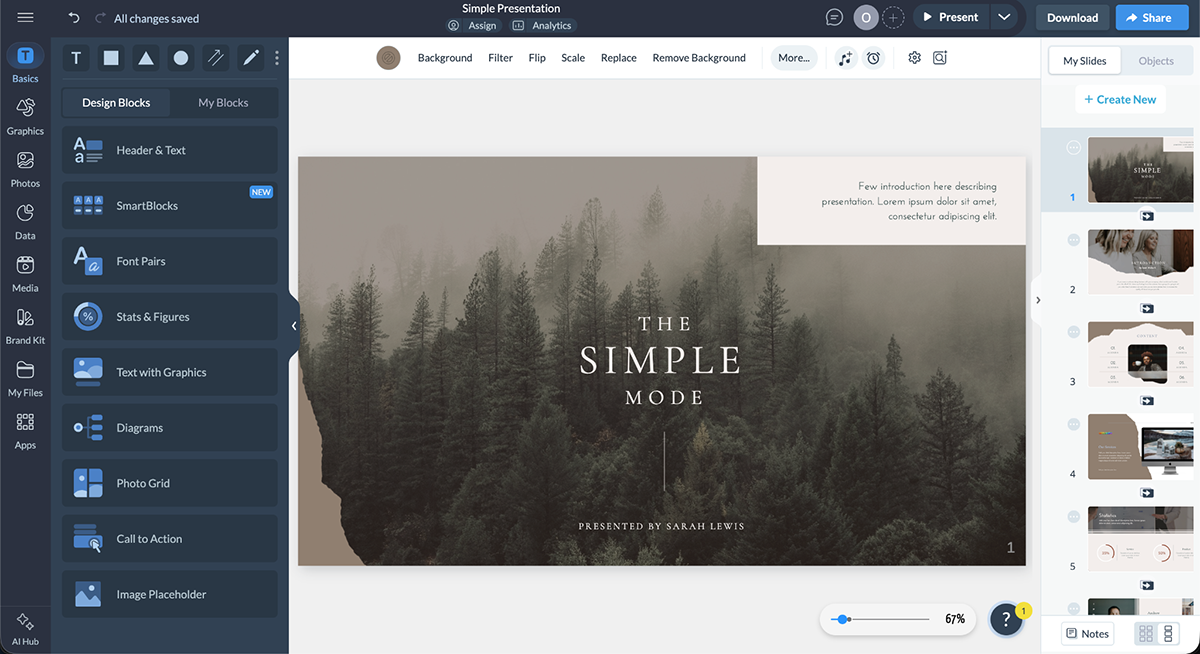
If you need more space on the canvas for designing, hide the sidebar until you need it again. Additionally, at the top of the sidebar is the objects list (which you toggle to view in the hamburger menu). The objects list works like layers in your slide, helping you create depth and control which element is on top of another.
Design Blocks and Smart Blocks
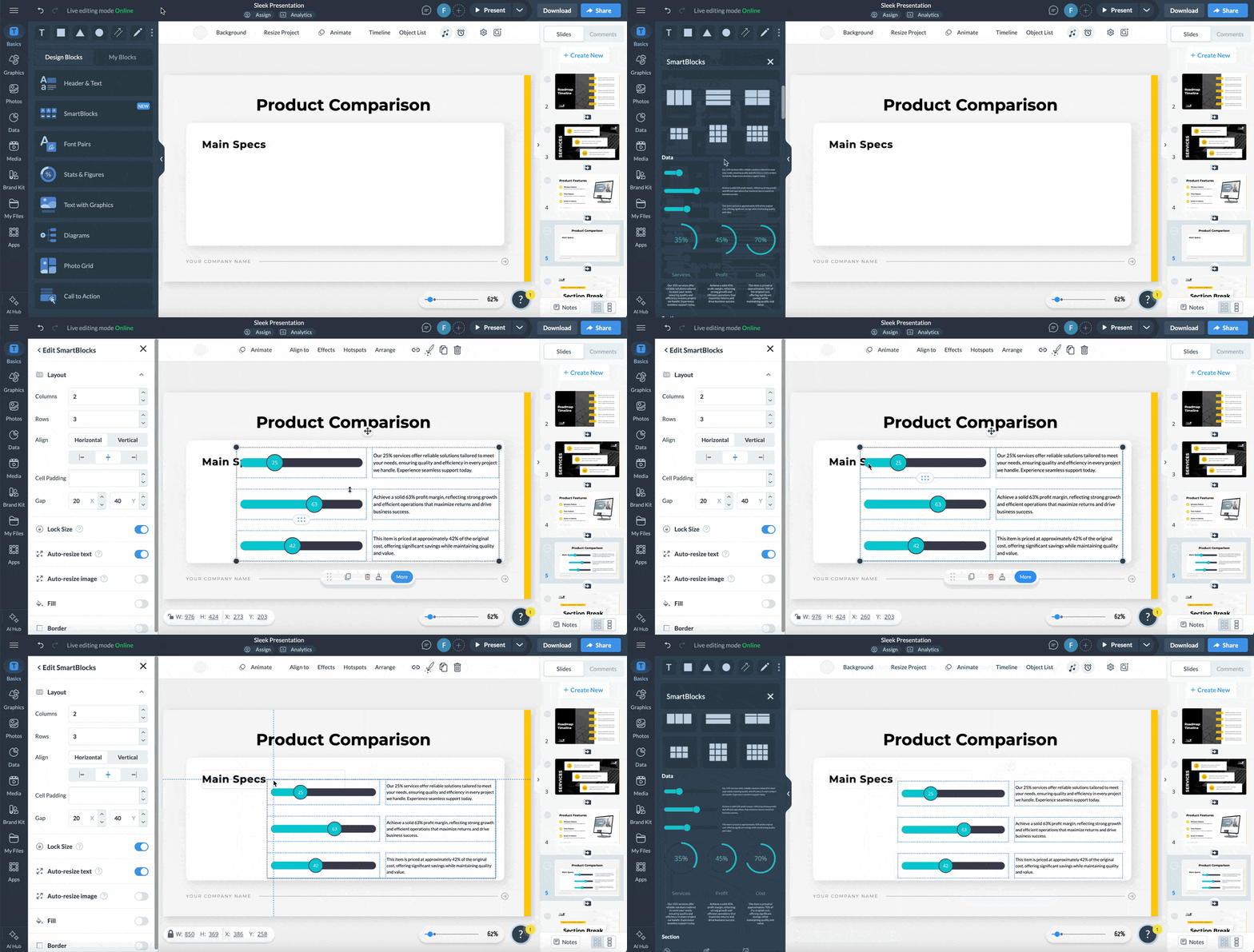
Aside from being able to add new slides from a theme or another presentation template, you also have access to a large selection of pre-built design blocks. They include options such as headers and text, stats and figures, text with graphics, photo grids, calls to action and more. All are fully customizable, like the template and theme slides.
If you need even more control over element adjustments, try Smart Blocks. They are pre-built content sections spanning text layouts, data visualizations, image arrangements and more. The difference between smart blocks and design blocks is that they auto-adjust to your content without breaking the layout.
If you’re giving a business presentation or otherwise representing your company through your slides, you´ll want to ensure everything matches your brand guidelines.
What are the differences between Visme and Beautiful.ai when it comes to branding? There are brand kits, brand templates, brand themes and brand control across both tools. But each one handles it all a bit differently.
Check it out.
| Feature | Beautiful.ai | Visme |
|---|---|---|
| Brand Setup | Custom Theme Builder with colors, fonts, icons, logos and footers. Brand Kit is available on Team and Enterprise plans. | Full Brand Kit with automatic extraction from your website URL. |
| Font Options | Upload custom fonts or use the built-in library. | 100+ free fonts plus custom font upload. |
| Color Palettes and Themes | Custom color palettes via hex or preset combinations. Supports gradients and applies instantly across all slides. | Custom palettes and themes with up to 8 colors each, marked Primary or Secondary. Set via hex, color wheel or extracted from an image or webpage. |
| Brand Templates | Team Templates via shared library on Team and Enterprise plans. | Save any presentation as a branded template for the entire workspace. Branded template generation is also available during setup. |
| Multi-brand Support | Multiple Brand Themes per organization on Enterprise. | Multiple brand kits per workspace. |
| Brand Application | One-click theme application across all slides. | Fast brand application across any project. |
| Brand Enforcement | Lock themes and restrict editing permissions on Team and Enterprise plans. | Access control for brand fonts, theme colors and logo placement, plus the ability to limit which templates the team can use. |
Beautiful.ai's Custom Theme Builder lets you set colors, fonts, icons, logos and footers once, and those settings apply instantly across every slide in your deck. You can build this theme from scratch or edit an existing one.
On Team and Enterprise plans, branding is managed across three connected features. The Team Theme locks your colors, fonts, logos and icons across every presentation in the organization, and updates apply automatically to all existing decks.
Team Assets gives everyone access to a shared library of brand-approved images, GIFs and logos. And Team Templates let teams build from pre-approved decks and slides instead of starting from scratch.
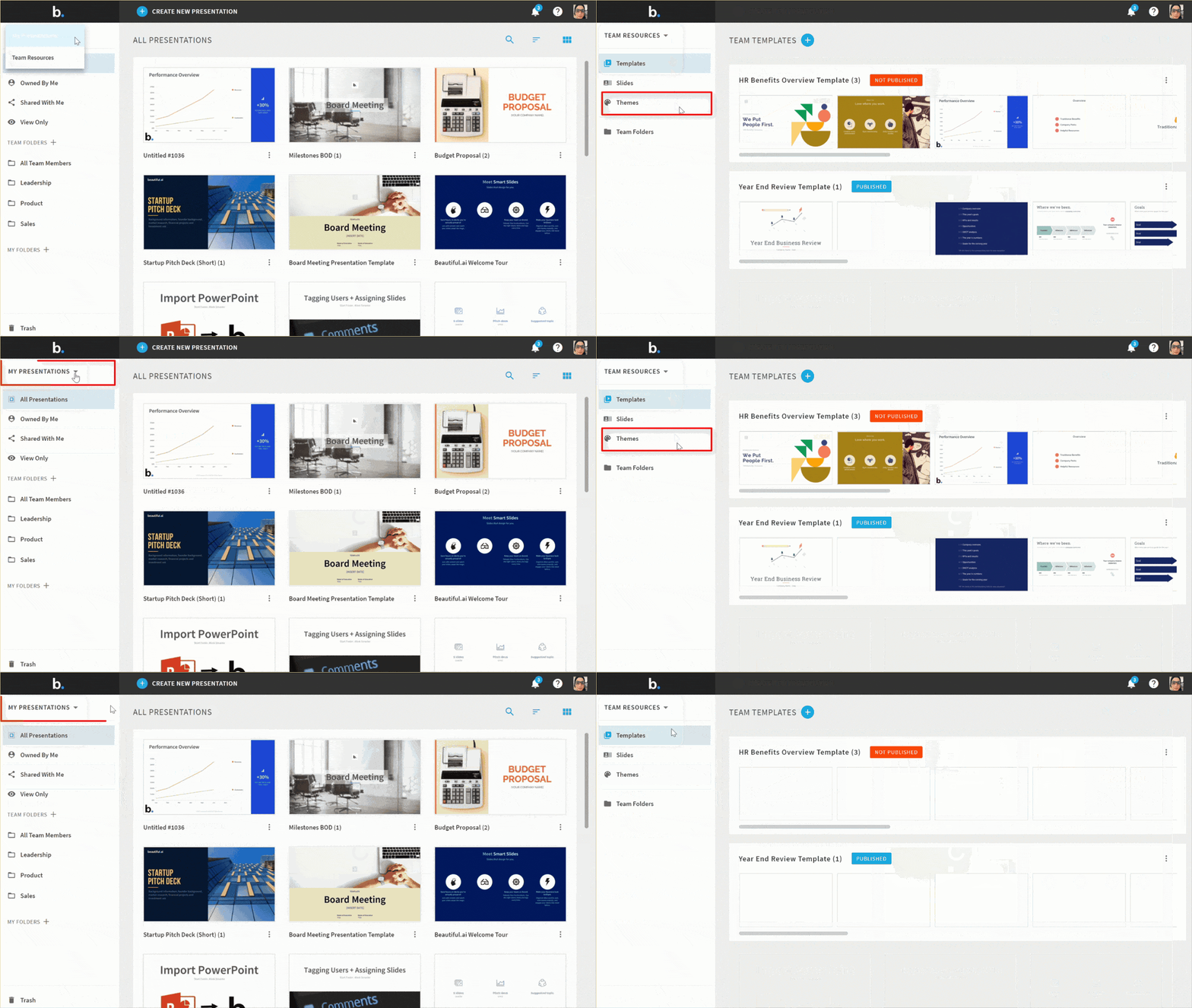
For color specifically, you can build custom palettes using hex values or choose from preset combinations designed by Beautiful.ai's team. Gradients are supported too.
For enterprises managing multiple brands or client accounts, Beautiful.ai supports multiple Brand Kits within a single organization. Team admins can lock themes and restrict editing permissions to prevent members from straying from brand standards.
Setting up your brand in Visme starts in the My Brand area if you already have an account. If you’re just signing up, the wizard will take you through the steps before directing you to the dashboard.
This is how it works. Paste your website URL into the Brand Wizard and it will pull your brand colors, fonts and logo automatically. During the process, you can choose or change things to make it perfect.
The last step in the wizard is to generate brand templates using the assets. When it’s all done, everything is saved in a Brand Kit in your workspace. You can have multiple Brand Kits in a single workspace.
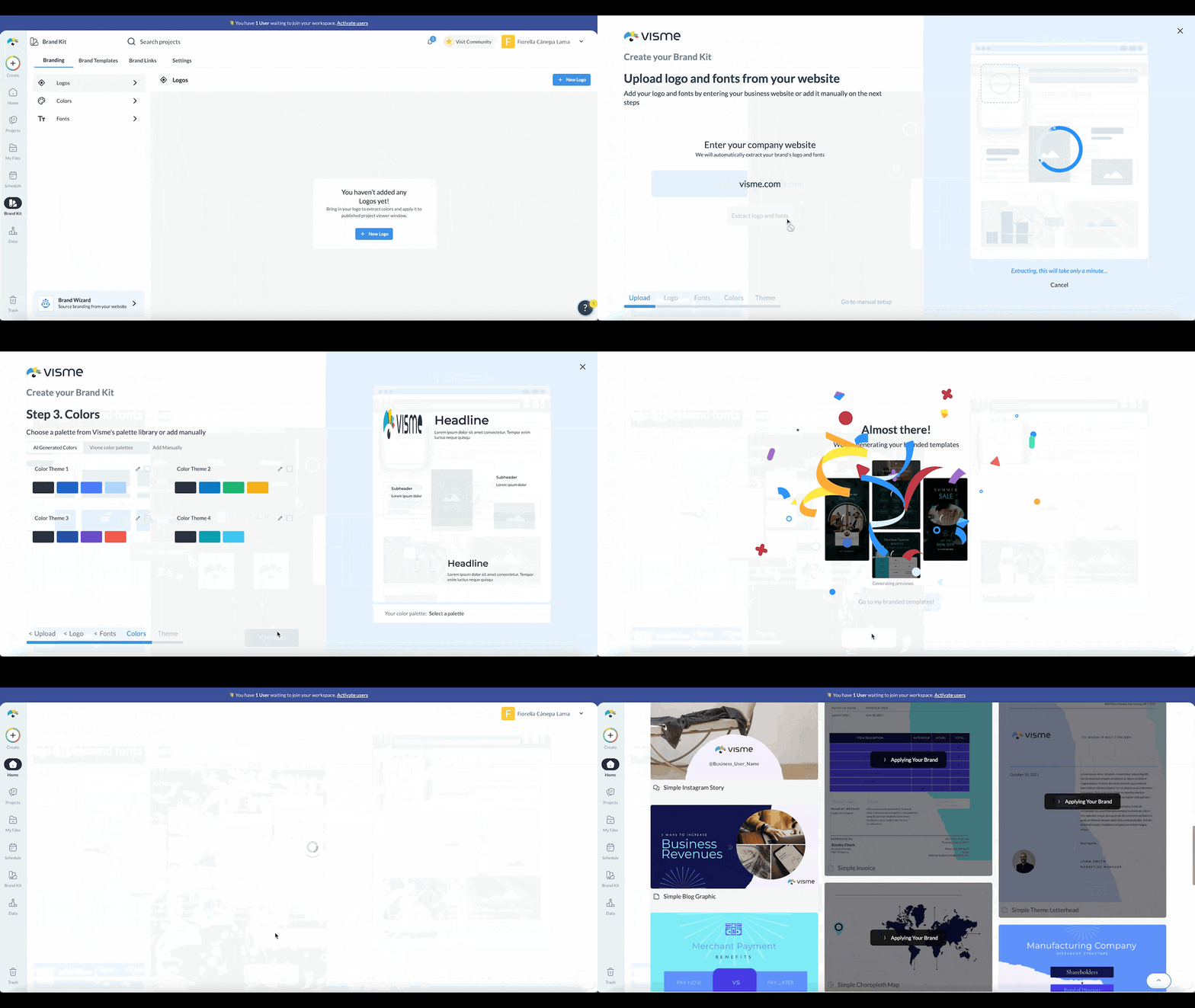
Beyond the essential brand elements, you can create multiple color palettes and mark each one as Primary or Secondary. Add colors by hex code, picking from the color wheel, using a gradient slider, or by extracting them directly from an image or webpage. That last option is useful when you're trying to match colors from existing assets that don't have a hex code handy.
Font setup works similarly. Visme has 100+ built-in fonts, but if your brand fonts aren't there, upload them and assign each one to a specific text role: header, subheader or body copy. That assignment carries through every project automatically.
For teams, the brand enforcement controls are more comprehensive than those offered by Beautiful.ai on equivalent plans. From Brand Settings, admins can restrict team members to approved fonts only, limit color selection to brand palettes, hide Visme's default theme colors, control access to background colors, lock logo placement and limit which template categories are visible.
For larger teams, brand consistency matters beyond aesthetics. It directly affects how efficiently people work and how confidently non-designers can create without going off-brand.
For Stacy Grof, Senior Content Development Specialist at Ameritas, this feature is critical to how they work:
"Visme helped us improve our operational efficiency by empowering our subject-matter experts to create content that aligns with our brand voice and standards."
There are also a few other ways to lock your brand into reusable assets:
Your presentation design is only as good as the tools you have on hand. A huge part of that toolkit is the asset library; specifically, icons, illustrations, images, avatars, etc.
Visme and Beautiful.ai have design elements readily available, but without digging too deep, it's easy to see that Visme wins this particular battle. This section covers non-AI assets; we’ll talk about those in the next section.
The table below gives you a quick overview. Keep reading for detailed differences.
| Feature | Beautiful.ai | Visme |
|---|---|---|
| Shapes | Available on Classic Slides only (paid plans). | Full shape library available on all plans, including custom lines and path drawing. |
| Icons & Illustrations | Curated icon library with limited style variety and customization. | Extensive icon and illustration library with full color control per element. All assets can also be animated. |
| Stock Images & Videos | Stock image and video library with 80K+ stock videos available. | 1M+ stock images and videos. |
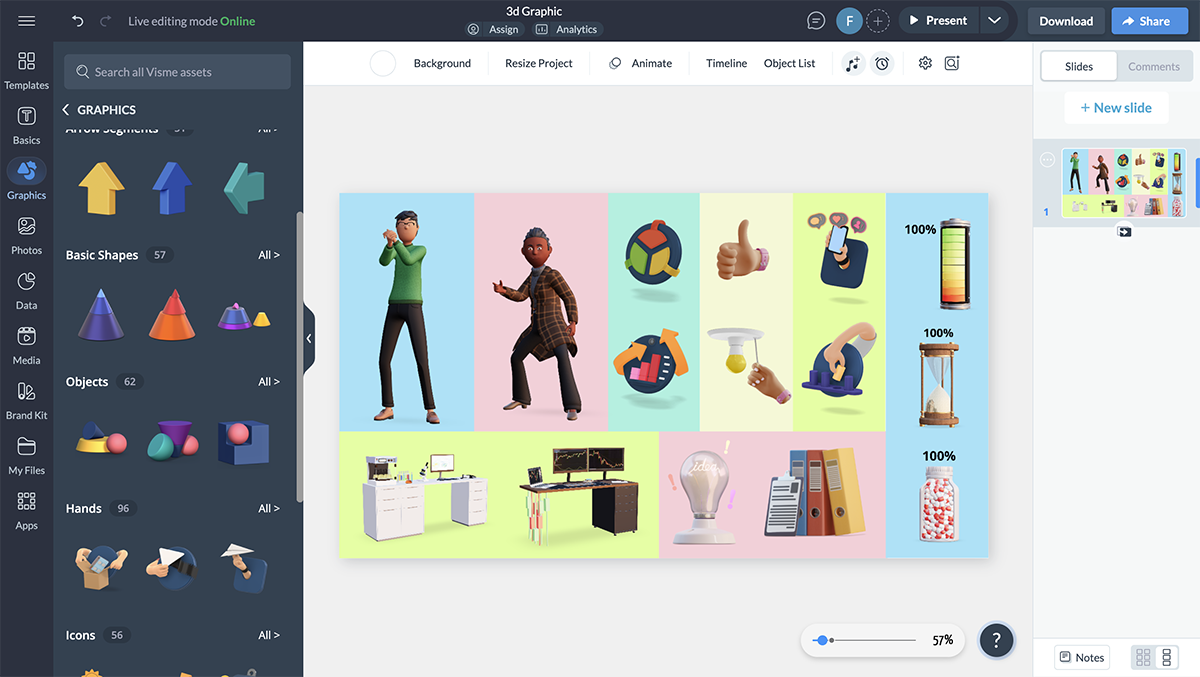
| 3D Graphics | Not available. | Customizable 3D icons, arrows and scenes. |
| Characters & Avatars | Not available. | Fully customizable 2D characters and avatars plus 3D characters with expressions, poses, skin tones and animation controls. |
Beautiful.ai includes a built-in library of icons, stock images, and stock videos. The icons are curated and consistent in style, helping keep slides clean. That said, you can't set individual colors per icon; you can either pick one color for all icons or let them cycle through your theme palette in order.
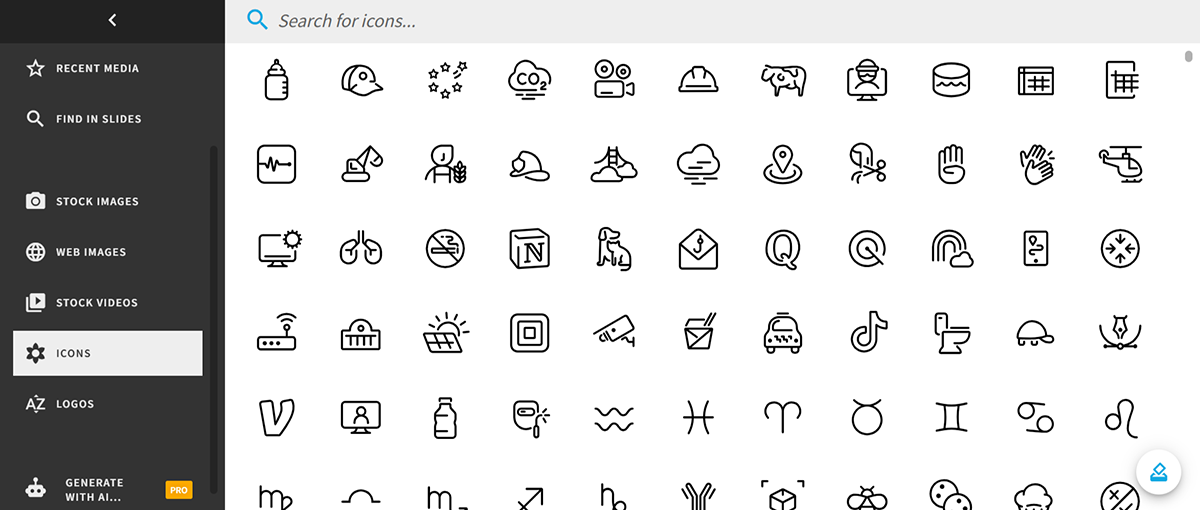
Shapes are available, but only on Classic Slides. Converting a Smart Slide to Classic requires a paid plan, so free users don't have access to shapes at all.
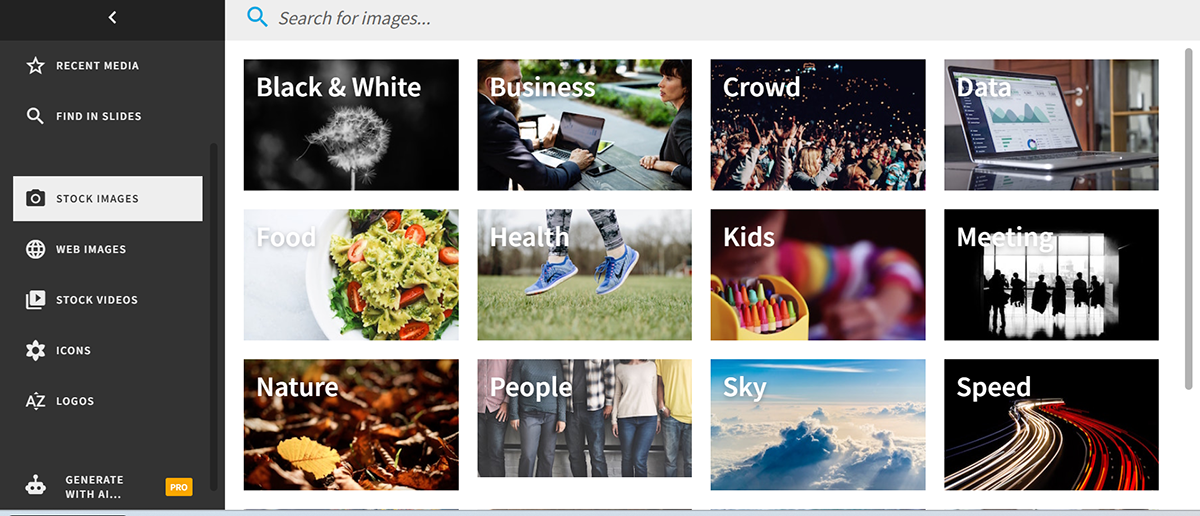
There are no 3D graphics, characters or avatars. The stock image and video library covers the basics but is limited. They do offer a web image search option, but with the caveat that these aren’t curated images or royalty-free.
Visme's asset library covers significantly more ground than Beautiful.ai. Here's what's available:
Drawing tool to create any shape by hand.
AI tools have become a big part of how people build presentations now. They speed things up, cut down on decisions and help you get to a first draft faster.
According to McKinsey's 2025 State of AI report, 88% of organizations now use AI regularly in at least one business function. For marketing and content teams, presentation tools are among the first places adoption shows up, which makes the AI gap between Visme and Beautiful.ai worth examining.
Both Visme and Beautiful.ai incorporate AI into their creation workflows, spanning both generation and refinement. Let’s see how they stack up.
Before the editor (generation)
| Feature | Beautiful.ai | Visme |
|---|---|---|
| Prompt to Deck | DesignerBot generates full presentations from a text prompt, document, URL or PDF. | AI Presentation Maker generates full presentations from a text prompt. |
| AI Workflow | Generates a text-only outline before slide design so you can shape the structure first. | AI asks follow-up questions and suggests template styles before generating the presentation. |
| Template Customization | Not available. | Edit with AI by answering a few questions before opening the presentation in the editor. |
| Document/File Input | Upload a PDF, Word document or paste a URL as source material. | Upload a file or paste a link as source material. |
In the editor (refinement)
| Feature | Beautiful.ai | Visme |
|---|---|---|
| Slide-level AI | Regenerate, restructure or restyle individual slides without affecting the rest of the presentation. | Edit with AI to update and customize slides directly inside the editor. |
| AI Writing | Rewrite, expand, shorten, change tone or translate slide text. | AI Writer can write, rewrite, proofread, summarize or switch tone for any text. |
| AI Image Generation | Generate custom images from a text prompt. | AI Image Generator creates images from prompts directly inside the editor. |
| AI-assisted Layouts | Smart Slides automatically adjust layout, spacing and alignment while editing. | Smart Blocks provide automatically adjustable layouts across multiple content combinations. |
| Additional AI Tools | AI-assisted theme selection. | AI Hub includes Touch Up tools, AI Resize, AI Replace and Erase, Brand Wizard and Text-to-Speech. |
| Access | AI features require a paid plan. | Available on the free plan with 10 credits per month. |
Beautiful.ai was one of the first presentation tools to build AI directly into the design experience. When it launched in 2018, its Smart Slides engine was the first to offer automatically adjusted layouts, spacing and alignment as you worked.
Today, the AI workflow is more complete. DesignerBot takes a text prompt, an uploaded document or a pasted URL and generates a full deck. But before any slides are built, Beautiful.ai shows you a text-only structure so you can direct the story before committing to the design.
Once the deck is generated, Slide AI takes over at the slide level. Select any slide and regenerate it, switch its layout, restyle its visuals or preserve the exact text while only changing the structure; all without touching the rest of the deck. The AI writing assistant handles copy: rewrite, expand, shorten, change tone or translate any text on any slide.
There’s one thing worth noting, though: all of this requires a paid plan. There's no way to test the AI tools unless you upgrade. All of the above is based on Beautiful.ai's support documentation, as the AI tools are locked behind a paid plan with no free trial access.
Visme has built out a full AI suite, called Visme AI, that covers every stage of the creation process, from generating a deck to refining individual slides and polishing visuals.
All are accessible in the free plan with 10 AI credits per month. That’s enough to try things out. For a full-on AI editing experience, you’ll need to upgrade to a paid subscription.
For context on why AI availability in a free plan matters: Salesforce's 10th State of Marketing report found that 75% of marketers are already using AI in their operations. So, having access to a free plan that includes AI credits means you can test Visme's full AI suite before committing to a paid tier, something Beautiful.ai doesn't offer.
Here's what's available in Visme:
Do you want to see exactly how Visme AI works for generating presentations? Here’s a video that explains it.
Have you ever had an audience that started to tune you out during a presentation? If so, you know how hard it is to keep them engaged.
Adding interactivity to your presentation helps engage your audience even further and makes your slides more exciting. You can add links, create pop-up elements, embed video and more. Check out how Visme and Beautiful.ai handle interactivity.
| Feature | Beautiful.ai | Visme |
|---|---|---|
| Link Options | Hyperlink text to external URLs or other slides in the presentation. Cannot add links to icons, shapes or images. | Link text, slides or other Visme projects. Supports pop-up and hover effects. |
| Interactivity Capabilities | No interactive objects. Includes audio narration and video narration per slide for asynchronous sharing, plus stock video support. | Hotspots, pop-ups and hover effects on any object. Attach audio or video to any element, embed YouTube and Vimeo links and use the built-in timeline editor. |
Beautiful.ai's interactivity is fairly limited compared to what most modern presentation tools offer.
For links, you can hyperlink text to an external URL or to another slide in the deck. That's it. You can't link icons, shapes or images, only text.
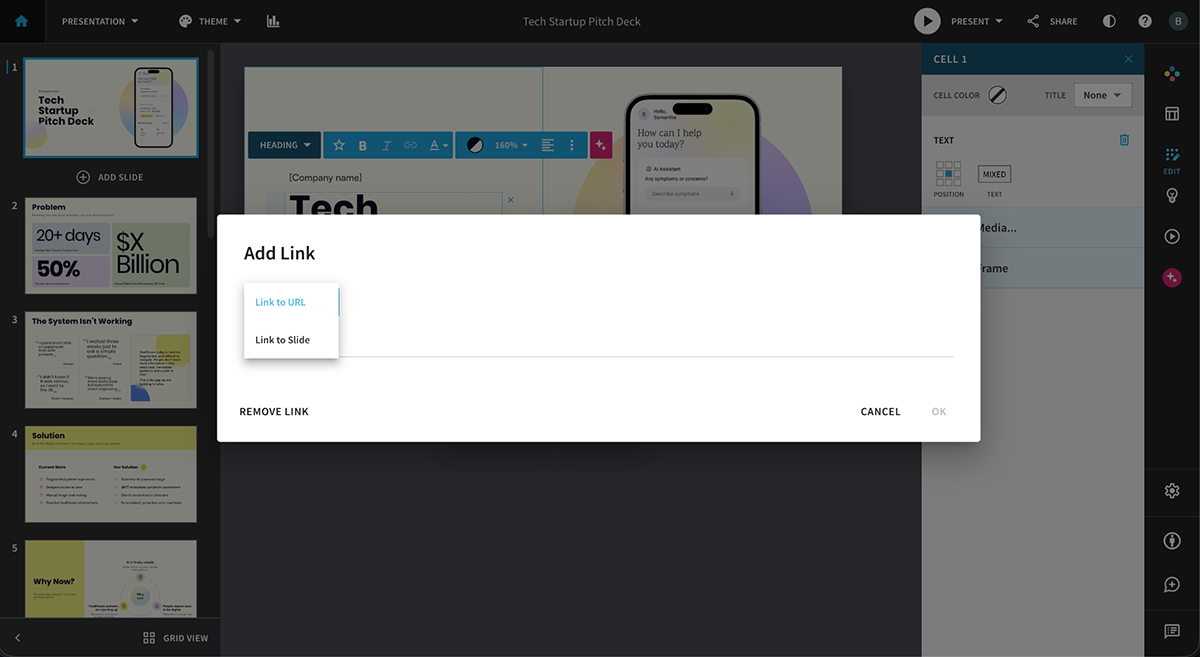
For media, you can record audio narration per slide or upload your own audio file. Video narration is also supported: record directly in the tool and attach it to a slide for async sharing.
The editor offers stock videos, but there's no option to embed external video from YouTube or similar platforms.
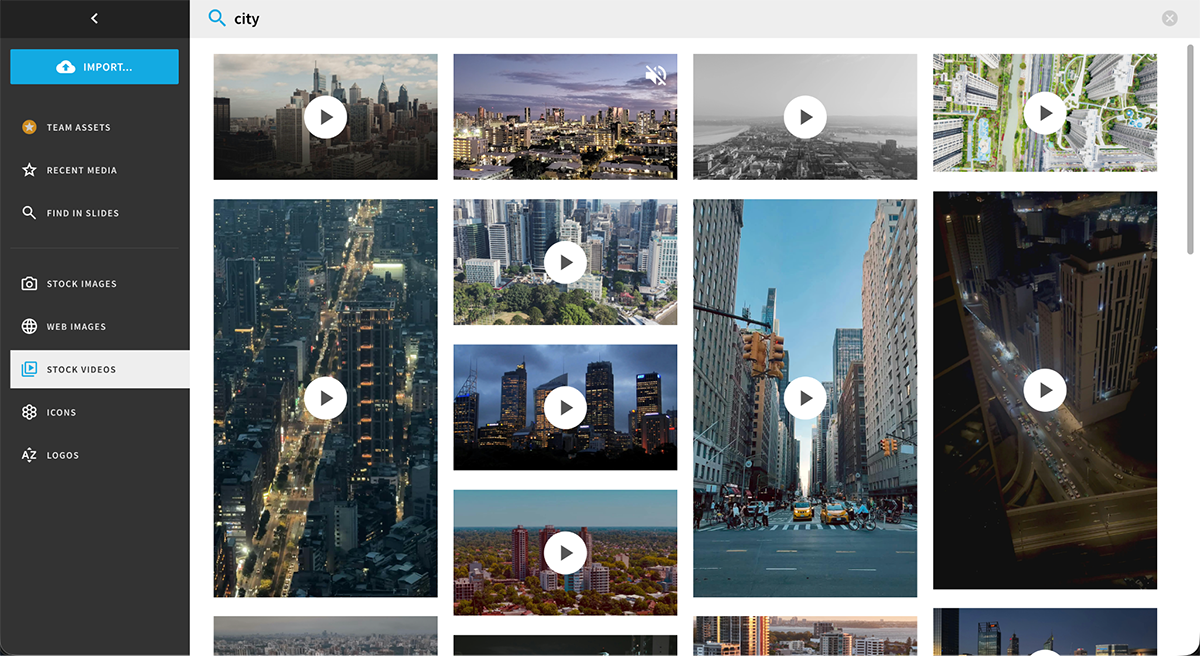
Visme's options for creating interactive content go considerably further, and they work on any element, not just text.
Links work on any object: connect to an external URL, jump to another slide or link to another Visme project entirely. Select the object, click the hyperlink icon in the top navigation and choose your option.
Hotspots do even more. Select any element, go to the Actions tab and set it to trigger a pop-up or hover effect on click or on hover. You can also use Hotspots to attach an audio clip or video recording directly to any object, so viewers can interact with specific elements to get more context. If one hotspot isn’t enough, you can add two different ones to any object.
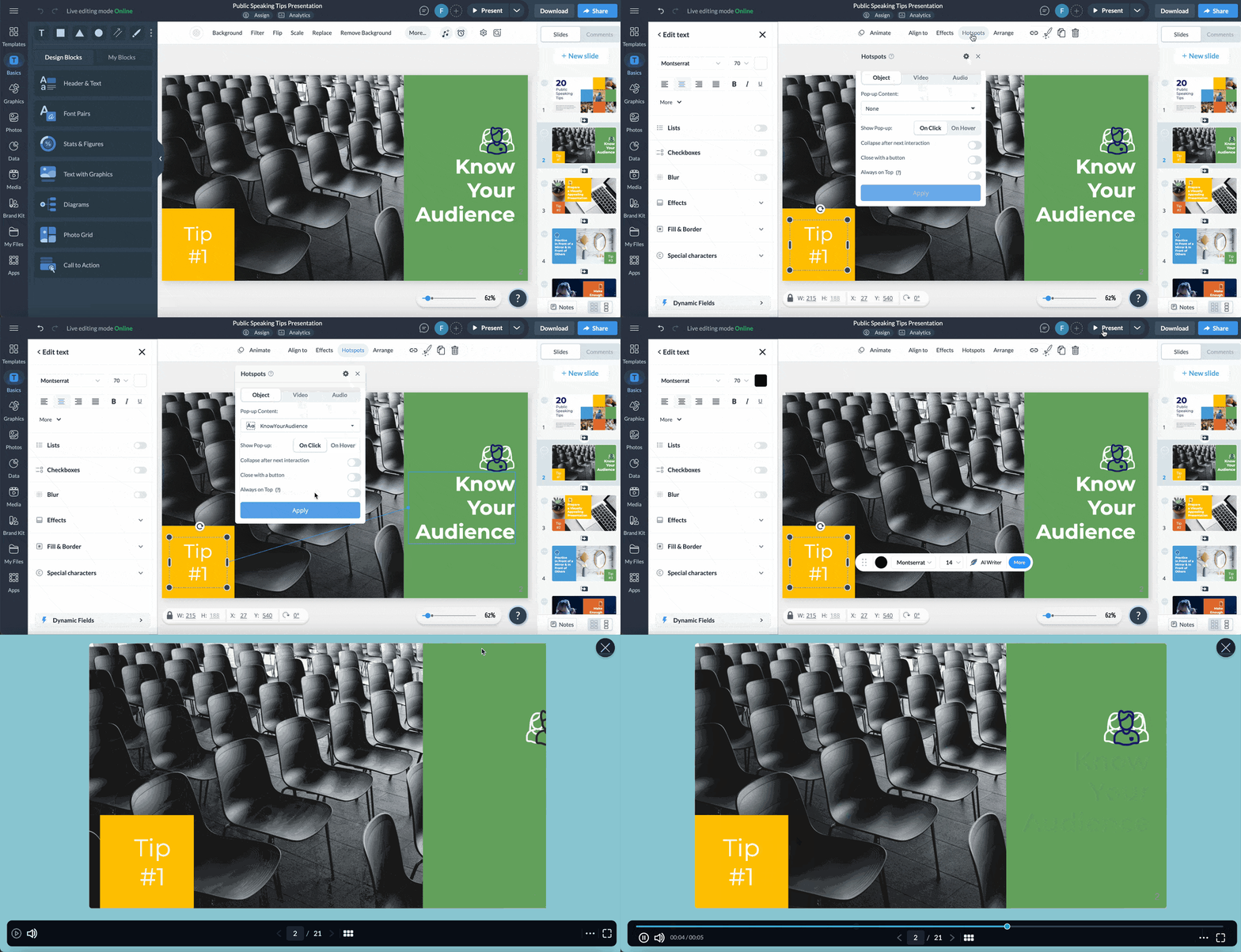
For audio, you have four options: upload your own file, record directly in the editor, use AI text-to-speech, or browse the built-in royalty-free audio library. Note that access to the full audio library requires a paid plan. Audio can be added to individual slides, set as background music across the whole presentation, or attached to a specific object.
For video, upload your clips, choose from the stock library or embed YouTube or Vimeo links via the Media tab. With Presenter Studio, you can attach recorded video narration to any slide. Using Hotspots, you can add a video recording to any object.
But don't just take our word for it. Hear it straight from one of our satisfied customers:
"We looked at a number of different solutions and Visme had, by far, the broadest set of features at such a reasonable price point. Right away, our executive team noticed the extra touches and interactivity in our content and so did our customers."- Rachel Thomas, MS Dynamics Implementer,Sunrise Technologies
Another great way to add depth to your presentation and engage your audience is to animate elements so they draw attention to specific areas or information.
Each tool includes animation features, but the level of control and flexibility they offer is different. Let’s see what is available in each of them,
| Feature | Beautiful.ai | Visme |
|---|---|---|
| Animation Modes | None, On-Click, Auto and Custom. | 14 Enter and Exit animation options with on-click and delay triggers, plus custom looping animations. |
| Customization | Control speed, timing, order and delay. Base animation style is fixed per slide layout. | Full control over animation style, direction, speed, delay and easing for each element. |
| Slide Transitions | Not available. | Multiple transition styles available with controls to apply to one slide or the entire presentation. |
| Timeline Editor | Not available. | Full timeline editor for slide durations, animation timing and audio synchronization. |
Beautiful.ai includes four animation modes: None, On-Click, Auto and Custom. Auto is the default, meaning elements are built in automatically at a consistent speed. Custom gives you manual control over timing, delays, order and speed, which you can set anywhere from 0.125x to 10x.
What you can't change is the base animation style. Each Smart Slide layout has a built-in animation approach and that part is fixed. You can control when and how fast things appear, but not the fundamental motion style itself.
There are no slide-to-slide transitions in Beautiful.ai. Nor is there a timeline editor like there is in Visme.
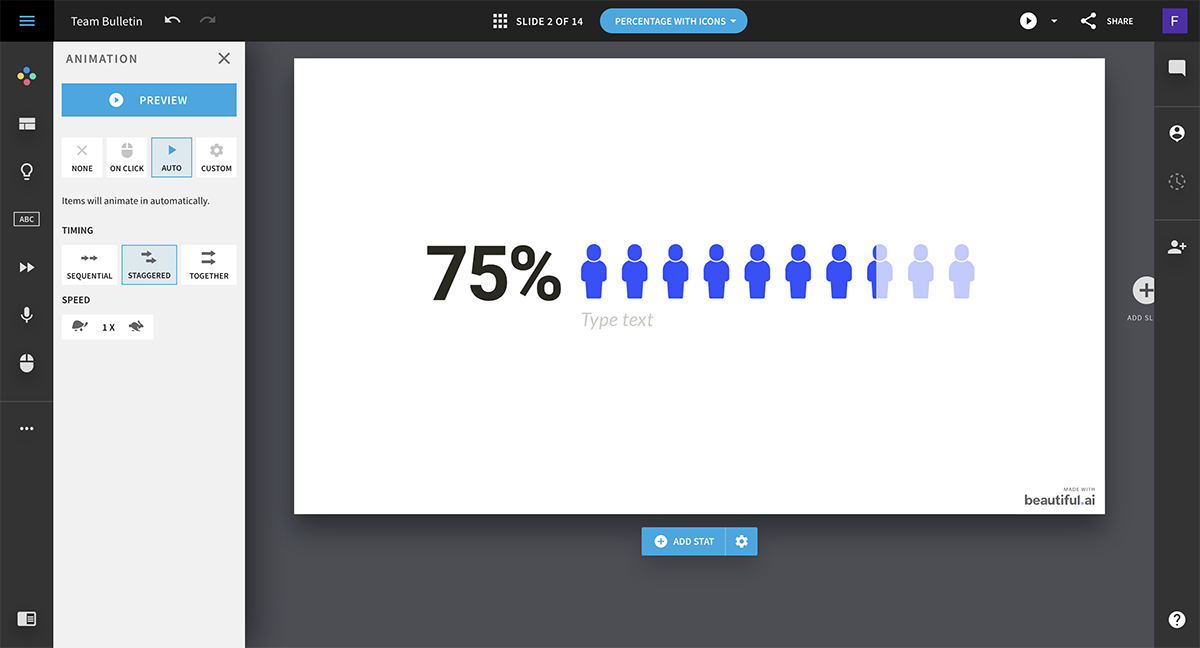
The platform also doesn’t have any slide transitions to edit how your slides appear and disappear from the screen.
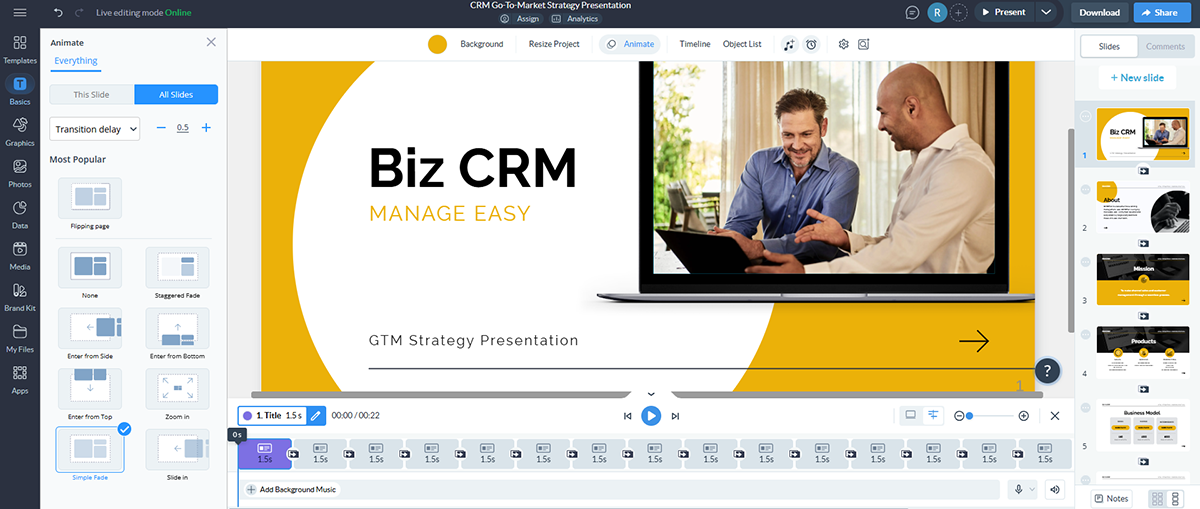
On top of all the interactivity controls, Visme gives you full animation controls. Add enter and exit effects to any object, with options for Fly, Fade, Rotate, Grow and more. Adjust speed, delay, direction and easing per element. Text can also be animated letter by letter or word by word. Text effects are also available separately for visual styling: adjust color, thickness, blur, intensity and more.
Everything is tied together in the timeline editor at the bottom of the editor. From there, control slide durations, object animation timing, transitions and audio all in one place. Double-click any slide in the timeline to go into an advanced per-slide view.
When sharing numerical information and data in your presentation, the best approach is always data visualization.
Spreadsheet screenshots or a spoken explanation don’t always help people fully comprehend. When you use charts, graphs and other data visualization tools to visually show what the numbers are saying, your audience has a much higher chance of understanding.
The CEO and Founder of Keyzoo, Eli Itzhaki, has a lot to say about the importance of data visualization:
“Numbers on their own don’t tell the full story unless people can see what they represent. But a well-designed chart or graph turns a set of statistics into something people immediately understand. For example, if I’m explaining how our response times have improved with new dispatching technology, listing raw numbers doesn’t have the same impact as a clear visual. However, a line graph showing a steady drop in response time makes the improvement obvious without needing extra explanation.”
So, what do Visme and Beautiful.ai compare on data visualization? At the surface level, there’s a big gap in how much freedom you have to add, edit and customize charts in a presentation.
Let’s take a closer look.
| Feature | Beautiful.ai | Visme |
|---|---|---|
| Variety | 35 Smart Blocks that include charts, graphs and diagrams across 9 overall data categories. | 20+ chart types, interactive maps, 30+ data widgets and 3D data visualizations. |
| Customization | Limited customization options for data visualizations. | Full customization for data appearance, animations and interactive behaviors. |
Beautiful.ai offers 35 different slide layouts for charts, graphs and diagrams that you can add to your presentation. However, if you’re using Smart Slides, you can only add data visualization as long as the Smart Slide you’re working on includes a data visualization item. If so, you can switch one chart for another or add another one.
If you’re using any other type of Smart slide, there’s no way to add a data visualization. In a Classic Slide, you can add a data visualization easily.
In theory, this is meant to help you visualize data quickly, but you can quickly run into roadblocks due to the limitations. Plus, you have little freedom in how much you can customize your chosen charts or graphs.
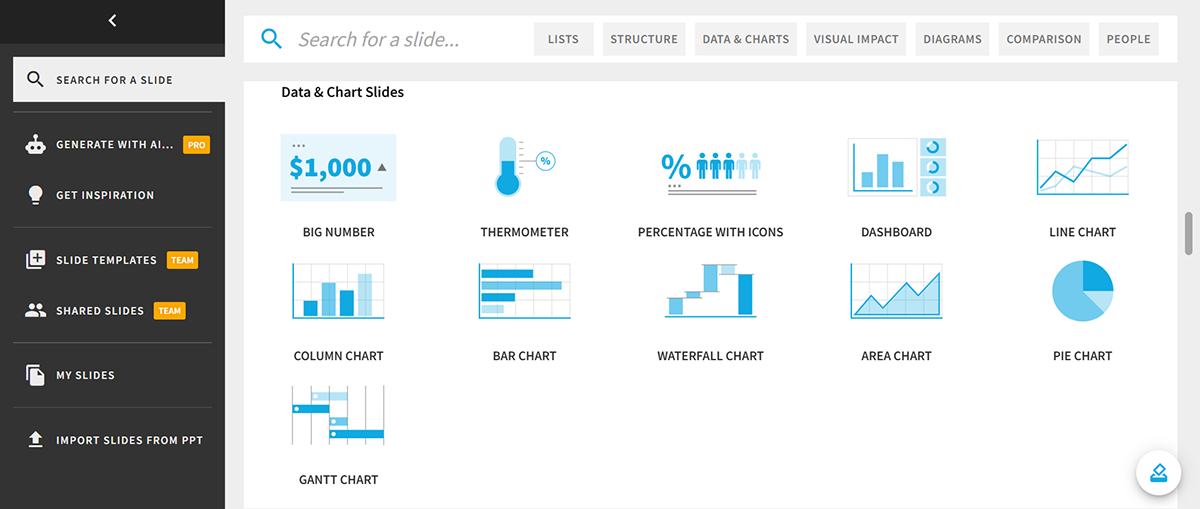
Beautiful.ai automatically animates each chart in its preset animation type. You can turn this off, but you can’t switch to another animation style. It’s simply on or off.
Visme shines in data visualization. The variety and level of customization are hard to beat, not only Beautiful.ai but also plenty of other presentation tools.
For starters, Visme has 20+ types of charts and graphs, including bar graphs, pie charts, Venn diagrams and bubble charts. You can change the appearance, animation, legends, hover options and much more. There are also interactive maps to showcase geographical data.
Then, if you want to display small data sets, you get 30+ data widgets, including radial gauges, progress bars, watch faces, population arrays and more. The options span from 2D designs to fully customizable 3D widgets.
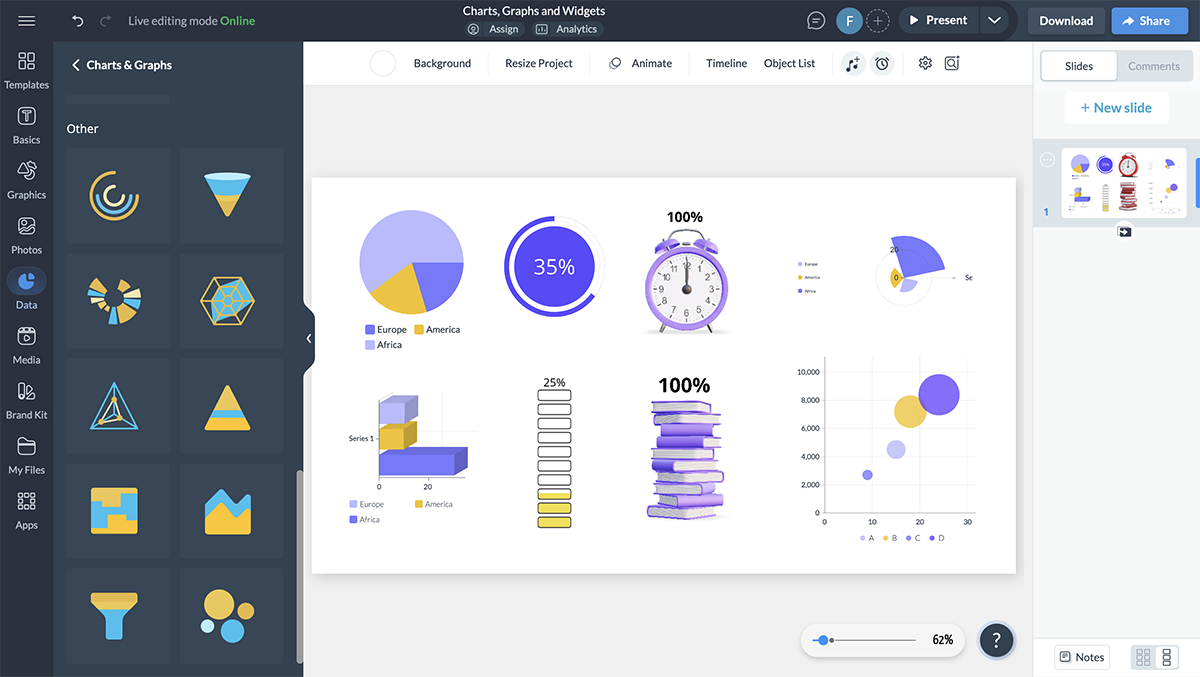
There’s more. Your Visme presentations can have live data. Simply connect your charts directly to Google Sheets, Excel Online, Google Analytics, Smartsheet or SurveyMonkey. Once connected, your charts update automatically when the source data changes.
Live data capability lets you build custom dashboards within your presentations to track and present business data. Furthermore, Enterprise users can embed Tableau or Power BI dashboards directly into their slides using Visme's HTML embed feature.
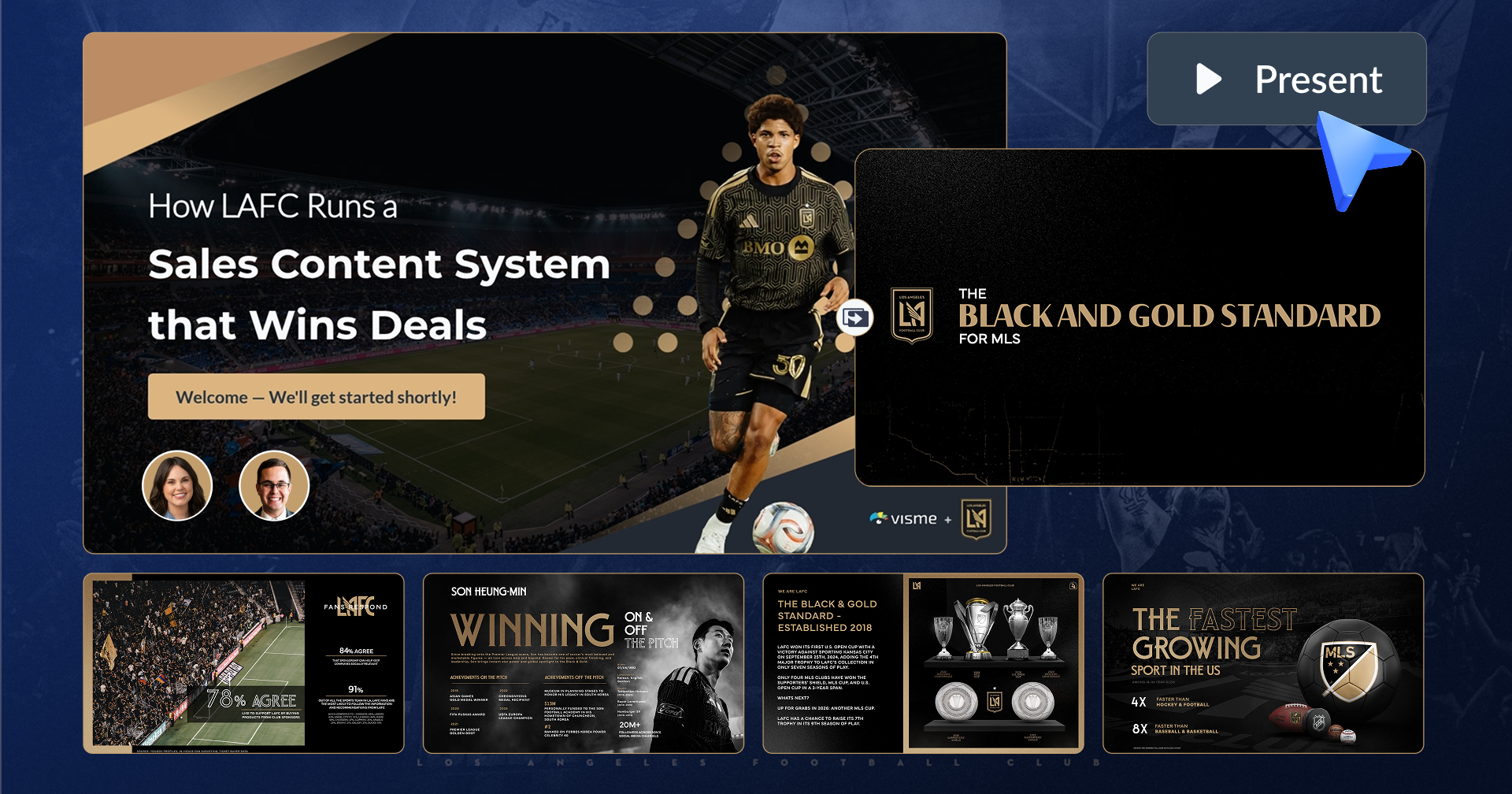
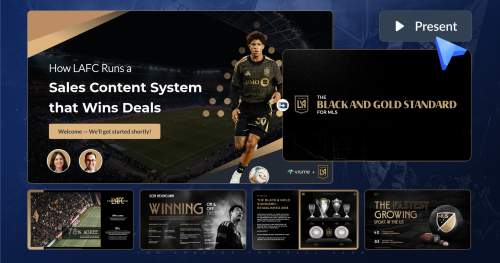
That’s exactly what Jaime Kelm, former Director of Business and Data Strategy, LA Football Club (LAFC) loved about Visme.
"The ability to enrich our presentations with embedded media like Tableau or embedded posts from our partners' social accounts is huge. Being able to incorporate those different elements of media into a live presentation has been a game-changer."
Collaboration features are essential for teams working together on presentations. They help teams stay aligned, give project managers clear visibility into progress, and eliminate the back-and-forth that comes with getting to a final approved version.
Both Beautiful.ai and Visme offer collaboration tools, with different strengths. Let’s check it out.
| Feature | Beautiful.ai | Visme |
|---|---|---|
| Real-Time Collaboration | Real-time co-editing with comments and permissions on Team and Enterprise plans only. | Live collaboration with comments, annotations and slide editing on Pro and Enterprise plans. |
| Workspaces | Single centralized workspace per organization with team folders. | Multiple workspaces supported, useful for agencies or teams managing separate clients or projects. |
| User Roles | Owner, Admin, Member and Guest roles on Team and Enterprise plans only. | Owner, Administrator and Member roles on all plans, plus Custom Roles on Enterprise. |
| Permissions | Role-based permissions for viewing, editing or downloading on Team and Enterprise plans. | Access controls for folders, projects and brand assets. Admins can restrict editing, templates and downloads. |
| Workflow Management | Not available. | Assign projects or individual slides, set deadlines and track status using To-Do, In Progress and Done stages. |
| Approvals | Not available. | Built-in approval workflow requiring projects to be approved before publishing, sharing or downloading. |
| Version Control | Track changes and revert to previous versions. | Undo/redo controls and version history to help prevent accidental edits. |
| Content Calendar | Not available. | Assigned projects with due dates automatically appear in the Content Calendar. |
Beautiful.ai supports real-time co-editing, comments and permission controls only on Team and Enterprise plans. Multiple people can work on the same deck simultaneously, leave slide-level comments and access shared workspaces. Admins can set role-based permissions to control who can view, edit or download.
Unlike Visme, Beautiful.ai doesn't offer workflow management. You can co-edit and comment, but there's no way to assign tasks, set deadlines or manage an approval process from within the platform.
Visme's design collaboration features go beyond co-editing. You can invite team members to a workspace or project via email or shareable link to leave comments, annotate directly on the design or edit slides together.
If you’re using Visme as an agency or you manage multiple clients, you can create multiple workspaces. Each workspace is a separate container with its own projects, brand assets and team members. They make it super simple to keep client work organized and separate.
Where it becomes even more useful for larger teams is in workflow management. Right from the editor, you can assign an entire project or specific slides to individual team members, set deadlines for completion and track progress through four status stages: None, To-Do, In Progress and Done.
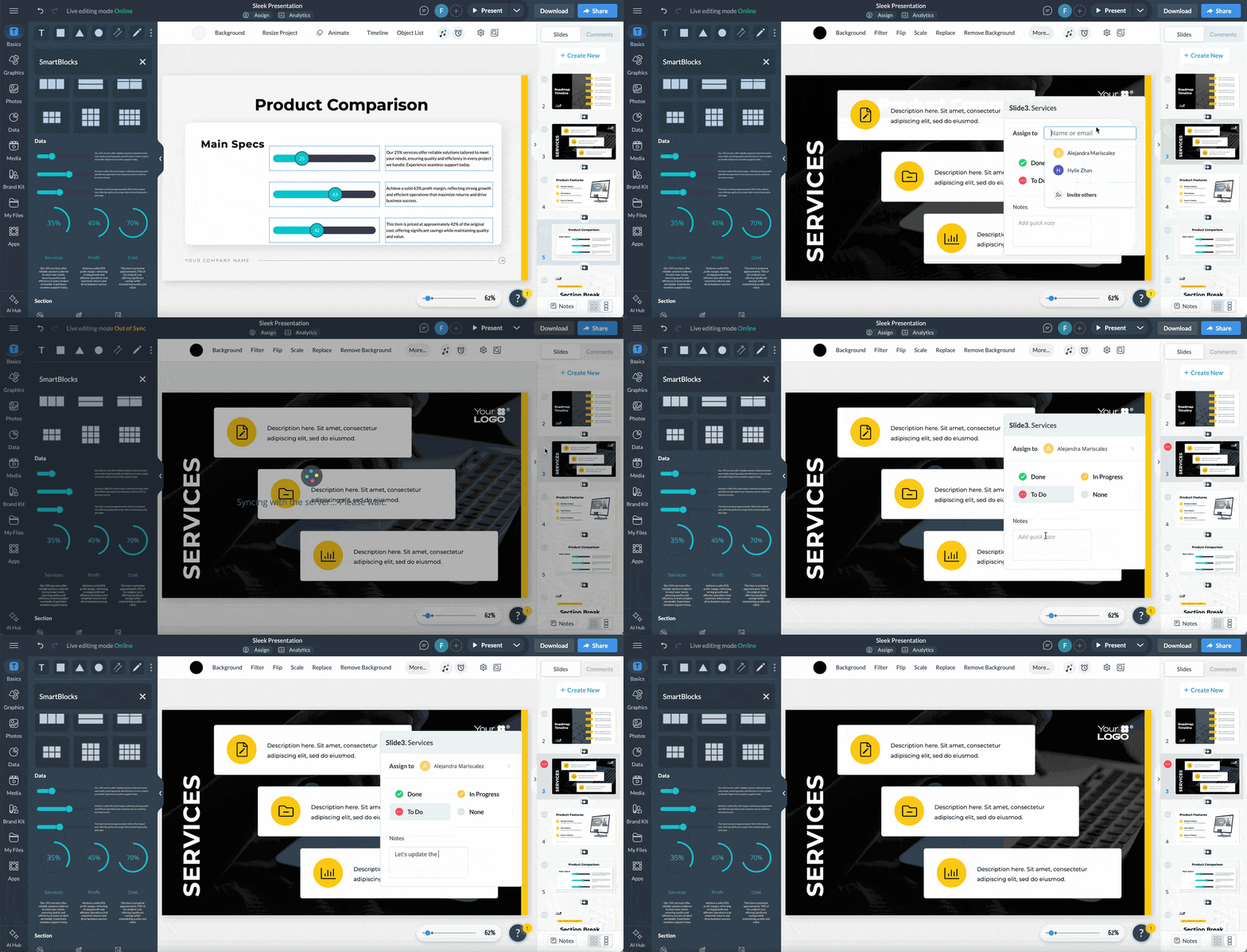
Finally, before anything goes out or becomes public, the approval workflow requires a designated approver to sign off. Until they do, the project can't be published, shared or downloaded.
Also, assigned tasks with due dates show up automatically in the Content Calendar on the dashboard, so nothing slips through.
Take note, though, workflow and approval features are available only on Pro and Enterprise plans.
Once your presentation is approved and ready to go, the next question is how to get it in front of your audience.
Not every instance where you need a presentation will be the same; that’s why both Visme and Beautiful.ai offer several options. In terms of regular sharing and export, they’re pretty even.
| Feature | Beautiful.ai | Visme |
|---|---|---|
| Sharing Options | Private, secured and public links, email invites and embed options. | Private and public links, email sharing, embedding and QR codes. |
| Live Links | Public links always reflect the latest version. | Public links always reflect the latest version. |
| Password Protection | Available. | Available with optional expiration controls. |
| Offline Presenting | Desktop offline player available for Mac and Windows. | Export as HTML5 for fully offline presentations with animations and interactivity preserved. |
| Export Formats | PDF, PNG, Google Slides and PPTX images on all plans. Editable PPTX exports available on paid plans only. | JPG and PNG on Free; PDF on Starter; PPTX, HTML5, GIF and video on Pro; SCORM and xAPI on Enterprise. |
In Beautiful.ai, you can share your presentations publicly or privately with select users, or password-protect them. To share live links, you can send an email invite or copy a shareable URL. There is also an embed option and a direct social media share to Facebook, X or LinkedIn.
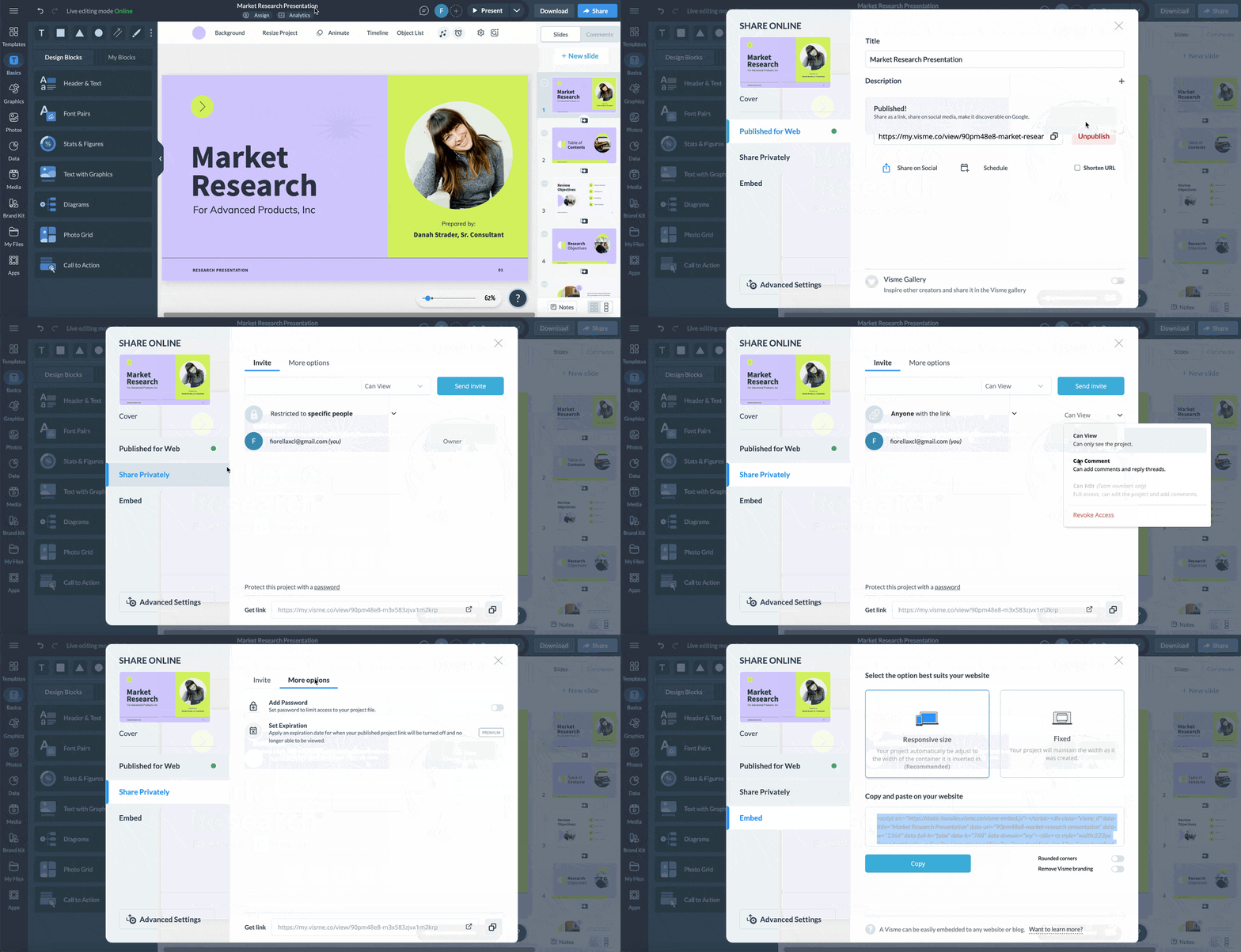
Beautiful.ai has multiple export options as well. You can export a single slide or the entire presentation in editable PPT, PPTX, Google Slides and PDF formats. Or, you can share the presentation offline directly from the app.
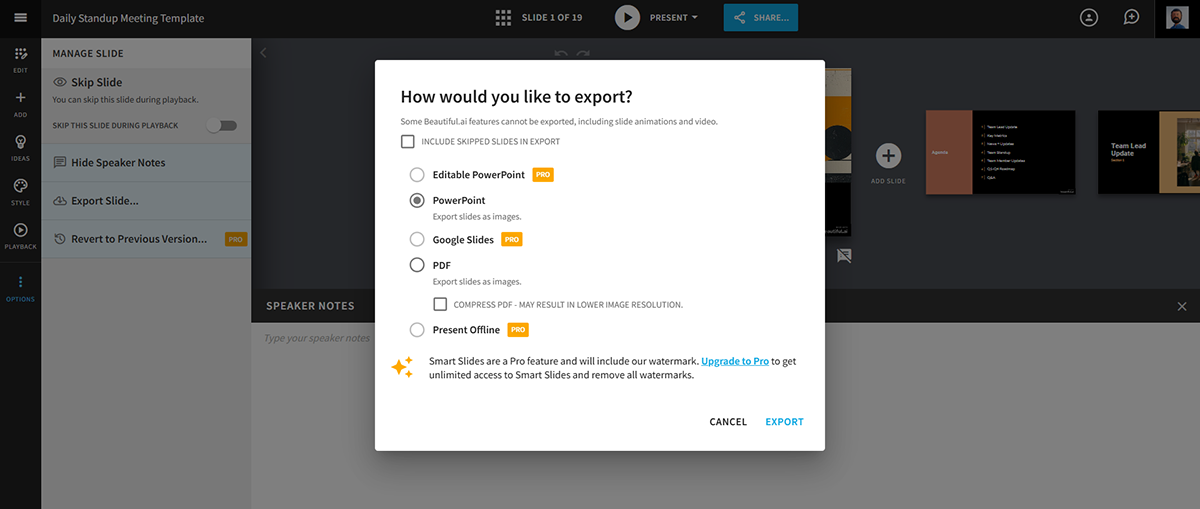
Once your presentation is ready, there’s a lot you can do with it. From the Share menu at the top of the dashboard, you can easily generate a public link, a private password-protected link or an embed code to place directly on your website.
You can also share with specific people via email, with or without commenting permissions. Team account users can share with groups or departments within the workspace.
To export, click Download and choose your format. PPTX works well for sharing with PowerPoint users, though animations and transitions won't carry over. For a fully offline version with all interactivity and animations intact, export as HTML5 instead.
If your presentation is training content, export it in SCORM or xAPI format to use directly in your learning management system. Both formats preserve interactivity and let you track completion of your materials.
If you are going to invest your time in choosing the perfect presentation tool, strong customer support is crucial. You never know when you will run into a problem; there should be someone on the other end of the line who can assist you.
Both Beautiful.ai and Visme offer varying levels of support to meet user needs. Here’s how their support options stack up:
| Feature | Beautiful.ai | Visme |
|---|---|---|
| Support Resources | Knowledge base with tutorials, guides and FAQs, plus ticket-based email support with 24–48 hour response times. | Extensive resource library with tutorials, webinars and blogs, plus 24/7 live chat support. |
| Real-Time Assistance | No live chat or phone support available. | 24/7 live chat support, ticket submission and dedicated account management for Enterprise users. |
Beautiful.ai provides a knowledge base filled with tutorials, guides, and FAQs to help you navigate the platform and troubleshoot issues.
For detailed help, you can submit a ticket to the support team, which typically responds within 24-48 hours. However, Beautiful.ai does not offer live chat or phone support, which may be a drawback if you prefer real-time assistance.
Visme has an extensive resource library with step-by-step tutorials, videos, on-demand webinars and blog articles. In addition to submitting tickets, higher-tier plans can access 24/7 live chat support for quick resolutions to common issues.
For enterprise users, we offer dedicated account management and priority support for more tailored services. This robust support system ensures you can easily find solutions and make the most of the platform.
Lead generation might not be the first thing you think of when creating a presentation. But with Visme, it’s definitely worth a look.
This section doesn’t cover Beautiful.ai because they don’t offer any lead-generation features. But in Visme, generating leads with presentations is easy and straightforward.
The fastest way is to require registration before people view your presentation, so you can collect email addresses in your Visme account. This helps you repurpose your content by turning a presentation into a webinar and easily generating leads.
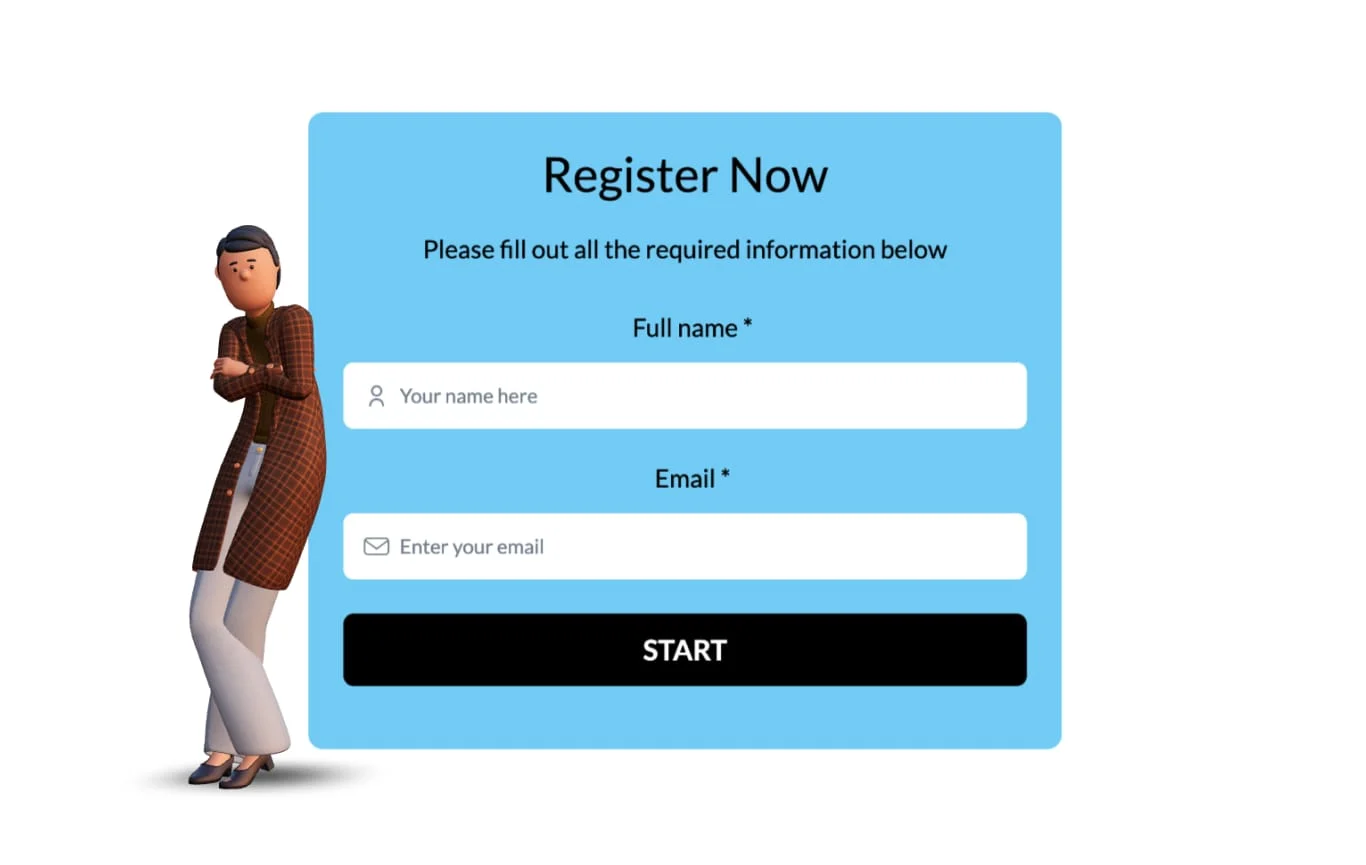
Another option is to use Visme's form builder to create a customized form that you can embed in a presentation slide. Design a registration form that collects valuable information or a contact form to place at the end of your presentation. If you don’t want to embed it, you can also hyperlink a button to the form.
All form entries are collected in your Visme account for easy access and super simple lead generation.
Here’s an example of a form template from Visme’s library.
Once you publish a presentation and start sharing it with your audience, you´ll want to track performance. Since there are so many ways to share your slides beyond live presenting, it’s good to have this feature available.
Analytics features are present in both Visme and Beautiful.ai. Let’s see how they compare.
| Feature | Beautiful.ai | Visme |
|---|---|---|
| Audience Metrics | Tracks unique viewers, average view time, total views, total view time, completion rate and last viewed timestamp. | Tracks unique views, total views, average time spent, visitor IP address, completion rate, date and time of view, and visitor location. |
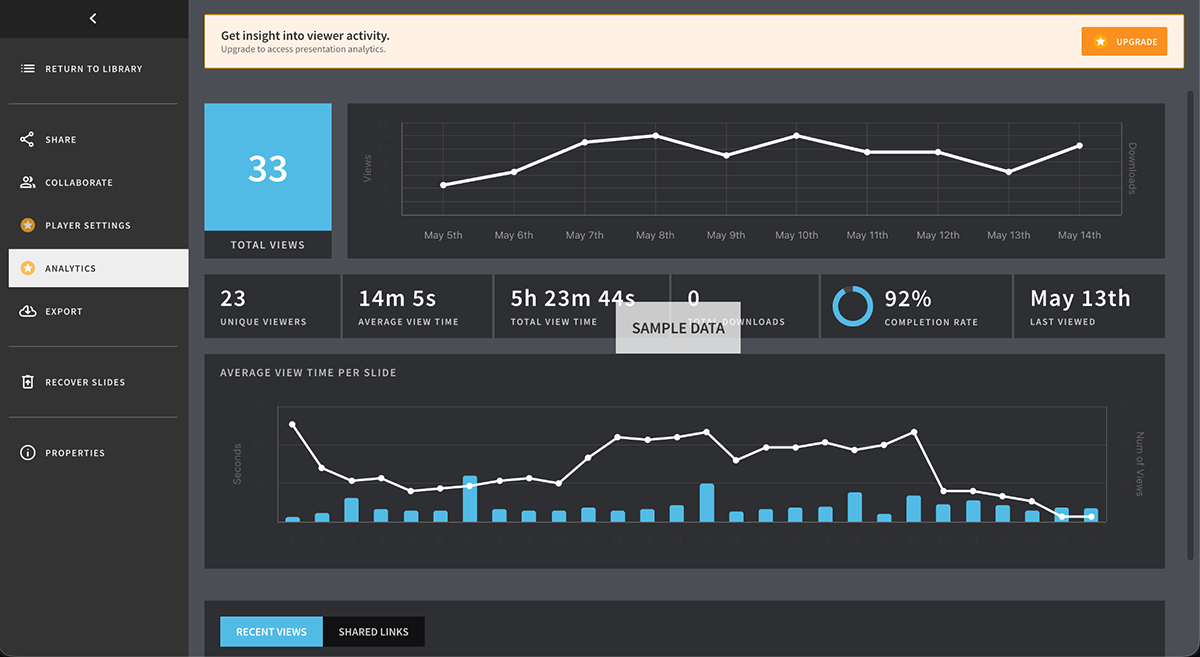
Beautiful.ai provides analytics for any presentation you publish as long as you’re on a paid plan. The dashboard shows unique viewers, average view time, total views, total view time, completion rate and last time viewed.
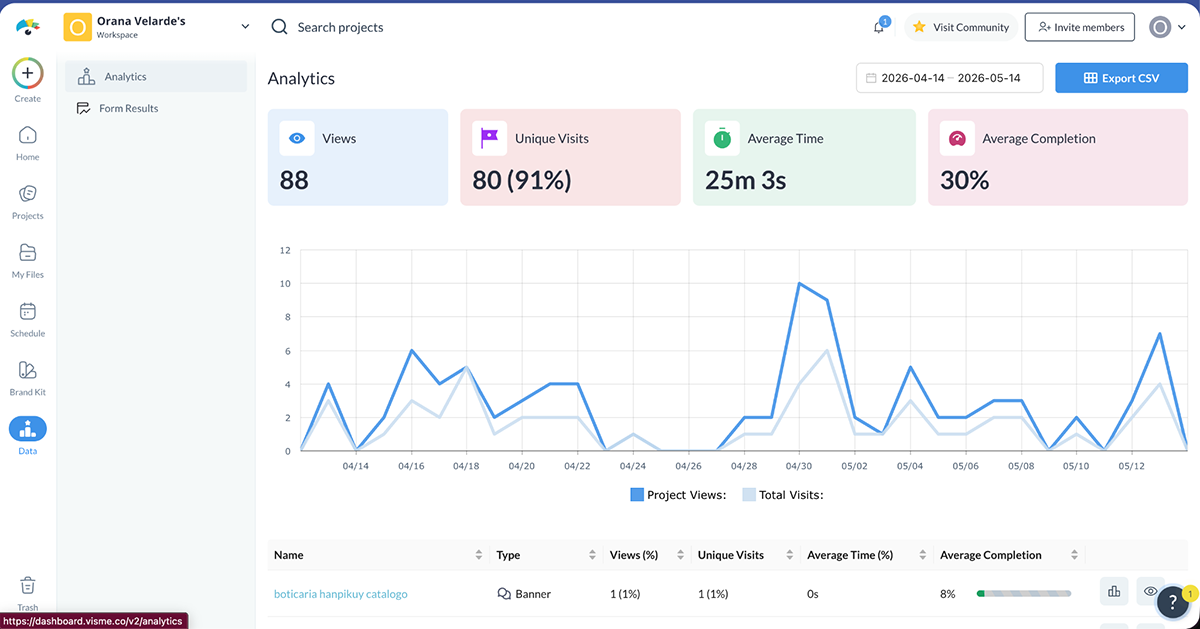
Visme also provides analytics for all publicly published projects, so you can check their performance and adapt your strategy or content as needed. All the data is laid out on an easy-to-read dashboard and covers metrics such as unique views, total views, average time spent, visitor IP, completion rate, date & time of view, and visitor location.
Analytics is available on free plans, but Enterprise plans get more granular tracking and data collection.
Finally, pricing and customer ratings are two more important factors to consider when choosing a presentation tool. Comparing the pricing helps you assess what fits your budget while meeting all your needs. Customer ratings can help you understand the tool through other people's experiences.
Regarding pricing, focus on the return on investment, not just the tool's price. For example, Visme saves teams a lot of money and time by making content creation so simple. The team at WOW! Is a great example:
“Visme saves time and is a whole lot more affordable than most other content development programs out there now. It makes it easy to develop professional, polished content.”- Kendra Bradley, Graphic Content Developer at WOW!
If you want to know how exactly they are saving money by using Visme, read the case study we published about their experience.
Ok, let's break down the pricing plans and G2 ratings for Beautiful.ai and Visme so you can get a clearer picture of their value:
| Beautiful.ai | Visme | |
|---|---|---|
| Pricing Plans | Pro: $12/month (annual), Team: $40/user/month (annual), Enterprise: Custom | Basic: Free, Starter: $12.25/month (annual), Pro: $24.75/user/month (annual), Enterprise: Custom |
| Free Plan? | No. 14-day trial requires a credit card. | Yes. No credit card required. |
| G2 Rating | 4.7/5 based on 190+ reviews | 4.5/5 based on 480+ reviews |
Beautiful.ai offers three pricing tiers, making it accessible to both individuals and teams:
G2 Rating: Beautiful.ai is rated 4.7 out of 5 on G2 based on 190+ user reviews.
Visme's pricing options cater to individuals, small teams and enterprises with more robust features:
G2 Rating: Visme is rated 4.5 out of 5 on G2 based on 480+ customer reviews.
Visme or Beautiful.ai could be your perfect option. But in reality, the right choice comes down to what you actually need from a presentation tool and who's using it.
Still not sure? Here's how it breaks down by role and team type.
| Who You Are | Best Fit | Why |
|---|---|---|
| Solo creator or freelancer | Visme | Free plan, broader content creation capabilities and no credit card required. |
| Marketing team | Visme | Brand Kit, AI tools, collaboration features and built-in content calendar. |
| Sales team | Visme | Interactive presentations, analytics, lead generation and live data support. |
| Agency managing multiple clients | Visme | Multiple workspaces, multi-brand support and approval workflows. |
| Startup or small team on a budget | Visme | Free plan available with paid plans starting at $12.25/month. |
| Enterprise | Visme | SSO, dedicated account management and advanced brand enforcement controls. |
| Someone who just wants fast, polished slides | Beautiful.ai | Simple interface with Smart Slides that remove most design decisions. |
| Someone who only needs presentations | Beautiful.ai | Focused presentation tool without extra content creation features to navigate. |
Yes, Beautiful.ai is worth it for users who want to create clean, professional presentations without complex customization.
Yes, Beautiful.ai offers a free version with limited features, but advanced options require a paid subscription.
Yes, Beautiful.ai presentations can be exported to PowerPoint, allowing you to share and edit them as needed.
Visme offers more advanced presentation features, data visualizations, and AI tools than Beautiful.ai, making it better for creating highly customized presentations and graphics.
Visme offers a free plan with basic features. However, advanced customization options and premium templates require upgrading to a paid plan.
Beautiful.ai earns its place for teams that value speed and simplicity above all else. If design decisions feel like a burden and you want a tool to handle them for you, it consistently delivers on that promise.
However, if you're looking for more advanced customization and advanced design features, a larger template library, brand controls, collaboration tools, many AI tools, plenty of sharing options, lead generation capabilities and interactivity; Visme is the better choice.
Also, Visme is an all-in-one design platform that lets you create a wide range of visuals. So, if you also need case studies, reports, infographics and social media graphics, Visme has it all.
Ready to level up your presentations and visual content? Sign up for a free Visme account and start creating unforgettable presentations!
Design visual brand experiences for your business whether you are a seasoned designer or a total novice.
Try Visme for free