

11 Visme Content Creation Tricks You’ll Wish You Knew Sooner

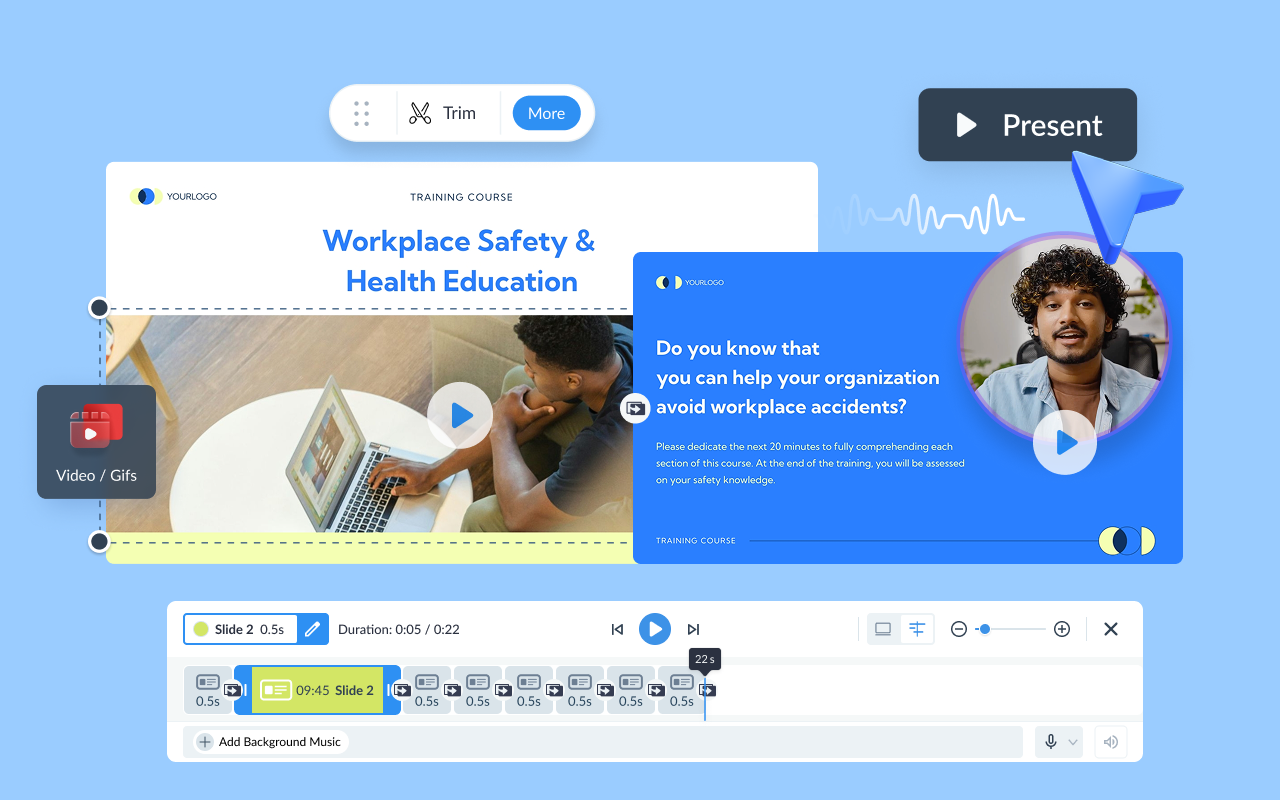
A static slide deck gives the viewer nothing to do. They watch it play or click through it, and you have no way of knowing whether they reached the part that mattered.
An interactive video presentation solves that. The viewer clicks a button to jump to the section they care about. They answer a question before the video moves on. They land on a menu and pick the path that matches their role: an executive clicks into strategy, a technical buyer clicks into specs. Every click, answer, and drop-off gets logged, so you know exactly what they watched and where they left off.
None of this needs a video editor or a production team. If you can build a deck, you can build an interactive video presentation.
This guide covers exactly what it is, when it makes sense to use it, how to make one, and the best tools to use in 2026.
Quick Reads
An interactive video presentation is built around video that responds to the viewer as they move through it. It doesn't play start to finish. It lets the viewer engage through elements layered onto or built into the video itself.
Those elements include:
On the back end, the creator gets a record a linear video never provides: who watched, how far they got, which elements they clicked, and where they dropped off.
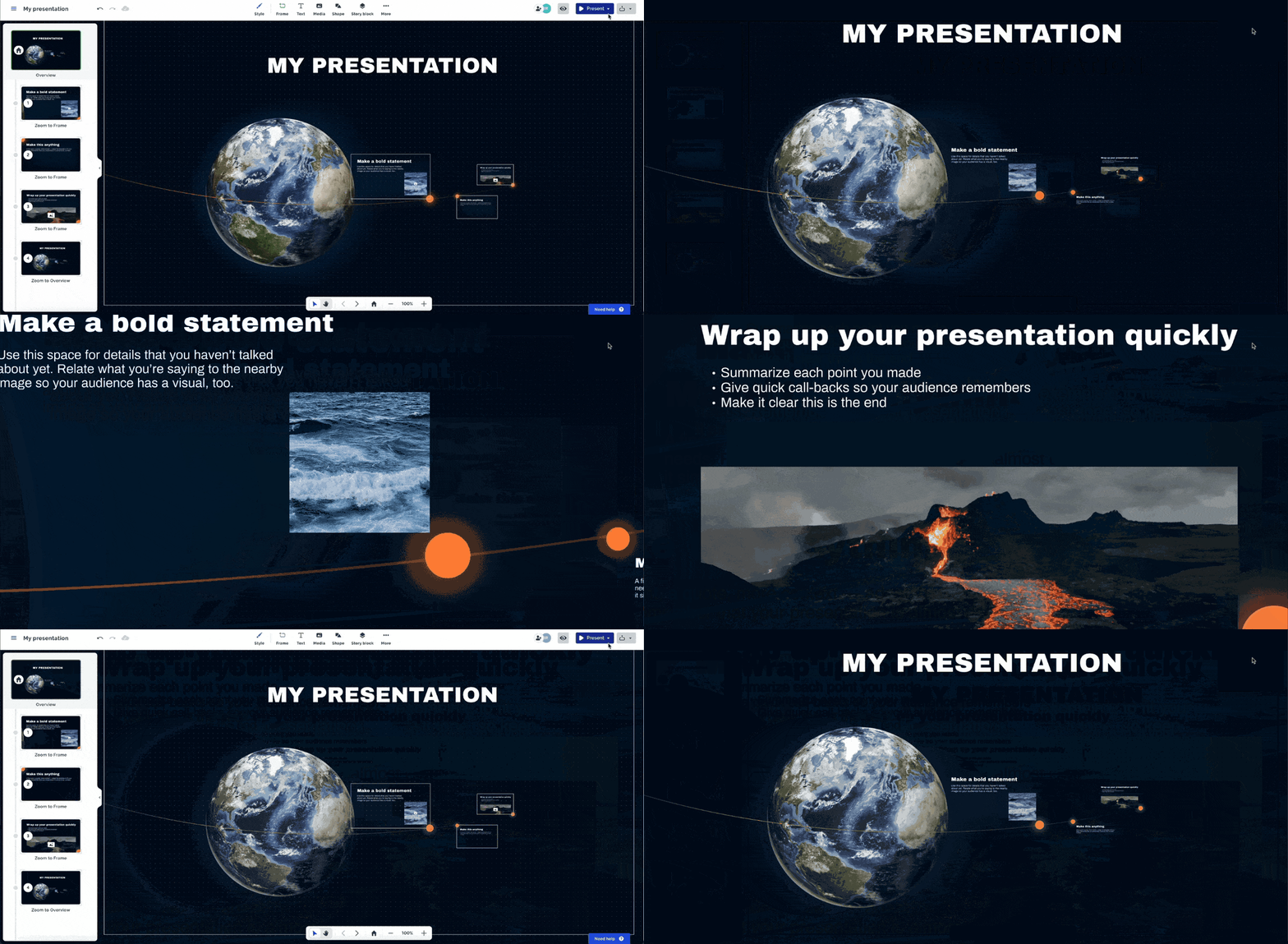
Here’s an example of an interactive video presentation created with Visme
Made with Visme Presentation Maker
A passive video runs one way, asking for attention while giving very little back. It plays, the viewer watches, and the only controls are play, pause and rewind.
An interactive video presentation does more. The viewer makes choices, and the content responds. This makes the format well suited to training, onboarding, sales decks, and product walkthroughs, anywhere you need to truly capture the attention of the viewer and want to know how it all landed.
These are the benefits you get from an interactive video presentation:
Not every presentation needs to be interactive. But it pays off when the viewer watches alone, when different viewers need different paths, or when you need to know what they engaged with.
Here are some example use cases to get you inspired:
In a live pitch, the rep navigates directly to the clip or section a prospect asks about instead of scrubbing through a single long video. After the meeting, the same deck can be shared as a link so the prospect explores it on their own time, with analytics showing the rep what they revisited before the next call.
Whether delivered live in a group session or shared for self-guided completion, each new hire navigates to the content relevant to their role. A new hire in sales sees different material than one in finance, without the L&D team building two separate decks.
Send the video to a prospect ahead of a call or use it during a live demo. The buyer explores the features they care about at their own pace, clicking into the ones relevant to their use case and skipping the rest. It's a faster, more relevant experience than sitting through a full product demo on a call.
Assign the video to employees for self-paced completion or run it live in a workshop. Either way, the viewer is tested at key points throughout rather than at the end. A wrong answer routes them back through the relevant section before they move on, so gaps are caught in the moment.
Share the experience as a link for prospects browsing online, set it up at a trade show booth, or bring it to a client event. The viewer explores a visual environment and clicks into the products, demos, or calculators that interest them.
The presenter activates content on demand based on what the room actually asks about rather than running through everything in a fixed order. Explainer clips, case studies, and demos sit behind hotspots and play only when they're relevant to the conversation.
In a live meeting, the presenter jumps between sections based on where the conversation goes rather than following a rigid slide order. Shared afterward, the same deck lets stakeholders who weren't in the room catch up at their own pace and click into the sections most relevant to them.
A useful rule of thumb comes from molecular biologist John Medina, whose book Brain Rules is the source of the widely cited idea that attention drifts after about 10 minutes unless something changes. Build an interaction into those breaks, and make each one purposeful rather than decorative.
Multimedia presentations are another example of interactive content that can help you communicate with your audience. This video shows you how to make one.
You don't need a video editor or a production team to create an interactive video presentation.
The whole thing can come together in five steps, from mapping the viewer's path to sharing a link you can track. The same steps will work for sales decks as well as for training, onboarding or a product walkthrough.
If you don’t feel like reading, here’s a video that walks you through the whole process. And if you want to try creating a video presentation without interactivity first, this guide on how to create a video presentation will help you.
Start with one goal: the single decision you want the viewer to make by the end. Then sketch the path you’ll follow in the presentation.
A simple way to scope it out is to decide how many decision points you want and how many choices you offer at each point. More decision points and more choices mean more to build and more for the viewer to navigate, so match the number to what the viewer actually needs to decide, not to how impressive you want the experience to look. For a sales deck, two or three decision points with two or three choices each are plenty.
As you map out the flow, plan to give the overview first so viewers can drill into the details from there. In his TED talk, communications professor Martin Eppler advises presenters to open with the big picture and then offer "details on demand."
For example, plan a navigation menu that routes people to a pricing slide, a demo video or a customer story.
Skip the guesswork and blank slides and start with Visme AI. You have two ways in.
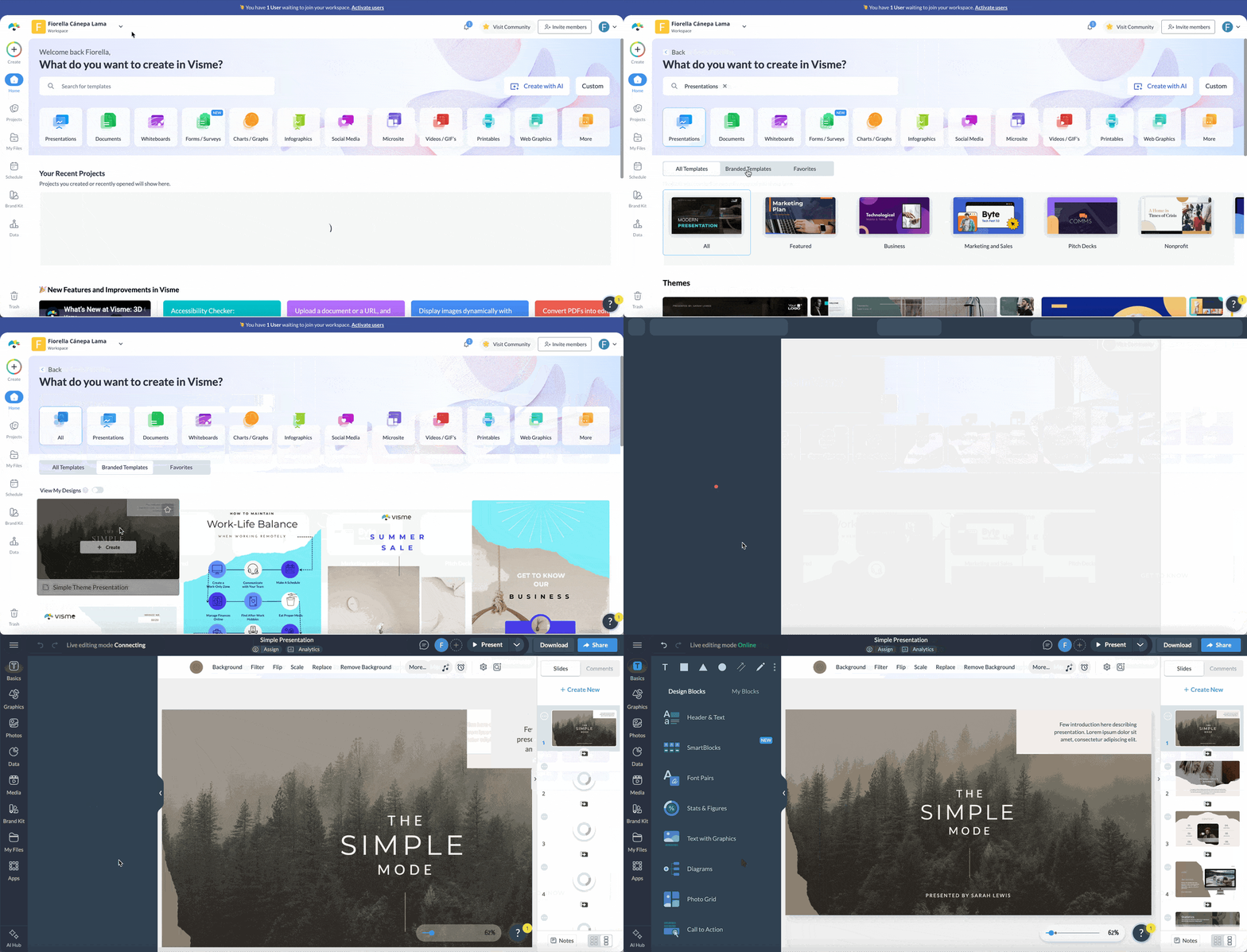
If your Brand Kit is set up, apply your brand colors and fonts inside the AI chat as the deck generates, so the styling is baked in from the start. If you're starting fresh, run Brand Wizard first: enter your website URL, and it pulls your fonts, colors and logo so every slide is on-brand.
Either path you take to the editor, you can then tighten the copy with AI Writer, which rewrites, expands or paraphrases your text right in the editor.
It can also help with truncated text boxes. When you generate a deck from uploaded or pasted content, Visme AI automatically splits long text into truncated text boxes, capping the visible lines to keep the layout intact. AI Writer can help edit the copy to fit the text box if you don’t wish to change the text box or its font size.
Video and interactivity aren't two separate actions while creating your interactive video presentation. Where a video lives is itself an interaction choice, so it's best to plan and decide both at the same time.
The first decision is how each video reaches the viewer. The same clip will play differently depending on where and how you put it:
Now, work on the videos and interactivity simultaneously. Because, for example, a welcome video on the opening slide leads to a menu of buttons that branch into different content sections. Inside one of those sections, a hotspot holds a clip that they open only if they want it, so the slide carrying it stays uncluttered.
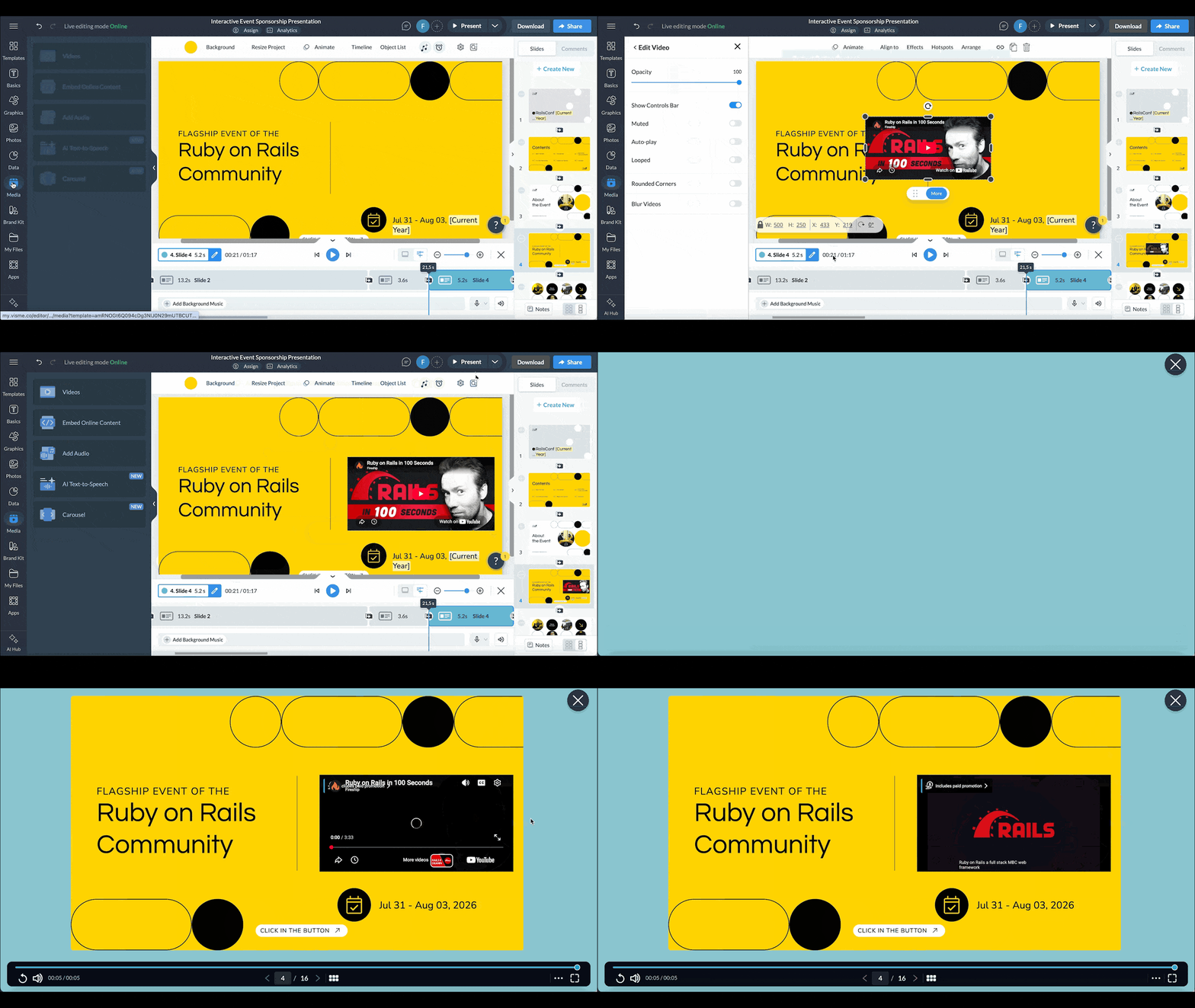
Keep clips short, around 90 seconds each, and tie each one to a branch. Keep the pacing deliberate, too.
On The Futur podcast, author Rob Fitzpatrick warns against building to a single reveal at the end, advising presenters to "sprinkle the good stuff throughout." It’s better when each interaction earns its place rather than piling up.
Before sharing and publishing, set privacy first. Make it public, restrict it to specific people or password-protect it. You can also route it through a registration form if you want a name and email for your records.
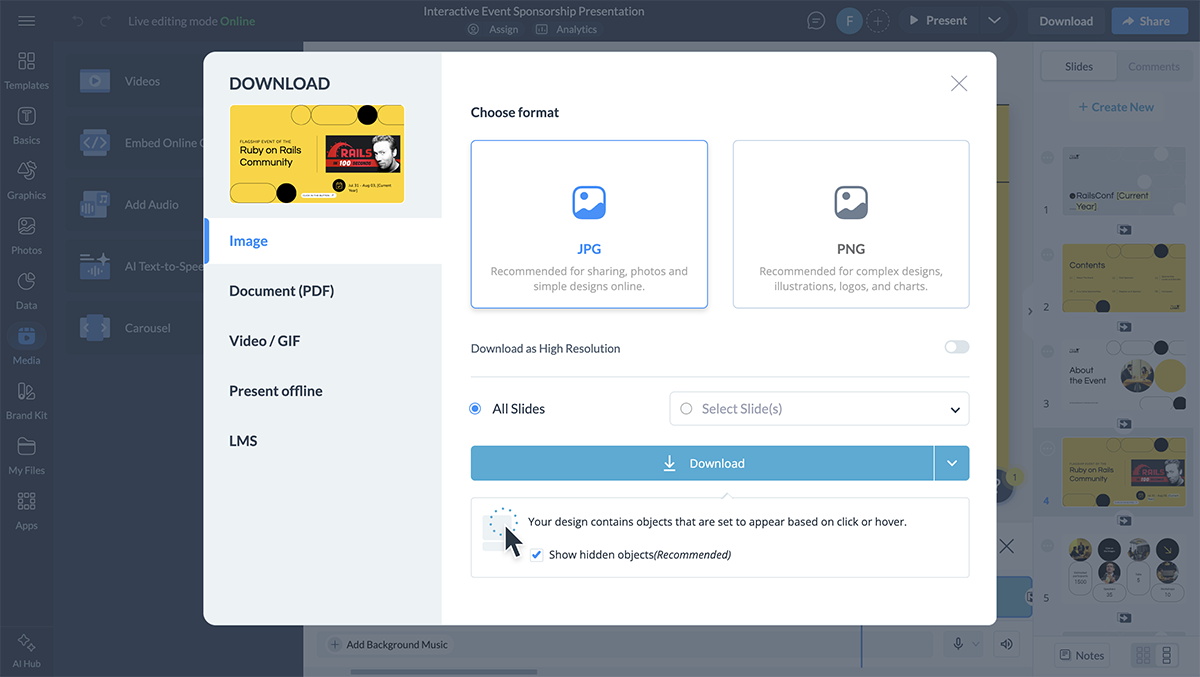
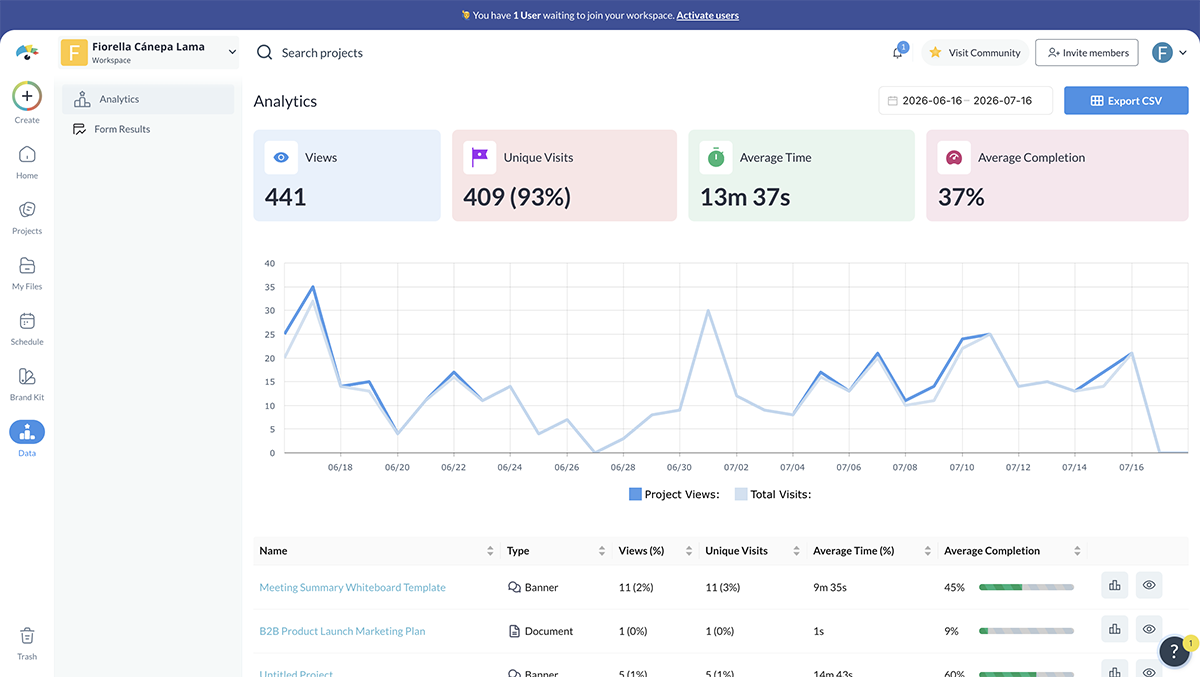
For training content, export to SCORM or xAPI and load it into your LMS to track completion there. Then, read the Analytics. For each viewer, you´ll see unique visits, how long they stayed, how much of the deck they completed, and which slides and elements held their attention.
For a broader walkthrough that covers non-video formats as well, see the guide on making a presentation interactive.
The interactive presentation tools below all pair video with interactivity, but they're built for different use cases. Some are full presentation platforms; some are dedicated interactive video tools; one generates AI avatar videos from text; and one runs live audience polls.
The table gives you the quick read; the breakdowns explain what each one actually does.
Disclaimer: The comparisons and competitor ratings presented in this article are based on features available as of July 17, 2026. We conduct thorough research and draw on both first-hand experience and reputable sources to provide reliable insights. However, as tools and technologies evolve, we recommend readers verify details and consider additional research to ensure the information meets their specific needs.
| Tool | AI Functionality | Key Features | Pricing | Ratings |
|---|---|---|---|---|
| Visme | AI Presentation Maker, AI Writer and AI image tools | Animations, interactivity, hover effects, clickable pop-ups, animated icons, illustrations, special effects, Brand Wizard, embed polls, quizzes, videos, analytics, custom and advanced animation features and Presenter Studio | Free; paid from $12.25/user/month | |
| Canva | Magic Design, AI image generation and AI writing | Large template library, collaboration features and Brand Kit | Free; paid from $18/month | |
| Prezi | AI text and design assistance | Zooming canvas, Prezi Video and presentation templates | Free trial; paid from $7/month | |
| Genially | AI interactive builder | Interactive images, gamification features and templates | Free; paid from $15/month | |
| Powtoon | AI video generation, text-to-speech and AI avatars | Animated explainers, drag-and-drop timeline and screen recording | Free; paid from €19/month | |
| Synthesia | AI avatar video generation from text | 240+ avatars, 140+ languages, interactive videos and SCORM export | Free; paid from $14/month | |
| Mindstamp | Genie AI | Video branching, hotspots, lead capture and analytics | Paid from $99/month |
|
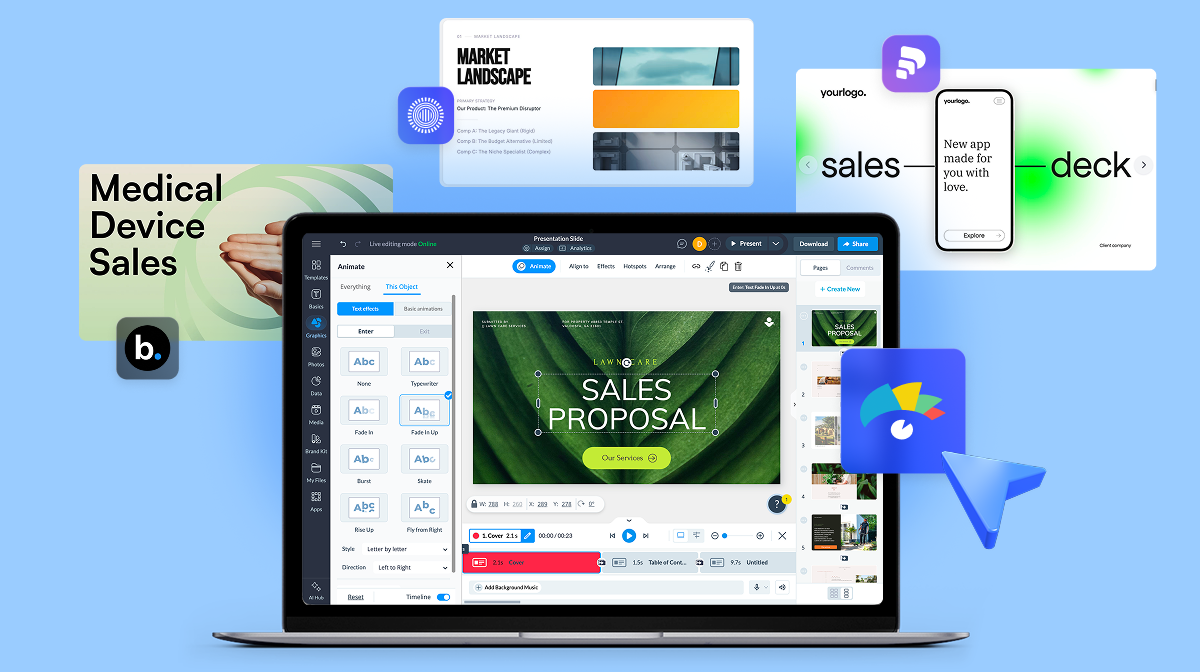
Visme is a single platform where you can build the deck, add (or create) video, layer in interactivity and then track how each viewer engages with your slides. Visme AI can help you draft the first version from a prompt or your existing content, or you can create the presentation manually.
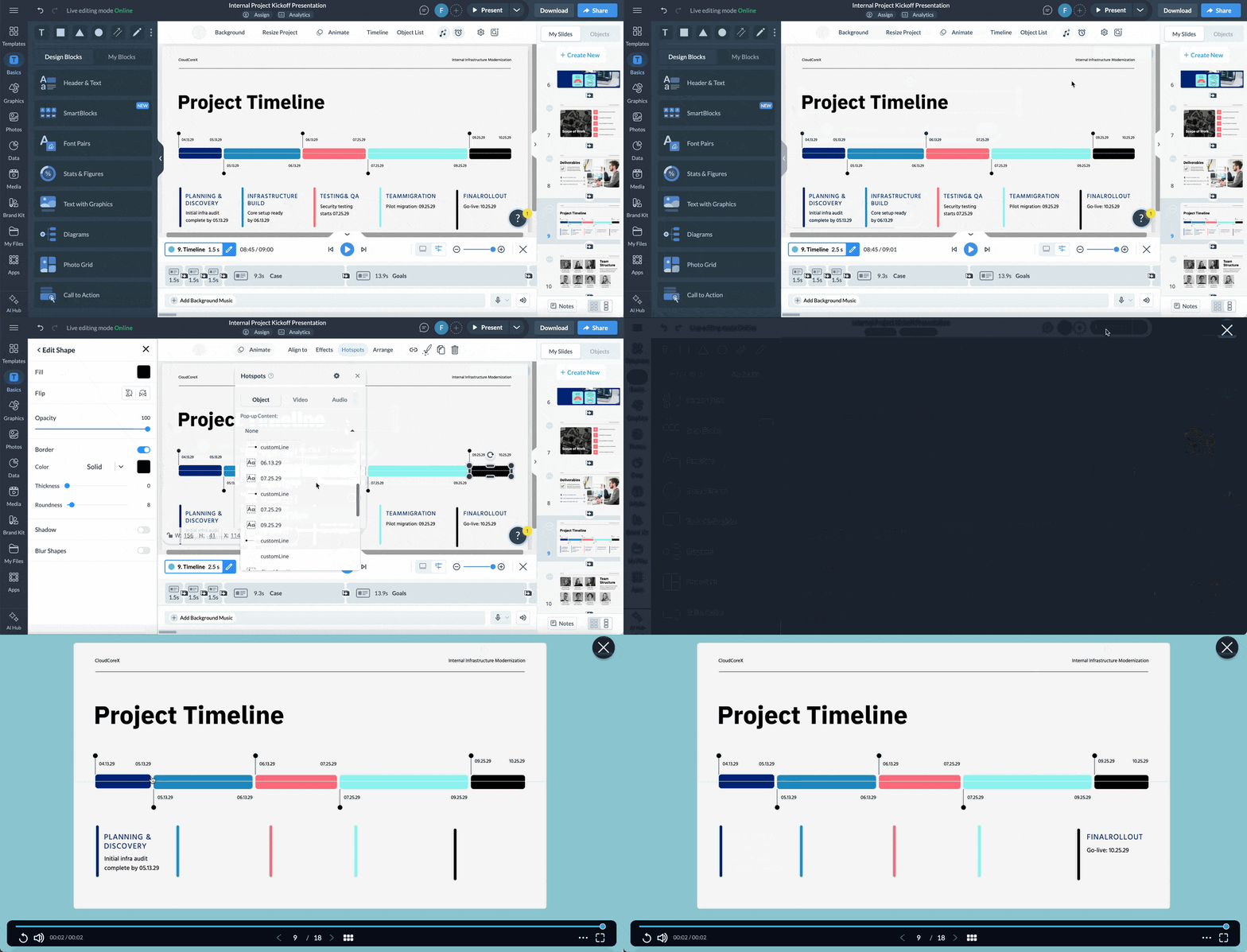
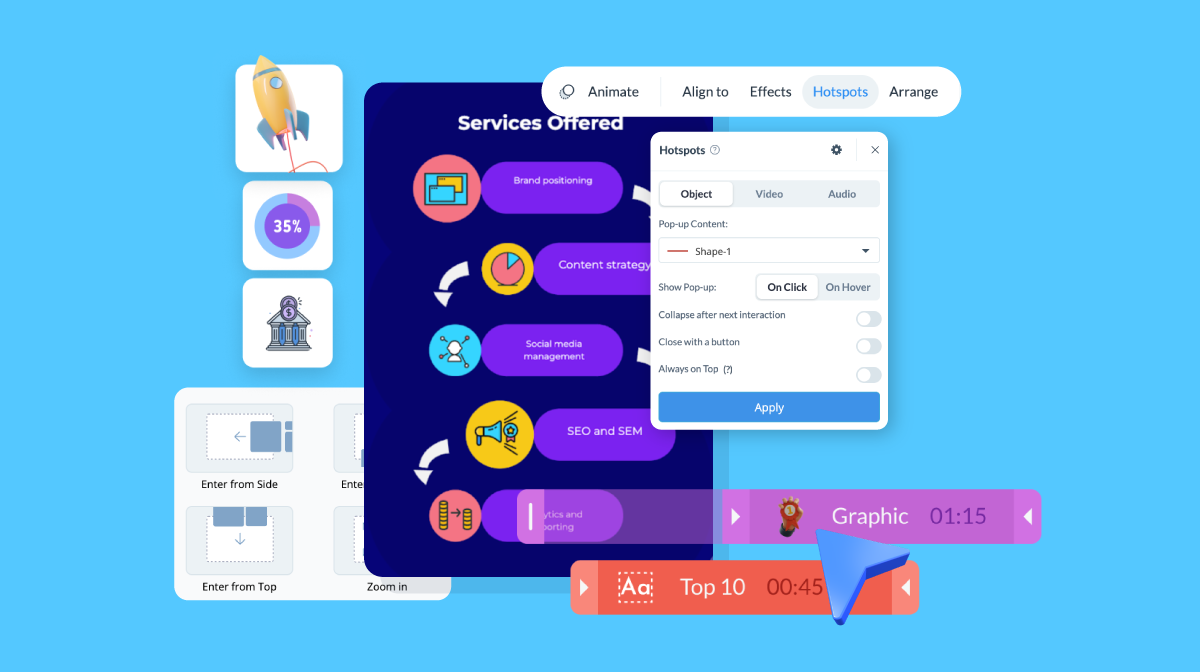
Specifically for combining video and interactivity, Visme covers more ground than most presentation tools. For example, you can:
The free Basic plan gives you editor access, 500MB of storage and a limited set of templates with a watermark.
Canva is a web-based platform for creating all kinds of content, including decks, social posts, one-pagers and simple videos. For interactive video presentations, embedded video, basic animation and hyperlinks are straightforward to implement, but other interactive features are more difficult. They live inside several apps that offer things like polls, forms and other similar tools. Some of those have analytics, but it’s not native to Canva.
The free plan covers basic decks and many templates.
Prezi is known for offering an editor that creates a non-linear slide presentation by using a zooming canvas that pans between the big picture and the detail. This unique feature makes any Prezi presentation inherently interactive.
Then, regarding video, you can embed a video on any Prezi slide so it plays when you zoom into that slide. Hyperlinking is limited to external URLs; you can't link directly from one slide to another. To connect sections, you build the flow through Planet and Page topics instead (Prezi's terms for its nested, zoomable content structure).
Prezi added its own interactivity in 2026: live in-slide polls, a word cloud tool, and AI-generated quizzes built from your deck. It still has no hotspots or embedded forms.
A free trial lets you explore the editor.
Similar to Visme, Genially can create highly interactive and animated presentations. One thing it does have over Visme, though, is gamified experiences.
This is a strong pick for visual, click-to-explore decks geared mostly towards learning and training, with some business features sprinkled through.
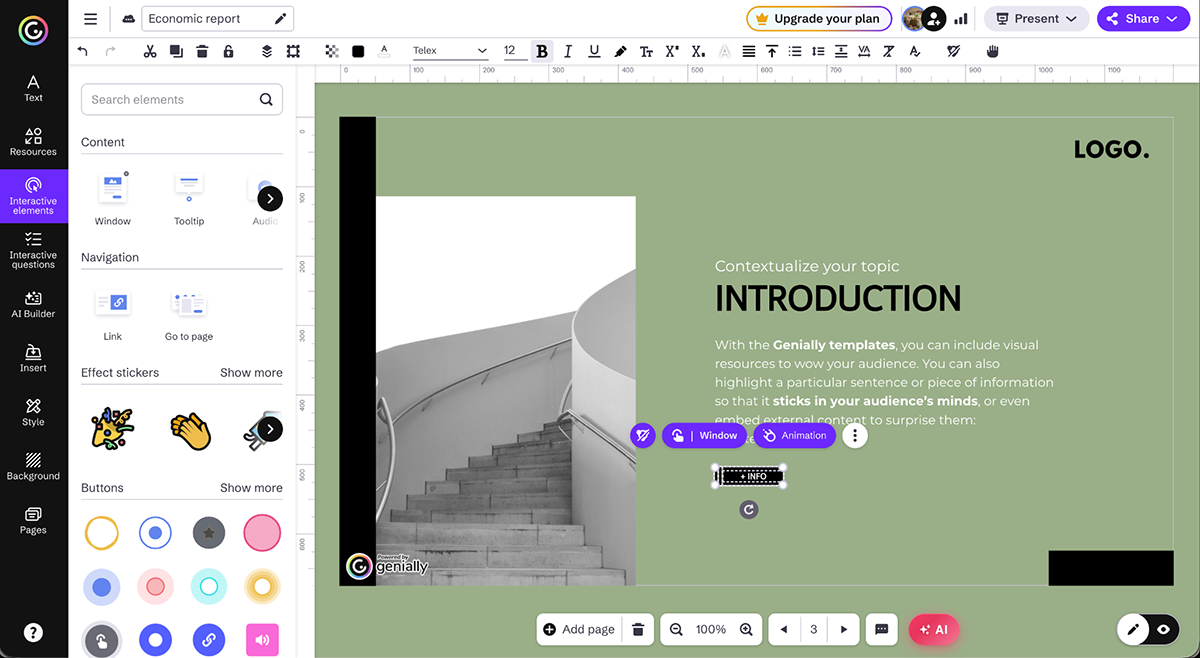
The free plan covers interactive content with a Genially watermark.
Powtoon is an animated video platform built for explainer-style content. You assemble animated videos on a drag-and-drop timeline using characters, props, stock footage, and AI text-to-speech avatars.
Powtoon is great for the video side of the equation, but limited on the viewer's side. You can add a clickable hyperlink to any object or text, and viewers can click it while watching inside the Powtoon player, but it stops working once the video is downloaded as an MP4 or embedded elsewhere.
There's no native hotspot or pop-up feature, so anything beyond a simple link means routing around the platform.
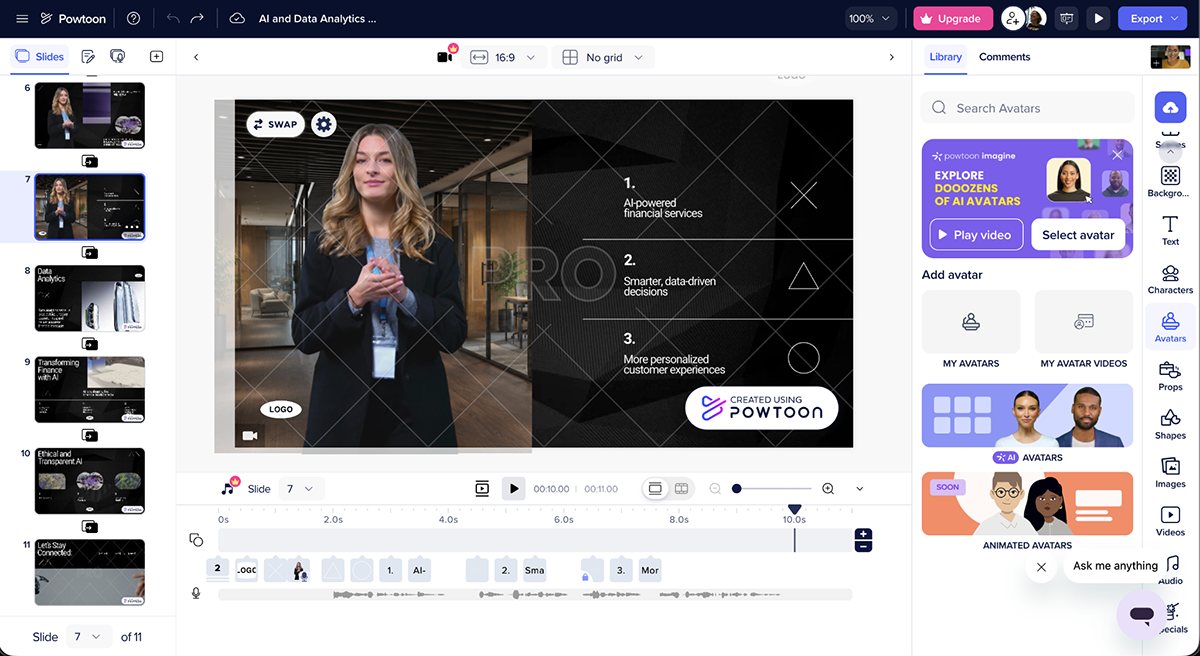
A free version is available but limited, with branding removal and better templates gated behind paid tiers.
Synthesia uses AI to turn text into video with AI avatars, without the need for a camera, actors, or a studio. You type a script, pick an avatar and language and Synthesia generates a polished video after showing you a preliminary outline you need to approve.
Technically, Synthesia-generated videos are presentations because they’re separated into scenes or chapters. If you create a video without interactivity (actions the viewer can take), you can download and share it as an MP4 file. Once it has interactive elements, you can share it only via the Synthesia viewer. This limitation is very common for this type of content.
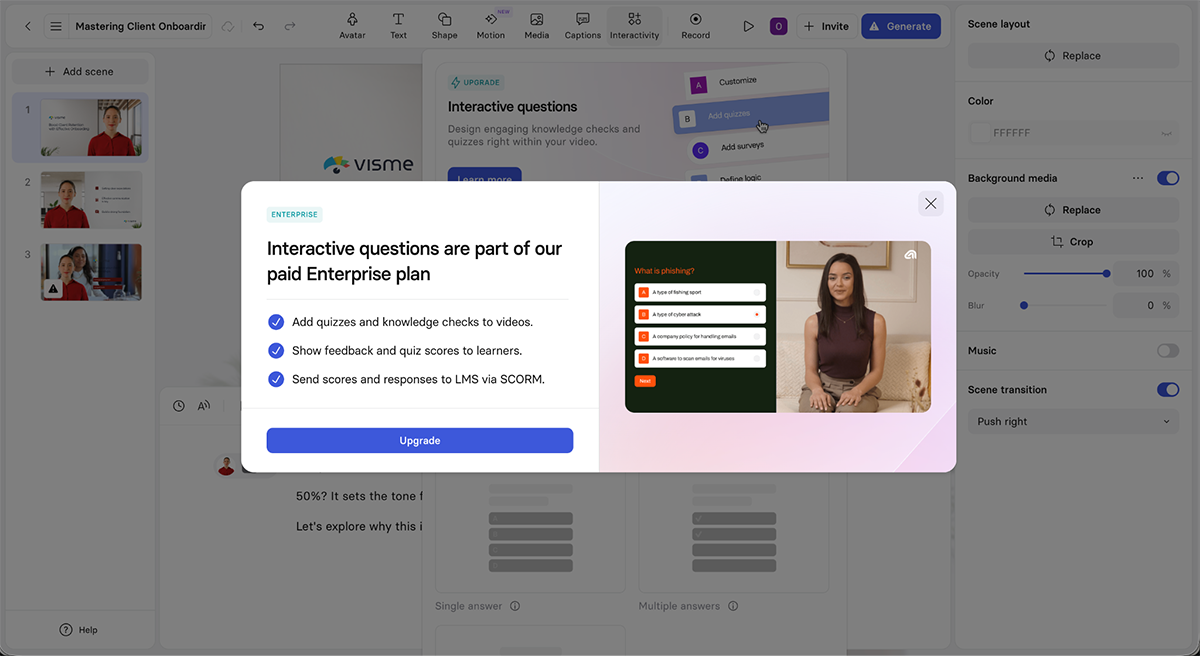
A free plan lets you create watermarked videos with limited minutes, no interactivity and no downloads.
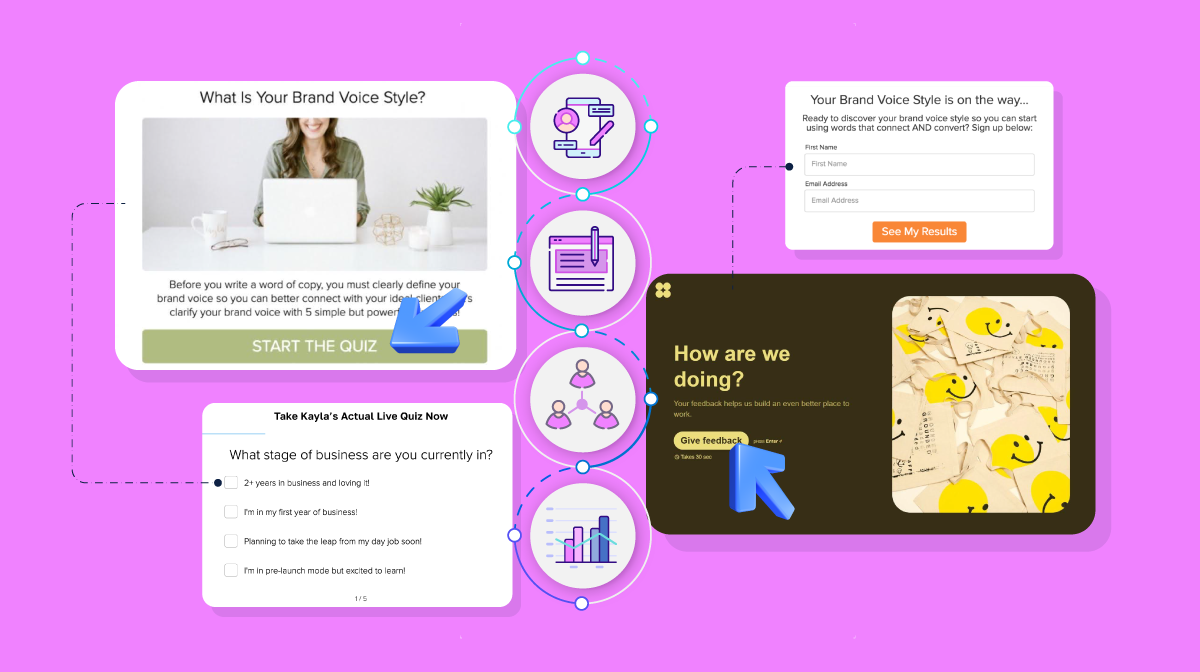
Mindstamp works differently from the other tools on this list. Instead of creating an interactive presentation, you build a video that has interactivity overlaid on it. You can add clickable buttons, hotspots, questions, branching logic, and more.
It's the closest tool on this list to pure interactive video, and it hosts the video file, so small edits don't mean re-uploading everything.
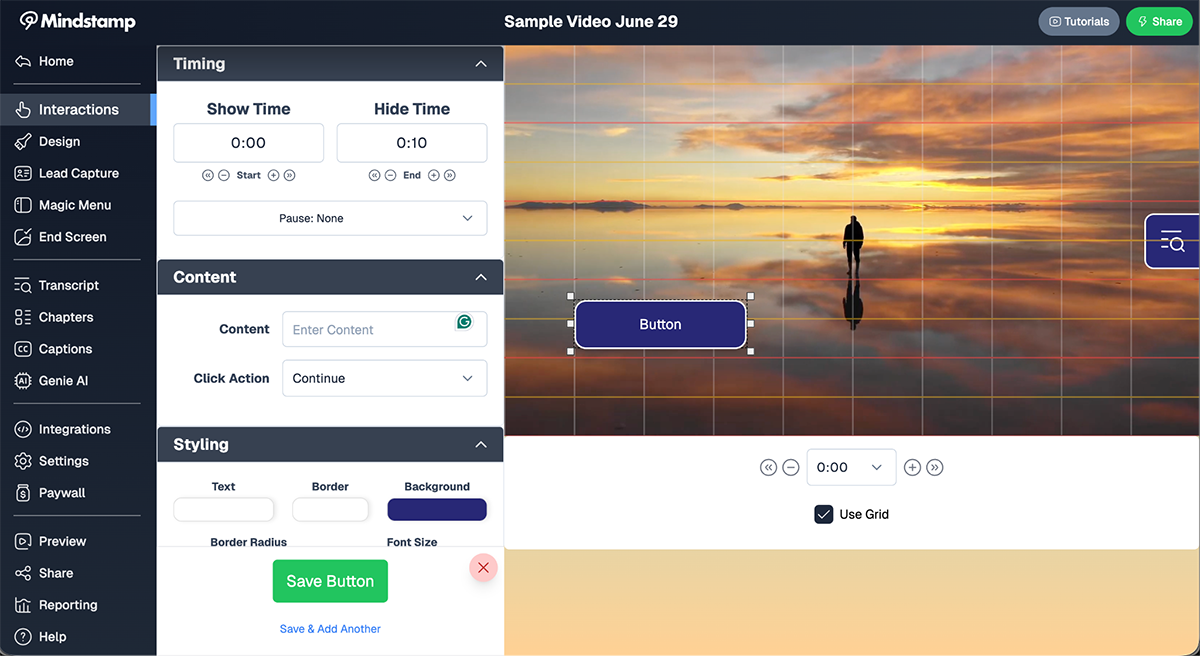
There's no free plan, though a trial is available.
Interactivity helps only when it serves the viewer. That’s why these four mistakes will create friction.
This video walks you through the best actions for creating a successful interactive and animated presentation.
Add elements that the viewer can act on. Embed your video, then layer in clickable buttons, hotspots, in-video questions and branching so the viewer chooses what to watch next. Share it as a trackable link rather than a video file. Visme, for example, lets you build the deck, add the video and add interactivity in one place.
A standard presentation with an embedded video plays start to finish, the viewer just watches. An interactive video presentation adds elements the viewer can act on: buttons, hotspots, questions, or branching paths that change what plays next.
Yes, but not always as well as the desktop. Hotspots and buttons can be harder to tap on a small screen, so preview on mobile before sharing and adjust any interaction that’s hard to reach with a thumb.
A great example of an interactive presentation is a product walkthrough, where viewers click hotspots to explore features and learn more. Other examples include a sales deck with a navigation menu, a branching training scenario and a virtual showroom.
Give the viewer something to do. Break it into short clips, add questions or clickable choices, and let them pick their own path. Keep each segment under 90 seconds and use animation or quizzes to maintain the pace.
The real problem with video presentations is viewer attention. A recording or a slide deck gets skimmed, half-watched, or maybe even closed before the end. Plus, you’re left guessing where you lost them and have no idea how to improve the next iteration. That’s why interactive video presentations are the answer.
Visme solves the issue by bringing everything you need into one unified platform: AI that drafts your deck, native video and embeds, hotspots and branching for interactivity, and analytics that show you who watched what. There is no separate video editor or switching between tools.
Sign up for a free Visme account and build your first one, whether it is a sales deck, an onboarding flow or a product walkthrough. See how Visme helps sales teams build presentations that engage viewers and turn prospects into customers.

Design visual brand experiences for your business whether you are a seasoned designer or a total novice.
Try Visme for free![20 Interactive Presentation Ideas That Will Engage Your Audience [+ Real Life Examples]](https://visme.co/blog/wp-content/uploads/2026/07/BH_Thumb-0726-Interactive-presentation-ideas-and-examples-1-500x280.png)


![20 Interactive Presentation Ideas That Will Engage Your Audience [+ Real Life Examples]](https://visme.co/blog/wp-content/uploads/2026/07/BH_Thumb-0726-Interactive-presentation-ideas-and-examples-1.png)