How to Create a Benchmark Report in 2026 (+ Templates)

![20 Interactive Presentation Ideas That Will Engage Your Audience [+ Real Life Examples]](https://visme.co/blog/wp-content/uploads/2026/07/BH_0726-Interactive-presentation-ideas-and-examples-1.png)
You've got a presentation coming up, and you want it to do more than sit on a screen while you talk.
That instinct is right, especially for a business audience. A non-interactive deck can lose the room in minutes, and it's worse when the deck is sent as a link and you're not there to hold attention. The fix isn't more slides. It's giving the audience something to do.
This guide covers 20 interactive presentation ideas, from low-tech moves like a show of hands to fully interactive content built for async sharing. Each one is written for real-world business use cases: sales pitches, executive updates, onboarding, and internal training.
You'll also discover interactive presentation examples built in Visme that you can try yourself, plus best practices and answers to common questions.
If you're short on time, Visme's AI Pitch Deck Generator can build a slide deck from a prompt, so you can focus on the interactive parts rather than the layout.
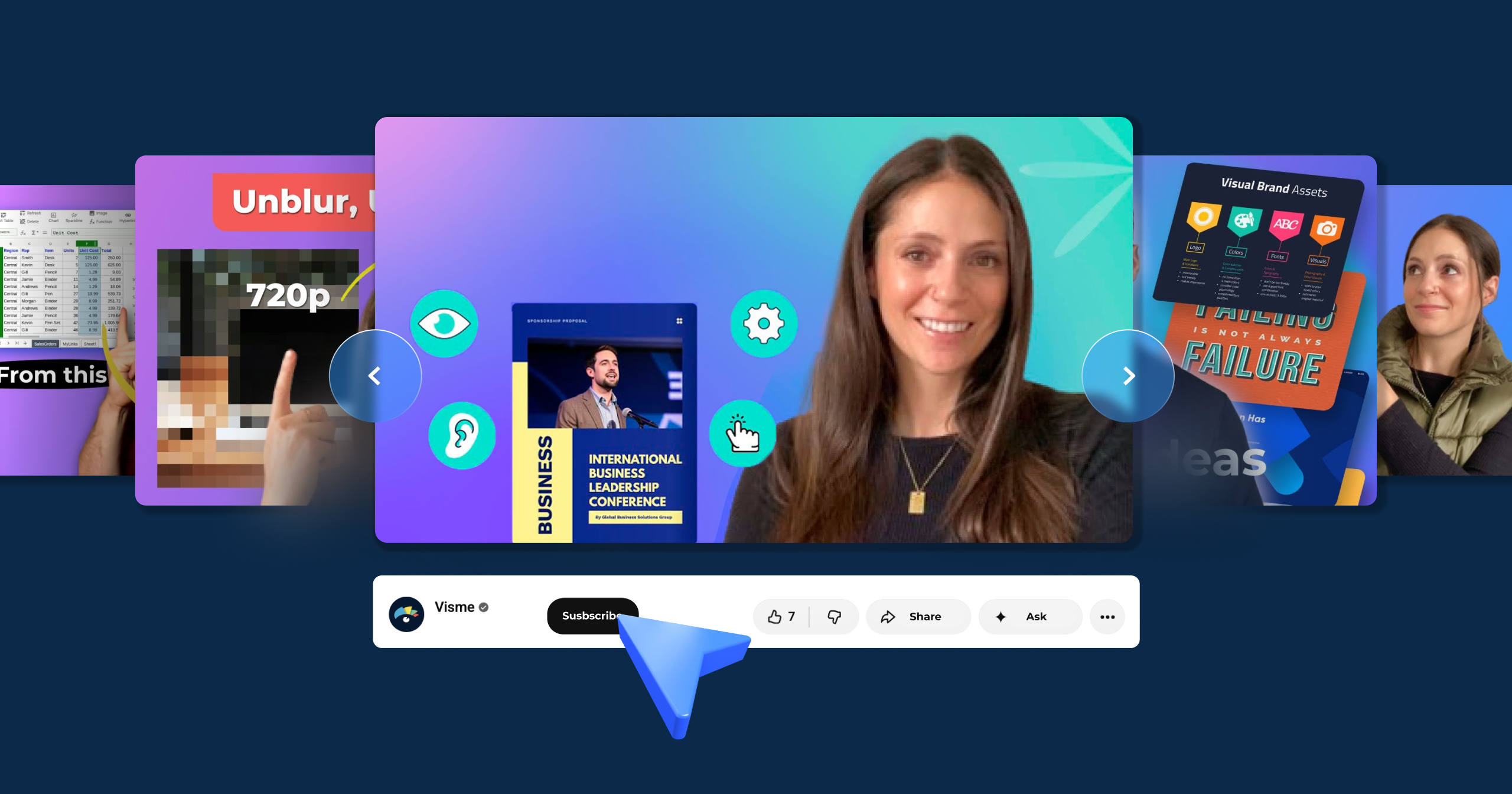
Prefer to watch a video first? This quick video runs through some of the best ways to create interactive presentations before you dig into the full list.
Not every idea below needs fancy tech. Some just need a show of hands or a stack of sticky notes. What they all have in common is that the audience actually gets to do something as part of the presentation. That might be answering a poll, dragging a slider, or voting on what happens next in a story.
They're grouped into four categories based on what drives the interaction: live feedback from the room, a specific tech feature, a physical or analog facilitation move or a training format.
Pick one or several based on your setting and group size, and remember not to overload the interactivity so things stay fun instead of excessive.
One caveat before you start: interactivity reliably lifts engagement in the moment, though it doesn't guarantee better retention on its own.
A 2025 systematic review of controlled studies on Audience Response System tools found consistent short-term gains in participation, while evidence for long-term learning gains was mixed. Use these ideas to pull people in, then lean on strong content to make the message stick.
Best for: Live audiences, remote and hybrid meetings
These ideas turn the audience into participants. Each one gives people a way to respond in real time, so the session adjusts based on their responses.
Polls give you a read on the room at any point in the presentation, showing where people stand before you move on. Set up a poll using Visme Forms and connect it to a Google Sheet or an Excel Spreadsheet to collect responses.
You can then connect this sheet to a table or chart in your presentation that will show the responses as they happen. As long as you’re connected to the internet, you just have to reload the browser to see the latest responses.
Before starting the presentation, invite everyone to open the poll on their phones. You can give them a URL or show a QR code to scan. That way, they're ready to respond when you prompt them, rather than scrambling mid-flow.
For instance, during a security training session, show several email examples and ask, "Which of these emails is a phishing attempt?" and use the answers to guide how you continue the training.
Polls work just as well in an interactive marketing session, where you can ask the room which campaign angle they'd click on before revealing the results.
Take questions as they come up instead of saving them for the end. Cory House, a Microsoft MVP and conference speaker, publicly stopped doing end-of-talk Q&A altogether, arguing that live questions are shorter, more focused, and keep the room from checking out while one person rambles.
As he argues, “Ending with questions is a far less compelling memory than your closing statement. And if it’s not, work on your close!
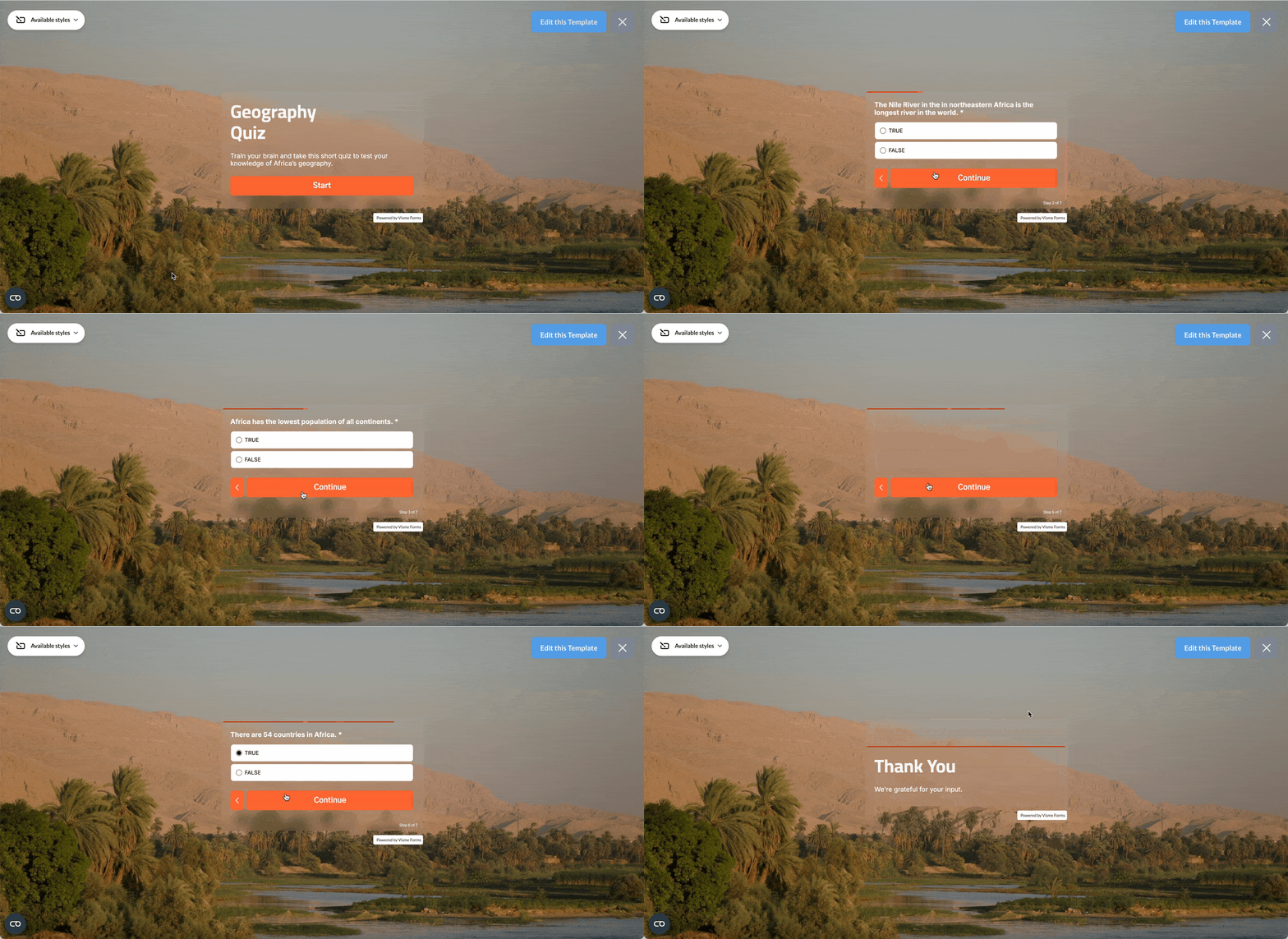
A mid-presentation quiz is a solo pulse-check: everyone answers individually and you read the results live to decide what to reinforce. For example, when running a sales training session, pause after covering objection handling and quiz reps on how they'd respond to a specific pushback, using Visme's quiz templates.
Scoring turns quiz questions into a competition, which works when you want energy and repeat participation rather than a quiet knowledge check. Karl Kapp, professor of instructional technology at Commonwealth University of Pennsylvania, shares how to best use a leaderboard with a team:
"If you use a leaderboard, change it weekly or monthly, because the person at the top of the leaderboard loves it, the person at the bottom of the leaderboard hates it, and if you're like, I'm never going to get to the top of the leaderboard, you drop out."
Build a Kahoot for the mechanic, invite participants, then share the results with the room.
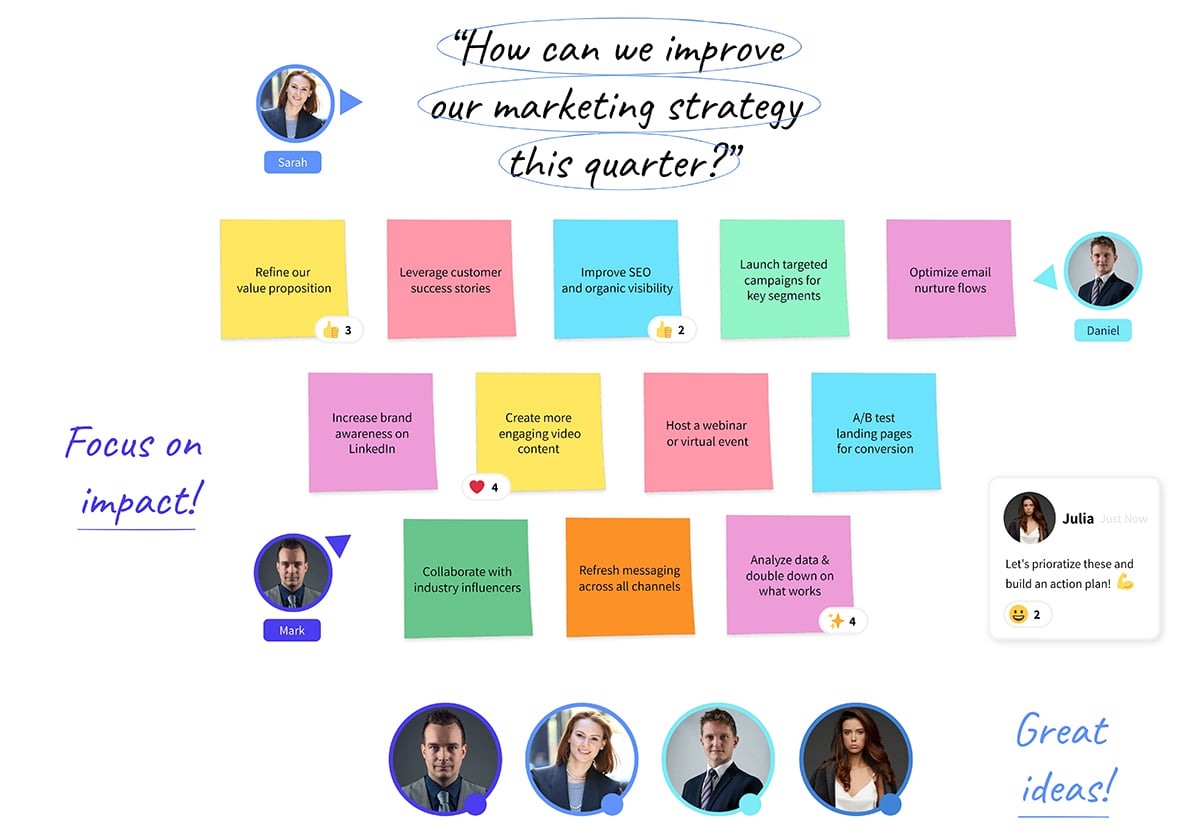
Sticky notes are for open-ended input you'll act on: full thoughts, ideas, or concerns you can cluster and respond to. Give the room a prompt, have them write an answer and post it on a wall.
For a remote or hybrid version with a small group, Visme's whiteboard includes a digital sticky note feature that works the same way on-screen.
Just invite the guests into your workspace first, using Visme's collaboration tools so everyone can add notes at once. For in-room attendees, share a QR code that links straight to the whiteboard so they can join from their phones without typing a link. Once everyone's in, they can add notes at the same time and you can group ideas together live. When the session wraps, use the workflow feature to assign tasks with owners and deadlines, so the follow-up doesn't die on the board.
Best for: Pitches, executive updates, sales decks
These ideas depend on a specific interactive design feature, like a hotspot, a live dashboard, or a click-triggered animation.
This uses a reveal for drama: one hidden figure, built up to and exposed at the right moment. When presenting a sales pitch, ask, "How many hours does your team lose each week to manual reporting?"
Then reveal a real figure on the next slide so they can compare themselves to the data. Use Visme's popup feature to build the pause before the reveal.
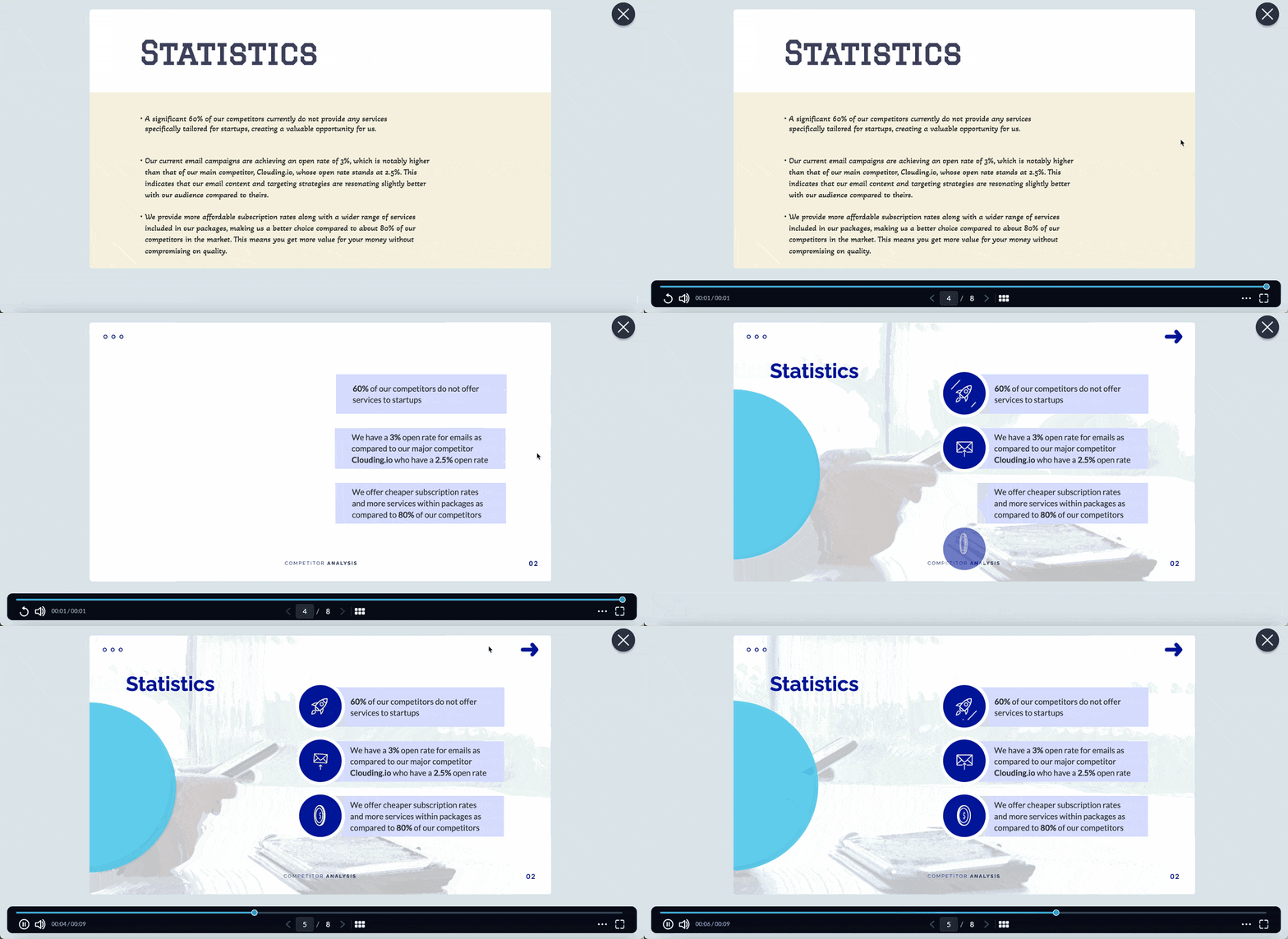
Layer an "after" image over a "before" image, then use a click or transition to reveal the change. When pitching a website redesign, show the old homepage, then animate in the new mockup on the same slide instead of jumping between two separate slides. Build it in Visme with an animated transition that fades or wipes the after-image into view over the before-image.
To ensure that an asynchronous viewer will know there’s interactivity on the slide, add an animated icon and label with text effects. It will grab the viewer’s attention to the reveal feature.
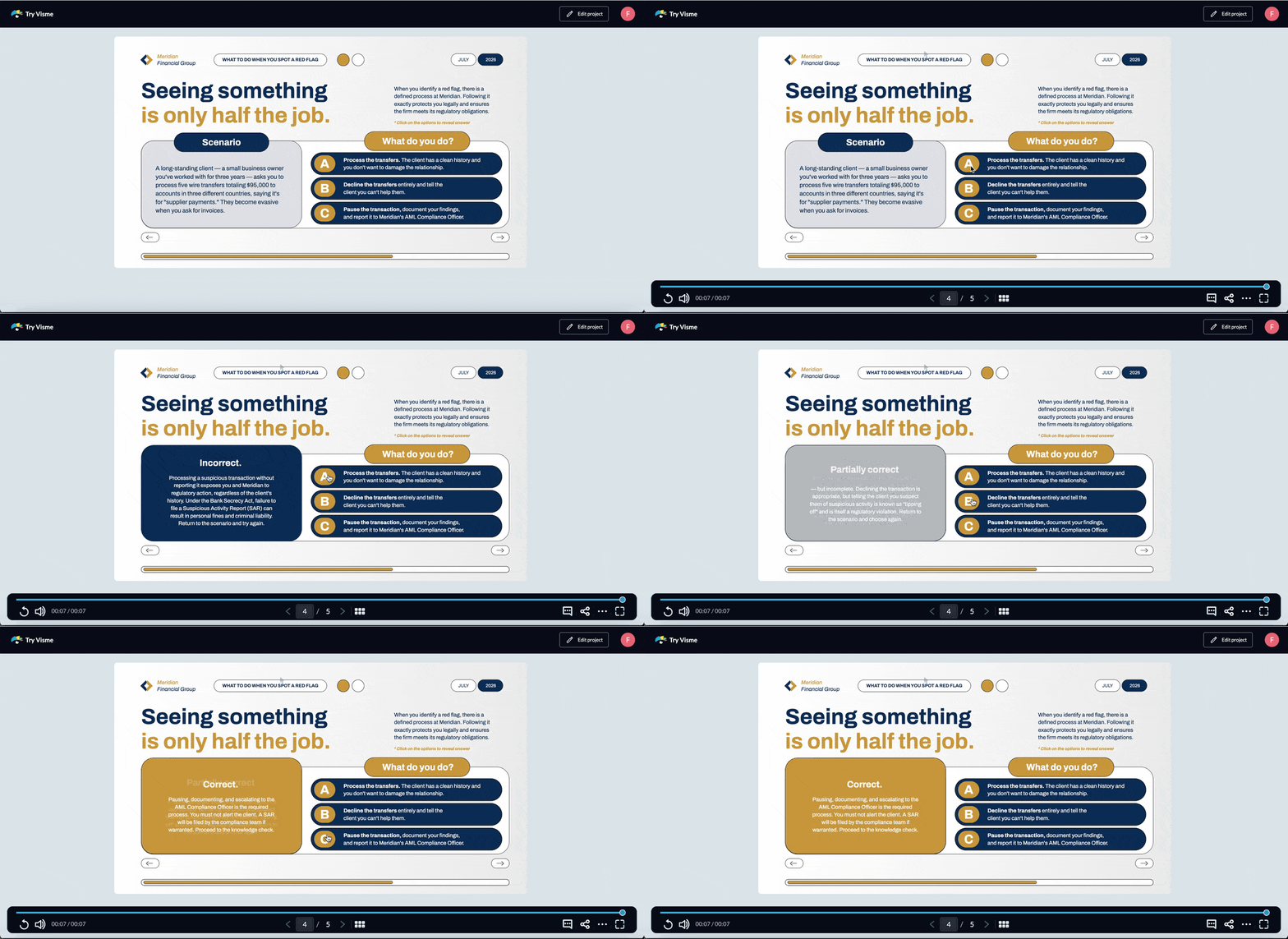
Hide the info until you or the viewer decides to make it viewable. For example, when presenting pricing, hide the numbers until someone clicks to reveal them or asks you to do it while you present. Build it using the hotspot feature, and add a unique hotspot to each text block you want to reveal.
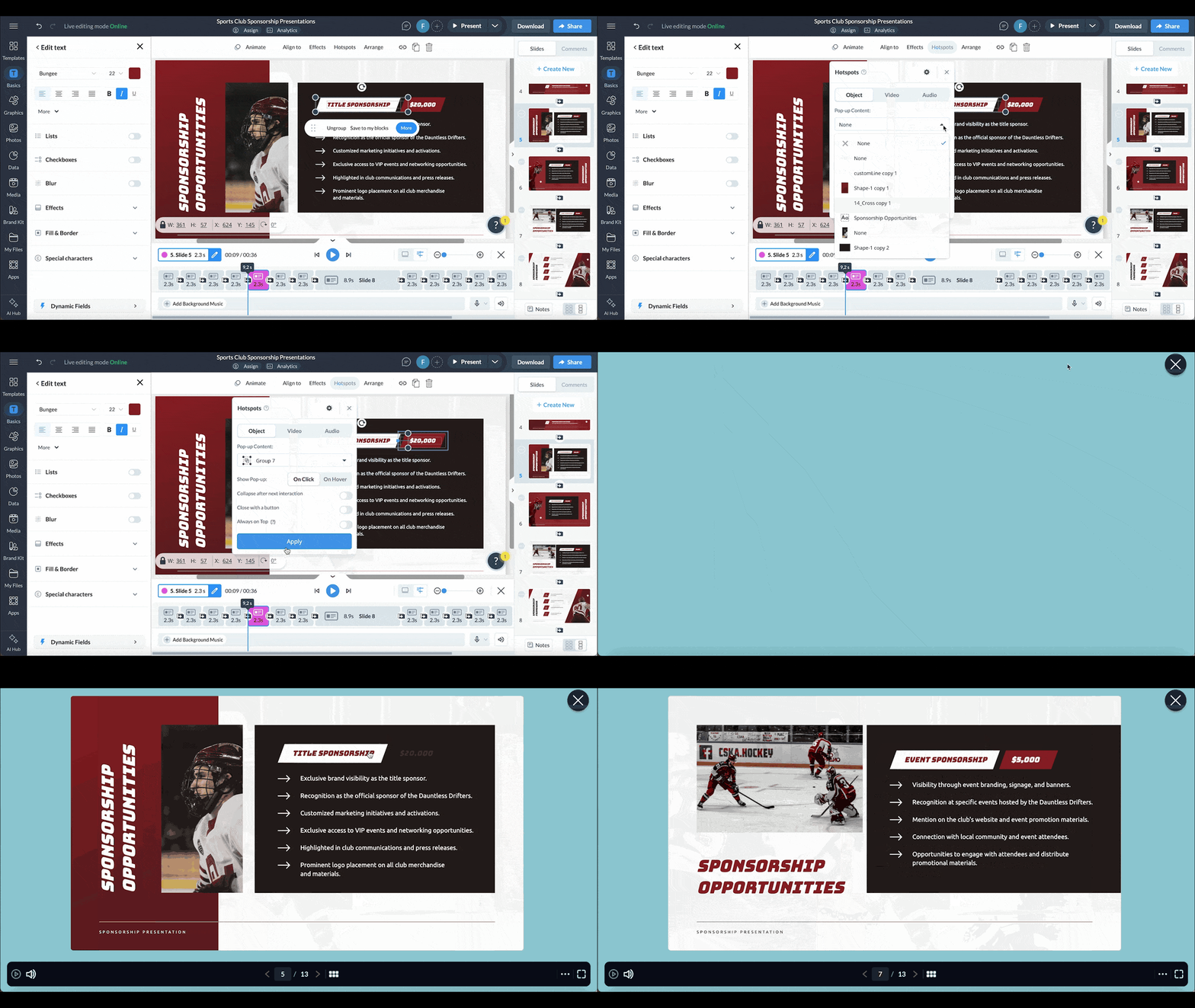
When a deck is sent as a link, there's no presenter to say "click here" or show the audience the interaction live. That’s why sometimes interactive elements get missed. The solution is to flag them. So, to ensure that an asynchronous viewer knows there’s interactivity on the slide, add an animated icon and label to the trigger button. This will grab the viewer’s attention so they don’t miss it.
Let anyone in the room filter the data live by embedding it, creating a data visualization dashboard instead of just adding screenshots to the deck. Build your own with Visme's dashboard tools, which support a range of data visualizations for viewers to explore during the call.
All charts in Visme, like bar graphs, line graphs and pie charts, have animation controls and on-hover popups that you can use to share more info than you can fit without clutter. And for small data points like percentages, incorporate animated data widgets that grab attention.
The template below is the perfect setup to create a fully interactive dashboard presentation with a navigable menu on the left and interactive data on the canvas.
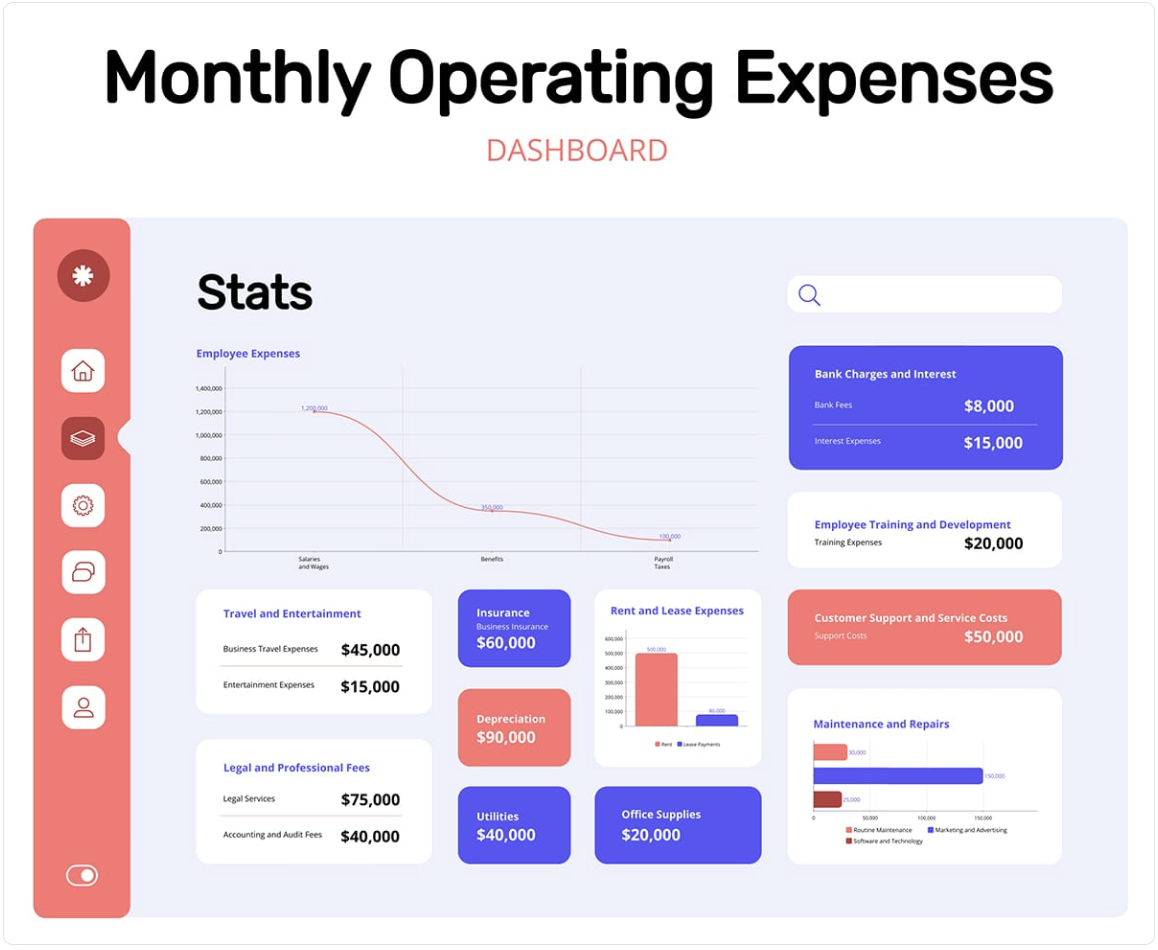
All charts in Visme, like bar graphs, line graphs and pie charts, have animation controls and on-hover pop-up options. That way, you can share more information about each data set than what you could fit in the slide without cluttering the design.
And for small data points like percentages, incorporate animated data widgets that grab attention. Plus, all data visualizations are customizable to match your brand style or the presentation’s color palette.

Put lots of information on one slide instead of splitting it across five. This way, you keep the presentation short while still holding the depth. For example, when presenting a roadmap in a sales proposal, add hotspots to each milestone or date to show more information.
You can add a voice/voice recording, an embedded explainer video, a product anatomy graphic or even a simple list. The same technique will also power an interactive infographic, where each data point expands on click.
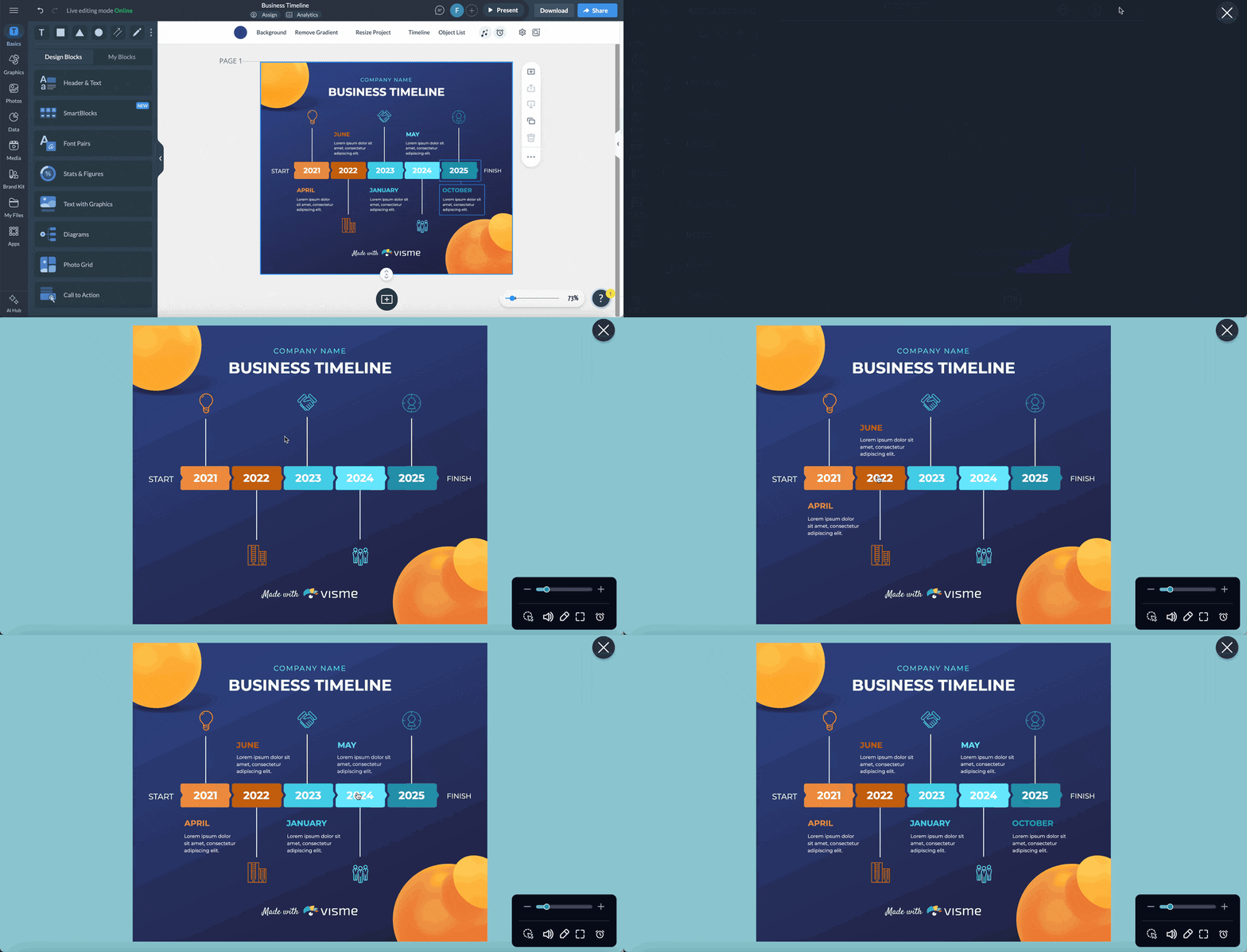
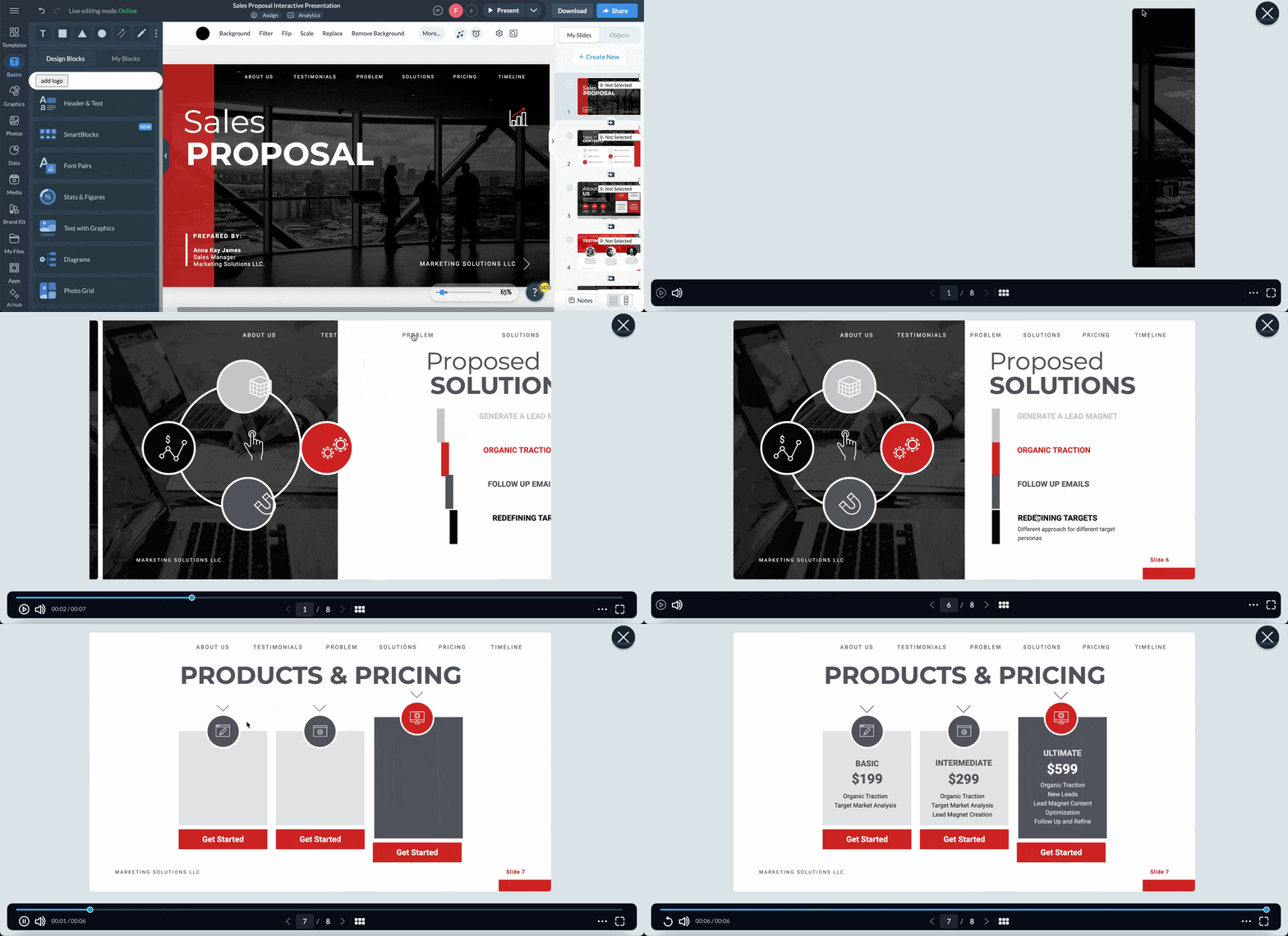
This is free navigation: a clickable menu on every slide that lets people jump to any section in any order, with no set path. It's great for async presentations but also works in small live groups where the audience asks for what they need. Visme's interactive presentation templates build this with a fixed menu that stays on every slide.
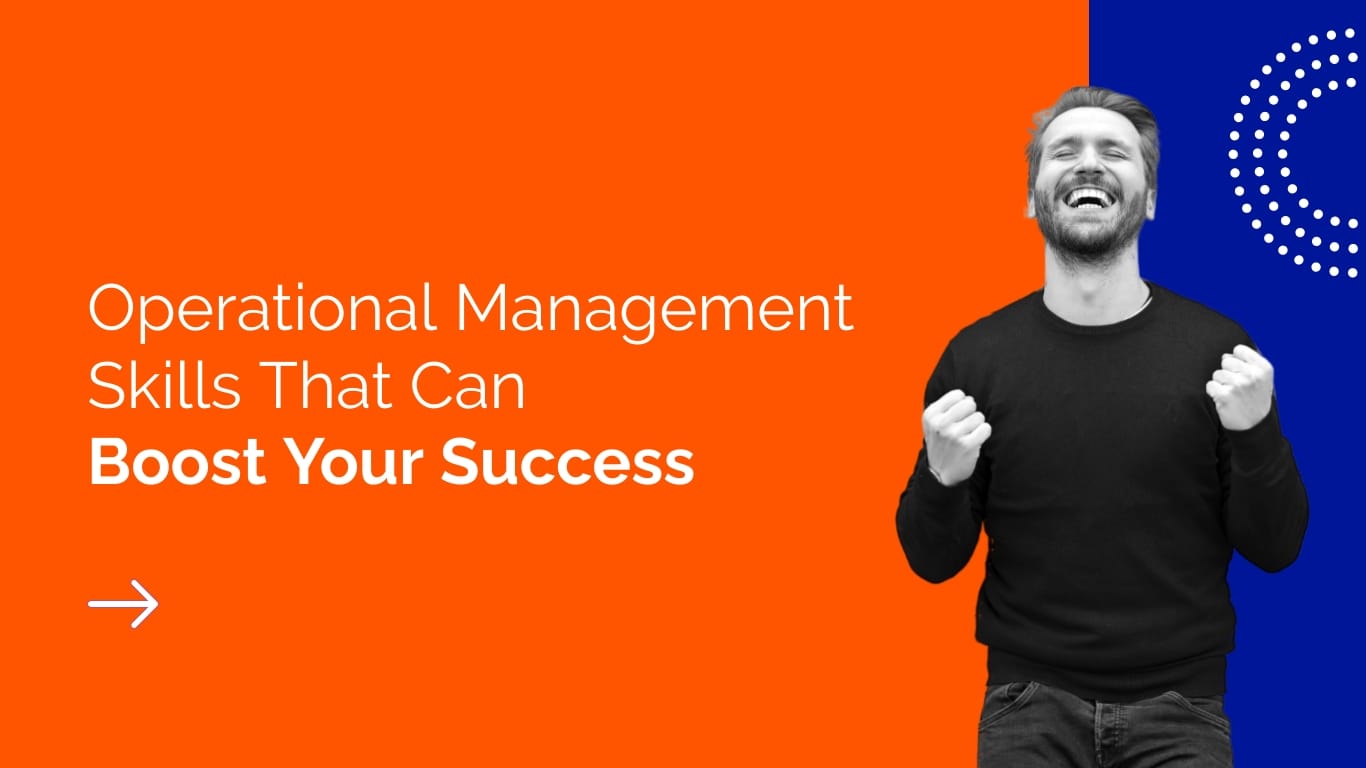
Recommended for you: How to Create an Interactive Presentation with Visme
Best for: In-person talks, workshops, keynotes
These ideas don't need any software. They rely on physical props, a show of hands, or a pause in the story to engage the room. And they work well when you don’t want people checking their devices.
Let’s say you’re presenting a sustainability pitch, pass around a sample of recycled material and ask the room to guess its age or origin before explaining it. You can even brand the sample and make it into something useful they can take home.
Presentation design professional Maurizio La Cava shares why this technique is valuable:
“The strategic incorporation of physical objects primarily serves to clarify complex ideas, engage multiple senses, and create a lasting impact on the audience.”
A show of hands requires no setup and gives you an instant read in a physical room, making it the fastest option when everyone's in front of you and you don't want screens involved.
Ask a question tied to your topic and let the results set the stage before you start. Kelly McGonigal opens her TED Talk on stress by asking the audience to raise their hands to indicate how much stress they've felt in the past year, before making her case.
Instead of narrating straight through, let the room's votes steer which path the story takes. For example, when walking through a case study that explains customer scenarios, stop at each decision point.
Then lay out the options, and have the audience vote on what happens next, then branch to the slide that matches their choice. You can also just ask someone in the audience at random to help move things along.
They will see the consequences of the path they picked play out, and you can double back to show how the other routes would have ended. Build branching paths with Visme's interactive presentation templates, linking each choice to the corresponding slide.
For more narrative techniques, see our guide on storytelling in presentations.
Best for: Employee onboarding, compliance training, and team upskilling
These ideas are built to help training material stick, not just hold attention for the length of a session. Word clouds, group quizzes, and branching paths give learners a way to engage directly with the content, which is the core idea behind interactive learning.
Ask participants to submit one word before you start. It’s used as an opener for user education webinars, since a word gets everyone participating in the first 30 seconds without needing to prep an answer. In an onboarding session, you can ask new hires to describe their ideal company culture in one word, then use the results to open the conversation.
Build a presentation with two or three routes based on role or experience level. A sales onboarding module can be split into paths for new reps and for experienced hires moving from another tool, so each group only works through what's relevant to them. Here's a template to get you started.


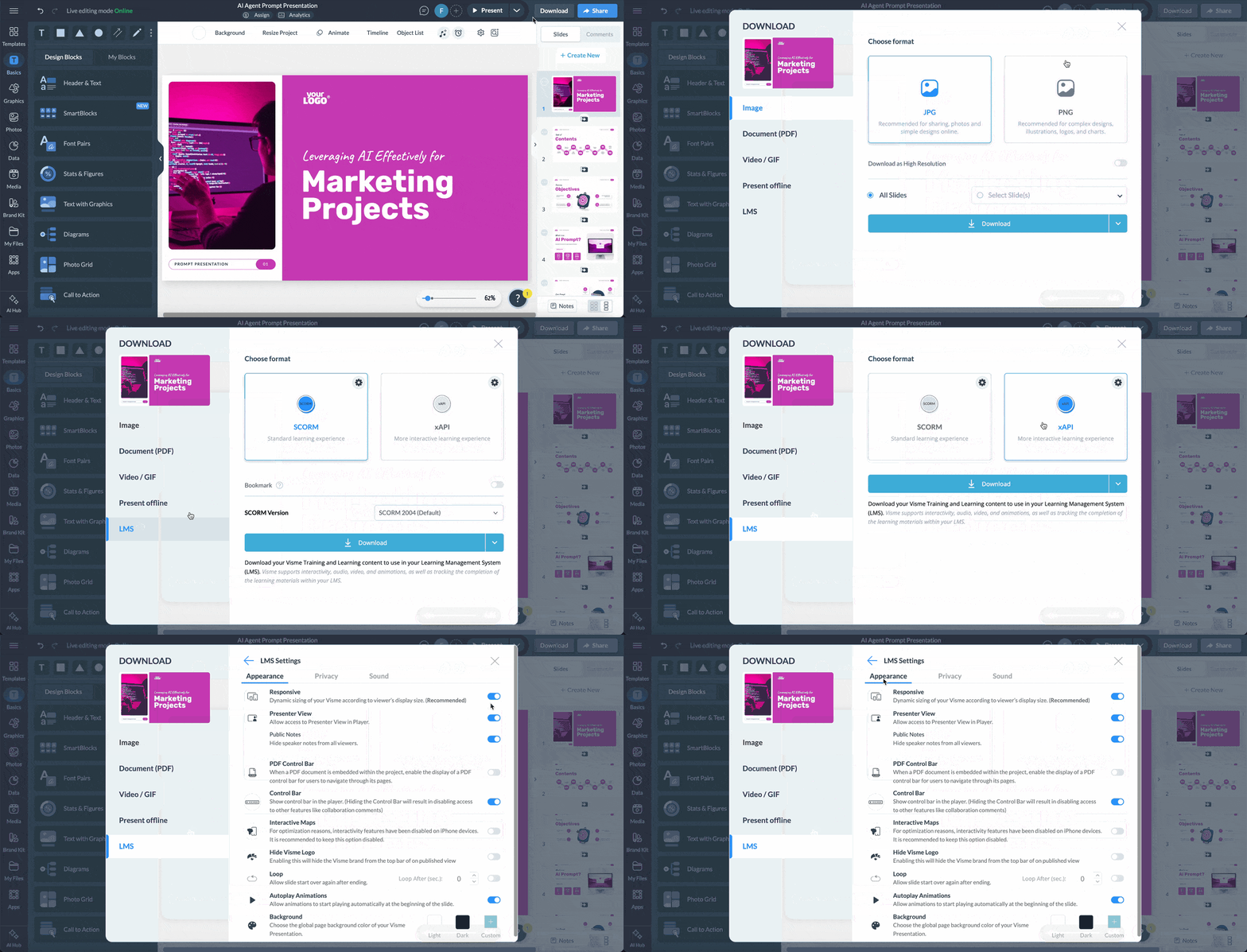
Instead of a slide deck, package the training as a module in your LMS. Visme's SCORM and xAPI export let a training deck plug directly into a company's existing learning management system, so completion and quiz scores show up automatically instead of getting tracked by hand.
For a deeper look at building training that people actually engage with, see our guide on interactive training.
The ideas above work in any tool. But the following three show what they look like, specifically built in Visme, using real templates and adding interactivity.
Each example below covers a different use case: a deck sent as a link, a live product walkthrough and an internal alignment session. They’re all embedded, so you can try the interactivity yourself.
This deck is built to be sent to buyers to view on their own time, not presented live in a pitch. A sales rep shares it as a link instead of a PDF attachment. The prospect opens it on their own time, clicks through the navigation to jump to the sections they care about (pricing, case studies, timeline), and hovers over key data points to see supporting detail without leaving the slide.
On the rep's end, Visme's analytics show which sections received the most time, so the follow-up call can lead with what the prospect actually cared about rather than repeating the whole pitch from scratch.
Made with Visme Presentation Maker
This deck lets a rep steer the demo live instead of walking through the same fixed slide order every time. On the opening slide, the rep asks the prospect what they're trying to solve for (e.g., "Lead Generation," "Customer Support," "Internal Training") and clicks into that path on the spot, so the buyer only sees the features tied to their actual use case.
Inside each path, feature sections are clickable, so the rep can jump straight to whatever the prospect asks about next instead of clicking through slides that don't apply. Each feature opens a short embedded video demo, giving the prospect a real look at the product.
The same deck also works async: sent as a link, the viewer picks their own use case and works through it at their own pace.
Made with Visme Presentation Maker
This deck is for aligning a team at the start of a project. One of the things project kickoff meetings cover is the projected timeline or roadmap. Instead of splitting the roadmap across multiple slides, fit it all on one slide using clickable popups that describe each phase (discovery, build, launch).
Another slide that can benefit from interactivity is the budget slide or any other that showcases data. Add animation to the charts so they call attention when the slide opens. And where relevant, set up hover hotspots that show more data for each point.
Made with Visme Presentation Maker
Finally, add callout links out to external docs for reference (briefs, specs, shared folders) so the team has one place to find everything. You just need to send the live link to everyone in the meeting.
Adding a poll or a hotspot doesn't automatically make a presentation better. The wrong room format or a broken link mid-pitch can make you look unprofessional. These six practices cover the decisions that actually affect whether interactivity lands: sizing the format to the room, timing it against attention spans and testing it before anyone else sees it.
A whiteboard session works for 15 people and falls apart for 150, so use polls and show-of-hands questions for large groups and save whiteboards or breakout discussions for smaller ones. For instance, a 300-person webinar and a 12-person client workshop need different interactive plans, even with the same content.
Nancy Duarte, founder of Duarte Inc. and author of Resonate, shares in her blog that presenters should tune their message to the audience rather than the other way around, and that the same logic applies to the format.
Add a poll, question, or short activity roughly every 10 minutes to reset the room's focus, since that's when people start to check out.
In his book, Talk Like Ted, Carmine Gallo, a Harvard instructor and senior Forbes contributor, calls these "soft breaks."
John Medina, a molecular biologist, found the same 10-minute drop-off in his own research and shared it in his book, Brain Rules. He says that’s why he adds a new stimulus at that mark during his lectures.
That fatigue is only getting steeper: Gloria Mark, a professor of informatics at UC Irvine, found that the average attention span on any screen has dropped to 47 seconds, down from about 2.5 minutes when she started measuring in 2004.
Apply the same timing to your own sessions: a one-hour onboarding session needs five or six resets, while a 15-minute demo might need just one, right after the feature walkthrough.
A generic icebreaker gets a shrug, but a question tied to the audience's own numbers gets a real answer. Have a sales team guess last quarter's top revenue channel, a support team guess average ticket resolution time, or an HR team vote on which benefits change employees will ask about first, since people answer more honestly when the question is about their own work instead of a hypothetical.
Pick one tool for polls, questions, or quizzes and use it for the whole session, because switching between three apps means three logins and wasted time. That risk scales with the stakes: a dropped connection during an internal update is a minor annoyance, but the same glitch during a board presentation or live launch undermines everything said afterward.
The day before your presentation, on the same device and network you'll use live, click through every poll link, hotspot, embedded video or live dashboard. A five-minute run-through will catch any issues in private rather than in front of a client or webinar audience. You’ll also have enough time to fix it.
Check which slides got the most time and which got skipped before following up on a shared deck, since that data turns a one-way document into a real signal. For example:
The 5-5-5 rule is a slide design guideline that limits each slide to five words per line, five lines per slide, and no more than five text-heavy slides in a row. It keeps the audience listening to the presenter instead of reading the screen.
The easiest way to make a presentation more interactive is to add a live poll, a Q&A break, or a clickable element like a hotspot or slider every 10 minutes or so. Tools like Visme let you build these directly into the slide instead of switching to a separate app.
Good interactive activities for presentations include live polls, quizzes, shared whiteboards, click-to-reveal slides, and audience Q&A woven throughout instead of saved for the end. The best choice depends on group size and setting, covered in the ideas above.
An example of an interactive presentation is a sales deck with a filterable dashboard the client can adjust live, or an async follow-up deck with hotspot navigation and built-in analytics. Both let the viewer act on the content and provide the sender with analytics on what was viewed.
Making a virtual presentation interactive means leaning on tools built for remote engagement, like live polls, chat-based Q&A, and clickable slide elements the audience can use from their own screen. Since you lose in-person cues like body language, these built-in checkpoints matter more online than they do in a room.
Yes, most interactive presentation tools, including Visme, offer a free plan that supports polls, clickable hotspots, and basic analytics. Paid tiers usually unlock more advanced features, such as branching logic and deeper analytics.
The best tool for interactive presentations depends on the use case, but the strongest options combine design flexibility with built-in interactivity and analytics in one place. Visme covers this by supporting polls, hotspots, branching content, and viewer analytics inside the same editor.
The best interactive presentation ideas share one thing: they give the audience a role in the activity. You don't need all 20 at once. Pick one that fits your next presentation, build it, and see how the room responds.
Whichever interactive idea you choose, Visme lets you build it into your deck without writing code. Add clickable hotspots, hover effects, polls and interactive charts, then use built-in analytics to see exactly where your audience engaged and where they dropped off.
Ready to build your own. See how sales teams use Visme to build interactive decks that hold buyer attention.
Design visual brand experiences for your business whether you are a seasoned designer or a total novice.
Try Visme for free