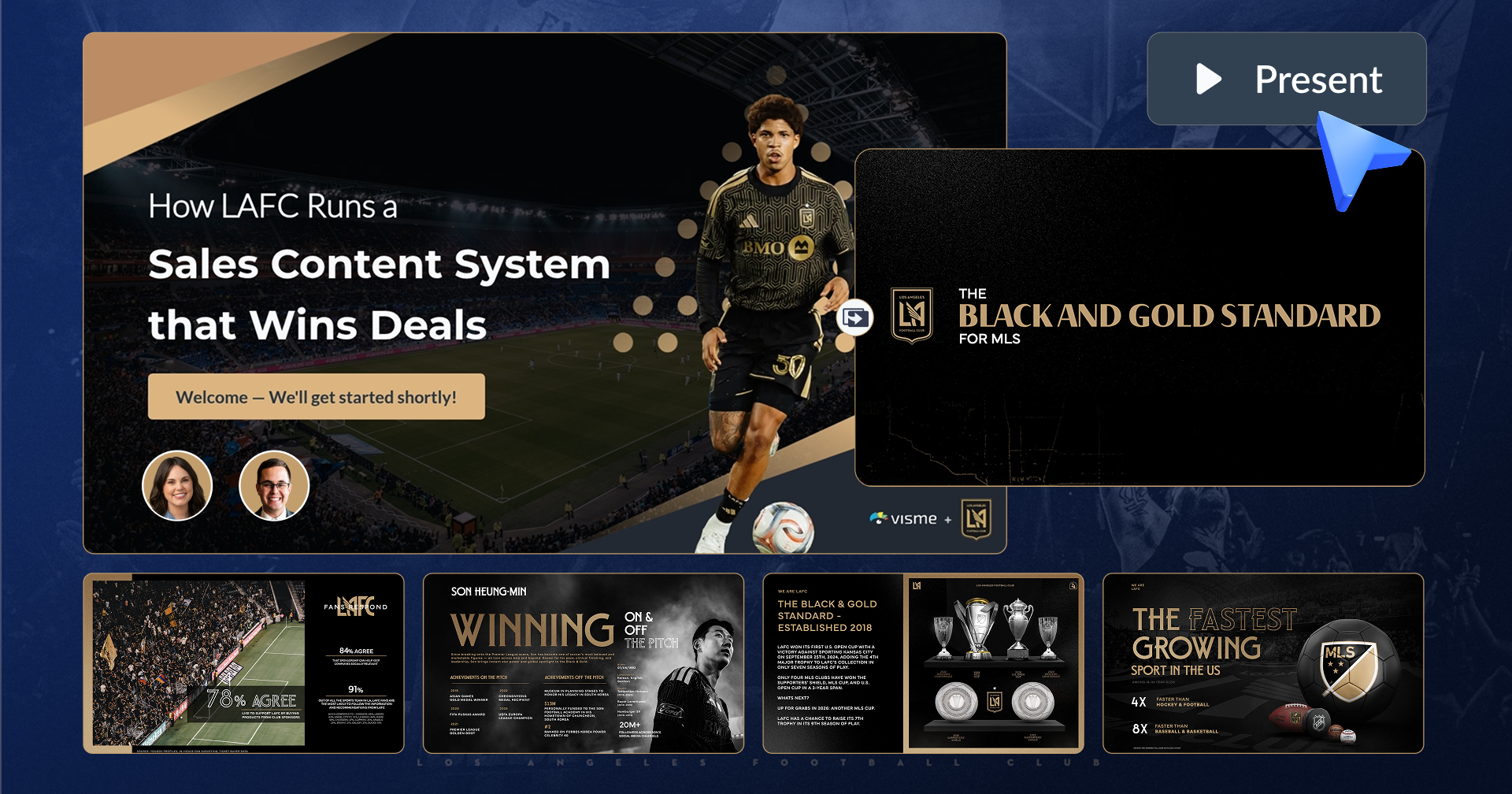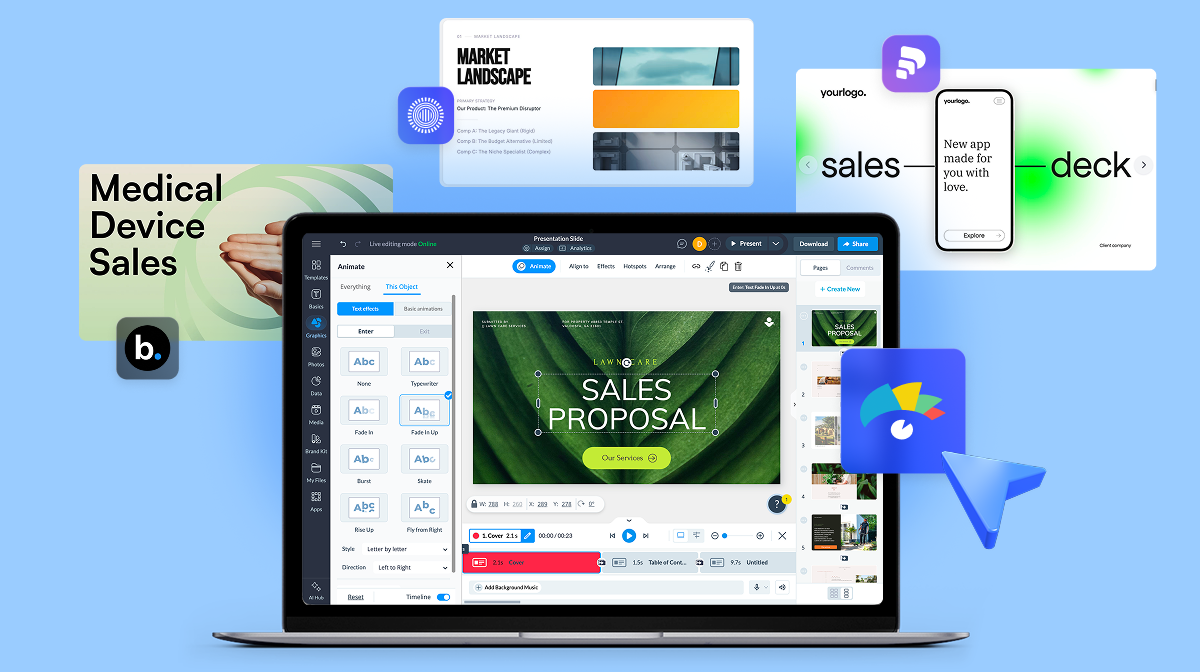



Why LAFC Builds a Personalized Sports Sponsorship Pitch Deck for Every Conversation


Interactive presentation software has expanded into multiple categories. Some platforms focus on live audience engagement with polls and quizzes. Others are designed for sales demos, classroom lessons, employee training, or self-paced presentations.
That makes finding the right tool more complicated than simply comparing features. The best choice depends on how you present, who you're presenting to, and the experience you want to create.
And with interactive content generating up to twice the engagement of static content while boosting conversions by as much as 70%, choosing the right platform can have a measurable impact on your results.
In this article, I'll break down the best interactive presentation tools by use case, along with examples I've created to show how they work in practice. You'll get the inside scoop on what each tool does best, where it falls short, and which ones are worth adding to your stack.
*Disclaimer: The comparisons and competitor ratings presented in this article are based on features available as of July 15, 2026. We conduct thorough research and draw on both first-hand experience and reputable sources to provide reliable insights. However, as tools and technologies evolve, we recommend readers verify details and consider additional research to ensure the information meets their specific needs.
An interactive presentation tool is software that helps you create presentations people can engage with rather than just watch passively.
They go beyond slides and bullet points. They let you add polls, quizzes, clickable elements, animations, live data, videos and other dynamic content that truly make your audience part of the experience.
Instead of talking at your audience, you’re creating something they can tap, click, explore or respond to.
And that’s a big deal. Because attention is hard to earn and even harder to keep. Interactive elements help break the fourth wall and turn presentations into a two-way conversation.
Check out this video to learn how to transform your static presentations into interactive animations:
Some interactive presentation tools are great for live presentations and webinars, while others work brilliantly for asynchronous sharing, like pitch decks, product demos or onboarding flows.
But one thing that’s always held true: the best interactive presentation makers balance functionality with ease of use. It’s one thing to offer interactivity; it’s another to make it super easy to build something engaging without hours of fiddling around.
The right interactive presentation tool comes down to a handful of features that affect how you build and how your audience responds.
So, before you compare tools, get clear on five things: the type of interactivity you need and the goal behind it, whether the tool runs where you already present, how it connects to your data, how much design control you want and what it can tell you after the session.
The section below breaks down each feature type, so you can match features to your use case and make an educated decision.
The type of interactivity a tool offers determines what your audience can actually do during a session, not just what they see.
For real-time input, look for:
For training, sales, or eLearning, look for formats that let people explore content at their own pace instead of sitting through a linear deck:
Some tools lean into gamification, which works well for classrooms and team workshops:
Others focus on group collaboration:
Match the feature set to your use case rather than picking the tool with the longest list. A sales deck doesn't need a puzzle generator, and a classroom quiz tool doesn't need branching sales analytics.
Check whether the tool runs where your audience already is. Some platforms, like Poll Everywhere, Slido, and Vevox, embed directly into PowerPoint or Google Slides, so you don't rebuild a deck from scratch. Others, like Genially and Gamma, are entirely web-based and share as a link instead of a file. If your team presents on a mix of devices or needs offline access, confirm compatibility before you commit.
A presentation tool that connects to your existing data sources saves you from manually updating charts before every session. Look for integrations with tools like Google Sheets, Salesforce, HubSpot, or your LMS, especially if you're building recurring reports or training content that needs to reflect current numbers.
Every tool trades off between how much control you have over the design and how fast you can produce something usable. AI-first tools like Gamma and Decktopus generate a full deck from a prompt in seconds, but customization is limited. Tools like Visme and Genially take longer to build in but give you more control over branding, layout, and interactive elements. Decide upfront whether speed or polish matters more for your use case.
Analytics tell you whether your presentation actually worked, not just whether it went out. Look for slide-level view data, drop-off points, quiz results, and engagement tracking. This matters most for sales teams and trainers who need to prove impact, not just deliver content.
Here's a quick breakdown of how we tested each tool.
We also reviewed G2 reviews, Reddit threads, YouTube demos, and user testimonials to see what real users are saying: what they love, what frustrates them, and which features they wish were better. That gave us a well-rounded view of each tool, not just from our own testing, but from a community of real-world users.
Different tools solve different problems. Use the breakdown below to find the one that matches how and where you present.
It can also help to see what a polished interactive presentation actually looks like in practice.
This walkthrough shows how the pieces come together, from the first slide to the interactive elements that keep an audience engaged:
Live polling, Q&As and Zoom and Teams integrations make this group a perfect fit for corporate trainers, HR teams and conference speakers. Four platforms cover this space:
If you send interactive decks to clients and prospects, these are your options. You get async sharing through a link, slide-level analytics, hotspots, branching, dynamic fields for personalization and brand control for all the reps. Two platforms are built for this workflow:
Learn how to boost your interactive marketing content with the right platform by watching the review below:
These tools give L&D teams and corporate trainers SCORM export, branching scenarios, knowledge checks and LMS integration. The category comes down to two names:
For teachers and instructors running gamified, classroom-paced lessons, this one handles quizzes, classroom participation and student pacing. One tool owns this space:
Generate a full draft deck from a text prompt, then refine it. Choose these if you don't want to start from a blank slide. Three tools generate decks this way:
Run polls, quizzes and word clouds in real time and see responses as they come in. These tools are best for presenters who want to engage a live audience. Four options fit this use case:
Convert a brochure, catalog or report into a shareable flipbook with clickable, interactive pages. This tool is great for marketing teams creating presentations that can sell directly on the slides. One platform specializes in this:
Use this software to build touchscreen experiences for trade shows, retail showrooms, museums and lobbies. It offers several input styles, including touch, sensor, voice and gesture input. One tool leads this category:
| Tool | Best For | Key Features | Interactive Features | Pricing | Ratings |
|---|---|---|---|---|---|
| Visme | Sales and marketing teams | Templates, Brand Kit, analytics, AI generation and editing | Forms, quizzes, dynamic fields, hotspots, hover effects, branching and analytics | Free; paid from $12.25/month | |
| Mentimeter | Corporate meetings and webinars | Slide builder, themes and presenter dashboard | Real-time polls, quizzes, word clouds and live Q&A | Free; paid from $14/month | |
| Decktopus | AI-generated presentations | AI slide generator, branded themes and shareable links | Basic click-through navigation and limited built-in interactivity | Free; paid from $14.99/month | |
| Prezi | Visual storytelling | Zoom-based canvas, Prezi AI and Prezi Video | Non-linear navigation and motion-based zoom transitions | Free; paid from $7/month | |
| Canva | Beginner-friendly design | Templates, Magic Design and drag-and-drop editor | Clickable buttons, embedded video and hyperlinks | Free; paid from $18/month | |
| Genially | Gamified and educational content | Widget library, animated icons and no-code editor | Hotspots, tooltips, branching paths and drag-and-drop interactions | Free; paid from $15/month | |
| Kahoot! | Educators and students | Themes, question bank and AI question generator | Game-based quizzes, leaderboards and live buzz-in play | Free; paid from $19/month | |
| Poll Everywhere | Adding polls to existing slides | Embeds into PowerPoint, Google Slides and Keynote | Live polls, clickable image questions and open-ended Q&A | Free; paid from $10/month | |
| AhaSlides | Live audience engagement | Web-based platform, no download required and themes | Live polls, spinner wheels, mini games and AI question builder | Free; paid from $18.95/user/month | |
| Wooclap | Corporate meetings and webinars | Event dashboard, AI question generator and gallery templates | 21 question types, drag-and-drop and fill-in-the-blank activities | Free; paid from $12/month | |
| Slido | Corporate meetings and webinars | PowerPoint, Teams and Webex integrations plus participant management | Embedded Q&A, live polls and surveys | Free; paid from $17.50/month | |
| Intuiface | Interactive kiosks and showrooms | No-code editor, hardware-agnostic deployment and analytics | Touch, sensors, voice, gesture and computer vision triggers | From $1,139/user/year | |
| iSpring Suite | Training and eLearning | PowerPoint-native authoring, content library and LMS export | SCORM and xAPI branching scenarios plus knowledge checks | From $540/year | |
| Articulate 360 | Training and eLearning | Storyline authoring, Rise course builder and AI tools | Branching logic, triggers, variables and gamification | From $1,449/user/year | |
| Storydoc | Sales and marketing teams | AI deck generation, engagement analytics, CRM personalization and brand control | Embedded forms, videos and calendars, clickable tabs, sliders, ROI calculators and dynamic fields | From $19.80/month | |
| Gamma | AI-generated presentations | Card-based canvas, Gamma Agent and web-native sharing | Live embeds for video, Figma and charts plus Import and Transform | Free; paid from $9/month |
Visme is my go-to interactive presentation tool because I genuinely believe it's one of the best options for interactive content marketing or interactive learning out there.
It strikes the perfect balance between professional design and powerful interactivity.
You can access all Visme AI features inside your dashboard. Just find and click on the AI Hub in the bottom left corner of your screen.

Let’s actually put Visme to the test.
To create my interactive presentation, I used the AI Presentation Maker and gave it this prompt:
“Make an onboarding presentation for new employees at a remote tech company.”
Within minutes, Visme’s AI built out a full presentation for me.

The design and colors were exactly what I was going for (you can easily switch them up using your own brand kit or choose from preset color themes). The layout was solid. It needed a few tweaks, but it gave me a strong starting point. And the built-in interactivity, like clickable social media buttons, links, transitions and animations, added a polished, dynamic touch.
No matter your use case- a client pitch, customer or employee onboarding, investor update, or eLearning material for internal training- Visme makes it easy to build something that looks custom and truly interactive.

Based on my testing, Visme continues to stand out as one of the most well-rounded interactive presentation tools available, combining flexibility, visual quality and ease of use.
If you want a walkthrough, here's how to create a multimedia presentation in 5 easy steps:
The free Basic plan gives you editor access, 500MB of storage, and a limited set of templates, but it adds a watermark and blocks downloads, so it works for testing rather than sending.
Next up is Mentimeter, one of the best tools for real-time audience interaction.
It lets your audience participate using their phones. No app downloads, no friction. Just a link or QR code and you're good to go. Love it.
To test Mentimeter, I clicked on Start with AI in their dashboard and entered the prompt:
“Create a quiz-based presentation on basic marketing concepts to engage students and assess their understanding of key principles in marketing. This interactive session will help reinforce learning and encourage participation among the audience.”
And this is what Mentimeter came up with:

The AI-generated interactive presentation included a mix of question types to test audience knowledge. And the best part is that you can quickly customize the layout of each question, adjust the theme and fine-tune the interactivity based on your session's goals, whether you're teaching, training or presenting live.

The free plan supports up to 50 participants per month and locks you out of presenting for 30 days once you hit that cap, so it only works for very occasional use.
Decktopus focuses on branded presentations and keeps the process fast. When you enter a topic, the tool generates a full deck and applies light branding right away, so the slides look consistent without any manual design work.
For larger teams, Decktopus also supports brand-specific layouts. Enterprise users can request custom slide templates built around their brand identity. This gives companies full control over how their presentations look across the entire organization.
Decktopus also lets your audience view the deck through a link, so sharing is easy. No extra steps and no friction.
To test the interactive presentation software, I used the Decktopus AI vs2.0. I gave my presentation a title:
"How to Implement EEAT in your Content"
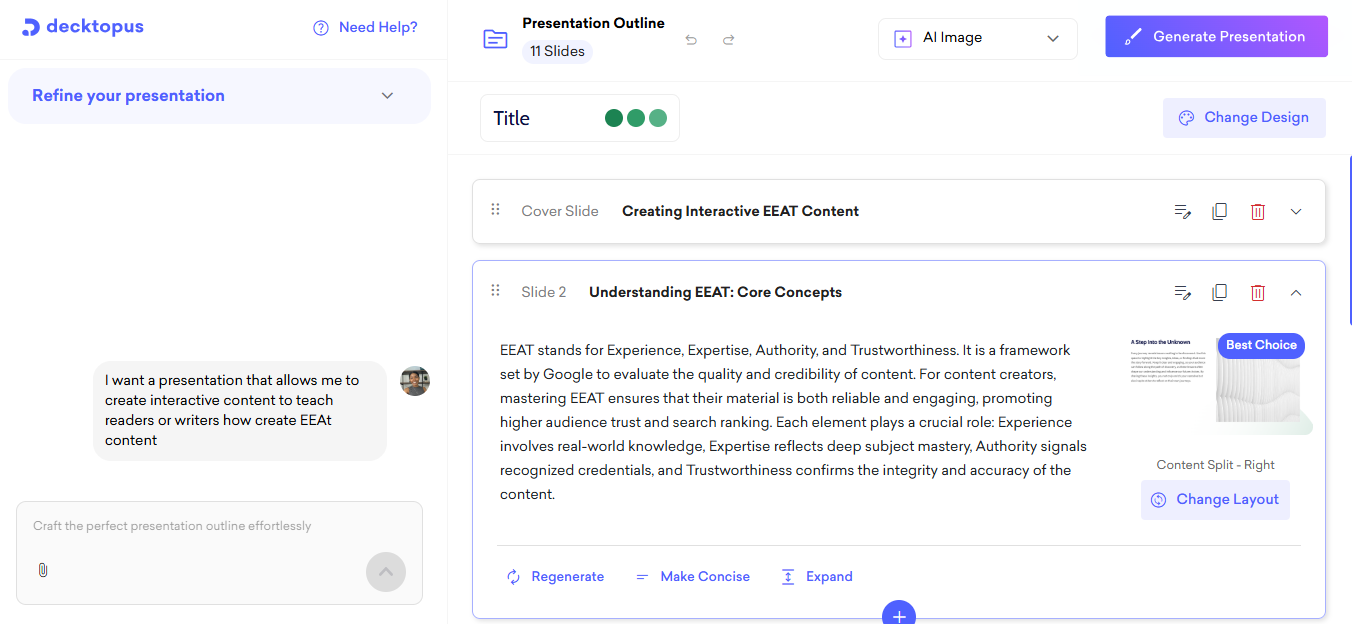
Before I could generate the full deck, I had options to choose color, themes and layout after entering my prompt. But right at the point of generating the deck, I was blocked by a paywall.
I didn’t upgrade but I scanned their documentation on interactive features. The interactivity is fairly basic and mostly centers on how viewers navigate slides and how content flows.
In the editor, I found the slides themselves are clean and visually consistent. Overall, Decktopus works well for creating fast, branded decks with minimal setup. If your goal is quick AI-generated slides and light branding, it can definitely do that. But if you want deeper interactive features or to really engage your audience beyond the slide click, Decktopus feels limited compared to better tools.
There's no free plan or trial. You hit a paywall the moment you try to generate your first deck, so you can't test the tool before paying.
Prezi was the first ever interactive presentation tool I tried (yep, I’m that old). And while it’s evolved a lot over the years, its core magic is still the same: dynamic, zoom-based storytelling that moves beyond traditional slides.
Instead of clicking through one slide at a time, you create a big visual canvas with different sections that zoom in and out. It’s a more fluid and cinematic way to present your ideas, perfect for visual storytelling and big-picture thinking.
To test the interactive presentation software, I used the Prezi AI feature.
I gave my presentation a title:
“How Gen Z Is Changing the Future of Work”
Then it asked me to describe the topic. I wrote:
“A breakdown of what Gen Z expects from employers, including flexibility, purpose-driven work, and digital-first communication.”
After a few minutes, Prezi created this very…Prezi-like presentation for me:
Not going to lie, this test was a bit of a throwback. I still love the classic Prezi zoom style that moves in and out of topics and keeps things visually interesting. But I have to say, the presentation felt a little text-heavy and didn’t include much interactivity out of the box, like clickable buttons, videos or forms.
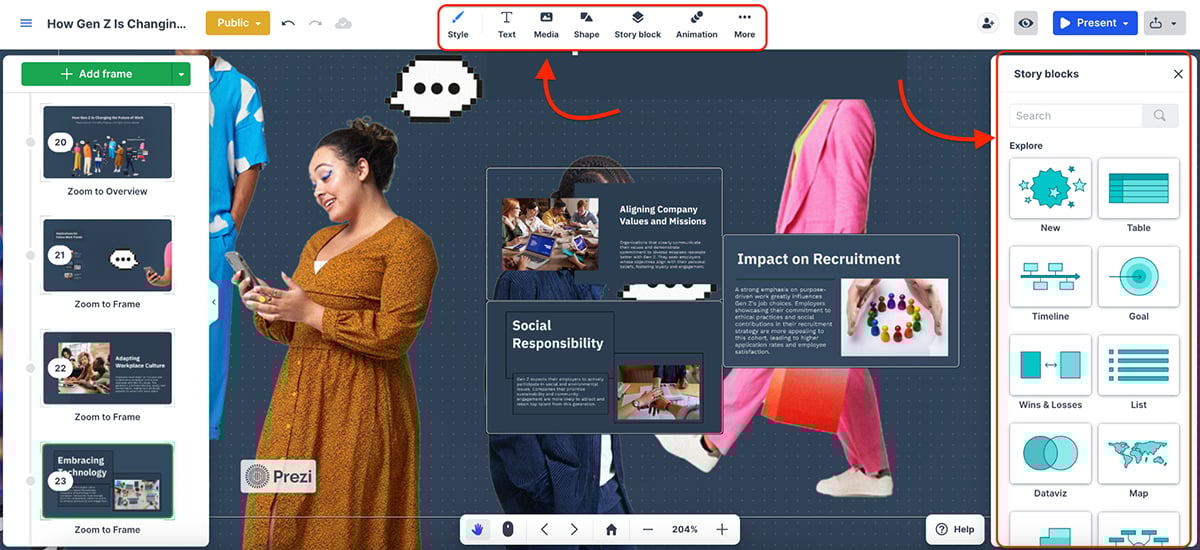
You can manually add those elements, but they’re not built into the AI output by default. So while it nails the structure and movement, you’ll still need to customize things if you want to level up the engagement.
All in all, Prezi is a great option for visual storytelling. But for those deciding between Prezi and Visme, keep in mind that interactivity and customization still favor Visme.
The free plan gives you basic templates and sharing but caps out quickly if you need branding, analytics, or offline access.
Canva is pretty much a household name at this point. It lets you create polished interactive presentations without overthinking the design aspect.
Add hyperlinks, embed videos and insert clickable buttons, then use the built-in AI features to speed up the work. Plus, third-party app integrations expand what you can do across your entire project.
With AI features like Magic Insights, Magic Formulas, and Canva Code, the range of what's possible keeps expanding..
To test Canva's AI presentation maker, I entered this prompt:
"Create a presentation for a skincare brand launching a new vitamin C serum."
Canva's Magic Design (their AI engine) generated a few layouts based on my prompt and also offered a bunch of premade templates I could use to design something manually.
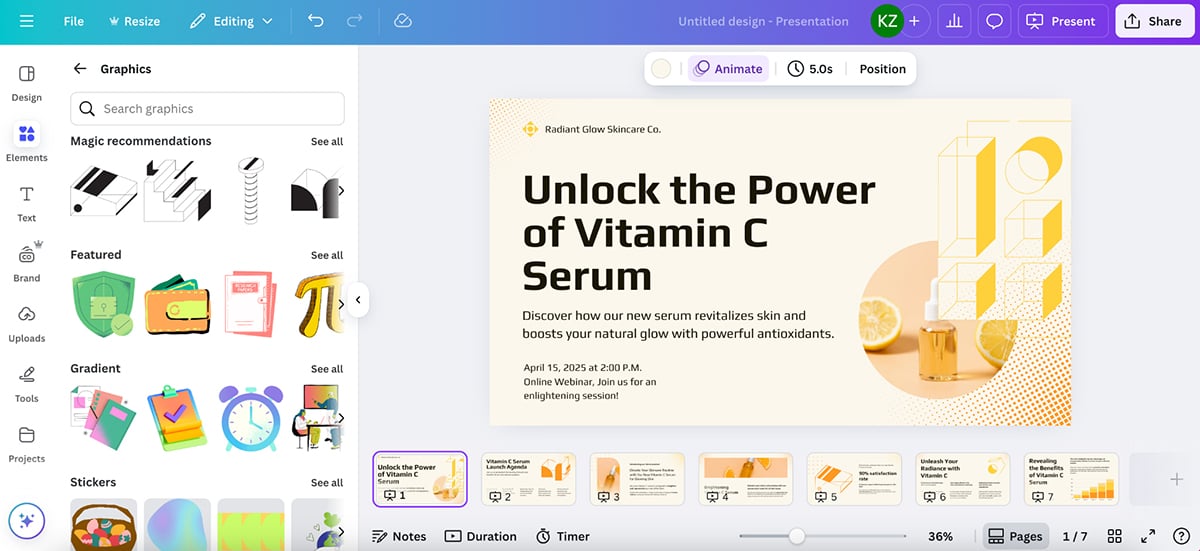
While I liked the clear distinction between AI-generated and manual creation, I wasn't blown away by the AI designs. They felt a little basic. That said, the manually designed templates looked fantastic.
The third-party apps, while great, don't always integrate smoothly into my workflow. More than once, I've picked a template, started designing, then gotten distracted by a different one entirely.
On deep interactivity, Visme pulls ahead of Canva, which is worth keeping in mind if interactive elements are a priority for your use case.
The free plan covers core design tools and a solid template library, but locks Magic Studio's full AI suite, Brand Kit, and premium stock behind a paid tier.
Genially is one of the most versatile interactive content tools out there, and it really shines when you're creating gamified presentations, eLearning material or educational content that needs more than just clickable slides.
Unlike some tools that treat interactivity as a bonus, Genially builds around it. You can add hotspots, tooltips, branching paths, quizzes, drag-and-drop interactions, embedded videos, audio and even game mechanics, all with no coding required.
Since Genially doesn’t have a full-blown AI presentation maker like some of the other tools on this list, I started with a template instead.

That said, Genially does include a built-in chatbot that you can ask to draft interactive questions, generate images, translate Genially and generate voiceovers. However, all these AI features are locked behind a paywall, so I couldn't test them firsthand. From what I've read in reviews, the AI voiceover feature in particular gets mixed feedback, with some users saying they still turn to a separate tool for voiceovers before importing them into Genially.
On interactivity specifically, Genially delivers more depth than most tools at its price point.

If you're trying to choose between Visme, Canva and a few others, our Canva vs Adobe Express vs Visme guide shares a detailed comparison.
The free plan lets you build and explore the editor, but you can't download your work or unlock premium templates and animations without upgrading.
Kahoot! might not be the first tool that comes to mind when you think of interactive presentations, but if you’re looking to make learning fun, it absolutely earns a spot on this list.
It’s built around gamified learning experiences, letting you create quizzes, polls, word clouds, puzzles and even interactive slides that feel more like a game than a presentation. Whether you’re running a classroom, training session or team-building workshop, Kahoot! is a go-to for engagement.
To test the tool, I chose Kahoot’s AI generator. The topic I entered was:
“Email marketing basics for small business owners”
…and hit generate.

In a few minutes, Kahoot! had created 20 questions for me on the topic, complete with answer explanations and suggested cover visuals.
I could then go in and tweak the theme of the presentation (not going to lie, I’m not the biggest fan of their default designs), configure question types, set time limits, assign points and even choose how to reveal the images for each question.
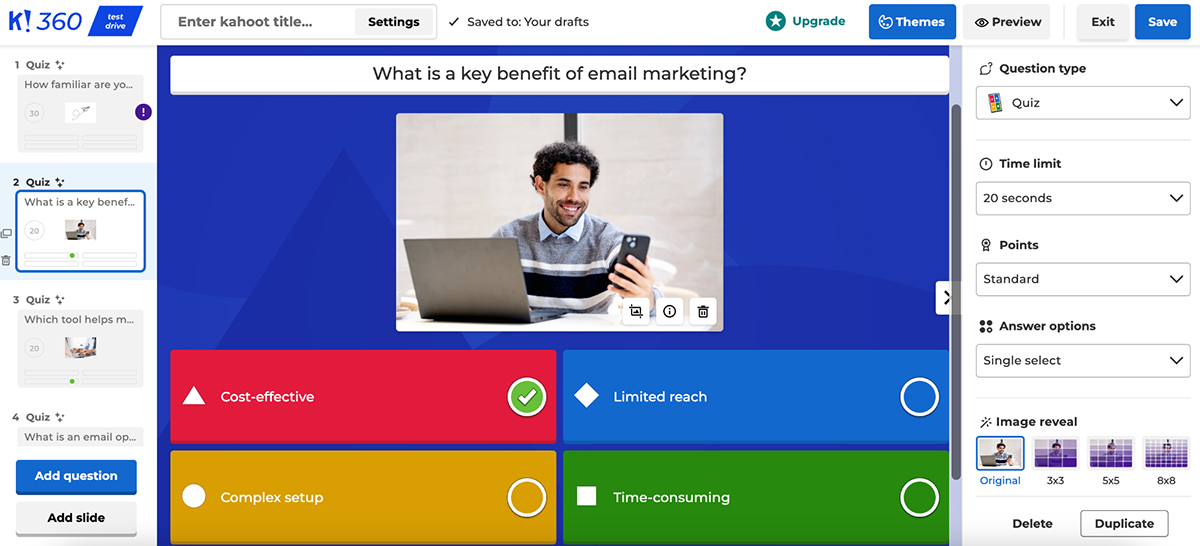
Kahoot! moves fast from prompt to quiz, which suits recurring sessions or situations where setup time is limited.
The free plan covers basic quizzes and polls for small groups, but caps participant count and locks out premium content and branding.
Next up is Poll Everywhere, a lightweight but powerful engagement tool that's built to integrate with tools like PowerPoint, Google Slides and Keynote. It lets you embed polls, word clouds, open-ended questions and even live Q&A sessions directly into your existing presentation deck.
To get started, you essentially create an "Activity." There are lots of options to choose from. Some of the most useful ones include multiple choice, word cloud, Q&A, clickable image, survey, icebreakers, emotion scales, bulletin boards, etc.
To test the tool, I created a multiple-choice question. I gave it the title:
"Which presentation tool do you use the most?"
And added these three options: Visme, Canva & PowerPoint.

You can customize how responses are displayed (bar chart, column chart, or donut chart), adjust visual settings, configure timers and control how the audience submits their responses.
The setup is quick, works across devices, and adds real-time interaction to any live deck without requiring participants to download anything.

The free plan supports up to 25 responses per activity and one presenter, which is enough to test the tool but not to run a real session.
AhaSlides is one of the most beginner-friendly tools for adding live interaction to your presentations, and it's completely web-based, so no downloads, apps or complicated onboarding required.
You can add polls, quizzes, spinner wheels, scales, word clouds, live Q&A and even mini games to your presentation. And your audience can join instantly by scanning a QR code or entering a simple code on their phone—no sign-in needed.

To test it, I used the AhaSlides AI feature and entered this prompt:
“Create a fun multiple-choice question for an icebreaker about remote work habits.”
AhaSlides instantly generated a quiz question with four answer options—one correct and three distractors. You can also add a hint to aid players, change the theme, configure quiz settings and even add audio to the slide (though this last one is a paid feature).

You can ask the AI to generate multiple questions at once. And once you're done, you can either let participants join via a live link or embed the slides directly into your PowerPoint presentation.
The free plan stays free permanently and covers core polls and quizzes, but caps participant count and locks out branding and audio slides.
Wooclap is also an interactive presentation tool built for action-oriented presentations, whether you're running a classroom, a live webinar or an internal training session.
What makes Wooclap stand out is the variety of question formats it supports. You can add polls, word clouds, multiple-choice questions, scales, match-ups, fill-in-the-blanks, drag-and-drop activities and even "brainstorming" slides to gather open input from your audience.
To get started, you click on Create an event, then either build your questions manually or use the AI assistant.
I clicked on Create using AI, and Wooclap took me to a screen where I could choose the source for generating questions (document, YouTube video, webpage link or audio/video). There are also plenty of interactive presentation templates in the Wooclap Gallery to choose from, so you can get started quickly without building from scratch.
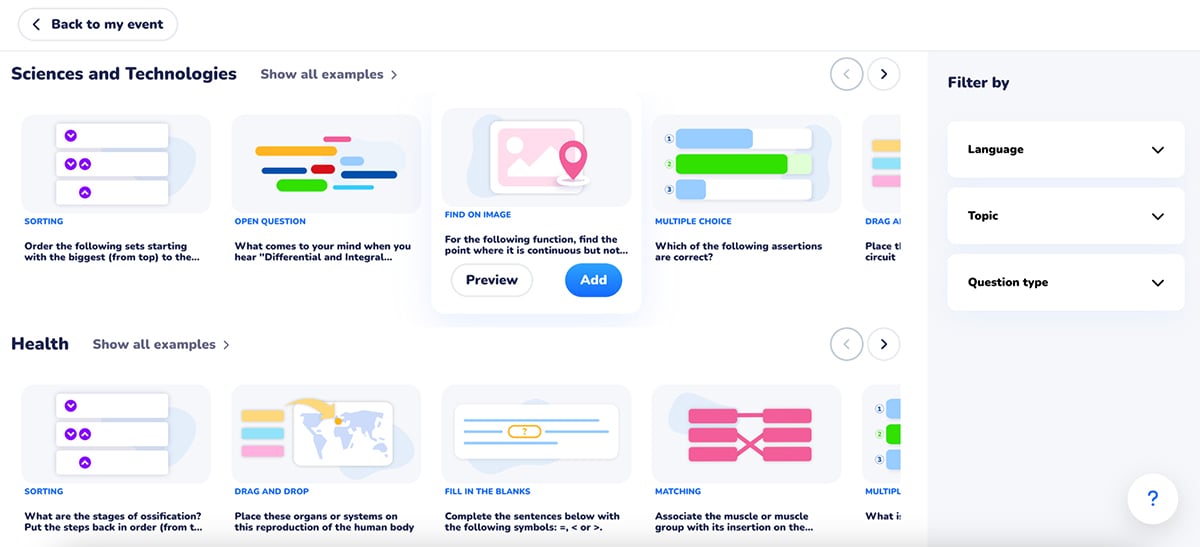
I picked Text in the AI creator and entered this prompt:
"Create a short quiz based on the basics of data privacy and why it matters in everyday life."
In just a few seconds, Wooclap generated a couple of questions I could tweak and add to my presentation (it only created two, since I was on the free plan).

Overall, I think Wooclap is pretty decent for structured learning environments, especially if you want varied question types and quick setup. But if you’re looking for deeper AI features or unlimited content creation, you won’t be able to do much on the free plan.
The free plan limits you to a small number of questions per event, which is enough to test the tool but not to run a full session.
Slido is a well-known tool for adding live Q&A, polls, quizzes and surveys to presentations, especially in virtual or hybrid meetings.
It's built to integrate smoothly with platforms like PowerPoint, Google Slides, Webex, Microsoft Teams and Zoom. So instead of switching tools or screens, you can run everything in one place, with interaction layered right into your slides.
To test the interactive presentation maker, I gave my Slido session the name:
"Team Feedback: Q2 Marketing Strategy"
From there, I added a rating and word cloud interaction—both of which were quick to set up and preview.

I loved how easy it was to toggle on the participant view and see exactly what my audience would experience in real time.
Participants can join a Slido using a QR code or a direct link (no sign-in required).

All in all, I like Slido's integrations, clean interface and how effortless it makes audience participation. But I felt it was lacking in creative flexibility; there's no room for animations, visuals or interactive design elements beyond questions.
The free plan supports up to 100 participants and 3 polls per event, which works for small, informal sessions but not much more.
Intuiface creates a different type of presentation. Instead of slide decks, it actually creates physical interactive experiences for touchscreen kiosks, trade show booths, museum displays and retail showroom screens. What I found most attractive about Intuiface is that you don’t need any coding knowledge at all to create complex interactive content experiences.
To use Intuiface on a Mac, you need to download software like Parallels or VMware, which will make Windows applications work. Since I couldn't test these tools without paying, I reviewed Intuiface’s official videos and documentation.
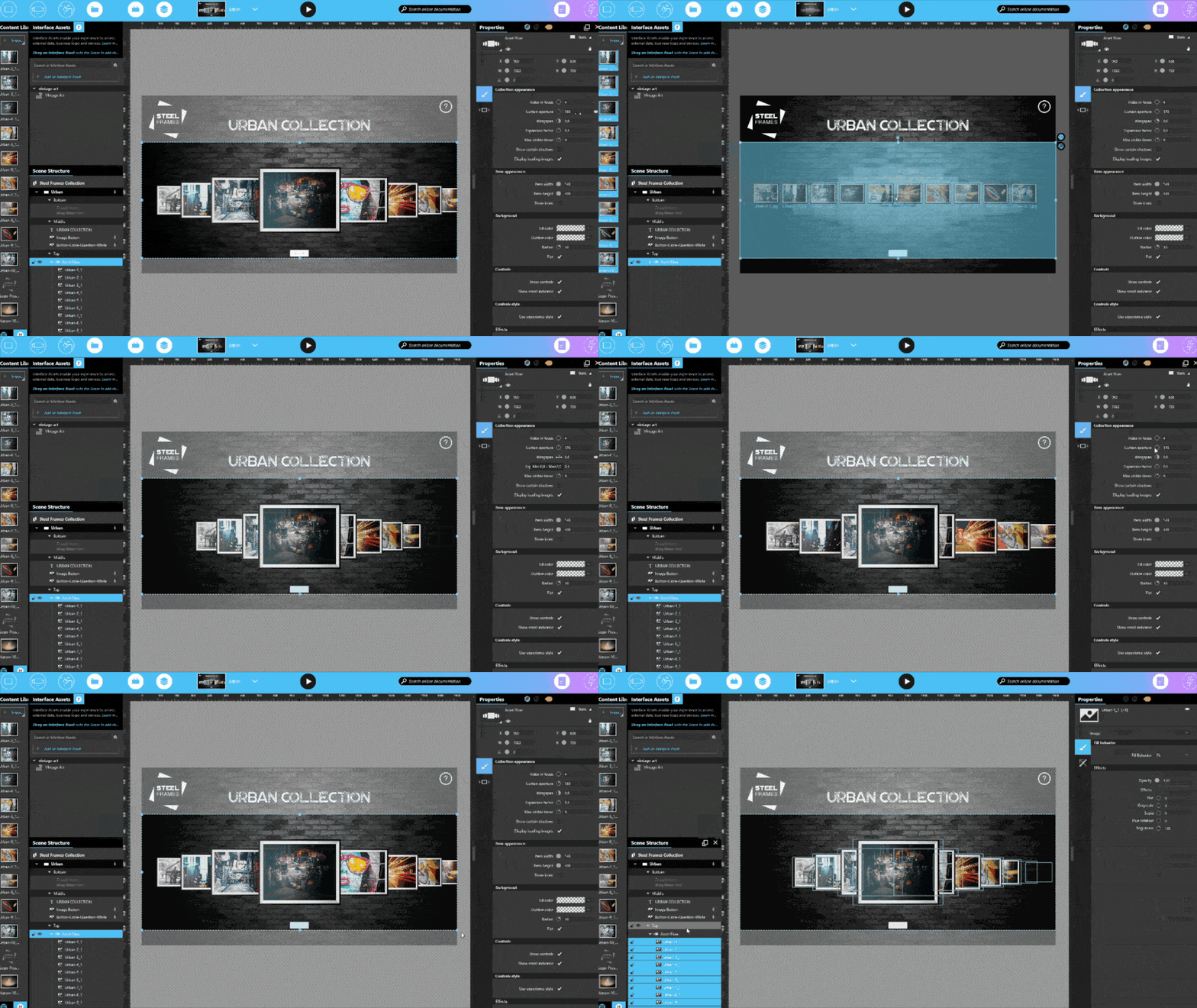
To create an interactive presentation, you start in the drag-and-drop editor called Composer. The user interface resembles Adobe tools with plenty of options for creation and interaction.
When you’re finished, deploy the presentation to almost any hardware, including Windows, Android, iPad, BrightSign, Chrome OS, Samsung Tizen, and Raspberry Pi.
Once ready for the viewer to interact, they have the option of several inputs to navigate and discover the content. First of all, touch is the most common but the experiences also respond to sensors, voice, gestures and use computer vision to react to the person in front of the screen.
There's no permanent free plan; only a 28-day trial with full feature access, after which you move to a paid Platform plan or a 30-day Hibernate plan that preserves your work without editing access.
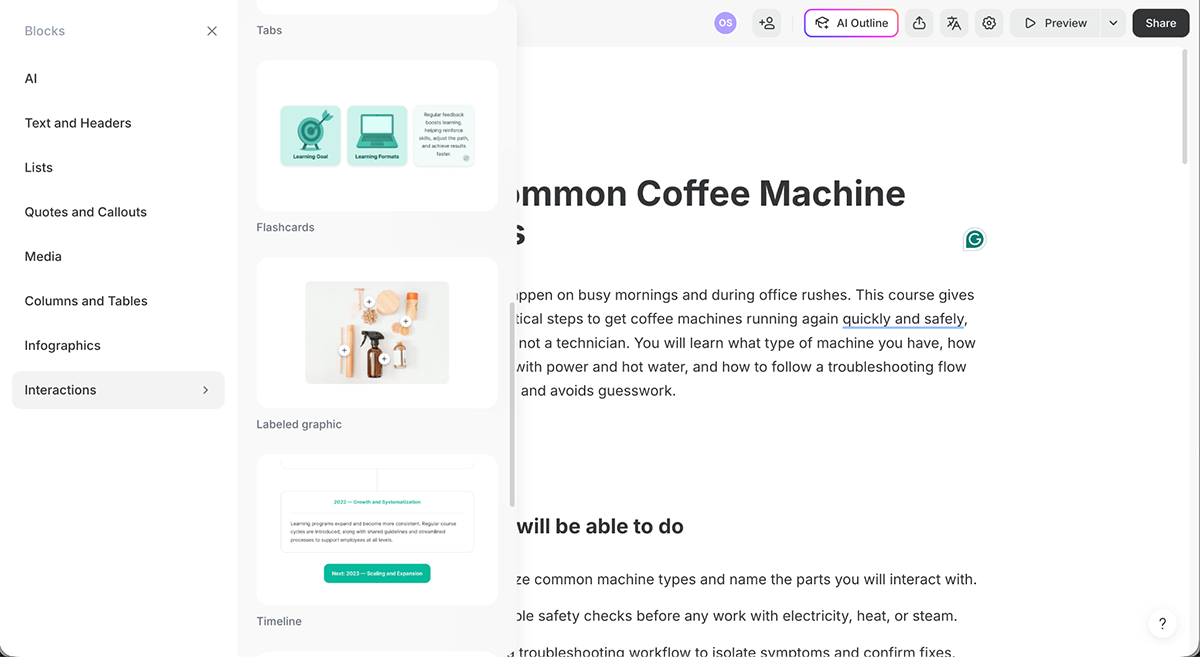
iSpring Suite is instructional presentation software that runs inside PowerPoint, exclusively on Windows. After installation, it appears as a tab in the toolbar, so your team can publish slide decks as interactive eLearning content. Some of the available features for interactivity include quizzes, exercises, accordions, tabs, flashcards, timelines, dialogues and more.
Mac users have the option to create interactive courses with iSpring Cloud instead of the PowerPoint version. I chose this option for the testing. It’s an AI-based, in-browser tool so I signed up and asked the AI to create a course about fixing coffee machines. I didn’t upload any content, so iSpring generated the content for me.
The process was straightforward: it first generated a plan, and once I approved it, it generated an outline. After approving that, the course opened in the editor, where I had some customization options, but they were limited.
Here’s a screenshot of what iSpring Cloud looks like from the inside. There are plenty of interaction features to build the course however you want.
new: Source
There's no free plan; only a 14-day free trial to explore the tool before committing. The prices below are for business use. Check their pricing page for individual pricing tiers.
Articulate 360 is a professional tool for instructional designers who create interactive presentations across corporate eLearning, compliance, and onboarding. The flow is built around triggers, variables, states and layers. You can build branching scenarios, software simulations and lots of experiences for the learner to interact with
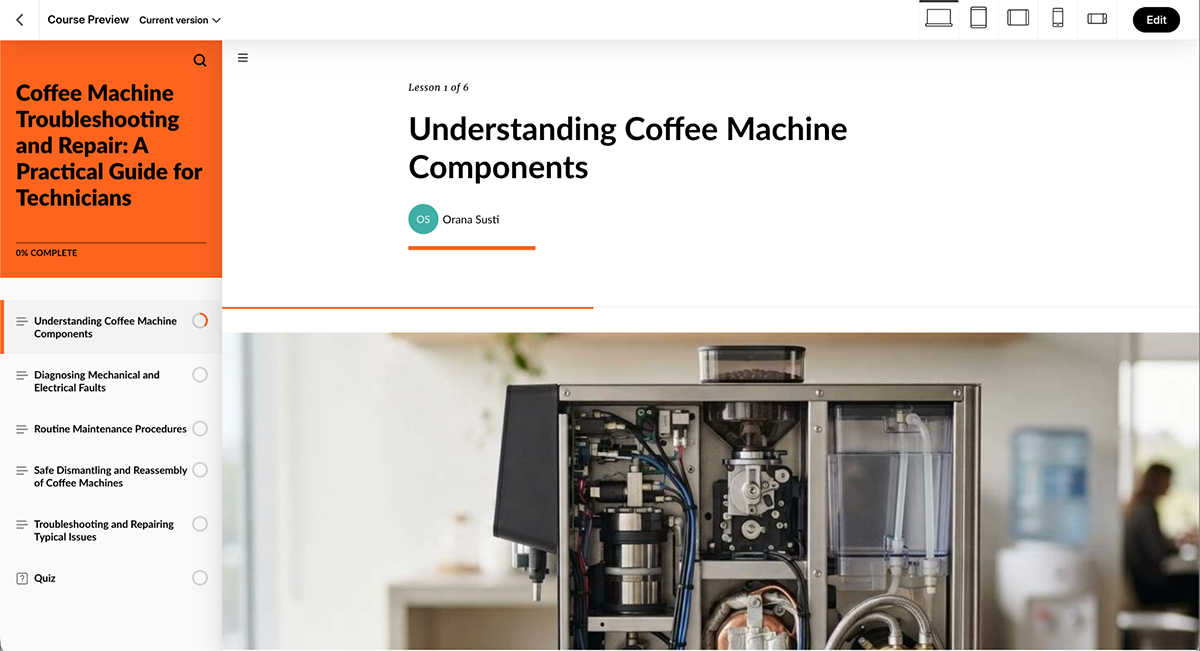
This isn’t a single app, but a suite that includes Storyline 360 and Rise 360. Storyline 360 is a downloadable authoring tool for Windows that creates highly interactive course presentations on the desktop. Rise 360 covers users without Windows and anyone who prefers to build fast, responsive web courses that adapt to any screen while staying interactive. I tested Rise from the browser.
I chose to start an interactive course with their AI. Like many tools on this list, Rise 360 can create complete courses from a simple prompt, but you can also upload any content you have and want included in the course. I used the same coffee machine prompt as iSpring Cloud.
The outcome was impressive in both design and content. There were several interactive features already included in the course.
There's no free plan, only a 30-day free trial.
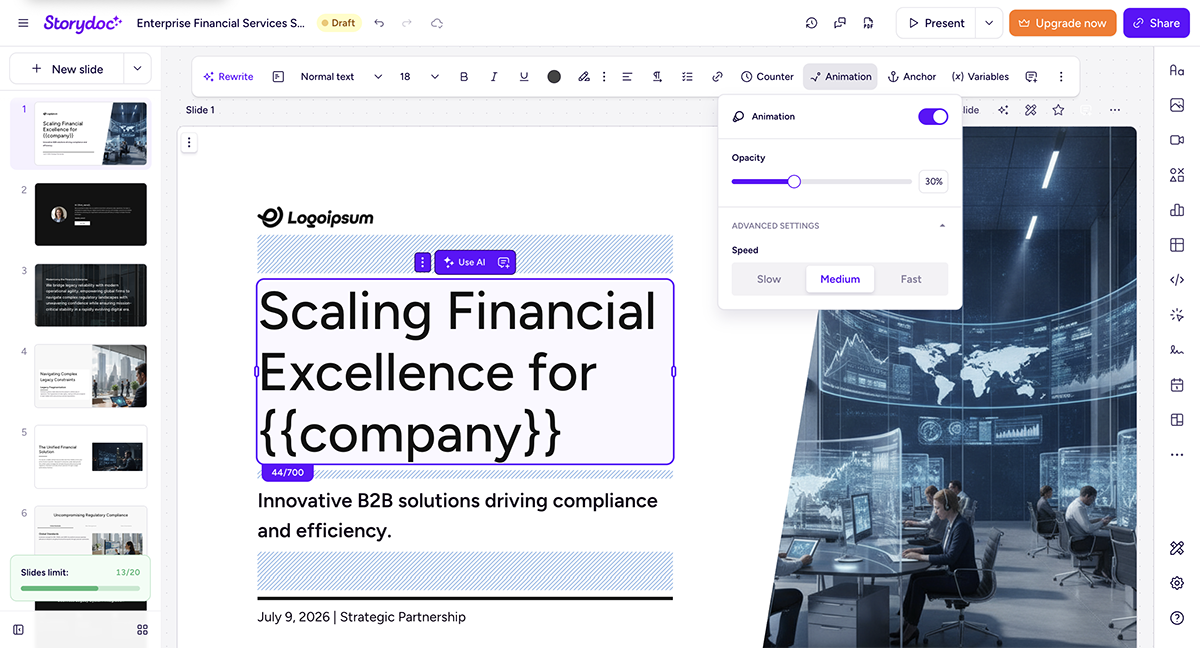
Storydoc boasts the flexibility to build business decks with or without interactivity including proposals, pitch decks and reports. Like Visme, everything you create on Storydoc is stored on the web, so interactive decks can be shared via a live link that’s easy to update.
I signed up for a Storydoc account and created a quick sales presentation with AI to see what interactivity was available. I found that you can embed Calendly schedulers, different types of forms, live chat, video and data dashboards. Other features I discovered are clickable tabs, sliders, collapsible sections, interactive charts and ROI calculators.
The interface is easy and pleasant to use with everything on hand to build presentations fast.
Source
There’s no permanent free plan. A 14-day free trial lets you build and keep your decks, though. After 14 days, you won’t be able to edit the decks you were testing with.
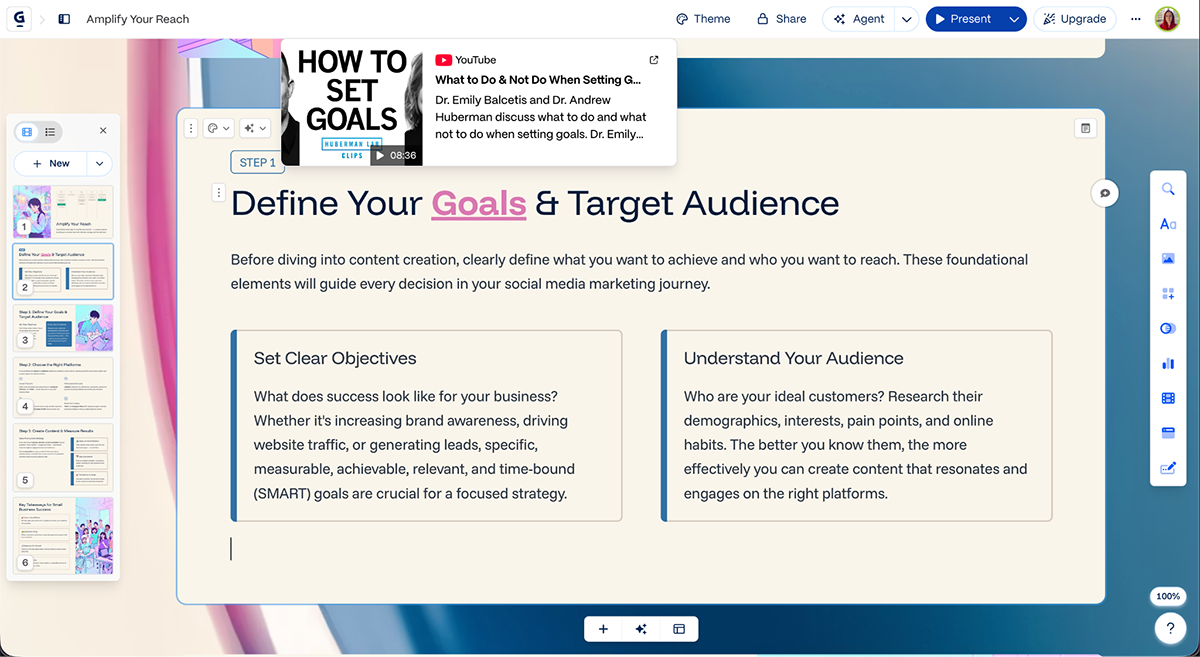
Gamma can help you create interactive presentations, but that’s not its forte. That would be the capability of creating beautiful presentations with AI using a prompt and/or uploaded content. The AI generation is fast and the interface is beautiful. The background on the interface mirrors the colors in the deck, which is unique and creative.
On interactivity, Gamma's native options are limited. Most interactive options involve embedding third-party content: videos, social media feeds, apps, web pages, and forms. Aside from that, native interactivity features in Gamma include toggle buttons that open and close content boxes, as well as hyperlinks that show previews on hover.
The free plan gives you 400 AI credits at signup, which is a one-time allowance rather than a monthly refresh, so it runs out fast.
There are several great options: Mentimeter for live audience engagement, Genially for gamified learning and AhaSlides for team quizzes and polls.
But overall, Visme is one of the best interactive presentation tools out there. It lets you create professional, fully branded interactive presentations and comes with powerful features like AI slide generation, embedded forms, animations and SCORM export for LMS use.
To make your presentation interactive, add elements like polls, quizzes, clickable buttons, videos, animations, word clouds and live Q&A. You can also include interactive data widgets, transitions, hover effects and embedded forms to boost engagement.
Want to go beyond just clickable slides? Check out this guide to creating powerful multimedia presentations.
If you’re looking for something more modern than PowerPoint, try Visme for pro-level interactivity, Canva for quick design or Prezi for zoom-based storytelling. These tools offer more flexibility, AI features and engagement options than PPT.
Genially is a great free alternative to Prezi. It offers zoom-style navigation, branching paths, interactive elements and beautiful templates that’s perfect for educators, trainers and visual storytellers.
Yes, Mentimeter has a free plan. You can create up to two question slides per presentation and access basic interactivity like live polls, quizzes and word clouds.
Yes, Canva lets you add hyperlinks, clickable buttons, embedded videos and even record talking presentations. While it’s not built for deep interactivity, it’s great for creating clean, shareable slides with light engagement.
The most interactive presentations combine real-time elements like live polls, quizzes, Q&A, clickable buttons, videos and animations. Tools like Visme, Mentimeter and AhaSlides are ideal for creating these.
Poll Everywhere, Slido, Vevox, and AhaSlides all embed directly into PowerPoint, so you can add live polls or Q&A without rebuilding your deck. iSpring Suite goes a step further and runs as a PowerPoint add-in for full course creation.
Regular presentation software displays static slides in a fixed order, while interactive tools let your audience participate through polls, quizzes, clickable elements, or branching paths. That participation is what turns a one-way talk into a two-way exchange. Some tools, like Visme, combine both: polished slide design plus built-in interactivity.
Most tools on this list offer a free plan, including Visme, Mentimeter, Canva, Genially, Kahoot!, Poll Everywhere, AhaSlides, Wooclap, and Slido. Free tiers typically cap participant count, storage, or the number of interactive elements, so they work well for testing but usually require an upgrade for full sessions.
Visme is the strongest option for async sharing since it lets you send a deck as a link, track slide-level analytics, and add hotspots or dynamic fields for personalization. Gamma and Decktopus also work well for async, web-based decks that don’t require a live presenter.
Interactive elements like polls, quizzes, and live Q&A give the audience something to actively do instead of just watch, which keeps attention on the session longer. They also give the presenter real-time feedback, so you can adjust pacing or content based on how the audience is actually responding.
There’s no shortage of tools out there promising to “level up” your presentation. Few deliver it alongside strong design control and a low learning curve.
If you're serious about creating presentations that do more than just look good, ones that actually engage your audience, collect input and feel like a two-way experience, Visme is a tool worth exploring.
Whether you’re building a client pitch, onboarding flow, product walkthrough or internal training deck, Visme gives you everything you need to create interactive presentations that feel custom-built. And you don’t need a design background to pull it off.
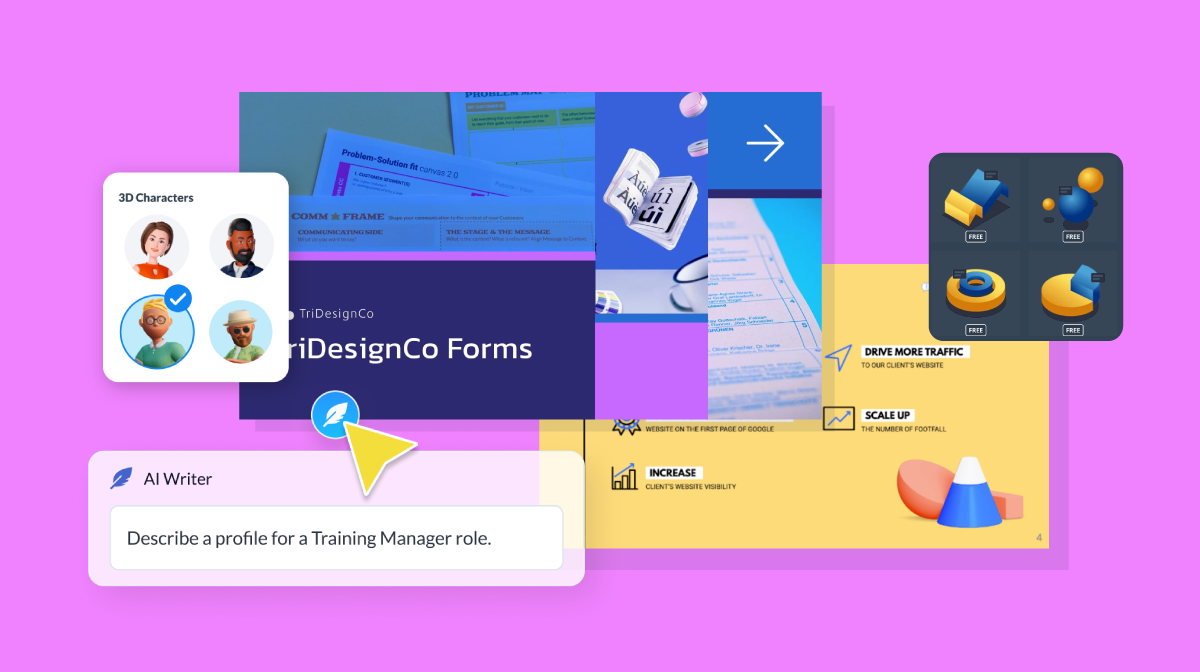
From AI-powered slide creation to quizzes, pre-made professional templates, clickable elements, dynamic fields, advanced collaboration, 3D characters, interactive data visualizations and SCORM exports—Visme has got it all.
Connect with our sales team and get your team started with Visme.
Design visual brand experiences for your business whether you are a seasoned designer or a total novice.
Try Visme for free