Why LAFC Builds a Personalized Sports Sponsorship Pitch Deck for Every Conversation

![10 Best AI Presentation Makers of 2026 [with Output Examples]](https://visme.co/blog/wp-content/uploads/2023/11/Best-AI-Presentation-Makers-in-2024-Header.jpg)
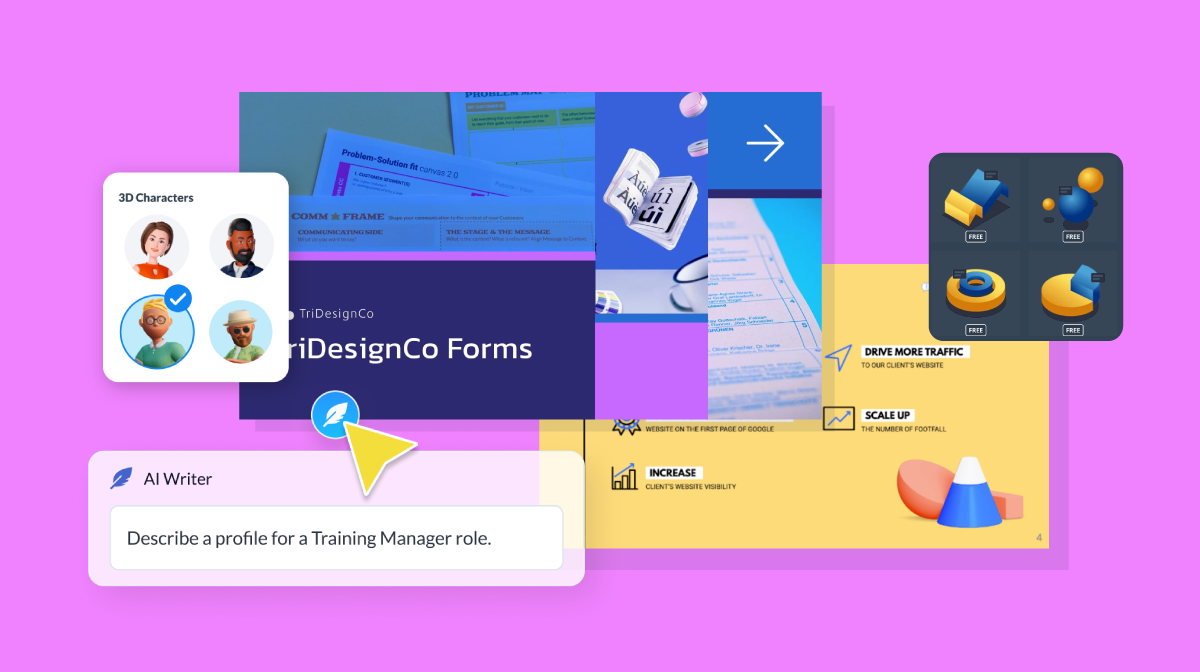
Creating presentations used to take hours of drafting, formatting and tweaking. But not anymore! Now, AI presentation makers generate layouts, suggest visuals, align branding and even draft your content. That means less time messing with the design and more time focusing on the story you want to tell.
The challenge is choosing the right presentation tool for you and your team. There are so many tools, and they differ widely: in-app editors, software add-ons, downloadable drafts.
To help you decide, I reviewed the best AI presentation makers in 2026 and selected the 10 worth further investigation.
Let’s get to it.
But, in case you’re in a rush, check out this video where Mike Ploger shares a selection of AI presentation tools we tried previously and what we thought about them.
Here’s the process I followed to test these tools:
Create a 5-slide presentation on how small businesses can use social media marketing to grow their customer base. Include a title slide, a slide on choosing the right platforms, a slide on content strategy, a slide on measuring results and a closing slide with key takeaways. Use a professional tone.
Moving forward, you’ll notice that the features we list are “standout” features. We don’t mention the ones that all tools typically have, like templates, collaboration, a drag-and-drop editor, analytics and branding capabilities.
The idea is to show you how each tool differs from the others. The standout features will help you choose the right tool for your project and team. If a tool has a special quality or a common feature, we’ll let you know.
And finally, in the pricing information, the monthly amounts we share correspond to each platform’s annual plan.
| Software | Best For | Pricing (Monthly) | G2 Rating |
|---|---|---|---|
| Visme | Businesses, marketers and teams who need branded, interactive decks without leaving the platform. | Free; Paid from $12.25/mo; Pro $24.75/mo; Enterprise custom | 4.5/5 |
| Gamma.ai | Startups, founders and small business owners comfortable working with AI. | Free; Plus $10/mo; Pro $20/mo | 4.6/5 |
| Beautiful.ai | Professionals needing quick, automatically formatted presentations. | Free trial; Paid from $12/mo | 4.7/5 |
| Decktopus AI | Professionals who need trackable, mobile-friendly decks with lead capture and speaker notes. | Free; Pro $14.99/mo; Business AI $49.99/mo | 4.4/5 |
| Plus.ai | Professionals using PowerPoint or Google Slides who need better-designed decks. | Free; Basic $10/mo; Pro $20/mo | 3.2/5 |
| PPT AI | PowerPoint users who want better-looking presentations with minimal effort. | Free; Basic $6.90/mo; Unlimited $13.90/mo | N/A |
| Storydoc | Sales and marketing teams needing interactive, trackable decks that still feel familiar. | Free; Starter $19.80/mo; Pro $36/mo; Team custom | 4.7/5 |
| Canva | Non-designers and small business owners creating presentations and social content. | Free; Pro $15/mo | 4.7/5 |
| Alai | Founders, sales teams and professionals who need polished decks with strong design and fast iteration. | Free; Plus $16/mo; Pro $25/mo; Ultra $60/mo | N/A |
| Manus | Users who need presentations alongside broader task automation capabilities. | Free; Standard $20/mo; Customizable from $40/mo; Extended $200/mo | N/A |
*Disclaimer: The comparisons and competitor ratings presented in this article are based on features available as of May 8, 2026. We conduct thorough research and draw on both first-hand experience and reputable sources to provide reliable insights. However, as tools and technologies evolve, we recommend that readers verify details and conduct additional research to ensure the information meets their specific needs.

Visme is an all-in-one visual design and content authoring platform with an AI Hub that includes a powerful AI presentation maker. It helps you get started on your deck quickly by generating presentation slides you can finalize in our feature-rich editor.
The video below shows you exactly how it works:
Visme is the first tool I tested using our pre-determined prompt. From the dashboard, I clicked on Create with AI and pasted the text into the AI chatbot.
After answering a few questions and choosing a visual style, I was shown a preview with the option to regenerate or choose a different style. It did surprise me that the generation had over five slides, like the prompt said, though.
![10 Best AI Presentation Makers of 2026 [with Output Examples] - social media marketing](https://visme.co/blog/wp-content/uploads/2026/05/2.jpg)
If you notice, my logo appears in the top left; that’s because the Brand Kit is set up in my Visme account. The generation used my brand colors and fonts. This is a big time-saver when using AI to generate presentation slides; I never have to worry about fixing all that in the editor.
And this is what the generated presentation looks like once in the editor. I like how a lot is already done for me while I still have access to all the design tools and AI features to finalize my deck.
![10 Best AI Presentation Makers of 2026 [with Output Examples] - social media marketing](https://visme.co/blog/wp-content/uploads/2026/05/3.png)
One more thing I want to mention about how slides are generated with Visme AI. If you look at the title in the slide below, you see an ellipsis after the word Small and the word Business missing. What’s going on here is the Truncated Text feature. Its job is to prevent text boxes from overflowing and breaking the design.
Before sharing the presentation, Visme lets you know if there are any truncated text boxes to check. To sort it out, you can either extend the text box, diminish the font size or ask the AI Writer to shorten the text altogether until it fits perfectly.
![10 Best AI Presentation Makers of 2026 [with Output Examples] - Visme contenter pitch](https://visme.co/blog/wp-content/uploads/2026/05/4.gif)
The Analytics dashboard lets you track views, unique visits, average time spent and average completion time to see exactly how your audience engages with your content.

Visme offers a free plan, but it comes with limited AI credits. You’ll need a paid subscription to increase your credit availability.

Based in San Francisco, Gamma has been called PowerPoint for the AI era and is one of the first results when you search Best AI Presentation Makers. So of course, it had to make this list. To get started with Gamma, you have to sign up for an account first.
![10 Best AI Presentation Makers of 2026 [with Output Examples] - Gamma](https://visme.co/blog/wp-content/uploads/2026/05/21.png)
Once in the system, I clicked on Create with AI and entered our prompt. In seconds, Gamma built an outline and gave me lots of options for customization options, like how many slides (which they call cards), the card dimensions and preferred style (Classic or Studio).
More options include the amount of text per card, the tone and target audience, a visual theme, image source, model and style. I chose the default preferences and clicked Generate.
![10 Best AI Presentation Makers of 2026 [with Output Examples] - Prompt editor](https://visme.co/blog/wp-content/uploads/2026/05/22.png)
Here’s what Gamma generated from our prompt. Pretty good! Since Gamma is AI- native, there are AI tools everywhere in the editor to help you do all sorts of things. The options span from small AI chatbots to edit text boxes to ones that will help you edit one card to a full-on agent that you can chat with to make any change you want.
![10 Best AI Presentation Makers of 2026 [with Output Examples] - amplify your reach](https://visme.co/blog/wp-content/uploads/2026/05/23.jpg)
I was curious to see what you could do with Gamma if you don’t start by generating with a prompt from the start. So I also tested their presentation editor from a blank template and was pleasantly surprised by all the features and tools available.
All in all, Gamma has definitely won its place as one of the best AI presentation makers.
The free Gamma subscription has 400 lifetime AI credits, unlimited presentations and a "Made with Gamma" watermark on exports. Paid plans have better offers.

Beautiful.ai was one of the first presentation makers to use AI to help users create beautiful presentations easily and hassle-free. Hence, their brand name. They introduced Smart Slides first, which automatically handles layout, spacing and typography as you add or edit content.
In the latest update, they added a Context-Aware AI Workflow, which generates a text outline before designing slides, letting you edit the structure before committing to a design.
This outline-first flow is a feature many tools have incorporated, mainly to help you get organized, but also to save AI credits from generating something that doesn’t work in the end.
![10 Best AI Presentation Makers of 2026 [with Output Examples] - beautiful.ai](https://visme.co/blog/wp-content/uploads/2026/05/8.png)
For our test, I created an account with a free trial. After entering our prompt, the platform provided the outline. It did follow the prompt about the five slides. In this view, there are several options, such as a theme and the images to use.
I picked a theme, then chose to use AI-generated images in a studio style (the other options were web search, stock images or no images at all). The generation was alright. What stood out was that it offered variations for each slide, using the platform’s built-in layouts.
![10 Best AI Presentation Makers of 2026 [with Output Examples] - leveraging social media marketing for small business growth](https://visme.co/blog/wp-content/uploads/2026/05/9.png)
The editor offered plenty of customization options, both manual and AI-driven. SmartBlocks is still the easiest way to edit Beautiful.ai presentations. That said, the Visme vs Beautiful.ai difference becomes more apparent when you need deeper interactivity, data visualization and full creative control beyond the slide layout.
The Beautiful.ai free plan offers a lot for individual users. For businesses and team features, it’s worth moving up to the next tier.

Decktopus, like most presentation design platforms, has also added an AI presentation maker. Their latest update brings them up to speed with other tools, including an editable outline before design generation.
I was able to test how Decktopus generates a presentation with AI, but without a paid plan, I couldn’t do much more. There’s no free plan or free trial.
![10 Best AI Presentation Makers of 2026 [with Output Examples] - decktopus](https://visme.co/blog/wp-content/uploads/2026/05/17.jpg)
From what I saw, the results were good and had a professional feel. Based on user reviews, the editor is well-regarded for being intuitive, and its branding capabilities get consistent praise.
Below is a look at the presentation Decktopus generated from our prompt.
![10 Best AI Presentation Makers of 2026 [with Output Examples] - supercharge your small business with social media](https://visme.co/blog/wp-content/uploads/2026/05/18.png)
Decktopus doesn’t have a free plan, nor a free trial

As an AI presentation maker, Plus is quite different from the other options on the list. It’s not a standalone platform but an add-on for either Google Slides or PowerPoint. I’m not a PowerPoint user, so I tested our prompt with Google Slides.
![10 Best AI Presentation Makers of 2026 [with Output Examples] - supercharge your slides with plus ai](https://visme.co/blog/wp-content/uploads/2026/05/24.jpg)
Since it was my first time using Plus, I had to set it up in my Google Slides. There are several steps, but the instructions are clear and easy to follow. To start, you open a new presentation in Google Slides, click on Extensions and choose Plus. A window opens, allowing you to place the prompt and make some choices. Unlike other tools, it lets you ask the AI to choose the layout for you, so I chose that to see the results. I also set the number of slides, the language and image type.
![10 Best AI Presentation Makers of 2026 [with Output Examples] - build your presentation with plus ai](https://visme.co/blog/wp-content/uploads/2026/05/25.jpg)
When it generated the outline, Plus offered me plenty of layout options for each slide, which I found quite practical. But it was a bit confusing initially: it curated a slide for me according to the layout, but if I browsed and clicked another, I couldn’t go back to what Plus had originally offered. So I went one step back and just kept the slides it suggested. Seems like something you’d just have to get used to.
![10 Best AI Presentation Makers of 2026 [with Output Examples] - leveraging social media marketing to expand your small business customer base](https://visme.co/blog/wp-content/uploads/2026/05/26.png)
Once I got back to Google Slides with the generated presentation, I took a look around to see what was possible. There are the usual AI writing assistants, image generation and content-building blocks, etc. But then there’s also the possibility of using Gemini as an agent to help edit your presentation.
For people creating presentations in Google Slides or PowerPoint, Plus is a good, practical tool for creating slide decks with AI, especially because you don’t need to leave the platform to do it all.
Plus doesn’t offer a free plan, but it does offer a 7-day free trial for the first three tiers.

PPT AI claims to be the world’s best AI PPT Maker. That’s a bold statement, so I put it to the test. The prompt to create a presentation is right on their landing page, so I quickly got started with testing.
Interestingly, aside from the usual input options like prompt, upload, link and image, you can also add a YouTube video. Unfortunately, I couldn’t test that because it’s a paid feature.
![10 Best AI Presentation Makers of 2026 [with Output Examples] - PPT AI: The world's best ai ppt maker](https://visme.co/blog/wp-content/uploads/2026/05/19.png)
The prompt window has some options such as language, scene, audience, tone and number of pages. I went with the default options. After inputting the prompt and clicking Generate, PPT AI started building the outline. It shows you the process as it's happening instead of making you wait to see the results.
I was able to edit the outline manually slide-by-slide, since there are no AI options for that. I then chose a visual style and clicked Generate Presentation.
Once in the editor, the presentation had 15 slides, even though I asked for five. The generated content itself was ok, but customizing and fixing the issues was not easy. This seems like the kind of thing you’ll have to take care of in PowerPoint once you've downloaded the presentation and transferred it over. I couldn’t test that, unfortunately, as it’s a paid feature.
![10 Best AI Presentation Makers of 2026 [with Output Examples] - how small businesses can grow their customer base using social media marketing](https://visme.co/blog/wp-content/uploads/2026/05/20.jpg)
So, is PPT AI really the Best AI PPT generator? Not exactly. But does it generate good enough slides that you can then open on PowerPoint and finalize? Yes, for that purpose, it’s an ok tool, because the layouts make sense and are well-balanced. You just need to tweak text boxes here and there to make things look perfect.
Worth noting: you can also upload PPTX presentations into Visme, so you could potentially customize a PPTAI generation with Visme’s editor and design tools and features.
PPTAI offers a limited free plan with 3 watermarked presentations/month, each with up to 15 slides. And many of the better features are only available on paid plans.
![10 Best AI Presentation Makers of 2026 [with Output Examples] - storydoc](https://visme.co/blog/wp-content/uploads/2026/05/10.jpg)
Storydoc is a bit different from other presentation makers in that the final output isn’t a slide deck. It's more of a scroll-based design, with each section (basically a slide) flowing into the next using different transition styles. The result feels more like an interactive webpage than a traditional deck.
![10 Best AI Presentation Makers of 2026 [with Output Examples] - ai presentation maker that gives you an edge](https://visme.co/blog/wp-content/uploads/2026/05/11.jpg)
I used the same prompt to generate a test output. Unlike other platforms, Storydoc led me through a series of questions before I entered the prompt. Then the system offered me a story outline to review before creating the slides. The options for editing the outline include changing the text or regenerating the whole outline.
Once generated and before entering the editor, you still have a chance to customize the colors and fonts throughout all the slides.
![10 Best AI Presentation Makers of 2026 [with Output Examples] - social media growth for small business](https://visme.co/blog/wp-content/uploads/2026/05/12.jpg)
The editor is simple but very detailed. There are many customization options to finalize the design and functionality of the scrolling effects and interactivity. If you prefer to move things around yourself, the locked alignment might feel restrictive. Nevertheless, this feature helps non-designers make well-balanced layouts.
![10 Best AI Presentation Makers of 2026 [with Output Examples] - social media growth for small business](https://visme.co/blog/wp-content/uploads/2026/05/13.jpg)
I found it very interesting that the spaces between elements were elements themselves. This is not something other tools offer, but it actually helps a lot with alignment and composition. Instead of dragging text boxes up or down, all you have to do is expand or shrink the spacing element.
Storydoc’s starter plan is good enough for individual users, but collaboration and workspaces are only available in the Pro plan and up.

Canva is a popular online design platform with an aptly named AI creator, Canva AI (formerly Magic Studio). At the time of writing this list, Canva AI was at 1.0, with 2.0 coming soon. We will update this entry when that happens.
![10 Best AI Presentation Makers of 2026 [with Output Examples] - Canva design](https://visme.co/blog/wp-content/uploads/2026/05/14.jpg)
To access Canva AI, you must log in or create an account. Then click the Canva AI button. After entering our prompt, Canva AI returned an outline with editable text boxes. To make any major changes, you can ask the chat on the left to do it for you. I then clicked generate and was surprised not to be offered any style options. The output was good and quite elaborate with lots of little details.
The first option I got was to make edits using Canva AI, through the chat window on the left. I chose to open the presentation in the editor.
![10 Best AI Presentation Makers of 2026 [with Output Examples] - Canva editor](https://visme.co/blog/wp-content/uploads/2026/05/15.png)
The Canva editor offers countless options to help you finalize the presentation, from simple shapes and graphics to a wide range of unique design apps integrated into the system. You can also add animation, voiceovers and other interactive features.
![10 Best AI Presentation Makers of 2026 [with Output Examples] - Canva ai](https://visme.co/blog/wp-content/uploads/2026/05/16.png)
Another way to use Canva AI to generate presentations is to open a blank presentation template and use its prompt window. The results I got that way were very different from the first try. Was that random or is the native Canva AI area better overall? It would seem like the latter.
Free users get 10 total AI uses; paid plans get more based on monthly AI usage limits.

Alai is one of the newest AI presentation makers in the market. It’s a Y Combinator-backed startup that ranked #2 on Product Hunt when launched. The difference between Alai and most tools that offer AI Presentations is that it was created for that specific purpose. While other tools added the feature to everything else, Alai is AI-native.
![10 Best AI Presentation Makers of 2026 [with Output Examples] - Alai](https://visme.co/blog/wp-content/uploads/2026/05/5.jpg)
I signed up for an Alai account to test it out with our prompt. Something that stood out straight away is that, instead of just being a chat, Alai is actually an Agent. It asks more detailed questions and offers more options.
The first output was the outline. Each slide’s content had two windows: one for the text, which you can edit manually and a mini-prompt window where you can add instructions for that specific piece of content. I didn’t change anything and clicked Next.
![10 Best AI Presentation Makers of 2026 [with Output Examples] - United presentation](https://visme.co/blog/wp-content/uploads/2026/05/6.jpg)
On the next step, I was offered the option to use Alai’s gallery of Classic themes or to choose a Vibe and generate everything with AI. I chose Classic. The themes differ only in colors and fonts; the layouts are the same. I clicked Next and I got a review of all the settings and the chance to add notes to the prompt.
I chose to see 4 variants per slide and selected to generate all slides at once, although you can also choose to generate slides individually. Once generated, you have lots of options for customization using either the Design AI or continuing with an Agent. You can also add more elements to the slides and input content.
![10 Best AI Presentation Makers of 2026 [with Output Examples] - growing your customer base with social media marketing](https://visme.co/blog/wp-content/uploads/2026/05/7.jpg)
I ran a second test using Vibes and the results were better and more creative, though it took much longer and used many more credits.
As an AI-native tool, Alai stands out for its creative potential. But compared to other tools, it lacks functionalities that teams and businesses need, such as interactivity, video, navigation and more.
With the free plan, you get 300 non-renewable credits. Once you run out, that’s it. Paid plans get monthly credit renewals.

The last tool on our list is Manus, an AI presentation maker recently acquired by Meta. Along with Alai and Gamma, it consistently ranks among the top AI tools for generating presentations.
Where it stands apart from both is its scope. Manus works more like ChatGPT or Claude than a dedicated slide tool. It can handle a wide range of tasks beyond presentations. It acts as an autonomous agent that connects with your computer to get things done on your behalf.
![10 Best AI Presentation Makers of 2026 [with Output Examples] - Manus slides](https://visme.co/blog/wp-content/uploads/2026/05/27.jpg)
The AI presentation part of Manus is called Manus Slides and I tested it with the prompt we agreed on. I didn’t initially pick any templates, so the first results were good and clean but not very creative. For some reason, even though the prompt says “5 slides,” Manus generated 10.
They were generated one by one in the chat, taking several minutes. Much more than other tools. When it’s finished, you can open the entire presentation to edit the slides using AI.
![10 Best AI Presentation Makers of 2026 [with Output Examples] - social media marketing for small businesses](https://visme.co/blog/wp-content/uploads/2026/05/28.jpg)
I asked it to change to another theme, but I could only use one of the free ones. The ones from NanoBanana were only available with a paid plan. The second theme didn’t look much different in terms of text and layout, mostly in color. Also, it took a long time because the free plan uses the slowest available AI model.
![10 Best AI Presentation Makers of 2026 [with Output Examples] - content strategy](https://visme.co/blog/wp-content/uploads/2026/05/29.png)
To edit the presentation, you can do so in Manus itself through the agent or the chat. Or you can download it as a PPTX file to open in PowerPoint, Google Slides or even Visme.
Honestly, creating a presentation with Manus is only the tip of the iceberg for what the platform can do. But since there isn’t an in-app editing environment, you will definitely need another tool to make the final touches to the presentation slides.
When you generate something in Manus, the free plan is automatically activated with 300 daily refresh credits and 1,000 starter credits at signup. Most definitely, for the best results, you need a paid subscription.
It depends on your needs. Visme is the strongest all-around option for teams and branded content. Gamma is a close second for speed and simplicity. Beautiful.ai works well for sales and business professionals who need clean, auto-formatted decks.
Several tools can generate presentations from a prompt, including:
Follow the steps below to create an AI-generated presentation:
Yes, with limitations. ChatGPT can now generate basic .pptx files using its Agent mode, but you need a Plus, Pro or Team subscription to access it. The output has limited formatting and design. For polished results, most people use ChatGPT to draft content and then bring it into a dedicated tool like Visme or Gamma.
Plus AI offers a 7-day free trial that includes both Google Slides and PowerPoint. After the trial, a paid subscription is required. There is no permanent free plan.
The Designer feature (also called Design Ideas) in Microsoft PowerPoint. It automatically suggests layout options, color schemes and formatting based on your slide content. Access it under the Design tab. It works best when your slides include a mix of text and visuals.
To use Designer in PowerPoint:
Visme is the most complete option; it generates branded decks from a prompt and gives you a full design editor to finalize them. If you only need fast AI generation with minimal editing, Gamma is a strong alternative.
And there you have it: a comprehensive review of the finest AI presentation makers in 2026.
If you're on the hunt for an exceptional AI presentation maker that does much more than just generate presentation slides, look no further than Visme!
Not only will you create captivating presentations easily, but you will also gain access to all of our content authoring and visual design tools. Plus, the added perks of Visme's AI-powered solutions take your creativity to a whole new level.
Ready to get started? Sign up now and let Visme's AI presentation maker transform your ideas into captivating visual stories.
Design visual brand experiences for your business whether you are a seasoned designer or a total novice.
Try Visme for free