The Best Beautiful.ai Alternatives to Create AI-Powered Presentations


There’s no denying that PowerPoint has helped shape business presentations into what they are today.
But in 2026, teams expect AI-assisted design, real-time collaboration, advanced branding controls, interactivity, shareable web links and more. PowerPoint doesn't deliver all that. That gap is why more teams are actively looking for alternatives.
The shift is also about speed. Generating a full deck from a prompt was once impossible. Now it's a 60-second task in several of the tools on this list. For teams producing presentations at volume, that changes the cost-benefit calculation on sticking with PowerPoint entirely.
So, what is better than PowerPoint? Honestly, that depends on your use case.
I tested 10 alternatives to help you decide based on your specific needs. After all the testing and gathering information, I built a comparison chart and a decision matrix by use case. I also collected pro and con reviews for each tool from real users on G2 and Capterra.
*Disclaimer: The comparisons and competitor ratings presented in this article are based on features available as of May 21, 2026. We conduct thorough research and draw on both first-hand experience and reputable sources to provide reliable insights. However, as tools and technologies evolve, we recommend readers verify details and consider additional research to ensure the information meets their specific needs. PowerPoint is a registered trademark of Microsoft Corporation. Visme is not affiliated with or endorsed by Microsoft. References to PowerPoint are for descriptive purposes only.
| Software | Key Features | Pricing | Best For | Core Uses | G2 Rating |
|---|---|---|---|---|---|
| Visme | AI tools, drag-and-drop editor, templates, data visualization, animations, collaboration, Presenter Studio, Presenter Notes with PDF download, Master Layout, offline mode and analytics. | Free; Paid from $12.25/month |
Businesses, educators and teams | AI-powered and collaborative presentations, infographics and animated social media graphics | 4.5/5 (445 reviews) |
| Prezi | Non-linear presentations, AI-powered generation, cloud-based workflows, advanced image editing and privacy management. | Free Trial; Paid from $6/month |
Dynamic, non-linear storytelling | Dynamic presentations and zooming transitions | 4.2/5 (5,500+ reviews) |
| Keynote | Cinematic transitions, interactive charts, cloud collaboration and PowerPoint compatibility. | Free for Mac users | Polished presentations on Apple devices | Professional presentations | 4.4/5 (500+ reviews) |
| Zoho Show | Animations, transitions, browser-based collaboration and chart imports. | Free; Paid plans available |
Teams already using Zoho apps | Collaborative cloud-based presentations | 4.4/5 (60+ reviews) |
| Google Slides | Cloud-based collaboration, Google Drive integration and ready-made templates. | Free | Fast, no-setup team collaboration | Collaborative presentations and Google Workspace integration | 4.6/5 (42,800+ reviews) |
| Canva | Templates, drag-and-drop editing, animations and team collaboration. | Free; Paid from $12.95/month |
Polished presentations without needing a designer | Graphic design, presentations and social media graphics | 4.7/5 (6,800+ reviews) |
| Beautiful.ai | AI-powered design, templates, analytics and privacy controls. | Paid from $12/month | Consistent, on-brand decks without design decisions | AI-powered presentations and rapid slide creation | 4.7/5 (190+ reviews) |
| Gamma | AI-native deck generation, Gamma Agent, multi-format output, analytics and API access. | Free; Paid from $8/month |
Creating full decks from prompts in under a minute | AI-generated presentations, documents and websites | 4.1/5 (20+ reviews) |
| Venngage | Infographic builder, branding tools, templates and data visualization features. | Free; Paid from $19/month |
Presentations designed for accessibility standards | Infographics, reports and presentations | 4.7/5 (120+ reviews) |
| Pitch | Collaborative editing, analytics, integrations and startup-focused templates. | Free; Paid from $13/month |
Building, sharing and tracking client-facing decks | Collaborative presentations and startup pitches | 4.4/5 (60+ reviews) |
Not every tool that calls itself a PowerPoint alternative is actually an upgrade. Some are simple, others are cheaper and some just look nicer. But simpler and cheaper don't automatically mean better for your use case.
So, before you commit to anything, here's the framework I used to evaluate every tool on this list. Each of these criteria is what separates a tool worth switching to from one that just looks good on a landing page.
To test the PowerPoint alternatives on this list, I created a free account on each one and built a presentation from scratch, using templates, AI generation, or PPTX imports where available. From there, I tested the core editing experience: Slides, text, graphics, charts, animations, and sharing options.
Inside each tool section below, you’ll see a list of its standout features. I avoided listing features shared by all the tools since that’s not going to help you decide between tools.

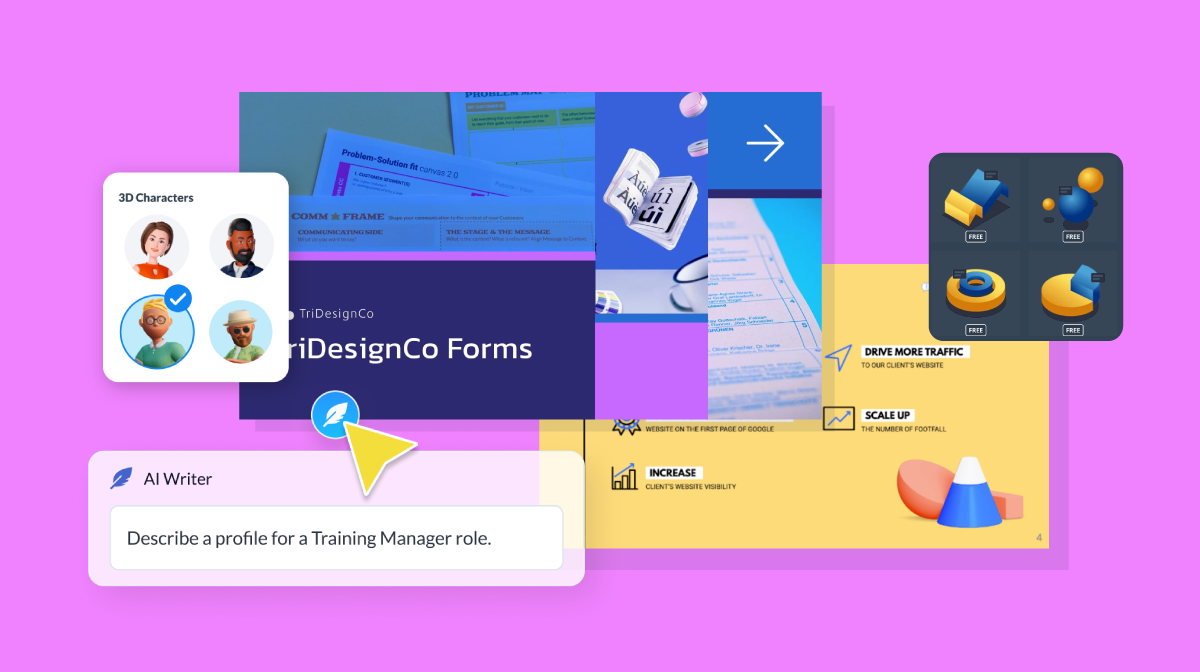
Visme is best for teams that need to create, manage and share branded visual content at scale, with full design control and built-in analytics.
As part of the team, I've been using Visme for years, across presentations, infographics, reports and marketing materials. So I decided to come into this with fresh eyes by creating a new account. I wanted to test it the way someone switching from PowerPoint would, not the way someone already sold on it would.
The first thing that stands out is how much you can do without leaving the editor. Templates, AI generation, data visualization, animation, interactivity, brand governance, it's all in one place and that feels very practical. For teams that produce a high volume of visual content, having everything accessible matters. I’ve never liked having to switch between tools all the time, and I’m sure other people don’t either.
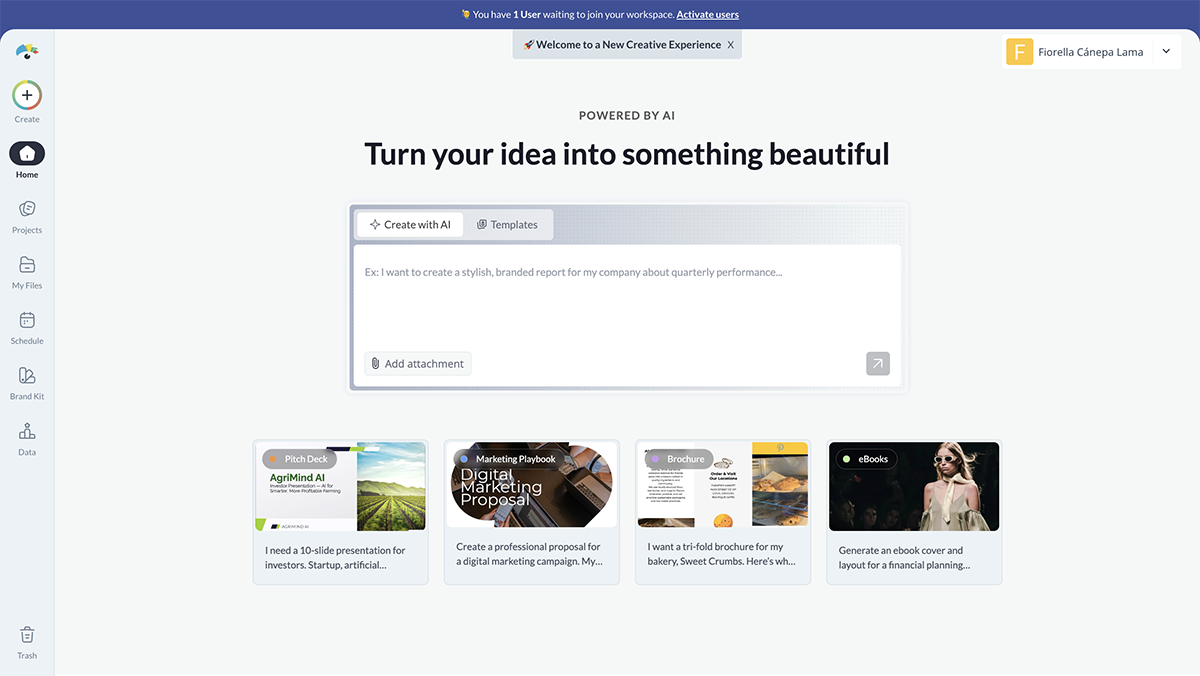
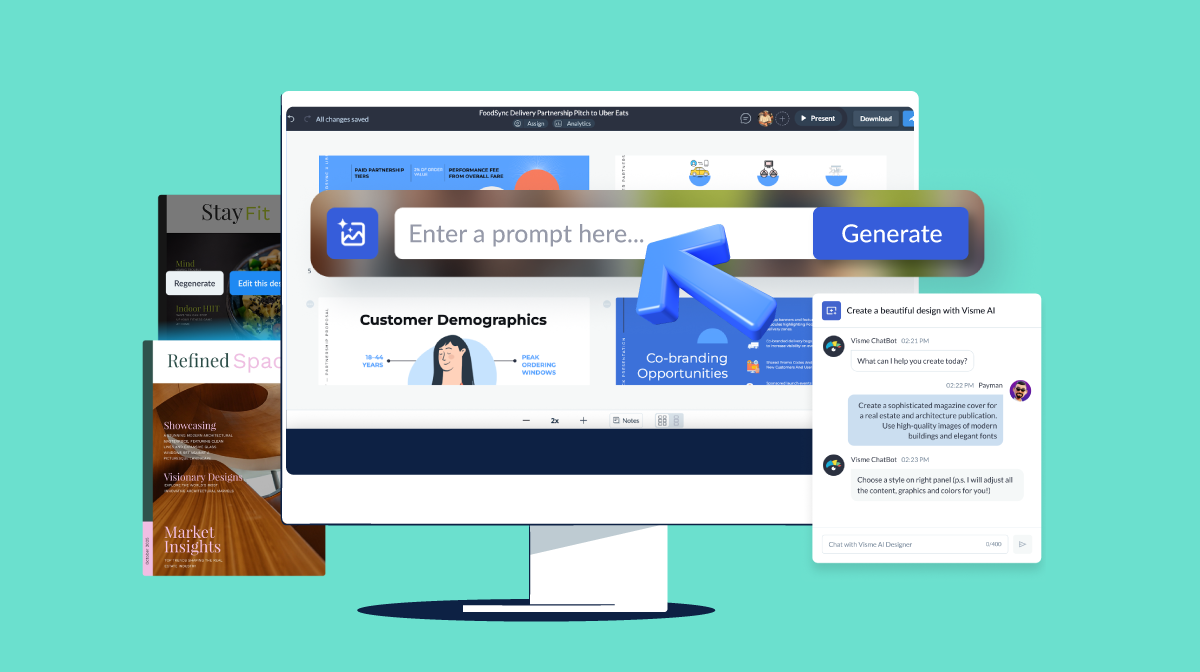
I tested the AI presentation maker with a product launch prompt and the output was pretty good. Clean layouts, relevant images, structured slides. It needed some refinement, but less than I expected. I did notice that Visme doesn’t offer an outline you can edit before generating the slides; the majority of other tools do have that.
Where Visme pulls ahead of tools like Gamma or Beautiful.ai is what happens after generation. You have full design control, not just within the AI's constraints.
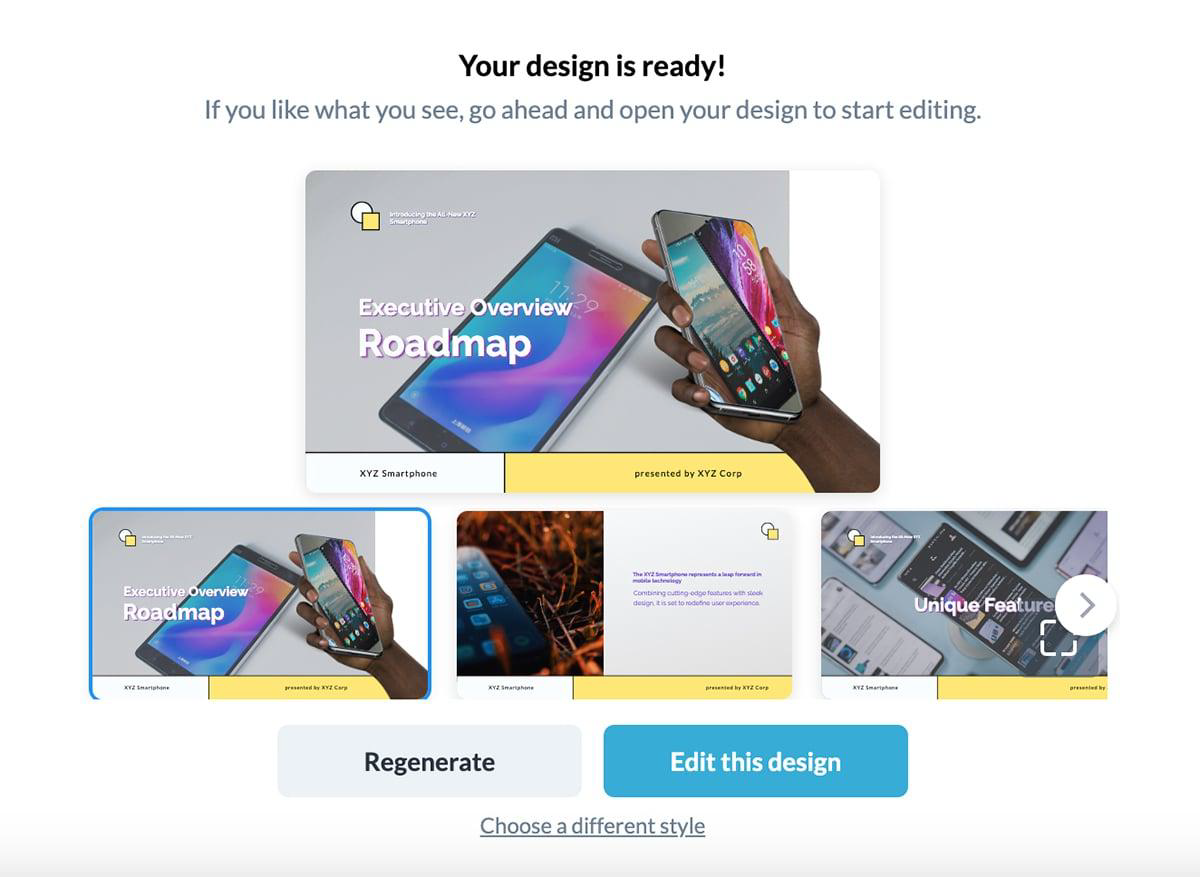
Here’s what Visme came up with when I typed in “Prepare a product launch presentation for a new smartphone”.
Look through all the design elements and editing features, and I feel that the data visualization tools are the strongest I tested across this entire list. You get 30+ widgets, 20+ chart types in 2D and 3D, live data integration, and interactive charts. This makes Visme a strong contender as a PowerPoint alternative in my book.
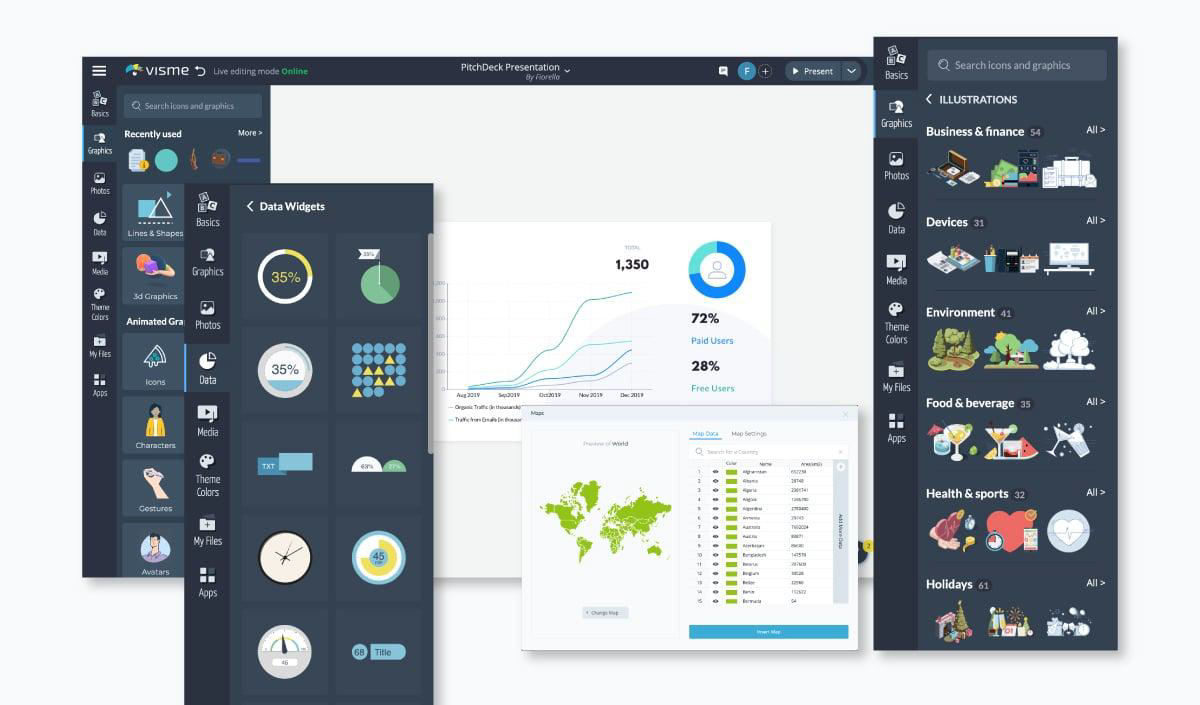
Presenter Studio is also worth singling out. You can record yourself presenting, add a webcam overlay or voiceover, and then share the final product as a link. The fact that it’s built directly into the tool makes it super easy to use.

| Aspect | Visme | PowerPoint |
|---|---|---|
| Ease of Use | Drag-and-drop editor with AI-powered tools for faster content creation. | Familiar interface, but can feel more complex for non-designers. |
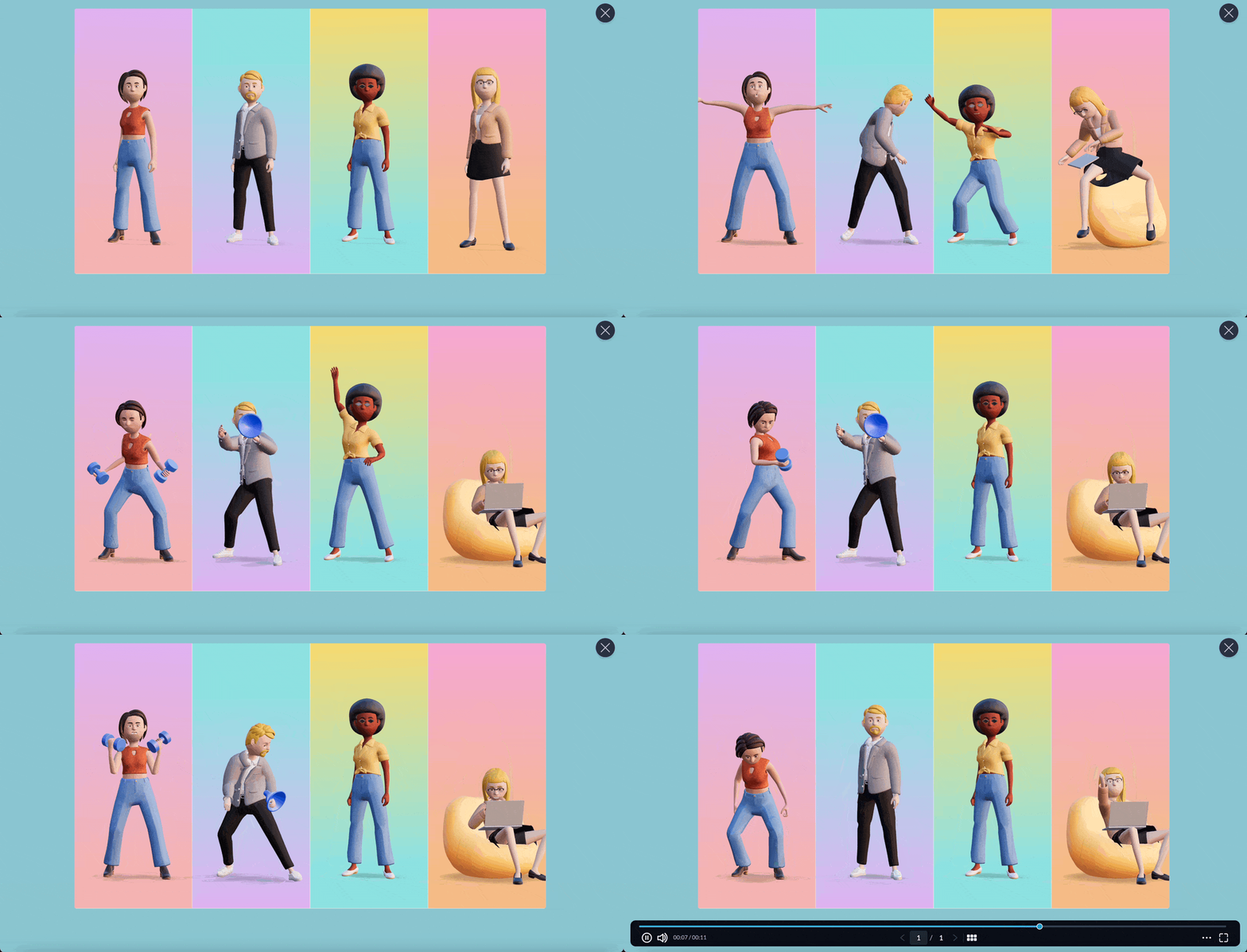
| Design Flexibility | Advanced design elements, interactivity features and customizable 3D characters. | Limited to standard animations with fewer built-in design options. |
| Collaboration | Real-time collaboration with comments and annotations. | Real-time collaboration through Microsoft 365. |
| Data Visualization | 30+ charts, graphs, maps and widgets with live data integration. | Static charts and graphs with limited interactivity. |
| Pricing | Free plan available, with premium plans starting at $12.25/month. | Microsoft 365 subscription required for premium features. |

Prezi is best for speakers and educators who prefer to share ideas and information using a zoomable, non-linear presentation format.
Prezi takes a completely different approach from the traditional slide-by-slide format. In fact, when you think about Visme vs Prezi, it really comes down to how you want to tell your story: using structured slides or with a free-flowing visual canvas.
Unlike most presentation tools, Prezi ditches the linear structure in favor of a zoomable canvas where you can map out your message however you like.
Despite its unique layout, Prezi still gives you the design flexibility you'd expect from modern presentation software: customizable templates, branding tools, and plenty of room to get creative. Aside from presentations, Prezi also offers videos and infographics.
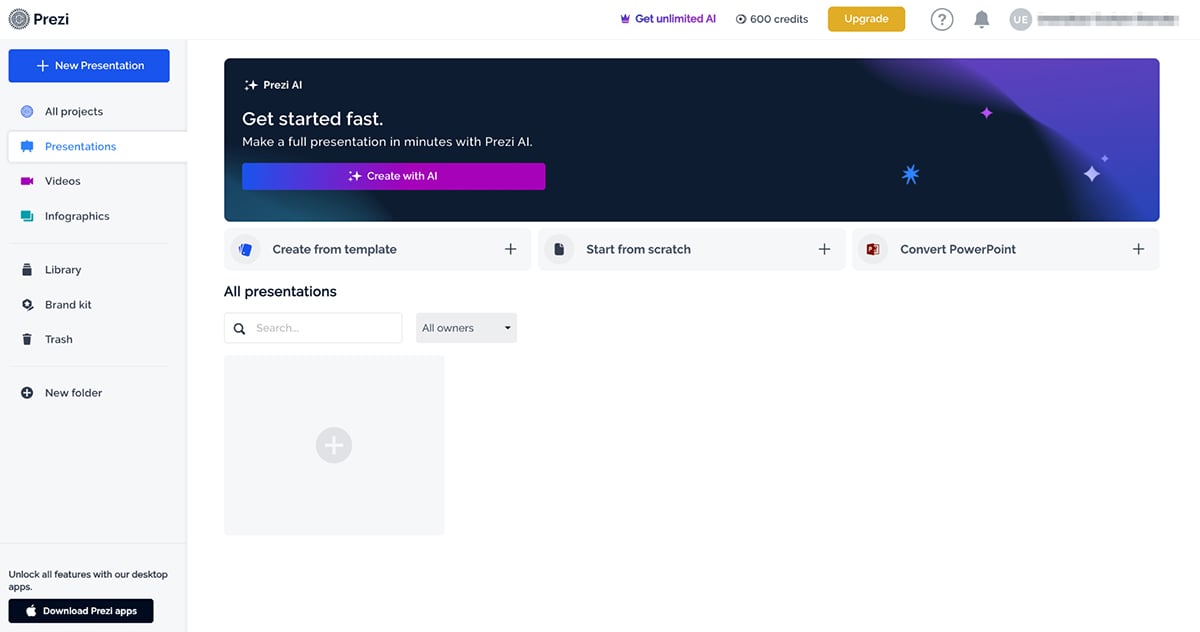
There is a bit of a learning curve if you’ve only used traditional tools like PowerPoint or Google Slides, but the templates are solid, and the interface walks you through the basics pretty well.
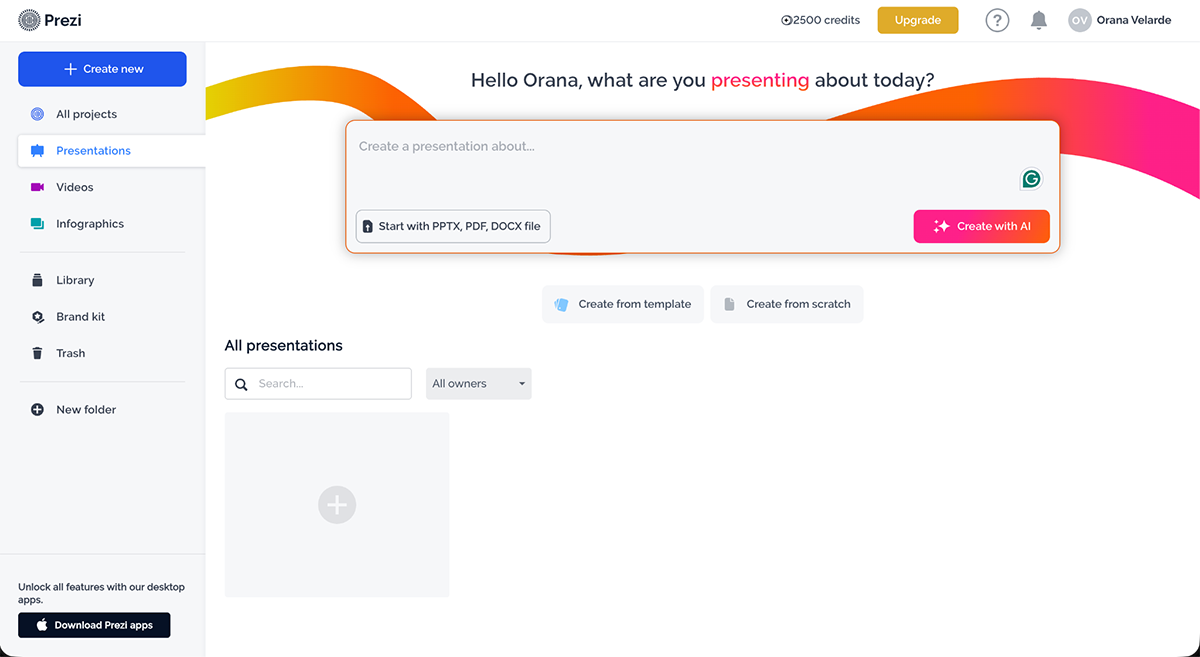
It’s been around for a while (you might remember using it as a student or seeing it in a classroom), but it’s definitely not stuck in the past.
Prezi has a built-in AI tool that can help you build a rough draft of your presentation in minutes. After adding the title, I fed the tool with this prompt:
Create a conference presentation on the topic: 'The Future of Remote Work: Trends, Tools, and Strategies for 2025 and Beyond.'
After asking me a few questions about my preferred outline order, here’s what it came back with
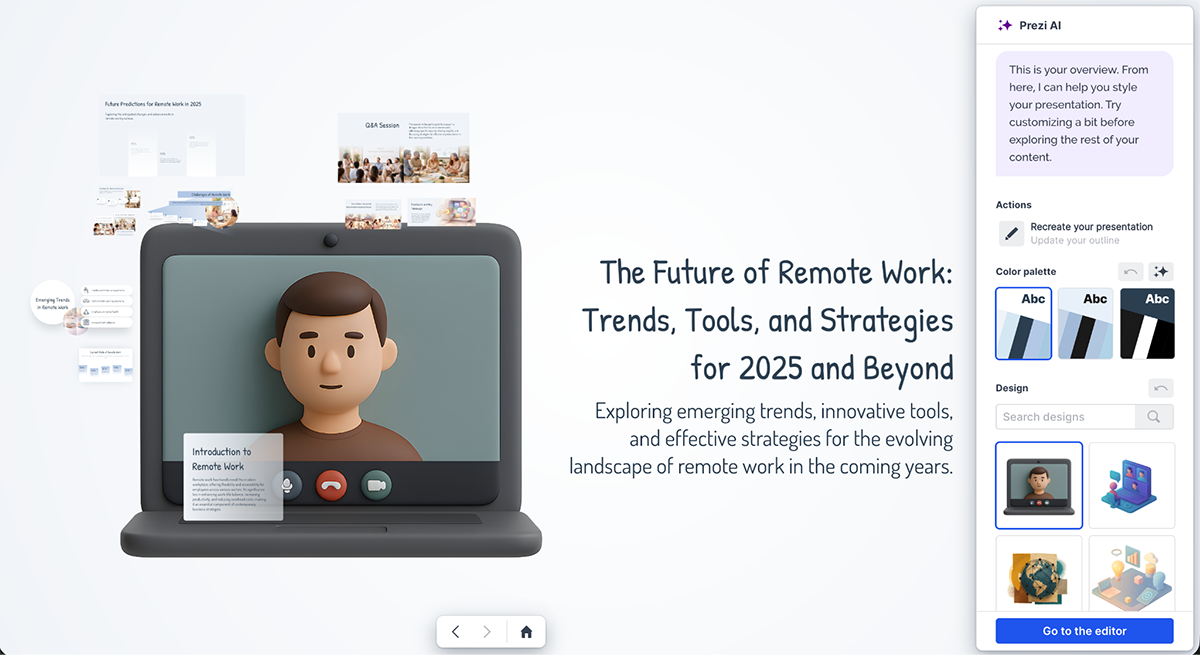
At first sight, it feels kind of unbalanced, but when I used the arrows to navigate section by section, I was more impressed.
I liked that it didn’t just spit out a single layout and call it a day. It gave me different nonlinear design formats and color palettes to choose from, which made it easier to shape the presentation around my message, not the other way around. There's also an option to further customize the AI-generated deck in their editor. So, I opened it there to take a look.
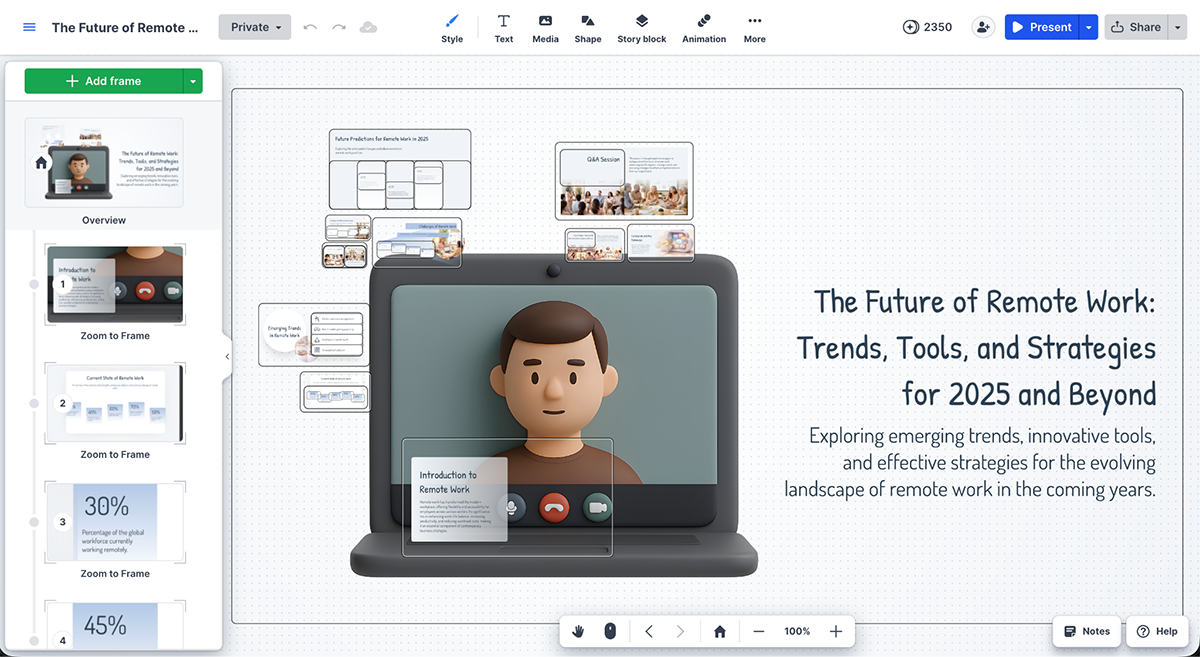
Turns out the generated presentation had 31 slides grouped into 10 topic sections. I appreciated the level of design and detail it generated, but didn’t like the overall look of the first frame. Thankfully that’s easy to fix just by moving things around and resizing elements.
The editor offers many design options and visual assets, including media, shapes, story blocks and animation. I tested Prezi on a low-tier plan, so I didn’t have access to premium features like the brand kit or downloading as a video.
Here are some of Prezi’s best features I found worthy of mentioning:
Prezi plans are separated into four types: basic, individual, education and business. Basic has a free plan and the majority of the others have a free trial.
| Aspect | Prezi | PowerPoint |
| Ease of Use | Moderate learning curve due to non-linear structure | Linear, familiar flow |
| Presentation Style | Zooming and panning, non-linear flow | Traditional slide transitions |
| Collaboration | Real-time team collaboration | Requires Office 365 for real-time editing |
| Customizability | Customizable slides only in non-linear style | Extensive customization for linear slides |
| Pricing | Paid plans start at $5/month | Microsoft 365 subscription required |

Keynote is best for Mac and iPad users who want polished, cinematic presentations without paying for extra software.
When I first opened Keynote, I wasn’t expecting much. I figured it’d be Apple’s version of PowerPoint: clean, functional, maybe a little prettier.
But after spending some time with it, I’ve got to say, you can’t knock it off. It’s sleek, polished, and very Apple in all the right ways.
Everything about Keynote feels smooth, from the interface to the animations. Creating transitions between slides almost feels like directing your own mini movie. There’s something deeply satisfying about how fluid and cinematic the whole experience is. You can add reflections, drop in picture frames, and even build interactive charts without having to dig through a dozen menus. It just works.
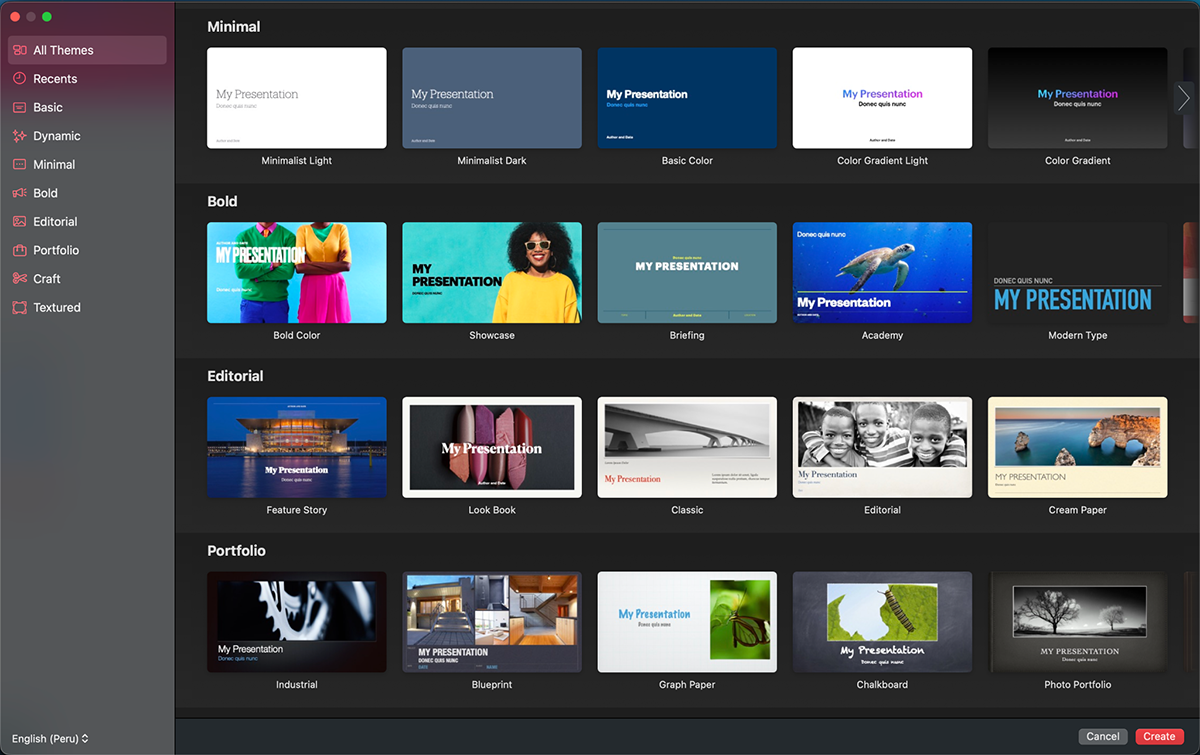
And if you’re an Apple user, Keynote really shines. I tested it on my iPad Pro with an Apple Pencil, and the experience was seamless. I could sketch, annotate, and rearrange slides with ease, and the iCloud integration meant my presentation was ready to go on my MacBook later without having to email anything to myself (which is always a plus).
But it’s not perfect. The design asset library feels pretty bare compared to what you’ll find in more modern, web-based tools like Visme or Canva. And since Keynote is mostly an offline tool, you miss out on some of the real-time collaboration features that have become standard in cloud-based platforms.
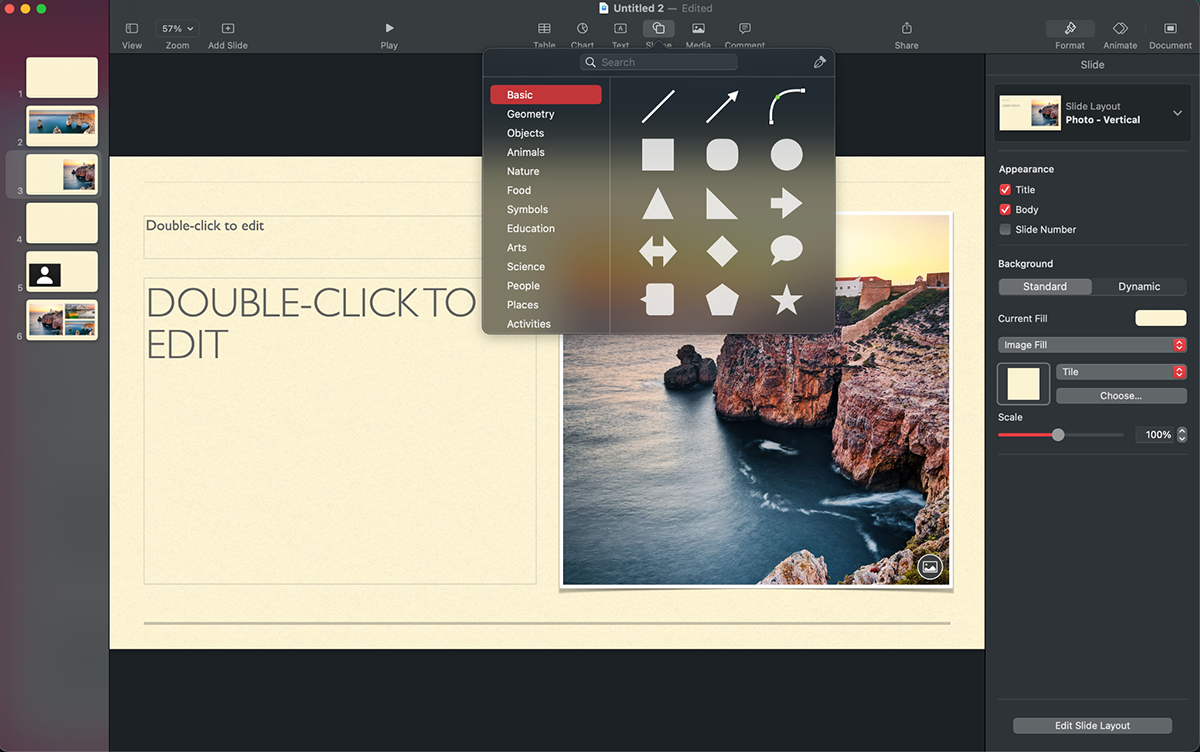
Still, for solo presenters or die-hard Apple fans who love a minimalist, cinematic aesthetic, Keynote delivers. It’s fast, beautiful, and gets out of your way so you can focus on your message. Just don’t expect it to come with all the bells and whistles you’ll find in newer online tools.
Here are some notable Keynote features:
Free for all Apple device users
| Aspect | Keynote | PowerPoint |
| Ease of Use | Intuitive for Apple users, seamless cross-device sync | Familiar interface, steeper learning curve |
| Design Capabilities | Cinematic transitions, interactive charts | Decent design tools with custom animations |
| Collaboration | Real-time, but Apple-only | Available across all platforms |
| Device Compatibility | Mac, iPhone, iPad support | Cross-platform, but sync isn't as seamless |
| Pricing | Free for Apple devices | Microsoft 365 subscription required |

Zoho Show is best for teams already in the Zoho ecosystem who need a straightforward, browser-based presentation tool.
I included Zoho Show in my testing lineup mostly out of curiosity. It’s part of the broader Zoho ecosystem, but even on its own, it holds up well as a PowerPoint alternative.
At first glance, it feels a lot like PowerPoint’s younger, more modern cousin. It has a handful of themes, templates and slide design to get you started. The interface is familiar enough that you don’t need to relearn everything, but it still brings some fresh touches.
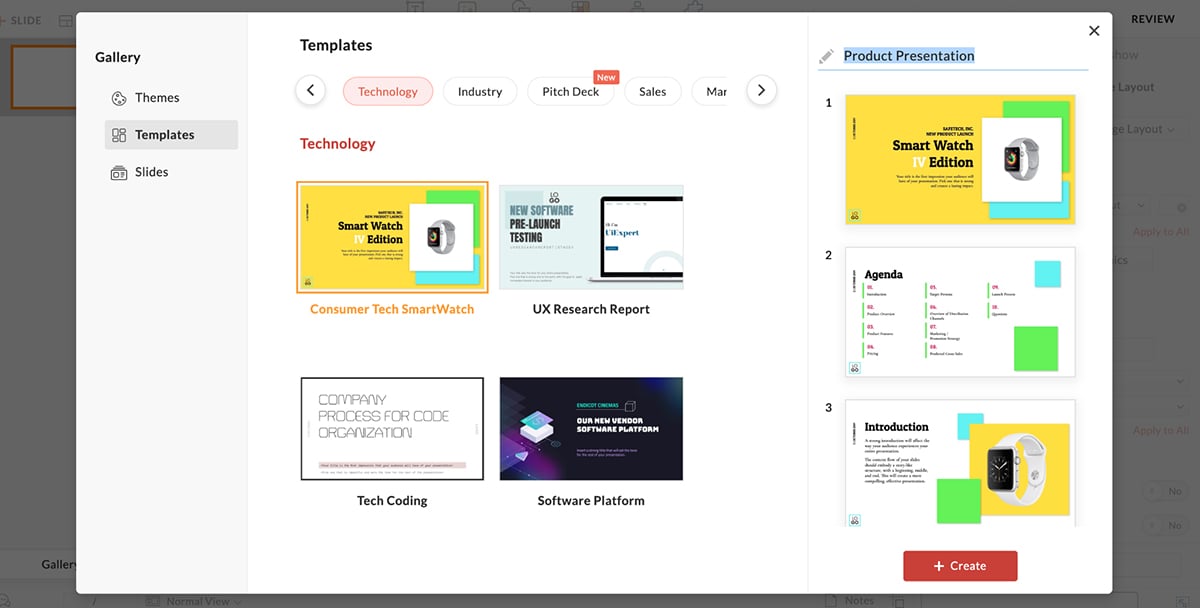
I tried building a product overview presentation using Zoho Show and was impressed by how easy it was to customize charts, insert data widgets, and tweak illustrations. It felt like PowerPoint, but a little friendlier and less bloated.
You can access it from any device, collaborate with others in real time, and export your slides in multiple formats. Plus, if you want to embed your presentation online or share a link, Zoho makes it super easy.
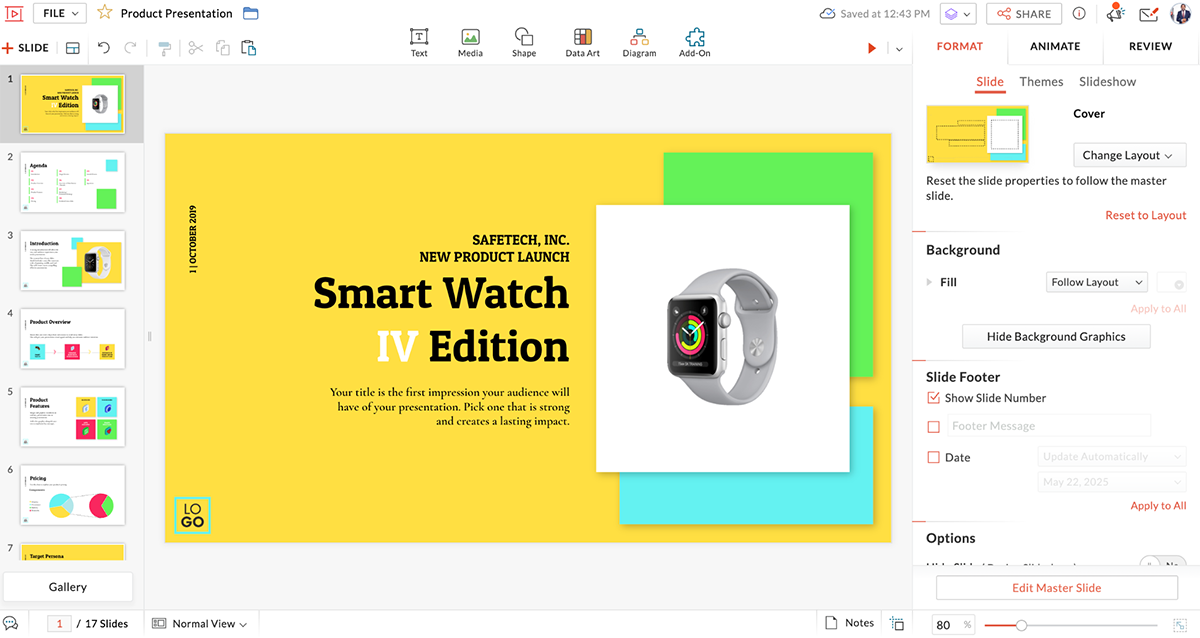
Here’s a caveat, though. It’s not going to blow you away with AI tools or ultra-modern animations. Compared to heavyweight tools like Visme or Canva, the design asset library, diagram and data visualization tools are limited.
But for traditional presentations with a bit of flair, it gets the job done. If you're already using Zoho apps, it integrates smoothly. But even if you’re not, it’s a simple, reliable and web-based slide deck creator that does most of what you’d want without overwhelming you.
Here are some Zoho Show features that make this tool special:
Zoho Show offers a free plan for getting started, but paid plans offer more features, like additional storage, user management tools and brand asset library.
| Aspect | Zoho Show | PowerPoint |
| Ease of Use | Simple, browser-based interface | Familiar, but download required |
| Collaboration | Real-time with commenting | Office 365 collaboration features available |
| Media Integration | Embed live social media content (tweets, YouTube) | Limited video embedding options |
| Customizability | Offers good templates and transition animations | Full manual customization available |
| Pricing | Free with premium at $2.50/month | Microsoft 365 subscription required |

Google Slides is best for teams already in the Google ecosystem who need a free, no-setup collaboration tool.
When it comes to Google Slides vs PowerPoint, I’d give Google Slides the award for the best PowerPoint alternative. It comes with a cleaner interface and the unbeatable perk of being 100% free with a Google account.

What I loved right off the bat was the convenience. If you’re already in your Gmail or Google Drive, launching Slides takes just a click. No downloads, no setup, no hassle.
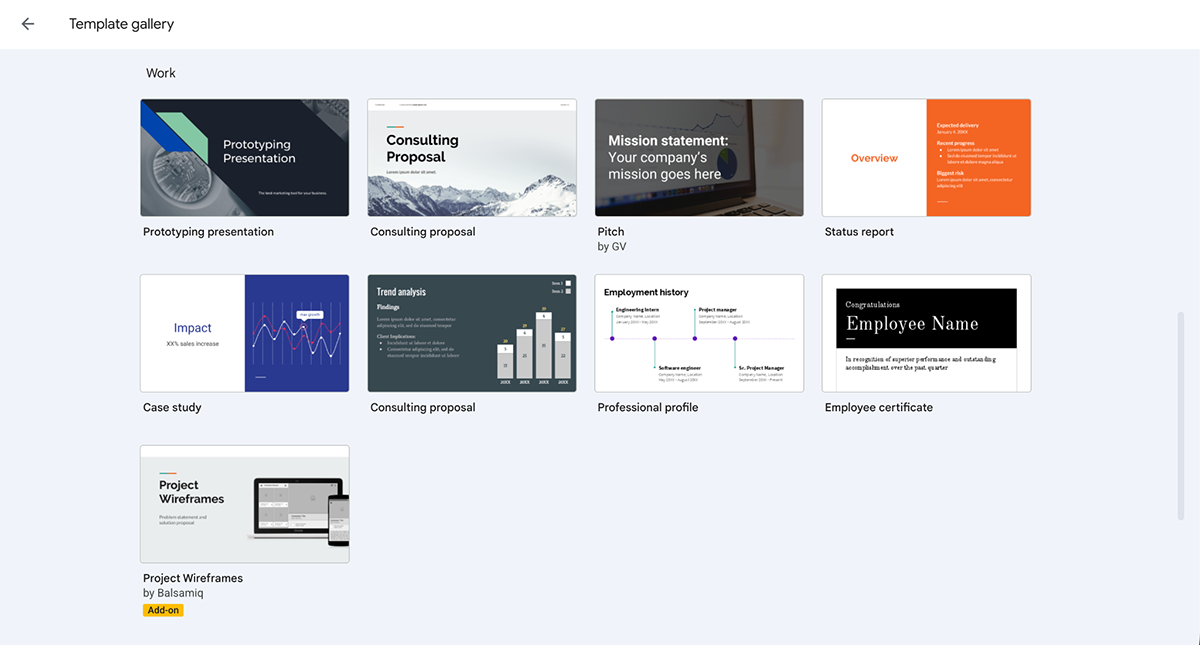
Design-wise, the experience was simple and to the point. It felt like I was using PowerPoint in a slightly more stripped-down, modern shell. There are themes to choose from, organized by color and layout. But there aren’t very many.
That said, the Google Workspace Marketplace add-ons close the template (and design) gap significantly. SlideKit adds industry-specific templates, Extensis Fonts unlocks 1,400+ font options, and Plus AI brings AI deck generation directly into the editor; all without leaving Google Slides.
While the customization options aren’t as deep as some other tools, they cover most basic needs. And like I mention above, you can use any of the add-ons available in the Marketplace.

One thing that really stands out with the Google suite of tools is the ease of collaboration. You can work on a presentation with teammates in real time, leave comments, and see changes as they happen.
Even with all that going for it, if you’re looking for slick animations, eye-catching transitions or captivating design assets, Google Slides might fall a bit short. The features are solid but basic.
Still, for quick, collaborative, and free presentations, Google Slides easily earns its spot as the most practical PowerPoint alternative I tested.
Here’s what caught my eye in Google Slides:
Free for everyone with a Google account.
| Google Slides | PowerPoint | |
| Ease of Use | Easy to use, browser-based | More complex, downloadable app |
| Real-time Collaboration | Seamless with Google users | Requires an Office 365 subscription |
| Storage and Access | Auto-saving to Google Drive | Save to OneDrive with Microsoft 365 |
| Templates | Limited templates | Extensive template library |
| Pricing | Free for all users | Requires a Microsoft 365 subscription |

Canva is best for marketers, educators and small teams who need polished presentations fast without spending too much time on layout and styling.
No roundup of PowerPoint alternatives would be complete without Canva. It’s become a household name in the design space.
I’ve been using it for years, not just for presentations, but also for social media graphics and even one-pagers.
So when it came time to test it specifically for this piece, I already had a pretty good idea of what to expect.
Canva offers one of the most generous free plans of all the tools I tested. You can start designing right away, even before creating an account.
Once inside, you’re greeted with a massive library of beautifully designed templates; so many, it can get a little overwhelming.
But whether you’re creating something for a classroom, boardroom, or brand pitch, chances are there’s a template that fits.

The editing interface is super intuitive, even if you’re not a designer. You can drag and drop elements, choose from preset animations, and access a vast library of stock photos, videos, and audio files. I also liked how easy it was to share and present.
You can collaborate in real time, share to social, or even present live using Canva Live, where your audience can send in questions during your talk.
You can also record a presentation with your camera or use one of Canva’s AI presenters, which adds a nice touch for remote sharing.
Canva's AI suite has grown considerably since I last tested it. Magic Design now generates complete layouts from a text prompt with brand awareness built in and learns your style over time.
Magic Write supports brand voice training, so the copy it generates sounds more like you than a generic chatbot. Dream Lab, the standout addition, generates production-quality images from text prompts in styles ranging from photorealistic to concept art, powered by Leonardo.ai.
The best AI tools; Dream Lab, Background Remover and Magic Resize are Pro-only unfortunately.

Another really cool feature I found in Canva’s presentation maker was the ability to translate your entire presentation into another language. This is super useful if you’re building decks to be shared online (on localized pages) or with audiences in multiple regions.
Here’s what makes Canva a great PowerPoint alternative:
Canva has a free plan, and you can build anything, but you will see watermarks on premium features.
| Canva | PowerPoint | |
| Ease of Use | Drag-and-drop, simple interface | Familiar, but more complex for design tasks |
| Design Flexibility | Offers stock images, icons and advanced media tools | Strong slide design options, but less intuitive |
| Collaboration | Team collaboration available in Pro | Real-time collaboration with Office 365 |
| Animation | Limited animations compared to PowerPoint | Full animation suite available |
| Pricing | Free, Pro at $15/month | Microsoft 365 subscription required |
 Beautiful.ai is best for teams and professionals who need consistently polished decks fast without spending time on design decisions.
Beautiful.ai is a PowerPoint alternative with a twist.
Unlike most presentation apps that give you total creative freedom, Beautiful.ai is built around guardrails.
The AI-powered design engine does most of the heavy lifting for you. It keeps everything aligned, balanced, and sleek so you don’t need to fuss over layout or spacing.
That’s the whole pitch: your presentation will look great every time, even if you’re not a designer.
And honestly? It works. During testing, I was able to put together a clean, professional deck in minutes just by choosing slide layouts from their "inspiration" library. Once you pick a layout and start editing, the AI adapts it, keeping your content within the existing deck design.
Now, there is a bit of a trade-off here. Because the AI controls the design structure, your customization options are limited. If you have a highly specific vision in mind or want pixel-level control over your brand elements, Beautiful.ai might feel a bit restrictive.
This is where the Visme vs Beautiful.ai comparison becomes more obvious. Visme gives you full creative control and advanced customization. But if you're more interested in speed and consistency, such as a recurring team update or a polished pitch deck, this tool just works.

I also discovered that the “Generate with AI” feature (where you can create an entire deck from a prompt) is only available on the Pro plan. Still, the free tier lets you build great-looking slides manually using their smart templates. And because the customization is kept intentionally light, it’s hard to make a bad-looking slide, which is kind of the point.
The editor feels a little different at first, but I found it intuitive after a quick 2-minute walkthrough. There are 16 presentation themes, 100+ fully designed templates, and over 20 color palettes to choose from.

While there’s no always-free plan, the pricing is reasonable, and you get nice extras like collaboration features and Google Drive integration to keep everything backed up.
Here’s what makes Beautiful.ai stand out from the other PowerPoint alternatives:
No free plan. New users can pay $45 for a single ad hoc project. The 14-day trial requires a credit card and auto-charges if not canceled.
| Aspect | Beautiful.ai | PowerPoint |
| Ease of Use | AI-driven design, minimal input needed | More complex, manual design required |
| Customization | Limited customization, AI-driven templates | Fully customizable with manual input |
| Collaboration | Real-time collaboration | Requires Office 365 |
| Animation | Limited to AI-created animations | Full range of animation options |
| Pricing | Paid plans start at $12/month | Microsoft 365 subscription required |

Gamma is best for anyone who needs a full deck fast from a prompt and doesn't need pixel-level design control or PowerPoint-native output.
I’ve tried Gamma a couple of times since it entered the scene and the core experience is exactly what it promises. You type a prompt, paste an outline, or upload a file, and Gamma returns a complete presentation in under 60 seconds.
![10 Best AI Presentation Makers of 2026 [with Output Examples] - Prompt editor](https://visme.co/blog/wp-content/uploads/2026/05/22.png)
That said, the layouts are clean, the AI picks relevant images, and the output is genuinely usable without heavy editing. For internal decks, quick pitches, and early drafts, it's hard to beat for speed.
Unlike traditional presentation makers, the format is card-based and scrollable rather than slide-by-slide. That works well for link-based sharing and web-native content, but it's a real adjustment if your audience expects a standard deck. It also creates friction when you need to export to PowerPoint.
![10 Best AI Presentation Makers of 2026 [with Output Examples] - amplify your reach](https://visme.co/blog/wp-content/uploads/2026/05/23.jpg)
Font substitutions, layout shifts, and lost interactivity are consistent complaints from users who download to PPTX. If your final deliverable lives in PowerPoint, Gamma adds cleanup work.
The feature I found most useful is the Gamma Agent, which lets you edit, restyle, and get feedback on presentations through natural language conversation in a chat window. It can also research topics on the web mid-session, which significantly speeds up content generation.
Even though the outputs are quite good in Gamma, customization is definitely limited. If you have strict brand guidelines or need precise layout control, Gamma can get frustrating. The AI controls most of the design logic, so you're working within its constraints.
These are the features that make Gamma unique:
| Aspect | Gamma | PowerPoint |
|---|---|---|
| Ease of Use | Prompt-to-deck generation in under 60 seconds. | Manual slide building with a familiar but more time-intensive workflow. |
| Design Control | More limited manual control with AI-driven layouts and formatting. | Full manual control over slide design and positioning. |
| Collaboration | Real-time collaboration with link-based sharing and built-in analytics. | Real-time collaboration requires Microsoft 365. |
| Output | Card-based, web-native presentation format. | Traditional slide-based presentation format. |
| Pricing | Free plan available, with paid plans starting at $8/month. | Requires a Microsoft 365 subscription for premium features. |

Venngage is best for teams that need to build presentations that meet accessibility standards, with built-in tools to check contrast, generate alt text and ensure designs work for all audiences.
While it's best known as an infographic maker, Venngage has steadily expanded its toolkit to include presentation creation.
I’ve used Venngage off and on over the years for quick infographics and marketing reports.
This time around, I revisited the platform with a presentation use case in mind and was pleasantly surprised to see a full suite of AI-powered tools now added to the mix.
There’s an AI presentation maker, infographic generator, chart assistant, design prompt generator, and even an AI image creator. These are features that go beyond what you’d expect from a basic drag-and-drop editor.
I tested the AI-presentation generators with the following prompt:
“Create a 10-slide presentation for a conference audience of startup founders and early-stage operators. The topic is ‘Scaling Smart: Avoiding Common Mistakes in Early Growth.’”
I have to admit, this feature has improved since the last time I tested it. Venngage’s AI might not be at the top-tier level just yet, but it’s getting there.
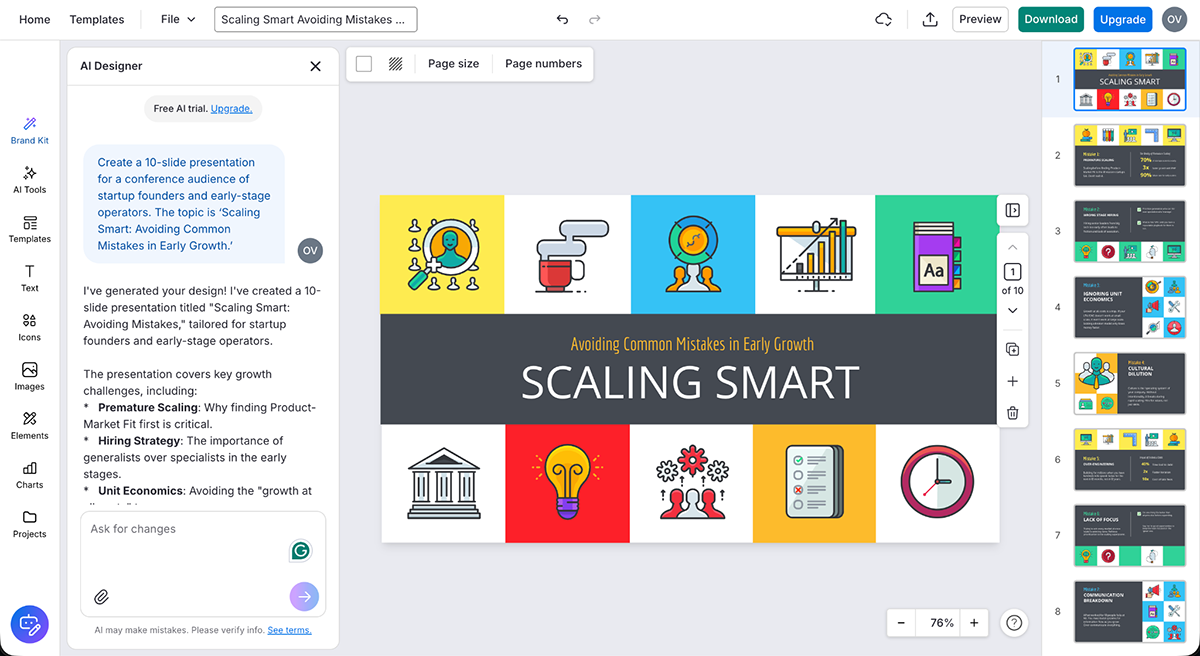
The editor is the same regardless of whether you start with AI or from a template. If you’re used to tools like Canva or Piktochart, the layout will feel familiar. You get access to fonts, icons, illustrations, stock photos and charts from a clean left-hand sidebar.
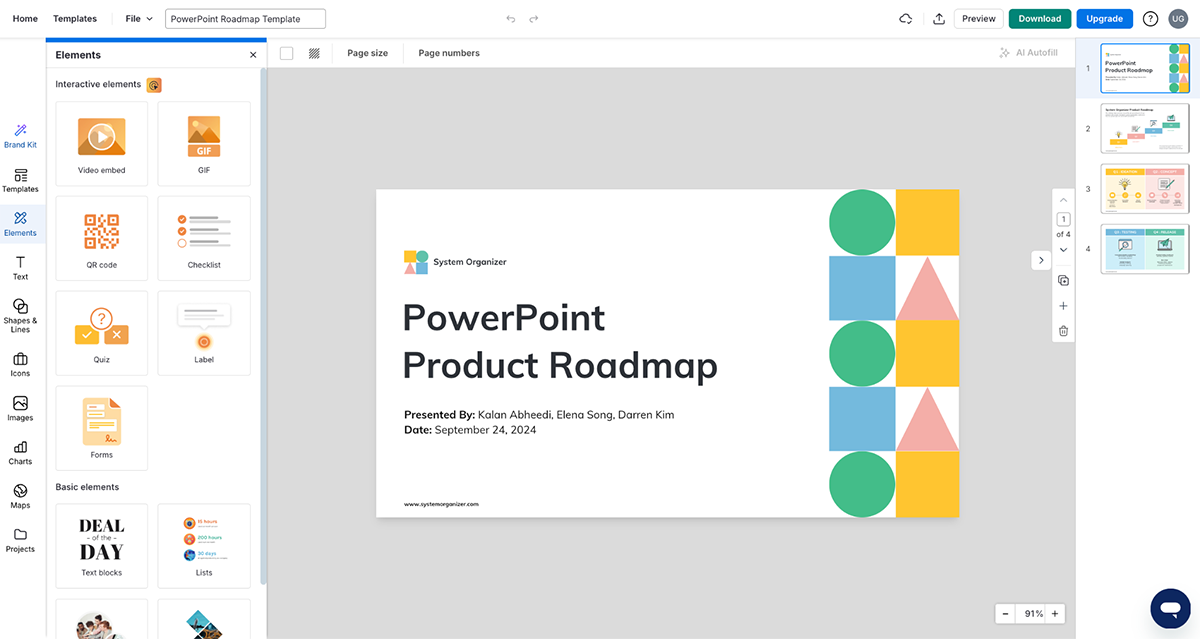
However, compared to some other alternatives in this list, Venngage offers limited customization features for creating tailored presentations. I would love to see more realistic 3D characters, animations, transitions, hover effects, pop-ups or presentation recording features. That would definitely give Venngage some extra points on my list!
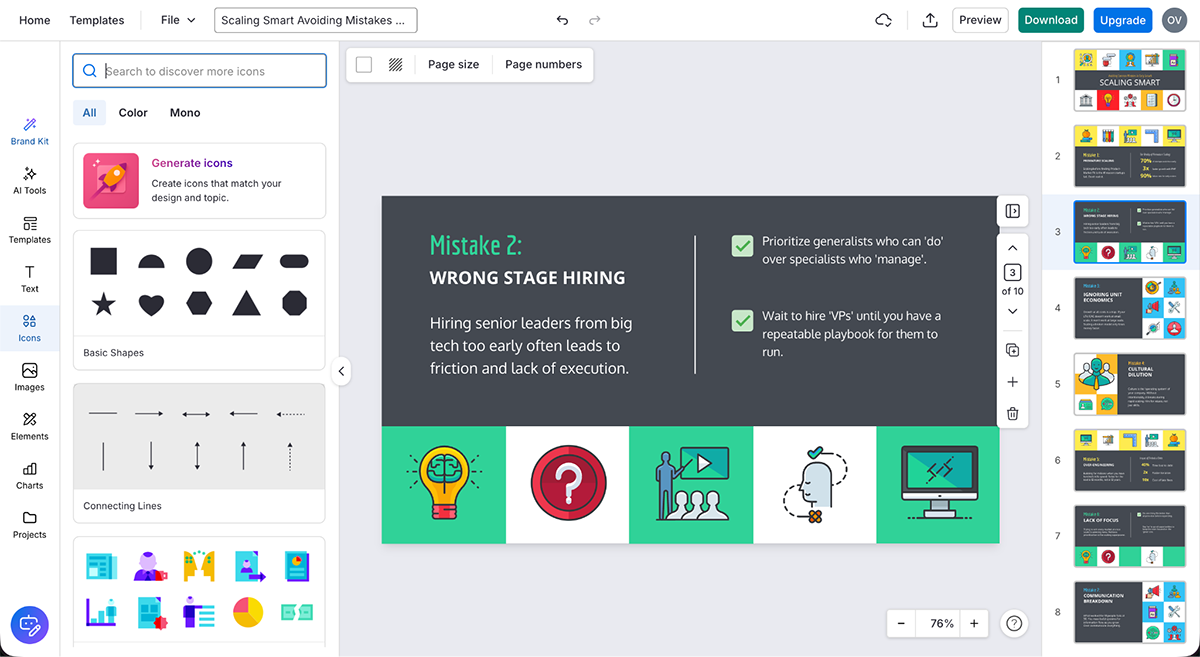
Still, where Venngage shines is in visual storytelling. If your presentation is packed with charts, graphs, or data you want to make pop, this tool has everything you need. And if you’re already using Venngage for static visuals, it’s a natural fit to repurpose those into presentations.
Bottom line? Venngage won't replace PowerPoint for everyone, but if you need something quick, visual and easy to use, especially for data-heavy content, it's a strong contender.
Here are the most notable Venngage features:
| Aspect | Venngage | PowerPoint |
| Ease of Use | Drag-and-drop, intuitive interface | Traditional and more complex |
| Data Visualization | Advanced charts, infographics and data import | Standard charts and graphs |
| Collaboration | Real-time collaboration | Office 365 required for collaboration |
| Customization | Limited customization, pre-designed templates | Full design control with basic templates |
| Pricing | Free, premium starts at $10/month | Microsoft 365 subscription required |

Pitch is best for small to medium teams that need to build, share, and track client-facing decks fast, and want collaboration and analytics in the same tool.
If you're tired of the old-school PowerPoint setup and want something that feels more like a productivity tool than a design project, Pitch is worth checking out.
I found it super easy to create and share presentations, and the collaboration features are solid. Think Google Slides, but sleeker. You can edit slides in real-time with your team, drop in comments, and keep things moving without endless back-and-forth emails.
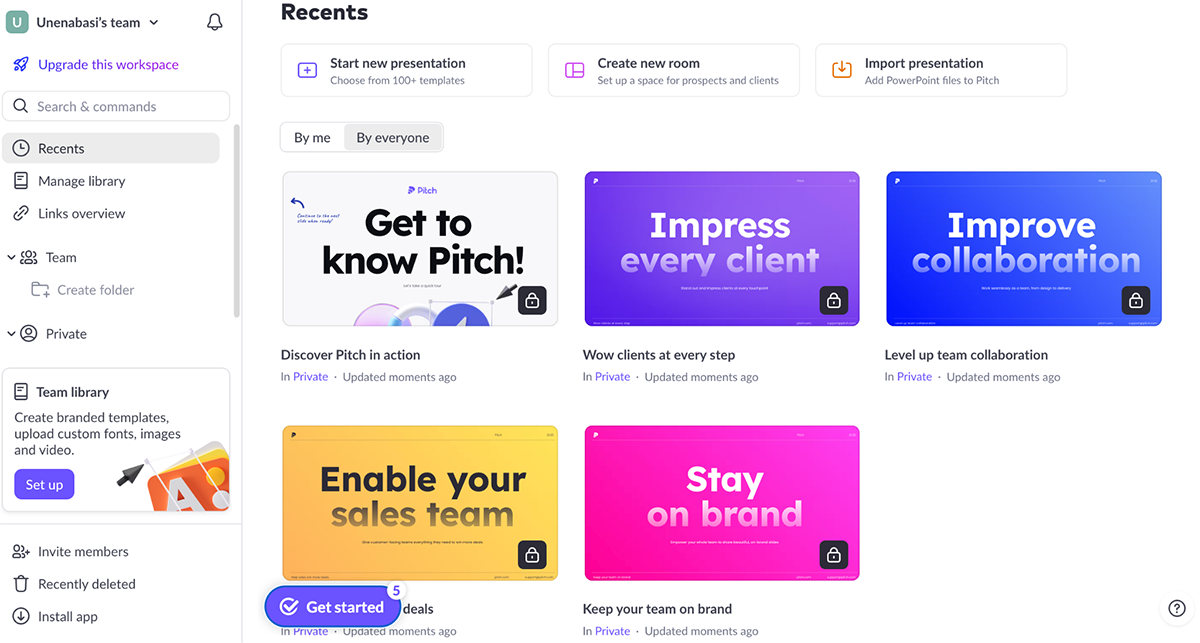
The templates are sharp and professional, and the whole platform just feels modern. It doesn’t overwhelm you with a million design choices, but it still gives you enough flexibility to make your slides pop.
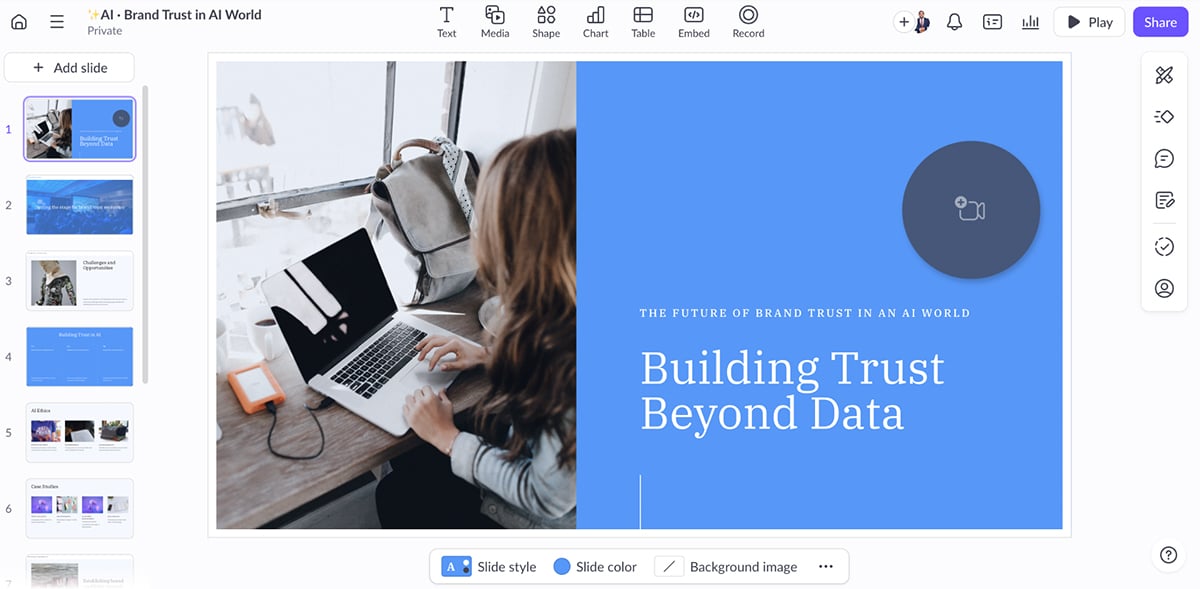
Pitch also comes with an AI presentation maker that can help you draft a deck in seconds. It’s great for getting the ball rolling, especially if you’re stuck staring at a blank slide.
Of course, I put it to the test using this prompt below:
“Create a slide deck for a marketing conference. The topic is “The Future of Brand Trust in an AI World.”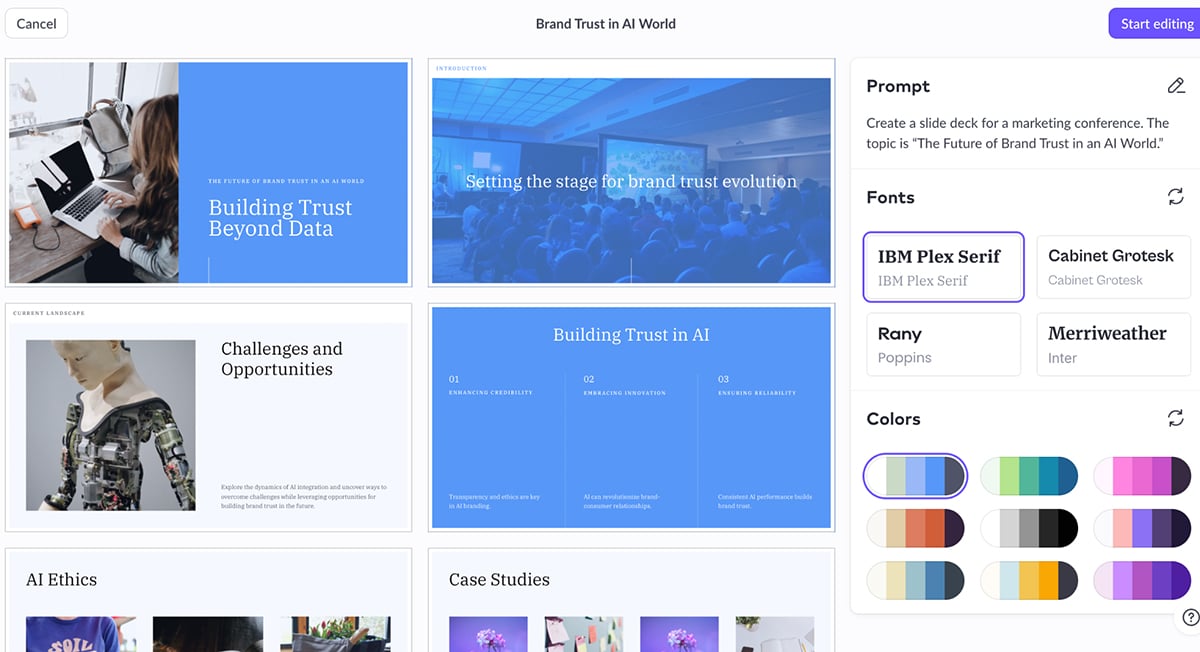
The result came back under a minute and delivered what I expected; a clean design with content that’s related to the topic along with high-quality visuals, charts and graphs, timeline and image cutouts.
You can tweak fonts, colors, and layout right within the same interface, which is a nice touch.
That said, Pitch is not as feature-packed as some other online PowerPoint makers on this list (like Visme). You won’t find things like links, hover effects, clickable pop-ups, animated icons, an AI image editor or a text generator here; at least, not yet.
One thing I did notice: there are just a few transitions and design assets. And the presentation recording options are pretty limited. You can record short videos to add to individual slides, which is nice.
But there’s no way to record a full walk-through of your deck in one take. For a tool that nails so many other modern features, this feels like a bit of a miss.
Here’s why you might consider Pitch for presentation making:
| Aspect | Pitch | PowerPoint |
| Ease of Use | Simple, clean interface | Familiar, but more complex for non-designers |
| Collaboration | Real-time, version history available | Requires Office 365 |
| AI Features | Smart formatting, AI-driven slide suggestions | No AI-driven features |
| Analytics | Viewer engagement tracking, slide-level analytics | No built-in analytics |
| Pricing | Free plan, paid plans start at $22/month | Requires Microsoft 365 subscription |
Once you have selected the best PowerPoint replacement for your presentation requirements, you will need new ideas to make the most of the tool. Read our article on 105+ creative presentation ideas without PowerPoint for tips, inspiration and innovative approaches to help your presentations stand out.
Visme is a better PowerPoint equivalent because it offers superior design and customization options. In addition, Visme provides enhanced flexibility, advanced collaboration features, and top-notch customer support. Compared to PowerPoint, Visme gives users access to thousands of customizable presentation templates, design assets, animation and interactive elements. The tool also comes packed with intuitive features like the design collaboration tool, workflow, engaging form builder, multiple download and sharing options and much more. Users also get access to AI-powered tools like AI presentation maker, AI image generator, AI text generator, AI image edit and touchup tools and intuitive video editing tools. The software’s interface is accessible to both novices and professionals, with a drag-and-drop editor that makes it easy to create high-quality visual content quickly. Visme also offers integrations with HubSpot, Salesforce and other third-party tools. Also, you can download your training materials and visual assets in LMS-ready formats like xAPI, SCORM and HTML. The web version of PowerPoint is free and all you’ll need is a Microsoft account. However, the online version is limited compared to the desktop version. For example, users cannot access advanced animations and transitions or rich formatting for text, shapes and images. Since the free version doesn’t have a presenter view, you can’t use it to make presentations. Google Slides is Google’s equivalent of PowerPoint. It is an online presentation tool that lets you create and format presentations and collaborate with other people. Compared to Visme, the features in PowerPoint are basic and limited—from the ready-made templates to design assets to the animations and interactive features. But if you’re looking for an easy-to-use tool that comes with premium features and allows sophisticated designs, Visme is the tool to use. It depends on what you need it for: For teams working in the Google ecosystem, Google Slides for Teams is a great option. Then Pitch is great for startups and sales teams that need fast, modern slide decks. And finally, Visme for teams that need branded, professional-grade presentations with collaboration built in. Most tools on this list support PPTX import, including Visme, Google Slides, Canva, Keynote, and Zoho Show. Formatting may shift slightly depending on fonts and animations used in the original file. Visme, Gamma, and Beautiful.ai all generate full decks from a prompt. Visme gives the most design control after generation. Gamma produces the cleanest output with the least editing needed. Beautiful.ai keeps everything on-brand automatically. Both Gamma and Beautiful.ai trade customization for speed — if you need full design control after generation, Visme is the stronger pick. For organizations deep in the Microsoft 365 ecosystem, yes. PowerPoint still offers the most control over formatting and the most universal file compatibility. But for teams that need AI generation, shareable web links, or real-time collaboration without a subscription, most alternatives on this list are a better fit. Canva and Google Slides have the lowest learning curve. Both are intuitive enough to use without design experience and offer free plans. If you need more design power without a steep learning curve, Visme is a natural step up; the interface is just as beginner-friendly but with significantly more capability.
In 2026, teams are moving away from PowerPoint for practical reasons: AI generation, shareable web links, real-time collaboration without a subscription, and design tools that don't require a designer. The 10 tools on this list cover all those needs, each in its own way.
The right choice depends on what matters most to you. Some tools trade customization for speed. Others trade simplicity for depth. None of them is a perfect fit for every use case, which is why the comparison chart and decision matrix above can help you decide what will work best for your team.
But if you want one tool that covers the most ground, Visme is the strongest option end-to-end. Full design control, AI generation, data visualization, brand governance, analytics and more, all in one place.
Start for free and test it all out before committing.
*All logos, trademarks, and brand names used in this article are the property of their respective organizations. Their inclusion is for identification purposes only and does not imply any endorsement or association with our organization.
Design visual brand experiences for your business whether you are a seasoned designer or a total novice.
Try Visme for free