






Proven Product Specification Examples That Give You Clear Decisions


The PDF file format is one of the most popular and widely compatible digital document formats, excellent for sharing information.
However, they may not be up to snuff when it comes to creating an interesting and engaging presentation. Here's where Google Slides comes in handy.
It is currently impossible to directly upload a PDF into Google Slides. However, there are workarounds and tools to do this without any hassle.
In this article, we’ll show you different options and simple steps you can follow to convert your PDF files into Google slideshow presentations.
Quick Read
Some benefits of having your documents in Google Slides rather than PDF include:
With your slides on Google Slides, teams can easily collaborate and flesh out the details and appearance of a presentation in real time as long as they have a Google account.
Your presentations automatically back up to the cloud when you’re using Google Slides. So you can access them easily on any computer by simply signing into your Google account.
The PDF file format was primarily created for read-only purposes to preserve the original document’s layout, font and content. Editing pdfs would take a specialized software application. However, Google Slides are easily modifiable. You can edit colors, layouts, fonts, page transitions, object animation and more within Google Slides.

There are two basic methods to convert a PDF document to a Google Slide using Adobe online services. The first is to convert the PDF document to images and the other is to convert the PDF to a PowerPoint file.
Step 1: Go to the Adobe online service and click on the "convert PDF to JPG" tool.

Step 2: On the new page click click the “select file” button and choose the pdf file you wish to convert.

Step 3: Wait for your selected PDF to upload completely and then select your desired image format by selecting the dropdown menu on the bottom left corner of the page.
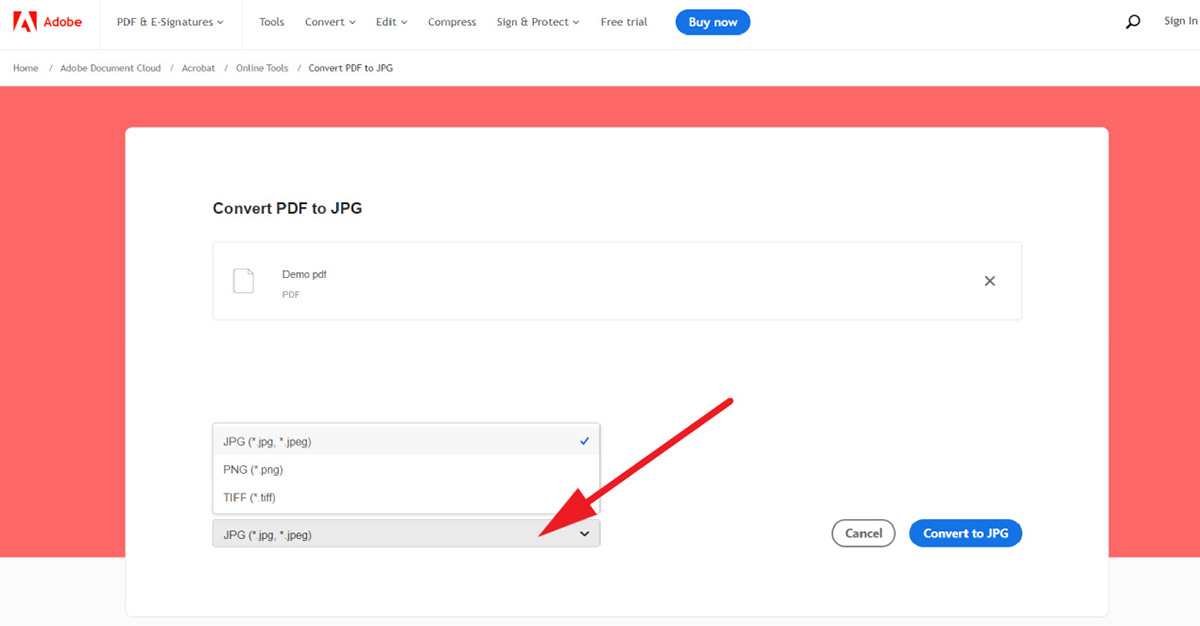
Step 4: Now click on the “convert to JPG” button (it could be “... PNG” or “... TIFF” depending on the file format you chose) and wait for the conversion process to complete.
Step 5: Click on “Download” on the new page that loads up after successful conversion.
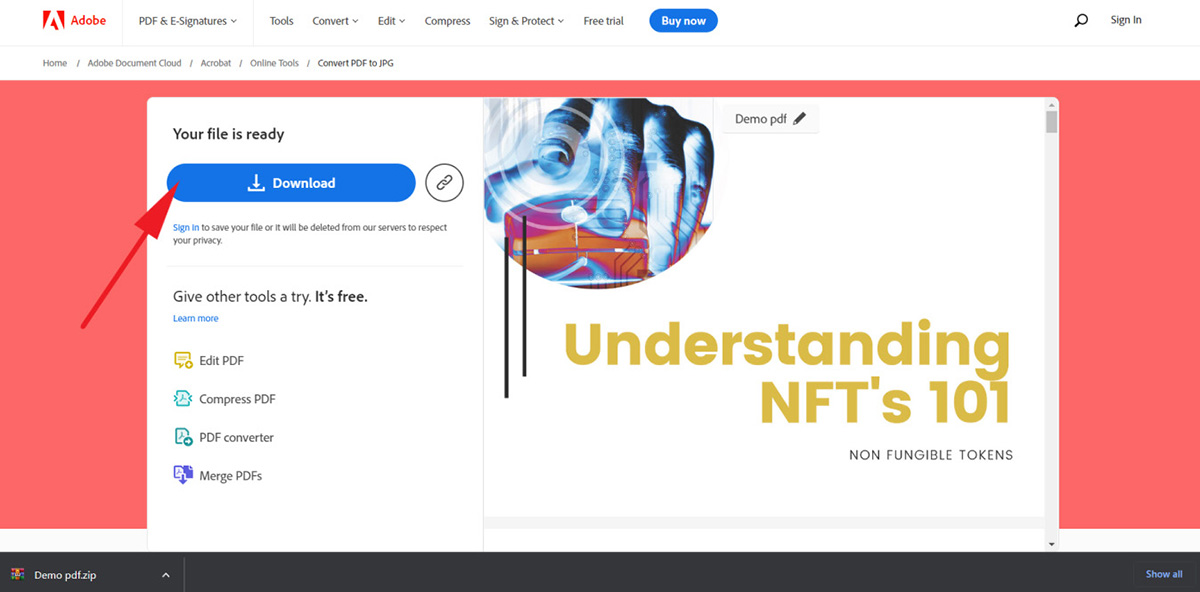
A ZIP folder containing an image for each page of your PDF will be downloaded into your device.
Step 6: Extract the image files from the ZIP folder.
Step 7: Go to Google Slides and open a new presentation.
Step 8: Click the “Insert” tab on the top-left corner of your screen.

Step 9: Hover over the "Image" option and select "Upload from computer" from the dropdown menu and then select one of the just converted images.

Step 10: Adjust the image to fit the page and then repeat the last two steps until you have created slides for all the images you have.
Step 1: On the Adobe Online Tools webpage, scroll down and find the “Convert from PDF” section. Then select the “PDF to PPT” option.

Step 2: Click on the “Select a file” button on the new page that comes up and select the PDF file you wish to convert.

Step 3: The conversion process starts automatically after your file is uploaded completely. Once the conversion is done, you can download your PPTX file by clicking the “Download” button.

Step 4: Open Google Slide and create a new presentation.
Step 5: Then click on the “File” tab in the top left corner of the screen.
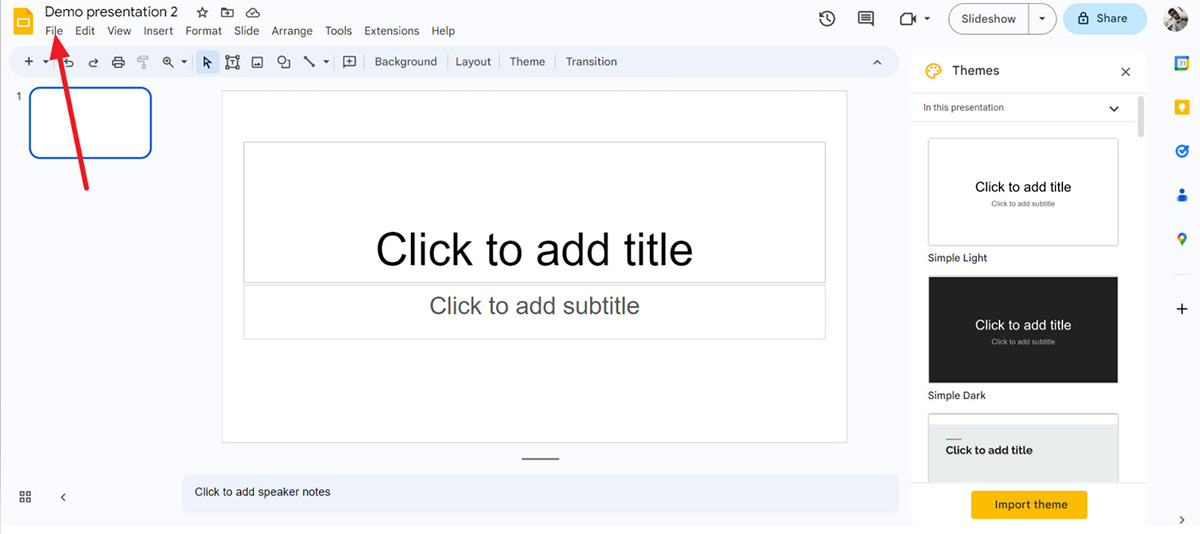
Step 6: On the menu that pops up, select “Import slides” and upload the PowerPoint file you just downloaded

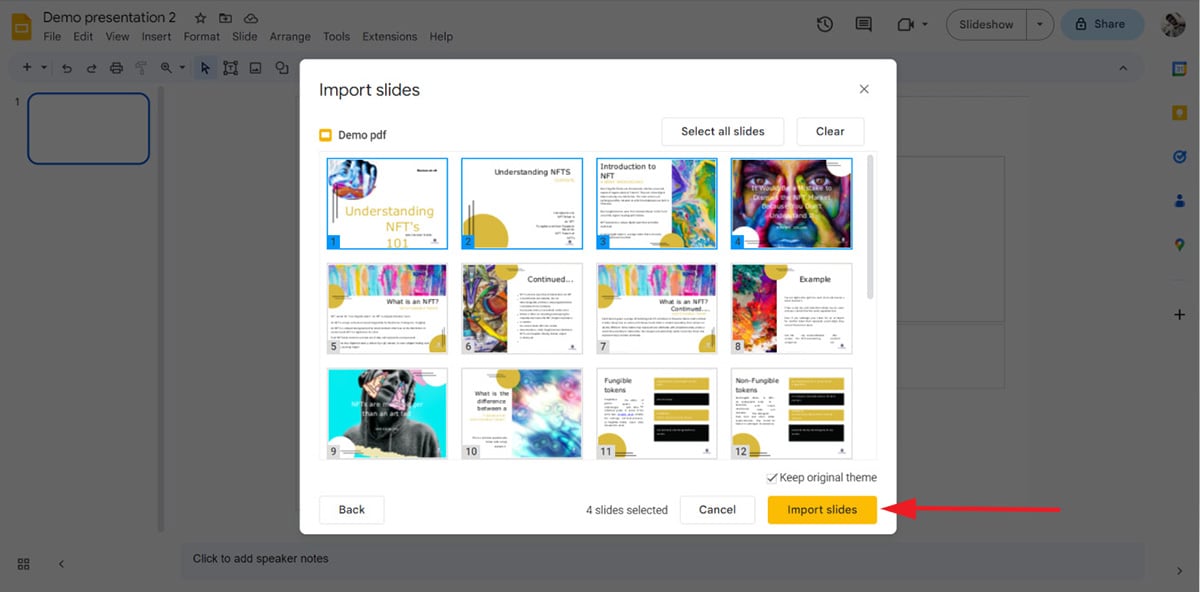
Step 7: After the file uploads, select the slides you want to include in your Google Slides by clicking on them. When you’re done selecting, click the “Import slides” button.
You can also click the “Select all slides” tab at the top right corner of the pop-up to add all of the pages from your PDF to your new Google Slides.
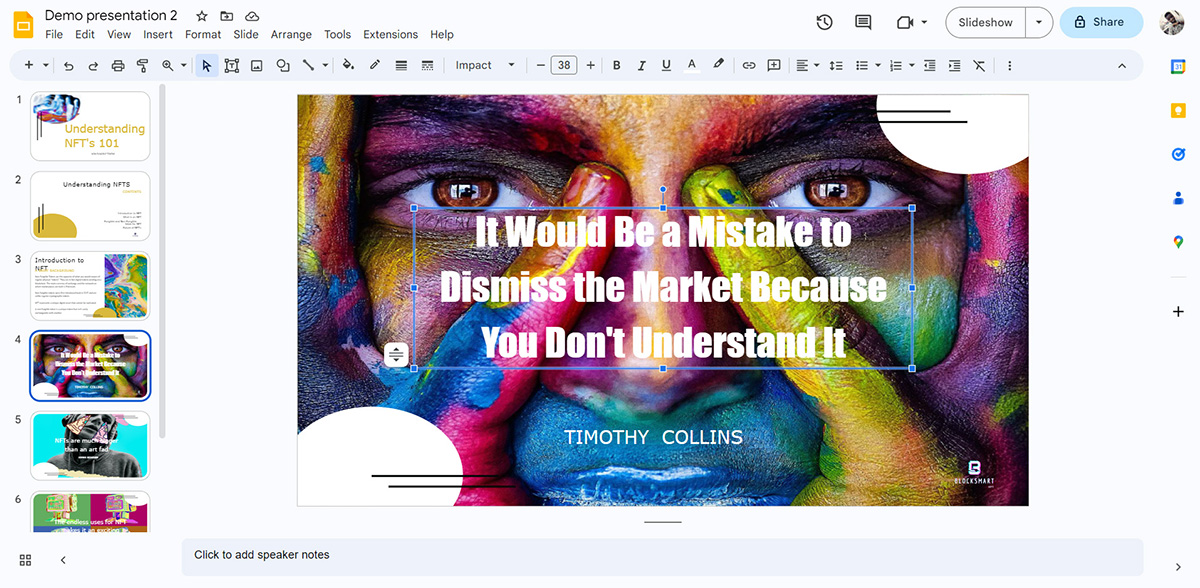
Step 8: You can adjust and edit the Google slides as you desire and then save and share the link to your team members for collaboration.
This method works like the second method of using Adobe above, where we first converted the PDF file to PowerPoint. However, it is important to note that this is only possible on the desktop version of Google Drive.
Step 1: Sign into your Google Drive account.
Step 2: Then tap on “New” on the top left corner of the screen to upload the PDF you wish to convert.

Step 3: On the pop-up that follows, click on “File upload” and then navigate to the location of the PDF on your computer and select it.

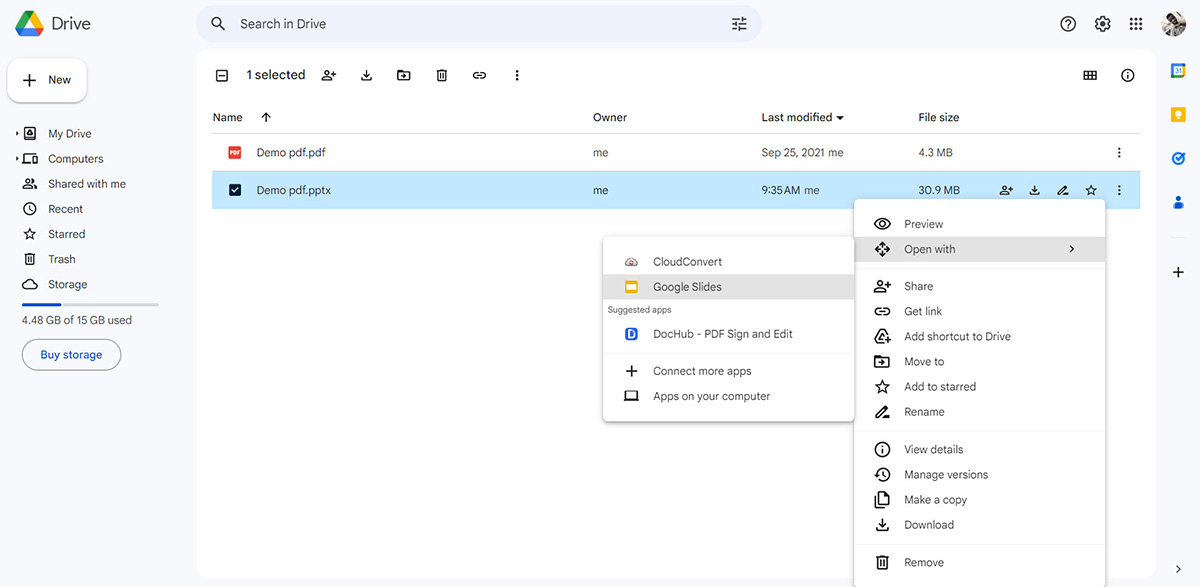
Step 4: Once the upload is complete, right-click on the file or click the vertical ellipses (three dots more actions icon).
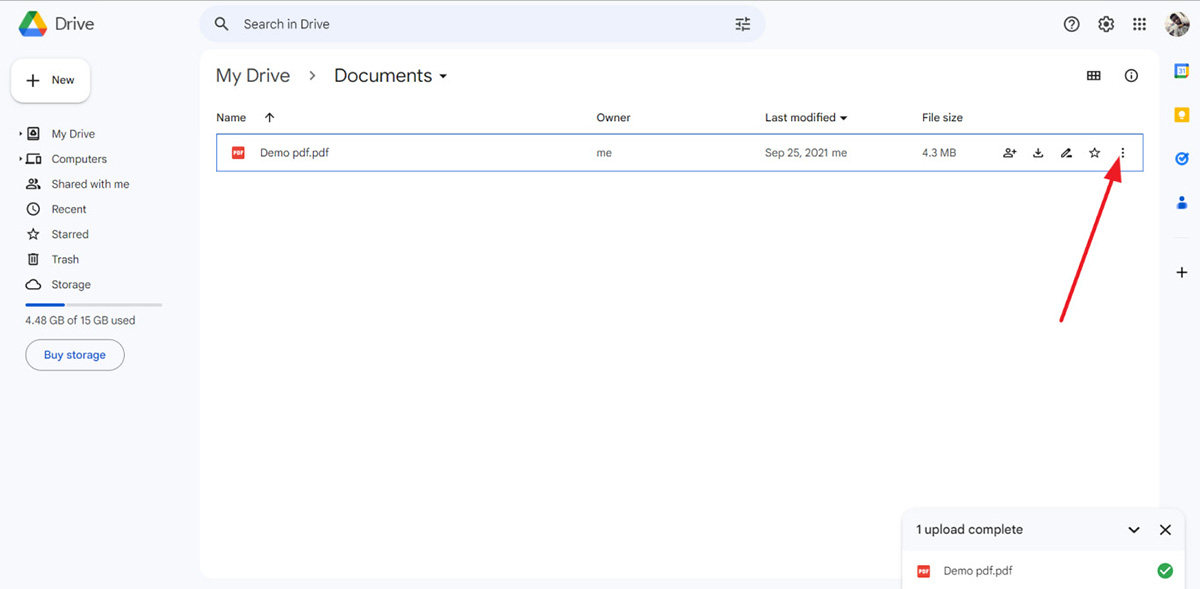
Step 5: On the pop-up, hover over the “Open with” option and click on “CloudConvert.”
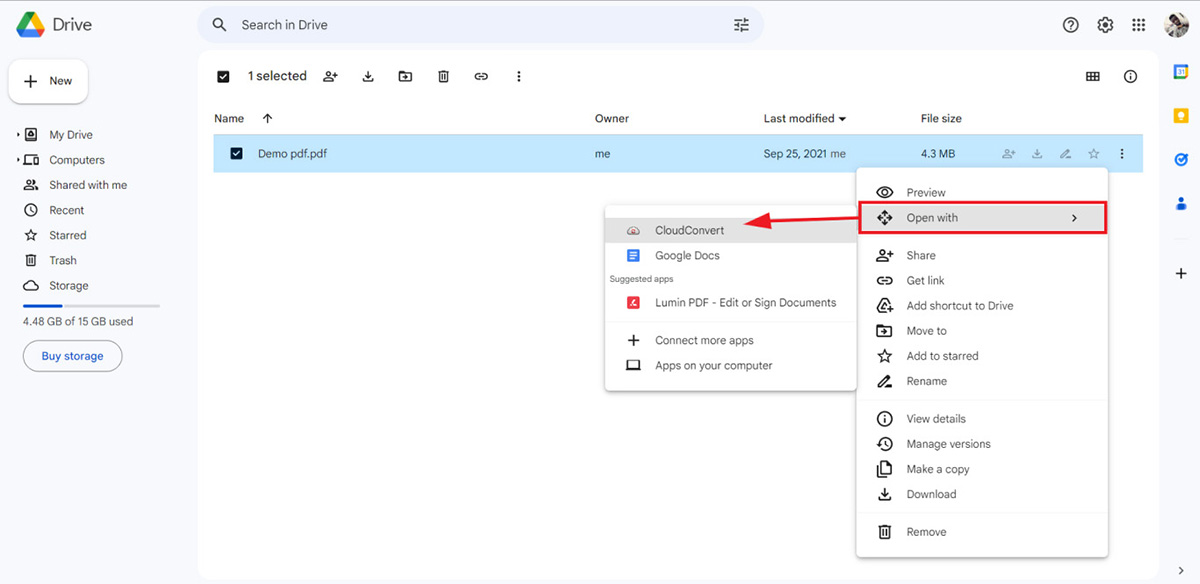
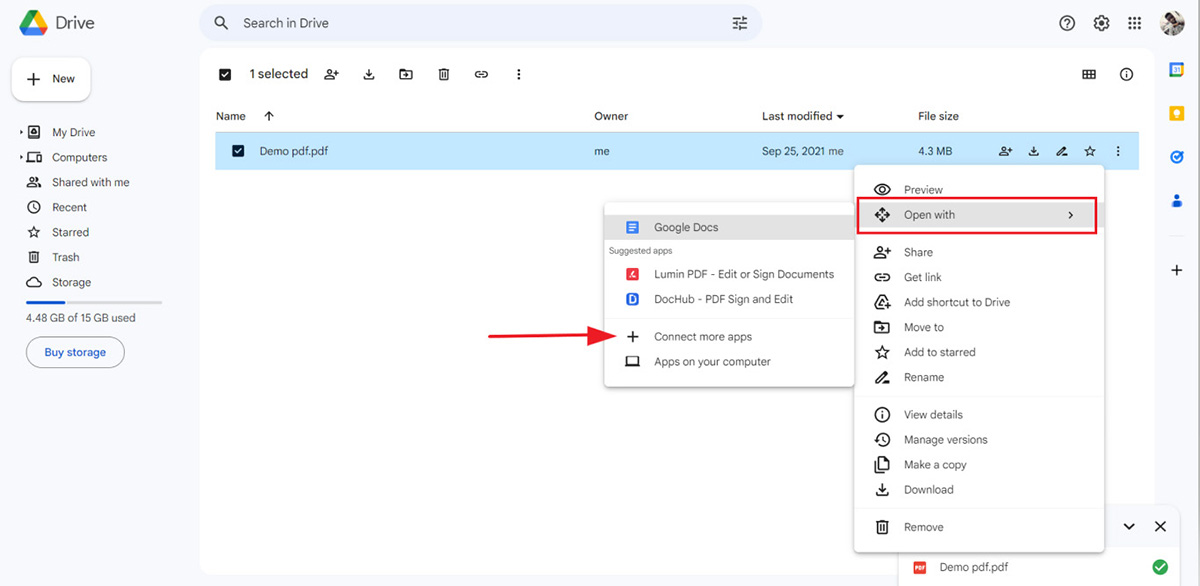
If you do not have CloudCovert already installed on Google drive you can do so by following these few short steps:
When you hover over the “Open With” option from ‘Step 5’ above click on “Connect more apps”
On the box that comes up, click on the search bar and type in CloudConvert. Select the first result, which should look just like the one highlighted in the image below.
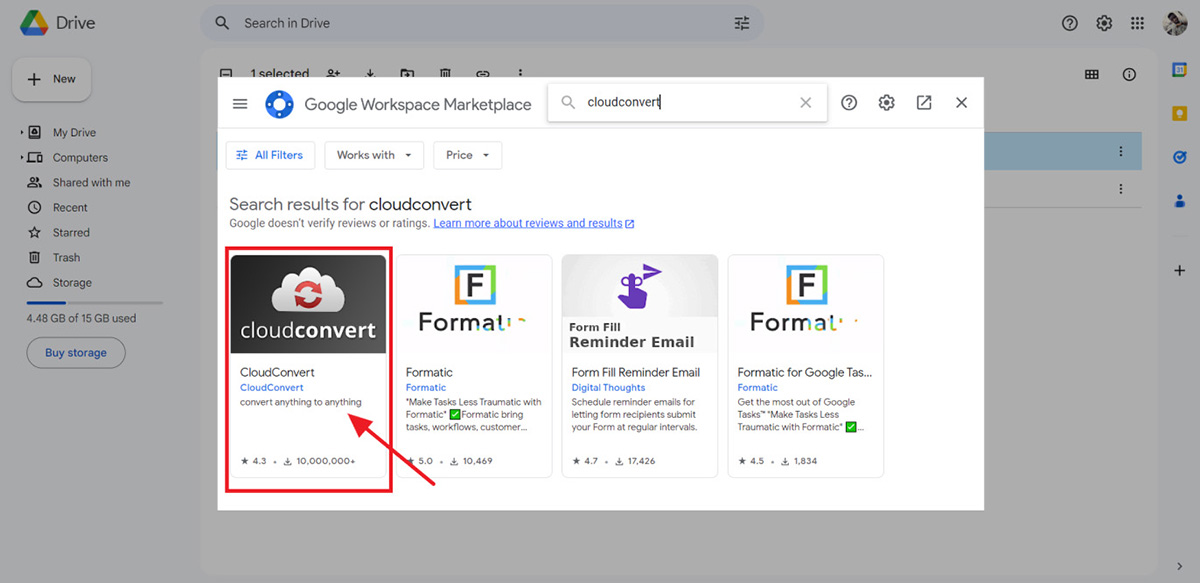
Click on “Install” and then click on “Continue” to grant the app permission to be installed.
After installation, you can close the pop-up box to return to google drive.
Step 6: You will get automatically redirected to the CloudConvert website with the PDF preloaded into the webpage for conversion. Click on the dropdown menu icon next to “Convert” on that page to select the format you wish to export to.

Step 7: On the pop-up, scroll down to “Presentation” and click on “PPT’ or “PPTX”. You can also type "PPT" into the search box provided to select the format.
Step 8: Ensure the "Save output files to Google Drive option is ticked like in the picture below and then click on “Convert”
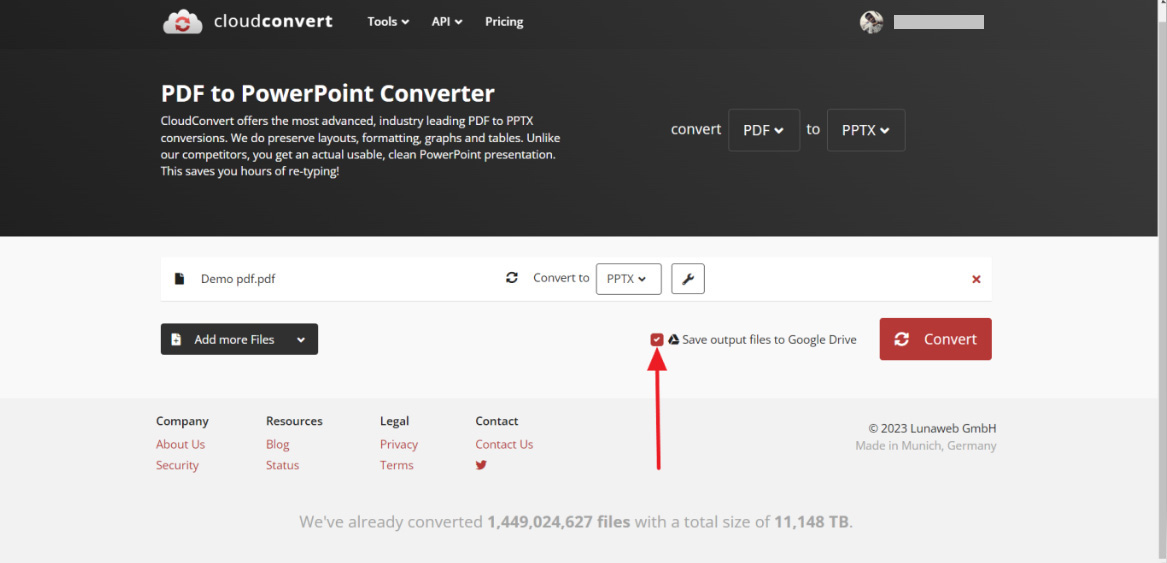
Step 9: After the conversion is completed, you can return to your Google Drive and you should find the PowerPoint version of your PDF document there.
Step 10: Now, to convert to Google Slides right, click on the PPT (or PPTX) file and open with “Google Slides”.
Visme is the one-stop solution for creating professional designs for your business. These include PDF documents for memos, proposals, invoices, reports and presentations.
Visme's intuitive interface, extensive library of templates and collaborative features make it seamless to create stunning designs even if you're not a professional.
With Visme, instead of using a converter, your content is always ready to be downloaded in various formats, including PDF and PowerPoint (PPTX). Working with Visme makes the entire process of conversion from PDF to Google Slides (via JPG or PPTX) seamless.
Follow the steps below to convert your document to PowerPoint, which you can easily import into Google Slides with Visme.
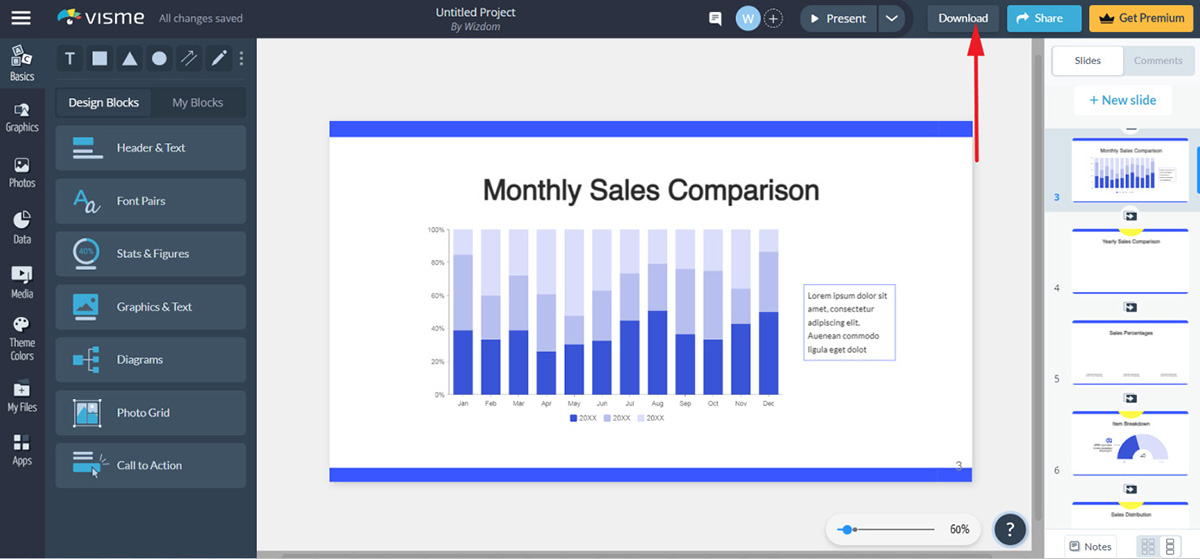
Step 1: When you’re done working on your presentations, click on the “Download button.”
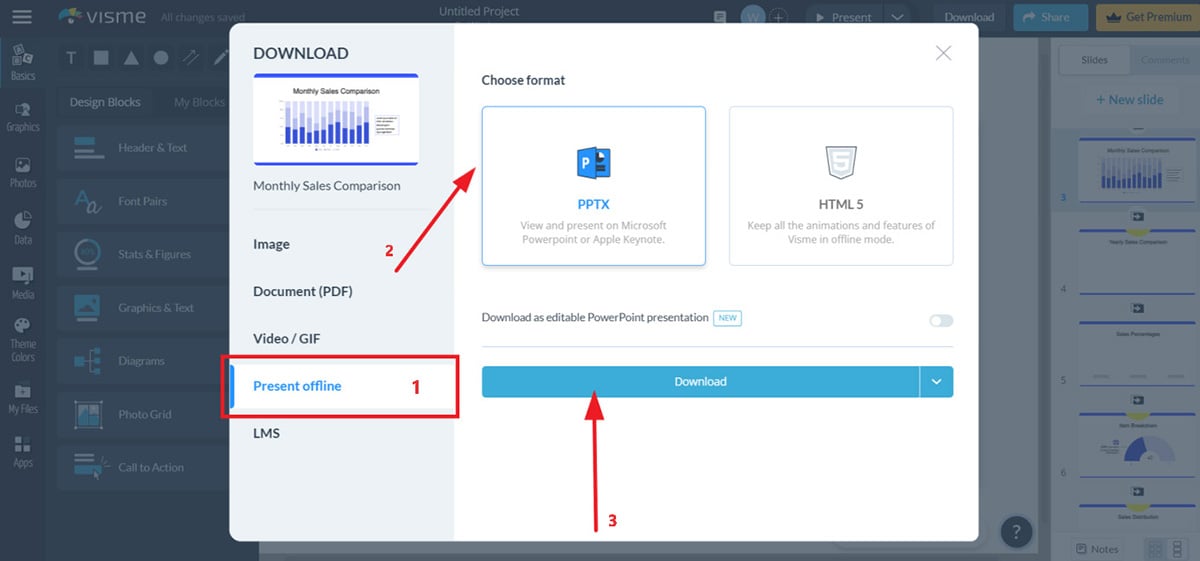
Step 2: Select the “Present offline” option and click on the PPTX box.
Step 3: Then click the download button to download the presentation onto your device.
Step 4: Now you can open a new presentation on Google Slides and import the just downloaded PPTX file.
You can also download your document as a PDF file from Visme by taking the following steps:
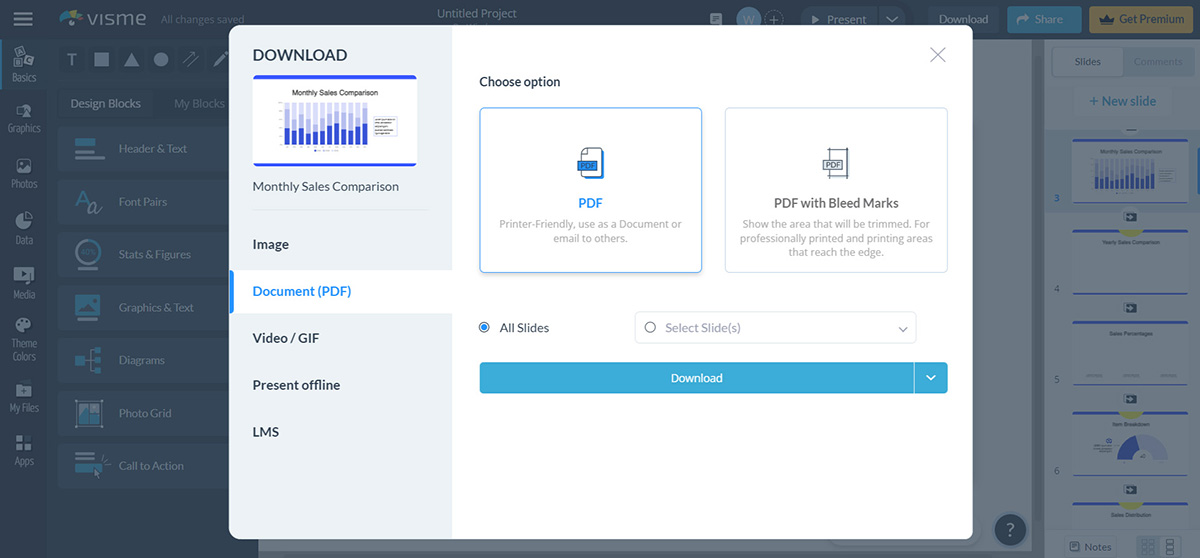
Step 1: After clicking the download button on the top right corner of your screen, select the “Document (PDF)” option.
Step 2: Select between the PDF ( printer-friendly format) or “PDF with Bleed Marks, " a PDF with the images or content extending right to the edges of the pages.
Step 3: Then select the number of slides you wish to be included in your PDF and click on “Download”
If you're trying to go from Google Slides to PDF you can check out our article on How to Convert Google Slides to PDF.
Visme has everything you need to plan, design, produce, distribute and edit your presentations.
Kendra Bradley, Graphic Content Developer at WOW! has this to say about Visme.
“Visme saves time and is a whole lot more affordable than most other content development programs out there now. It makes it easy to develop professional, polished content.”
“We were looking for a new internal design program, so we got Visme and loved it. From there, we started introducing new teammates to it and it’s become a staple on our team.”
Kendra Bradley, Graphic Content Developer at WOW
Here are some of Visme's unique features that'll help you produce better presentations:
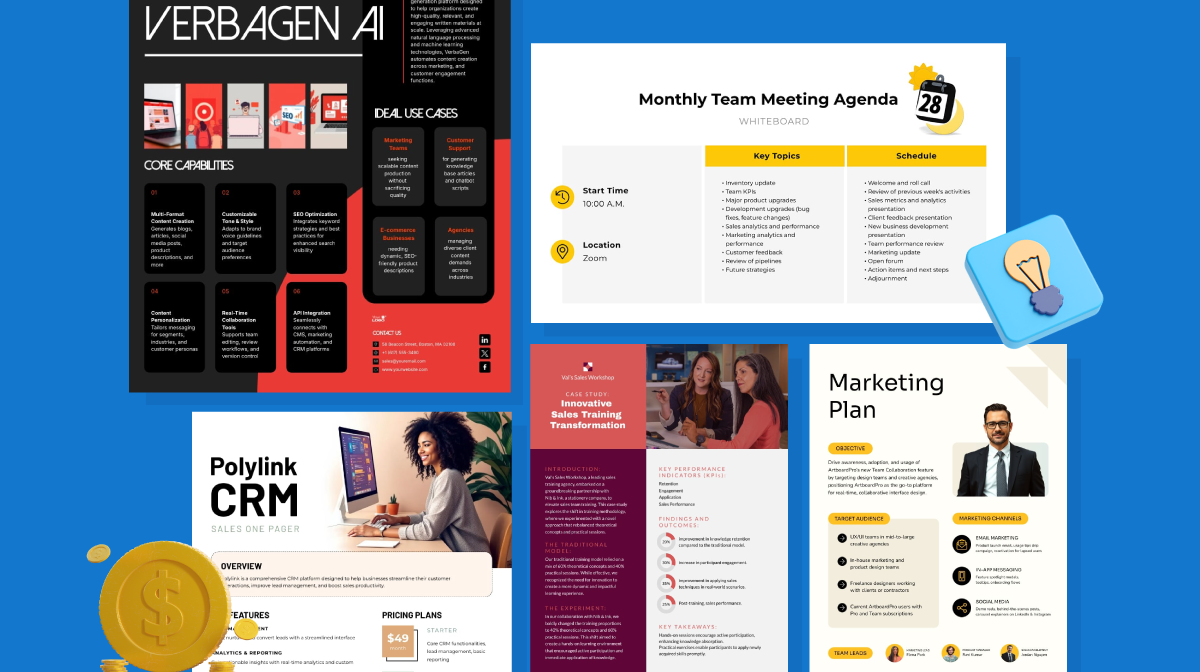
Visme offers a superior selection of customizable presentation templates compared to Google Slides, which only has 23 basic templates available. With Visme, users have access to countless industry-standard templates to choose from.
With these expertly designed templates, you can feel confident that your presentation will look excellent.
The best part is that you can customize these samples to fit your needs with a simple drag-and-drop editor. You can customize the look and feel to reflect your company's aesthetic or your own taste.
Check out our article on the 80 Best Free Presentation Templates to Edit & Download for recommendations.
Line charts, bar charts, pie charts, heat maps, tree maps and 30+ data visualization tools that help make your presentations easy to comprehend are readily accessible on Visme. Although Google Slides does have an array of data visualization tools, they are relatively less flexible to use and manipulate.
With Visme’s easy-to-use interactivity and animation features, anyone can create eye-catching interactive presentations with zero design experience.
You have access to the following interactive features on Visme:
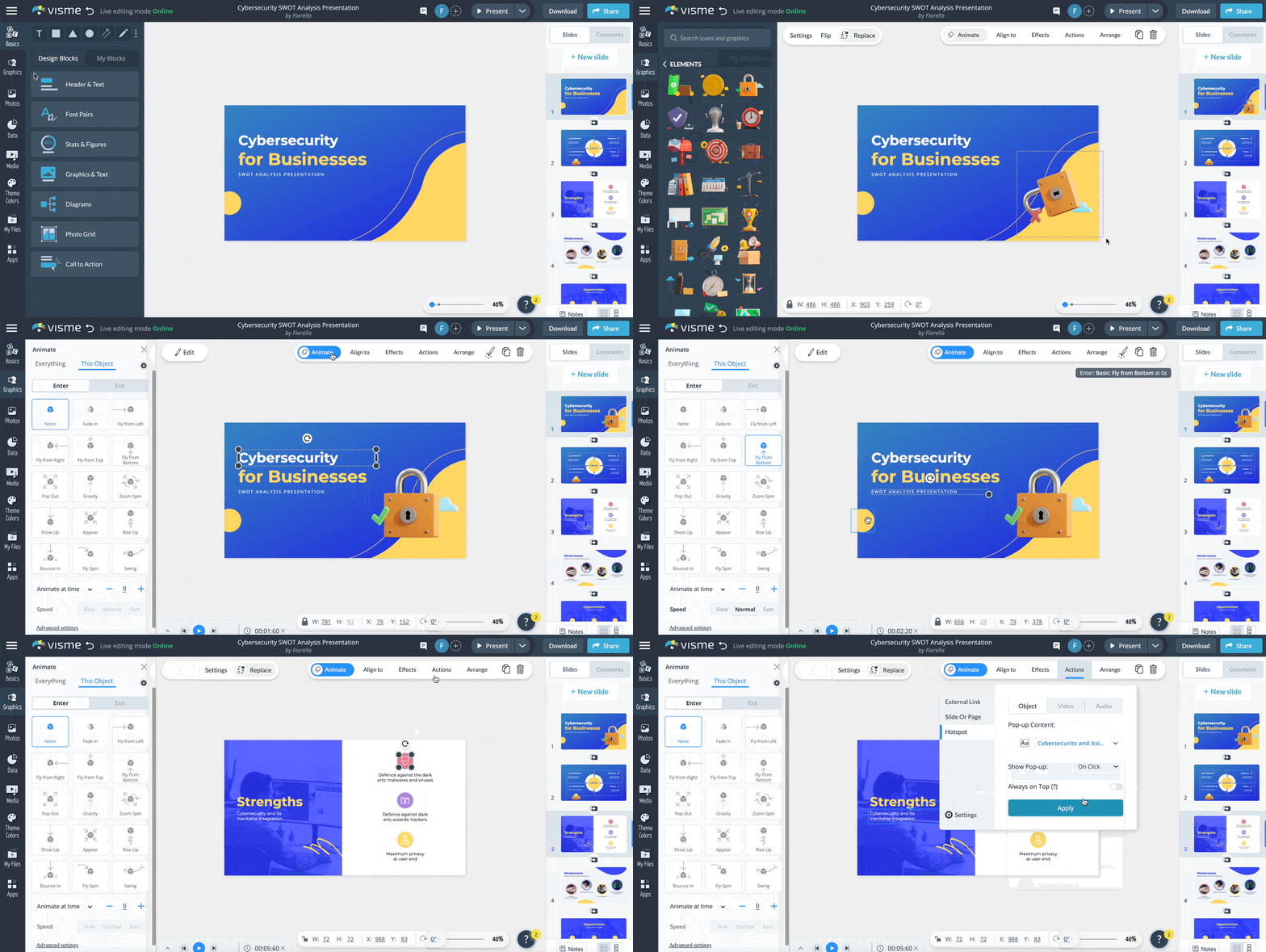
The Shortcuts feature function in Visme also simplifies and quickens the design procedure. If you require any effects, animations, data widgets, etc., for your design, you may find them all by pressing the "/" key on your keyboard.
Visme offers a vast library of over 1,000,000 high-quality stock photos to make visually appealing presentations. On the other hand, Google Slides offers a more limited selection within its slideshow presentation app, except when a third-party application is employed.
It’s also exciting that you can now draw freehand in any Visme project as if you were using a real pen or marker. Explore cropping images with an enhanced crop feature and more.
Visme enables users to develop branded templates that can simply be applied to new presentations, ensuring a consistent and professional appearance across all documents and media.
Visme's Brand Kit gives you a streamlined system for managing and using brand assets, including logos, color palettes, and typefaces. Visme's Brand Wizard can automatically extract your company's logo, color scheme, and typefaces from your website.
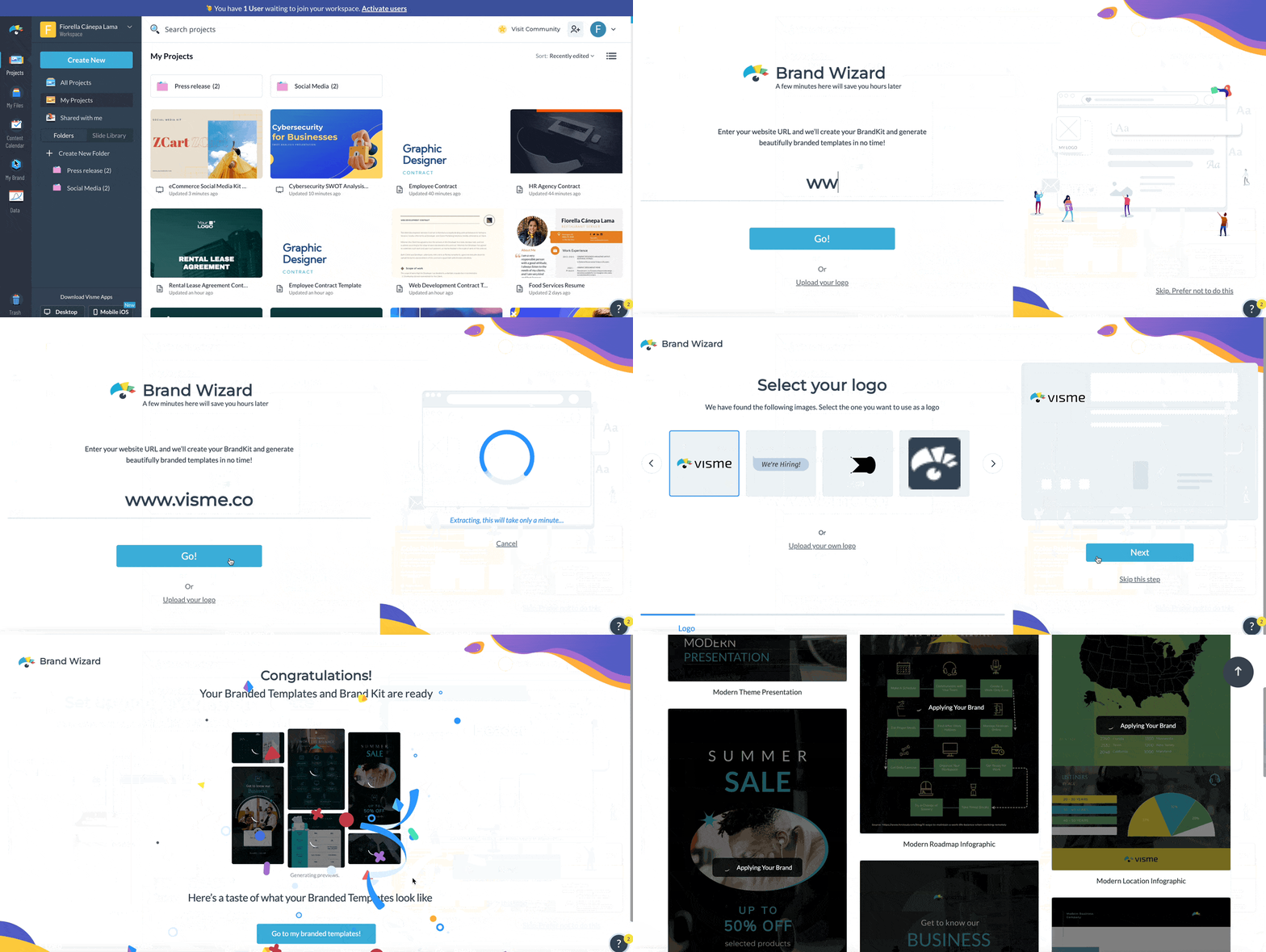
Visme's ability to import media from other sources sets it apart from Google Slides. Visme offers its users the iFrame tool, which may be used to embed almost any external resource (such as a survey, poll, quiz, map, live stream, website, and so on).
Do you wish to learn who has viewed your project and for how long they have watched it? Visme's analytics component, which provides insight into the level of interest your presentation generates among its intended audience, sets it apart from Google Slides.
You can see how many people have visited your project, for how long and from what locations.
With dynamic fields, you can update multiple pages or slides of a project or presentation at once with the same piece of data. This helps you to easily personalize and customize document versions for different clients or audiences.
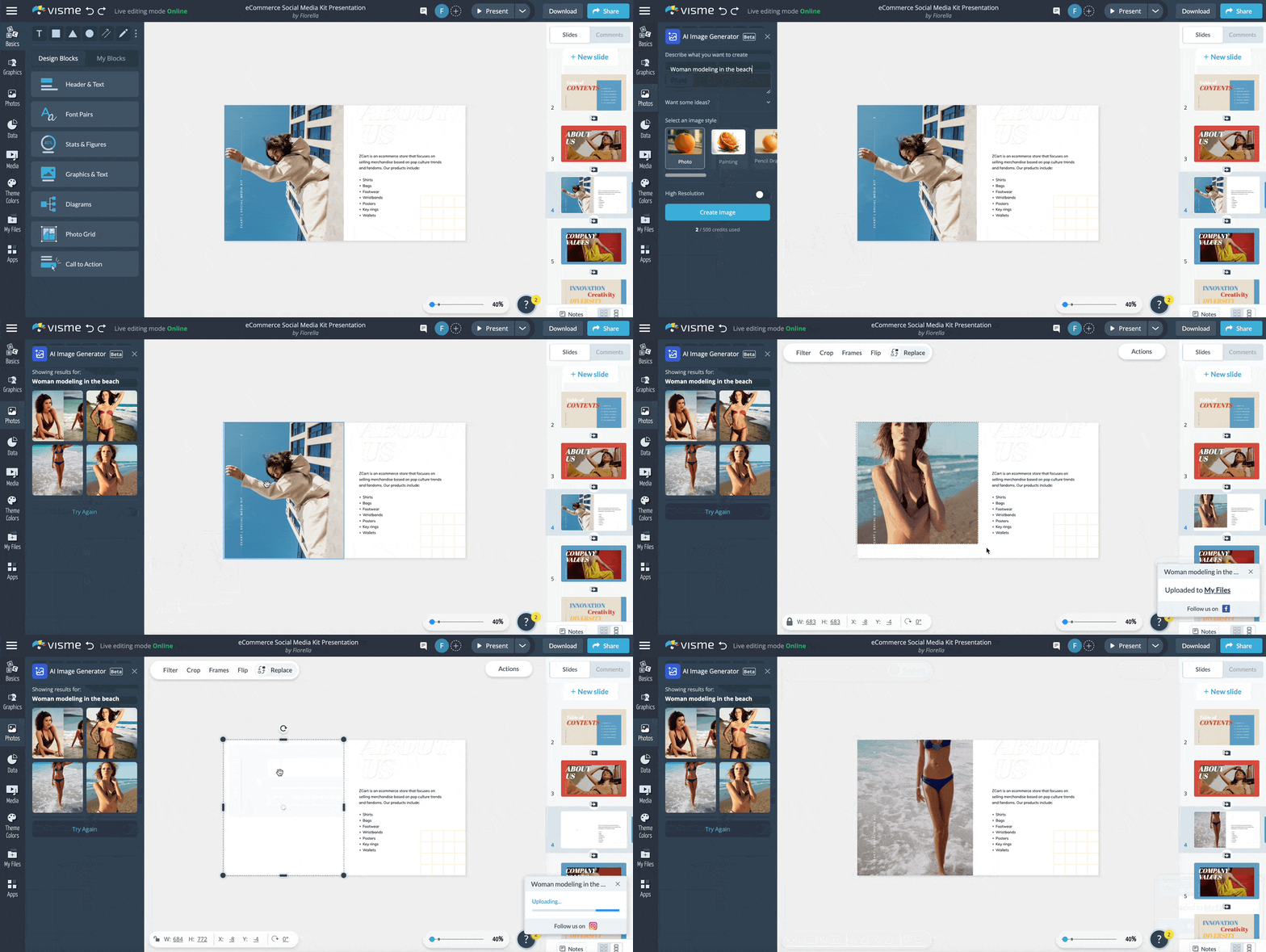
Google Slides doesn't feature an AI Image Generator. However, Visme has harnessed the power of AI technology to help you make stunning visual content and interactive designs. You can now use Visme's AI generator to create eye-catching, one-of-a-kind, lifelike images for your highly customized designs.
Simply write your words and imagination, and you can turn them into beautiful illustrations, icons, 3D objects, and much more.
In conclusion, converting PDF files to Google Slides can be a quick and easy process with the help of tools like Visme, Adobe Online Services, or Google Drive. Besides being a robust PDF maker, Visme stands out as a superior option due to its intuitive interface, extensive library of templates and graphics and multiple download formats available.
With Visme, you can easily create visually stunning and engaging presentations that are sure to capture your audience's attention. Take your presentation game to the next level by signing up for Visme today.
Design visual brand experiences for your business whether you are a seasoned designer or a total novice.
Try Visme for free